Spam block and FloodWait: what they are and how to handle them
Sooner or later, anyone who works with Telegram at scale sees FloodWait in the log and a spam block in an account's status. This isn't a program failure but Telegram's protection against spam.
You can't avoid restrictions completely, but you can make them rare and keep them from stopping your work. Let's look at what restrictions there are, how Airgram handles them and what to do if accounts start getting spam blocks in batches.
- how a spam block differs from FloodWait and a freeze;
- how Airgram waits out FloodWait and where to set this up;
- which actions are riskier and how to reduce the risk;
- how to appeal a permanent spam block.
Types of restrictions
- FloodWait — the mildest one. Telegram replies: “too often, wait N seconds”. After the pause, the account works again.
- Spam block — a block on messaging people who haven't messaged you. It can be temporary (lifted on its own when the term ends) or permanent. Invites and broadcasts don't work with a spam block; in groups the account is already in, it can usually still write.
- PEER_FLOOD — a type of spam block for contacting strangers in bulk. A typical response to inviting too fast.
- Freeze — a restriction on the whole account. Telegram support lifts it on request; Airgram doesn't submit such requests.
- Ban — the account can't be recovered.
FloodWait: why it's nothing to worry about
FloodWait isn't a punishment but a request to slow down. Airgram handles it on its own: open “Settings” and find the “Max FloodWait wait” field.
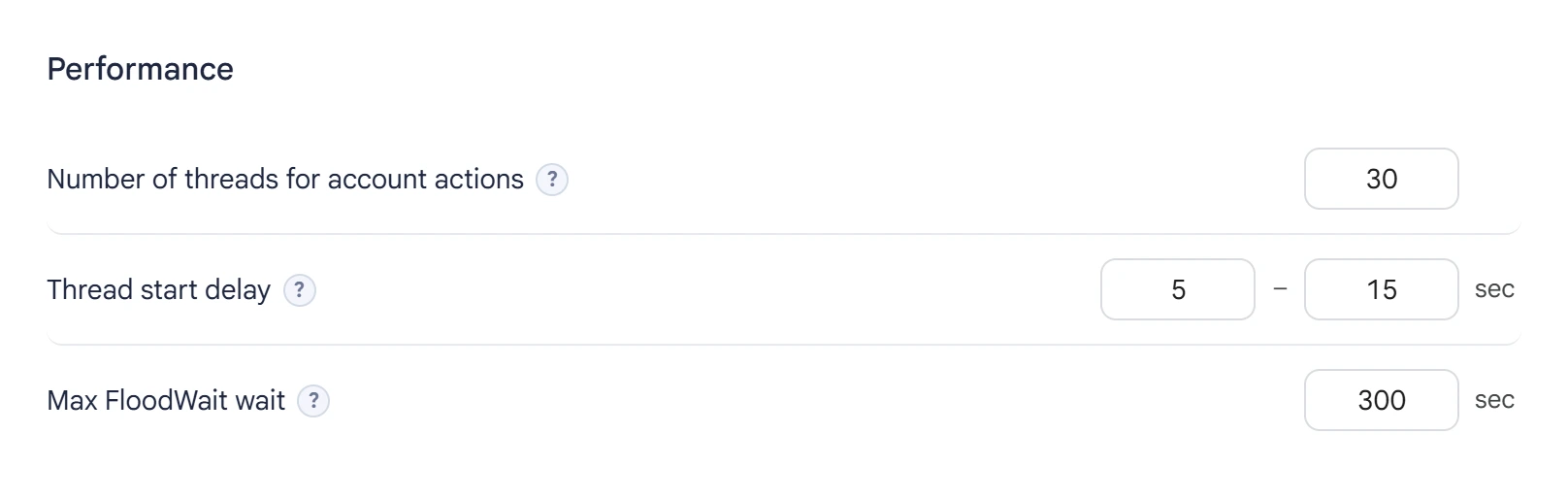
If Telegram asks you to wait less than this value, the account waits and keeps working. If it's longer, the account finishes its work in the task, and the task can hand that work to the next account. For example, with a value of 300 seconds, an account calmly waits out a pause of a couple of minutes, but if Telegram asks it to wait an hour, it gives way to another account.
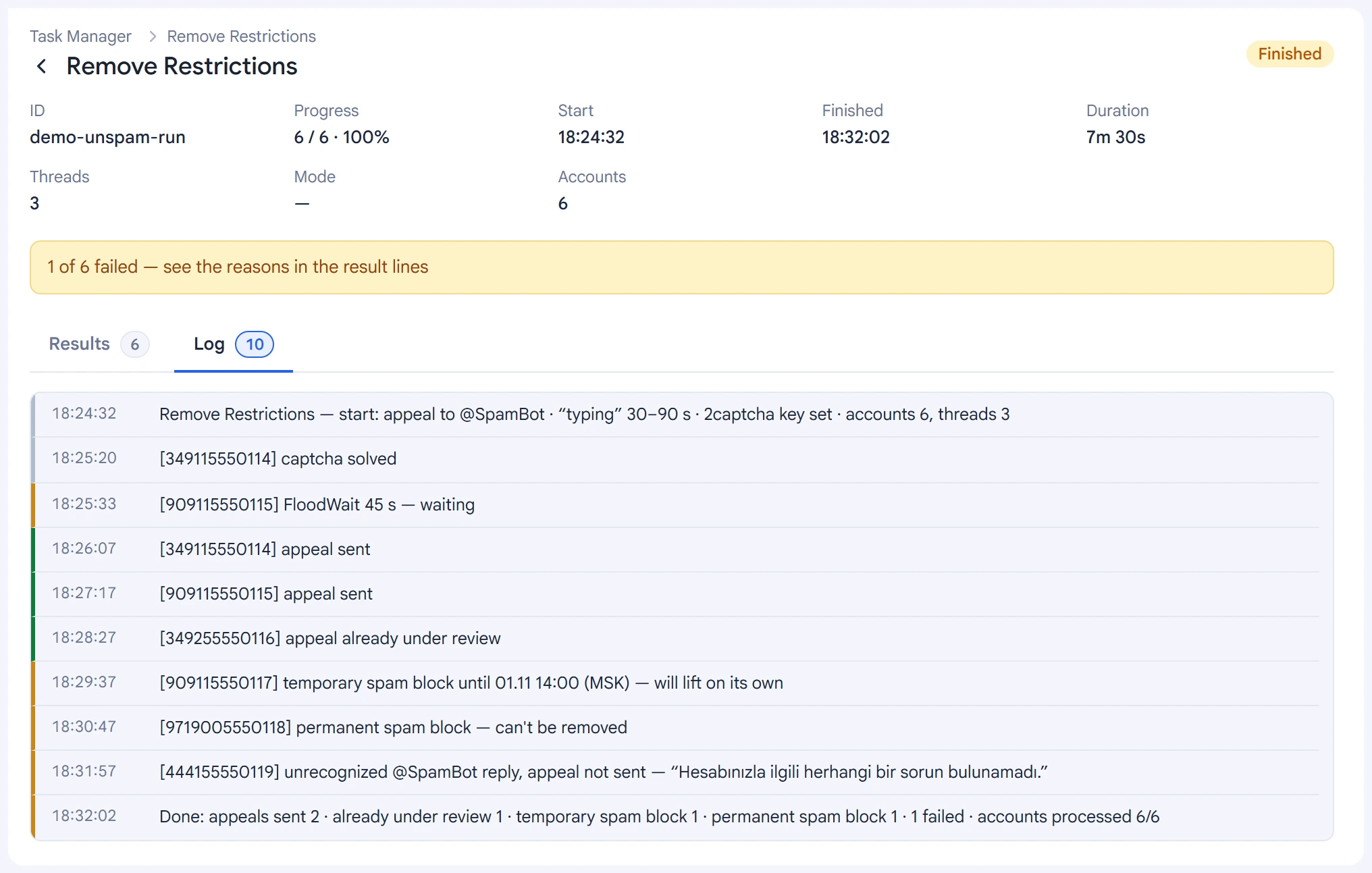
Each module has its own “FloodWait wait limit” field. An empty field uses the general setting, and 0 means waiting with no limit. All waits are visible in the task log:
How to check an account for a spam block
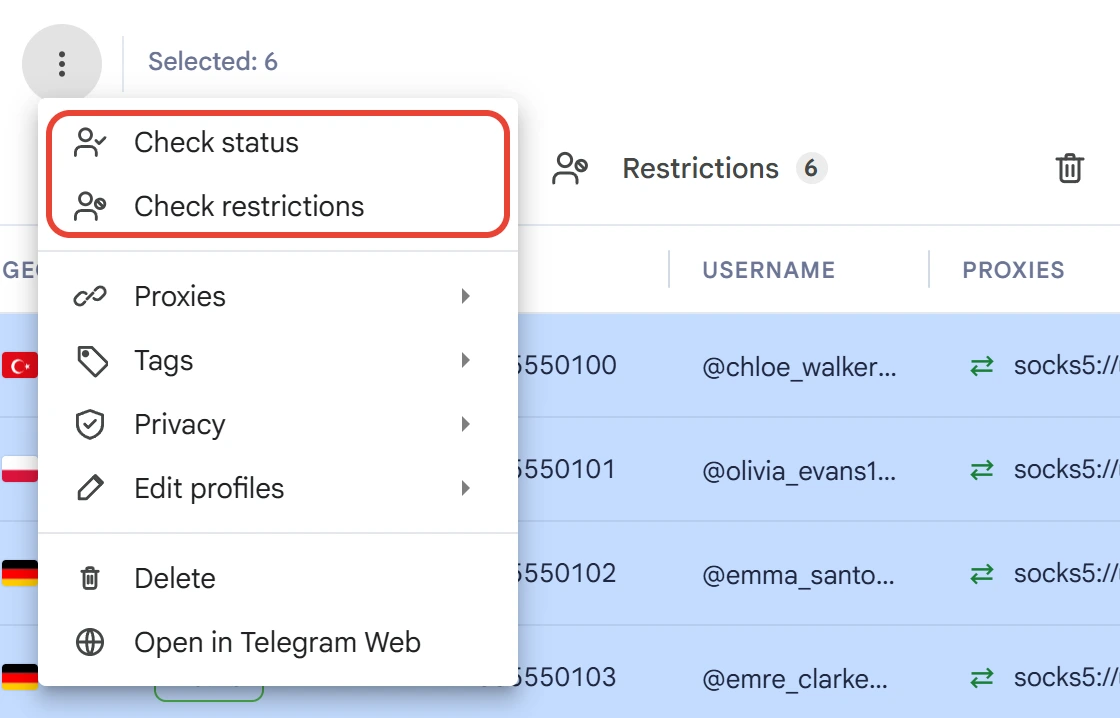
In the “Accounts” section, select the rows you need and choose “⋮” → “Check restrictions”. The program asks @SpamBot and updates each account's status.
- Active — the account is ready to work.
- Temporary spam block — it will be lifted on its own, and the account will then return to active.
- Permanent spam block — it isn't lifted on its own, but you can try to appeal it.
- Frozen or Banned — the account can't be used for work tasks.
Which actions are riskier
Contacting strangers is what gets you a spam block. So the risk depends on what the account is doing:
- High risk — invites, DM broadcasts, joining groups, number checking.
- Medium risk — group broadcasts, creating chats and channels, changing profiles in bulk.
- Low risk — audience scraping, group and channel search, reaction boosting, auto-replies.
Keep your most valuable accounts on low-risk tasks, and use accounts you can afford to lose for invites and broadcasts.
How to reduce the risk
- One proxy per account.
- Prepared accounts: a filled-in profile, a few subscriptions, a couple of days with no workload. For details, see the Proxies and accounts article.
- Small limits per account and pauses of tens of seconds, with random variation.
- Different message texts: see Text variants.
- One account, one task at a time.
- Account check before a big run.
- Work only with an audience that's interested: reports weigh more than any pauses.
If mass spam blocks start
When accounts get restricted one after another, follow these steps in order:
- Stop the task. With the same settings, you'll lose the rest of your accounts.
- Lower the limits per account and increase the pauses.
- Reduce the number of threads.
- Check the proxies — see whether all the accounts are behind one gateway.
- Check the preparation — see whether profiles are filled in and accounts have had time to rest.
A temporary spam block lifts on its own: let the account rest and don't put it back to work right away.
How to appeal a permanent spam block
Use the “Remove Restrictions” module for this. It sends an appeal to @SpamBot on behalf of each selected account. The steps are:
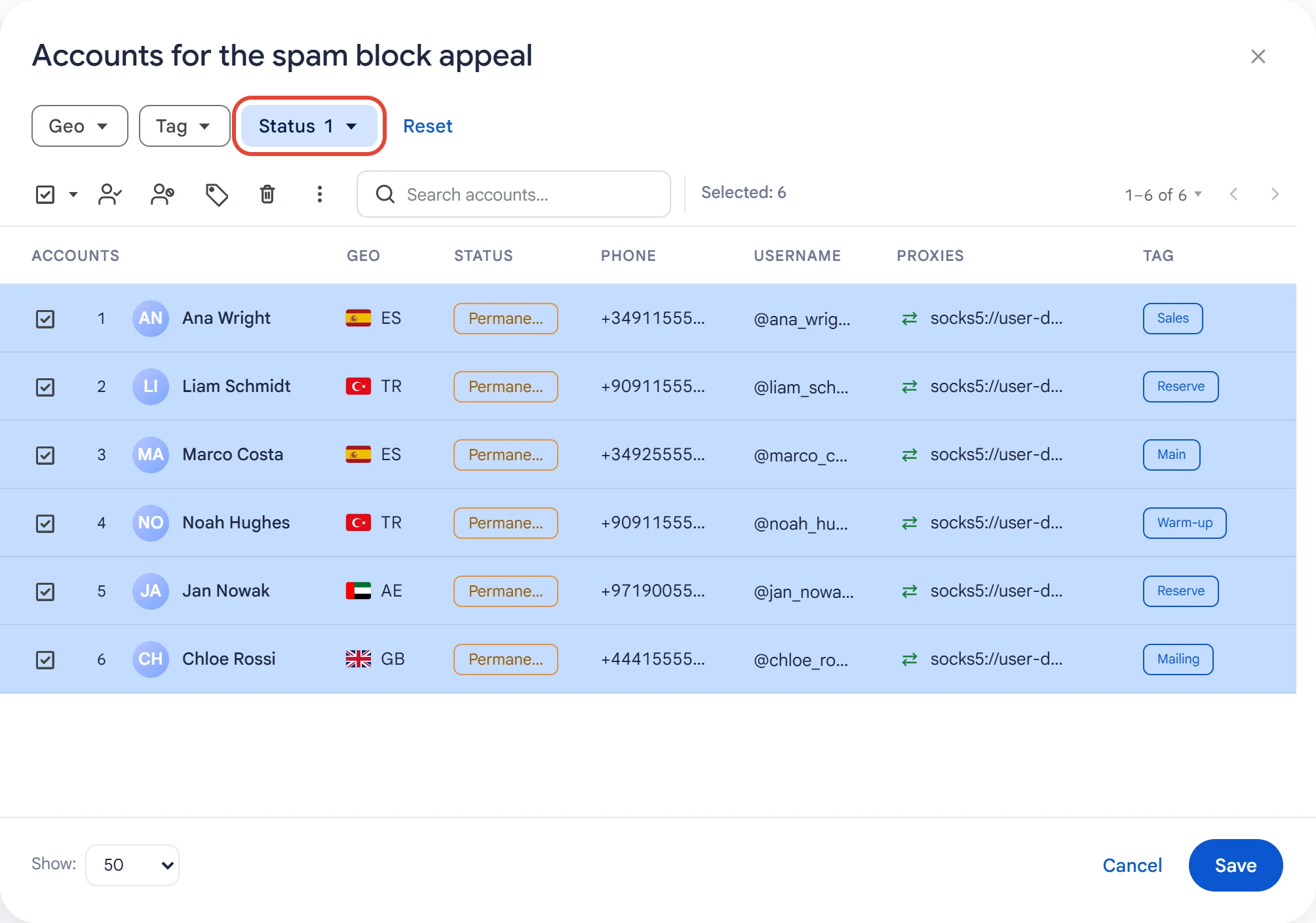
1. Select accounts. The fastest way to pick the right ones is the “Status” → “Permanent spam block” filter. Banned or frozen accounts aren't included in the task: @SpamBot can't help them.
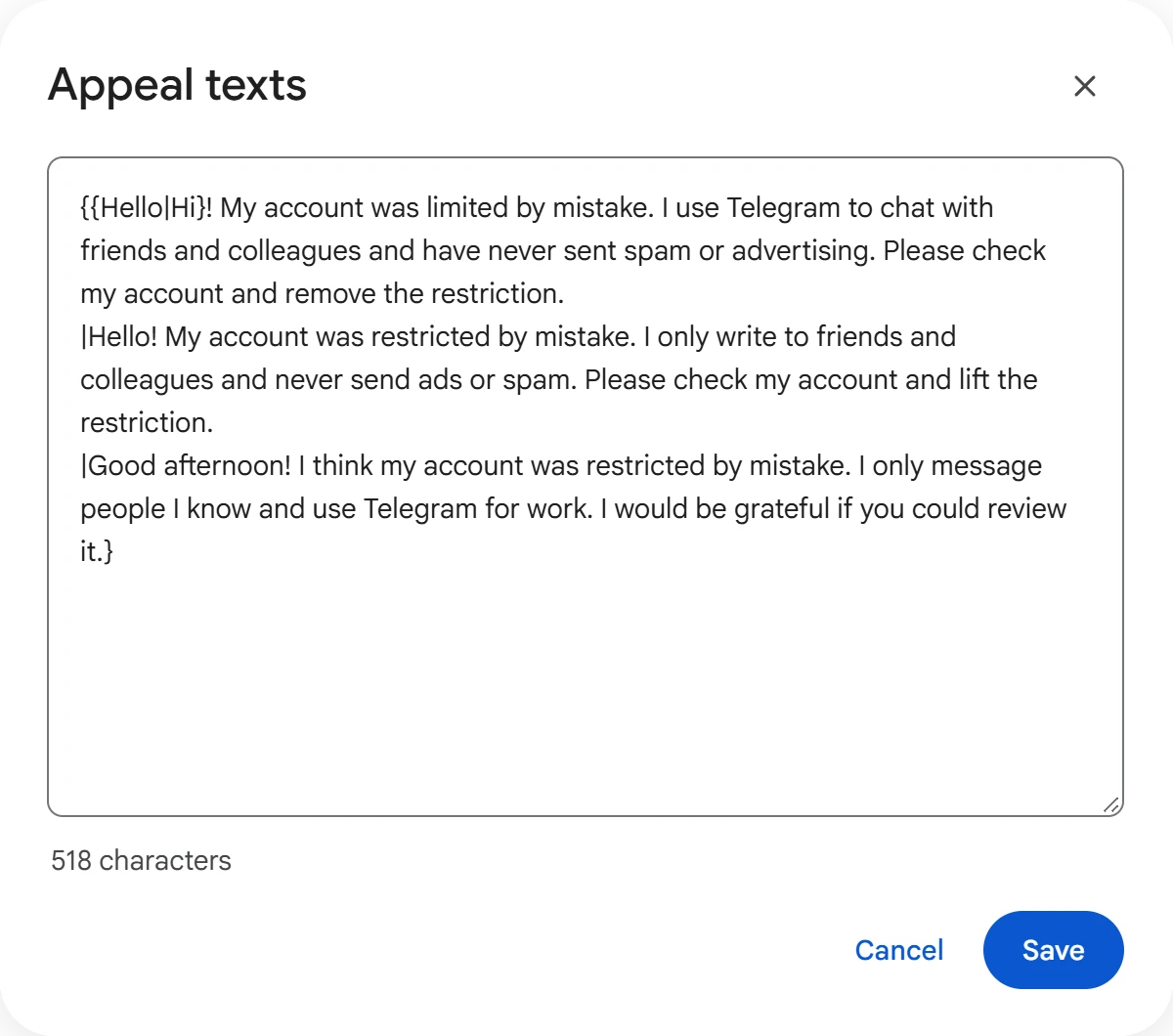
2. Write the appeal texts. Keep it calm and to the point: the account was restricted by mistake, you talk to people you know and don't send spam. Separate several variants with a vertical bar in curly braces; each account sends a random one.
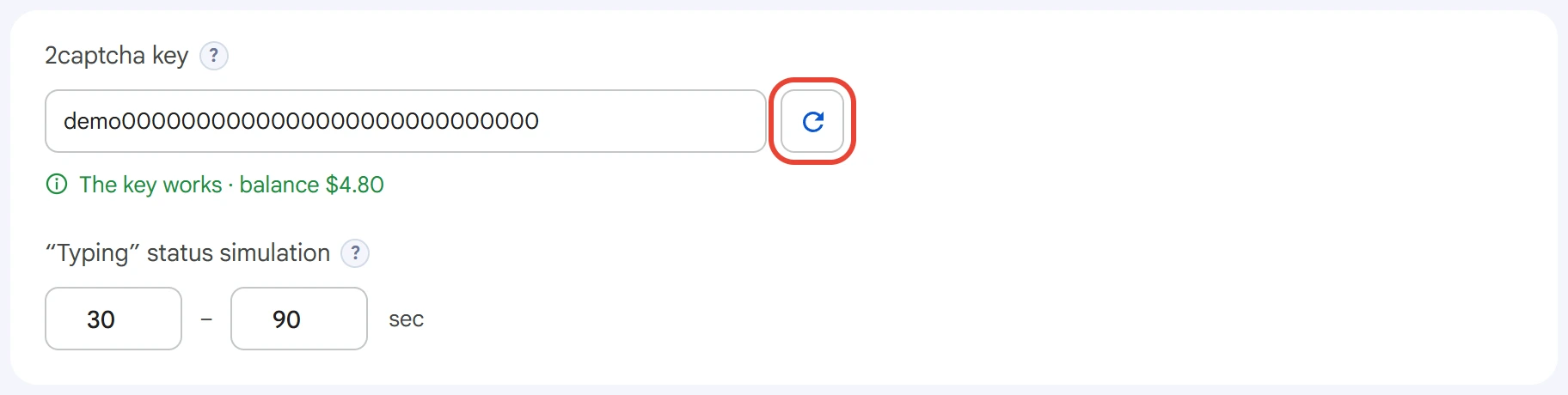
3. Enter your 2captcha key. @SpamBot sometimes asks for a captcha, and the program solves it through the 2captcha.com service. The button to the right of the field checks the key and shows the balance. Without a key, an account that the bot shows a captcha to won't send its appeal.
4. Start the task and watch the outcome on the “Results” tab:
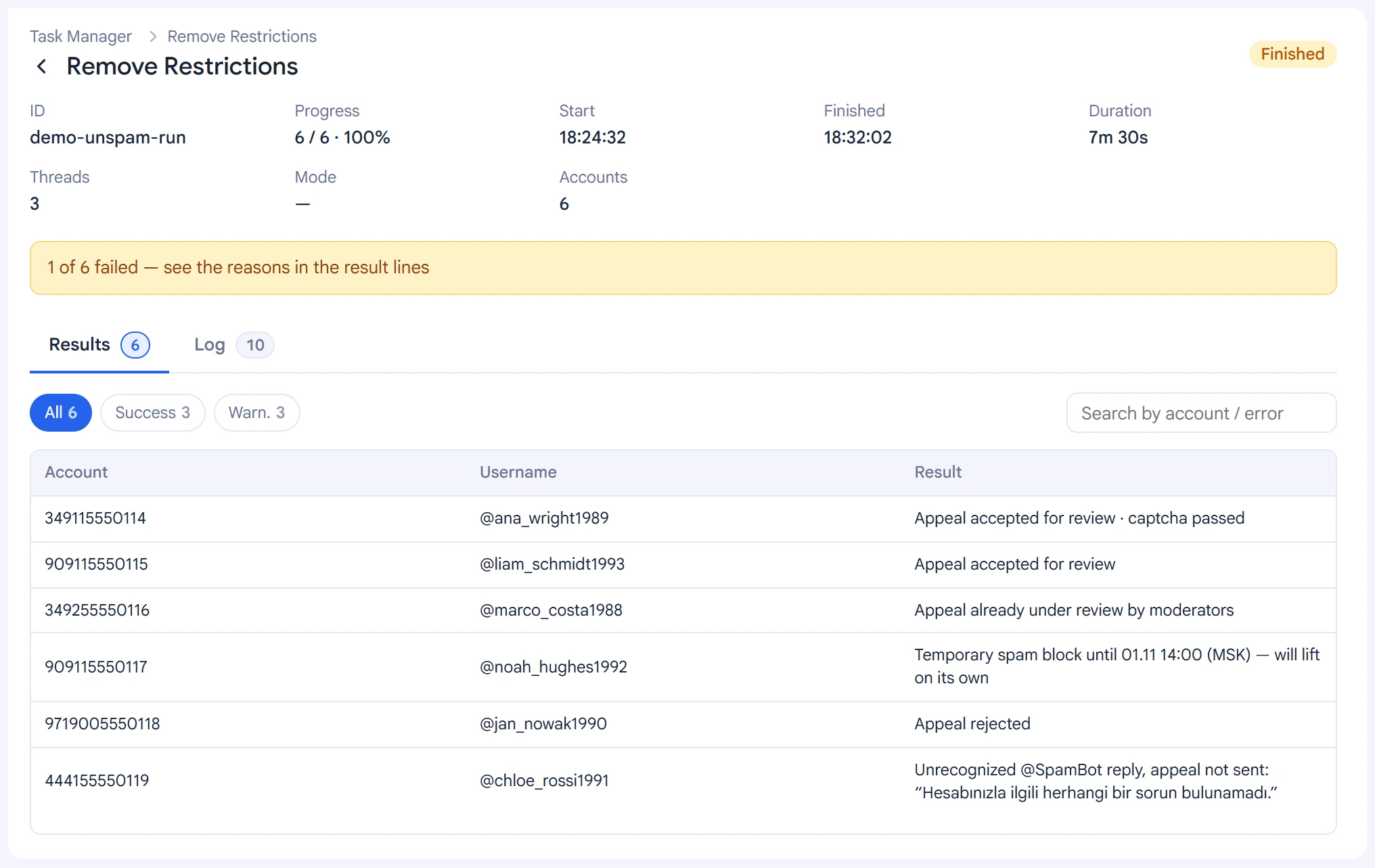
- Appeal accepted for review — the appeal was sent to the moderators.
- Appeal already under review — it was filed earlier, so a second one isn't sent.
- Temporary spam block — it will be lifted on its own, so no appeal is needed.
- Appeal rejected — the permanent spam block stays.
- Captcha failed — there's no 2captcha key, or the service didn't solve the captcha.
The moderators' answer comes later. You can check it with the “Check restrictions” action in the “Accounts” section.