
General
Settings
The “Settings” section holds the program's general options: performance, connection, account display and interface behavior.
How to open settings#
Click the “Profile” card at the bottom of the sidebar and select “Settings”.
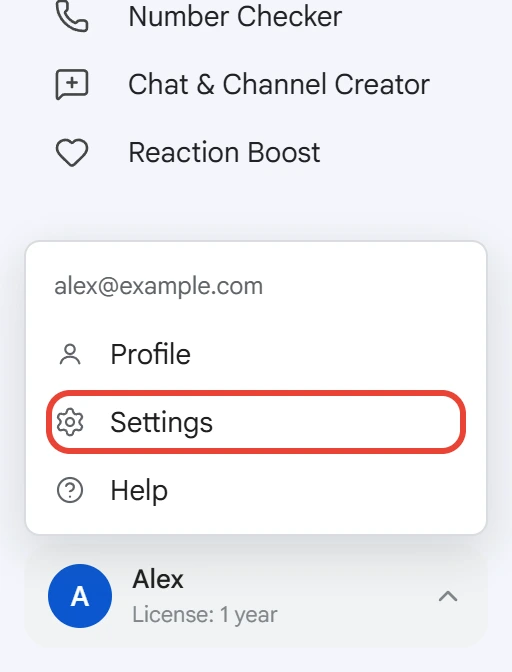
The “Settings” window opens. Changes apply automatically — there's no separate save button.
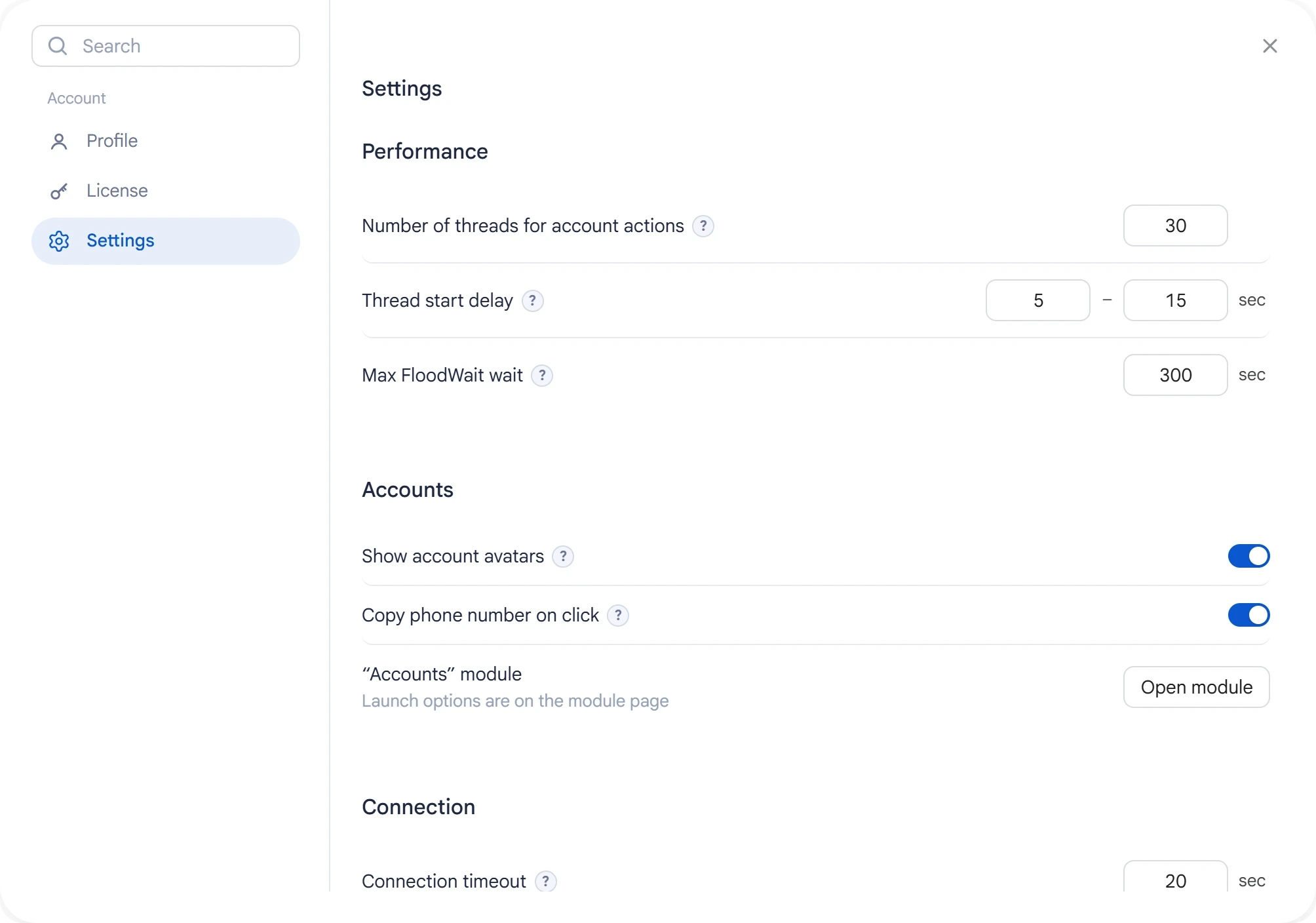
This section holds only the program's general settings. Parameters of a specific run, such as the target, list and invite delays, are set on the page of the module in question.
Performance#
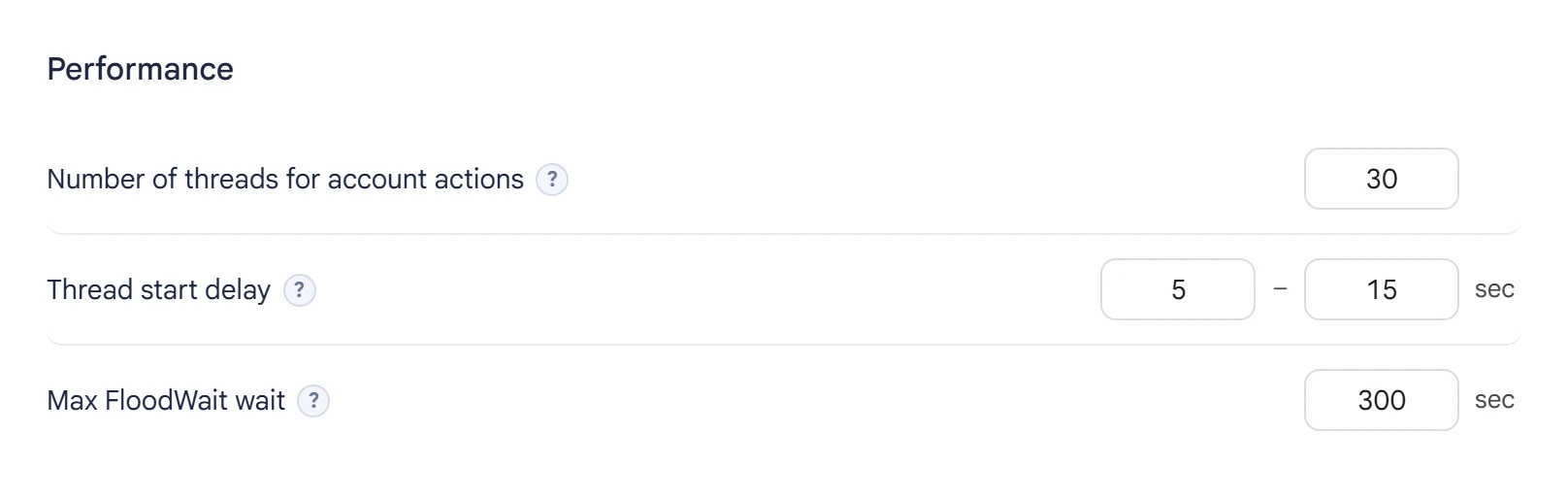
- Number of threads for account actions — the maximum number of accounts working at the same time. Modules use this value when their “Number of threads” setting is
0. Some modules may cap the number of threads with their own maximum. - Thread start delay — the range of random intervals between accounts starting one after another. It lets you spread the load over time.
- Max FloodWait wait — the maximum time to wait out a FloodWait restriction set by Telegram. If the wait doesn't exceed this value, the account waits for the restriction to end and keeps working. If it's longer, the account stops its current work, and the task can hand that work to the next account.
0means no limit on how long to wait.
Accounts#
- Show account avatars — controls whether profile photos appear in the “Accounts” table. When it's off, initials appear instead of photos, and the program doesn't download photos when it checks accounts.
- Copy phone number on click — clicking a phone number in the “Accounts” table copies it to the clipboard automatically.
Connection#
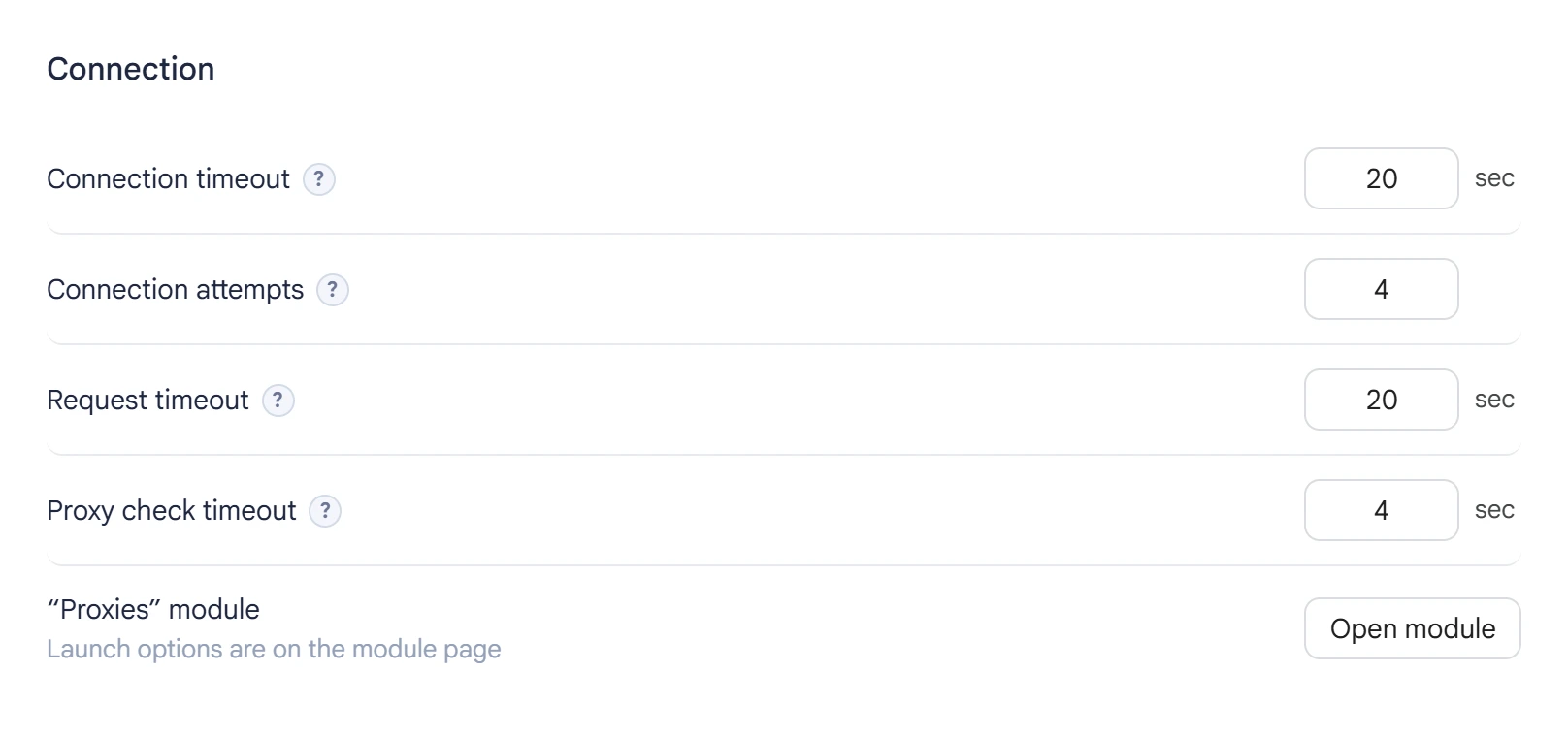
Connection parameters are shared by the modules that use the corresponding network settings.
- Connection timeout — the maximum time to wait for a connection to be established.
- Connection attempts — how many times to retry connecting after a failure.
- Request timeout — the maximum time to wait for a response to a request once connected.
- Proxy check timeout — the maximum time to wait for a response when checking that a proxy is available. If the value is too low, slow but working proxies may show up as unavailable.
If connection errors keep happening with available accounts, check the state of your proxies and increase the timeouts if needed. Higher values can increase the time it takes to check and handle errors.
Interface#
- Hidden confirmations — manages confirmation windows for which you turned on “Don't show again”. Click “Show again” to bring back all the disabled confirmations.
- Notification sources — the “Open panel” button opens the notifications panel. There you can turn pop-up notifications about tasks starting and finishing on or off separately for each module.
Where data is stored#
Airgram stores data locally on your computer, in the program folder. The top level holds what you work with yourself, and everything system-related is in the data folder:
Airgram.exe— starts the program.accounts— Telegram session files by state:active,spamblock_temp,spamblock,frozen,banned,new(not checked yet),deleted(trash).bases— user, source and number lists.files— what you put in and take out yourself:profiles— templates for filling in profiles,results— source search and number check results.data— the program and its system files; you don't need to change them by hand:bin,web,help— the program itself, its interface and the docs;settings— program settings, account tags and folders;modules— module settings, lists, texts and media;proxies— proxy pools;tasks— task history, schedule and run drafts;cache— avatars and window profiles; you can delete this folder, and the program will create it again;backups— copies and reports from the move off the old folder layout;logs— program logs that may be needed to diagnose errors;temp— downloads and unpacking; cleared on every start.
To move your data to another computer, copy the accounts, bases, files and data folders in full, keeping their structure.
accounts folder regularly. Session files give access to Telegram accounts. If you lose them, you may have to log in again, and whether you can recover access depends on the account's availability and your login methods. Keep backups in a secure place and don't share session files with third parties.