
General
Task Manager
The “Task Manager” section lets you track modules as they run, manage runs, view results and analyze errors. Each module run creates a separate task.
Task list#
Open the “Task Manager” section. Tasks are split across tabs:
- All tasks — the full list of runs, sorted from newest to oldest.
- Active — running and paused tasks, plus tasks interrupted by closing the program that can be resumed.
- Scheduled — tasks set to start at a specific time. You set the schedule with the calendar button next to “Start task” on the module page.
- Finished — the history of previous runs.
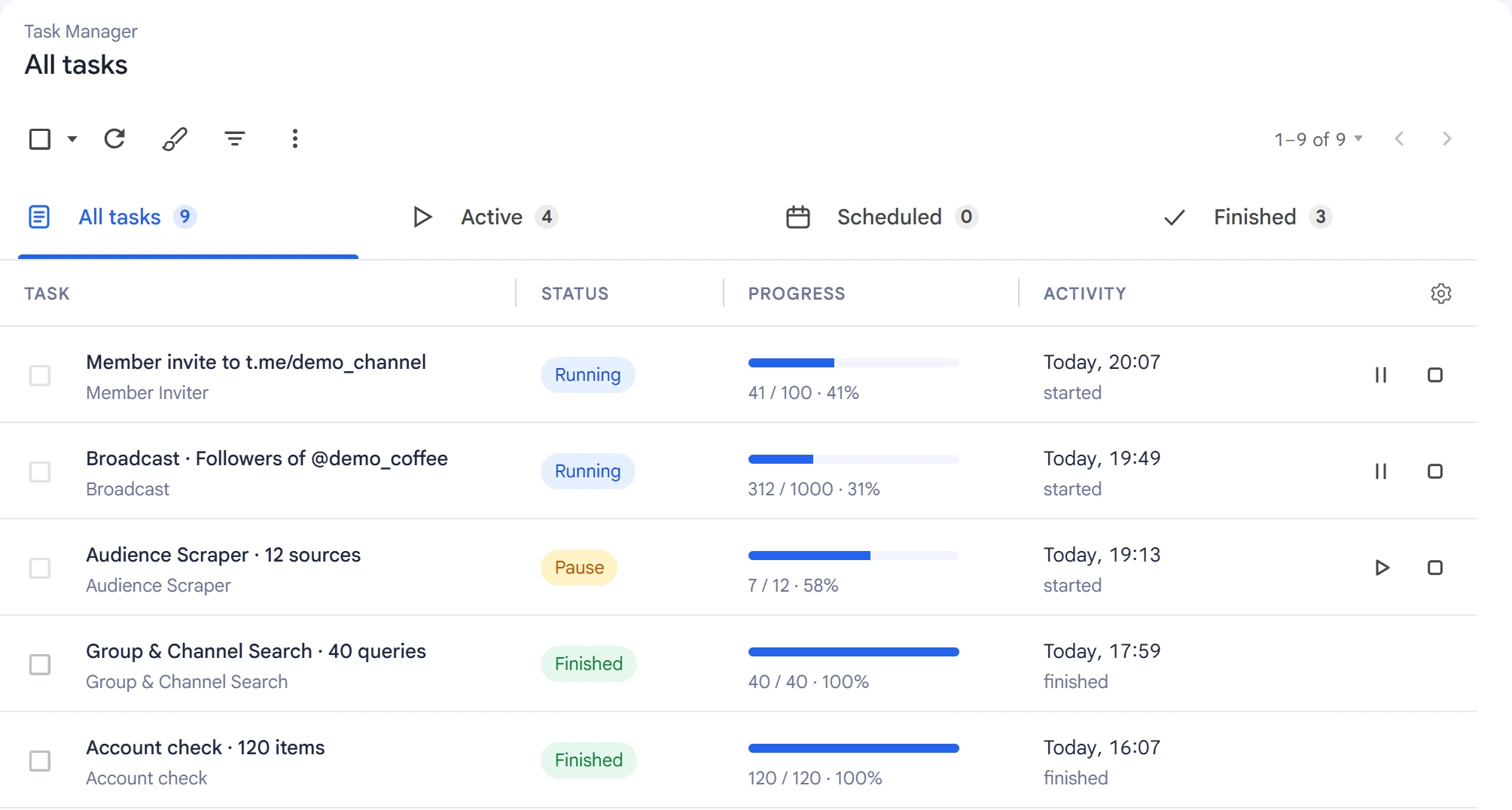
Each task row shows the name, module, current status, progress and time of last activity. Progress shows how many objects have been processed out of the total.
Task statuses#
- Running — the task is in progress.
- Pause — you paused the task.
- Finished — the task ran to the end.
- Cancelled — you stopped the task with the “Stop” button.
- Stopped — the task was interrupted when the program closed.
- Error — the task couldn't continue. The reason is shown on the task card.
Current runs also appear on other screens in the “Active tasks” panel. When a task finishes, the program shows a notification.
Managing a task#
The main control buttons are on the right of the task row:
- Pause — pauses the task. Actions already done are saved and don't need to be repeated. Click again to continue.
- Stop — stops the task. The results stay in the history.
- Resume — resumes tasks with the “Cancelled” or “Stopped” status from where they were interrupted, not from the very beginning.
Hover over a row to see more actions:
- Run settings — change pauses, limits and other run parameters. New values apply to accounts that haven't started working yet, and the next time you resume the task.
- Remove from history — remove a finished task from the list. To delete the whole history at once, use the “Clear task history” button above the table.
Task card#
Click a task row to open its card. The top shows progress, start time, duration, number of threads and number of accounts. Below are three tabs: “Results”, “Summary” and “Log”.
Results#
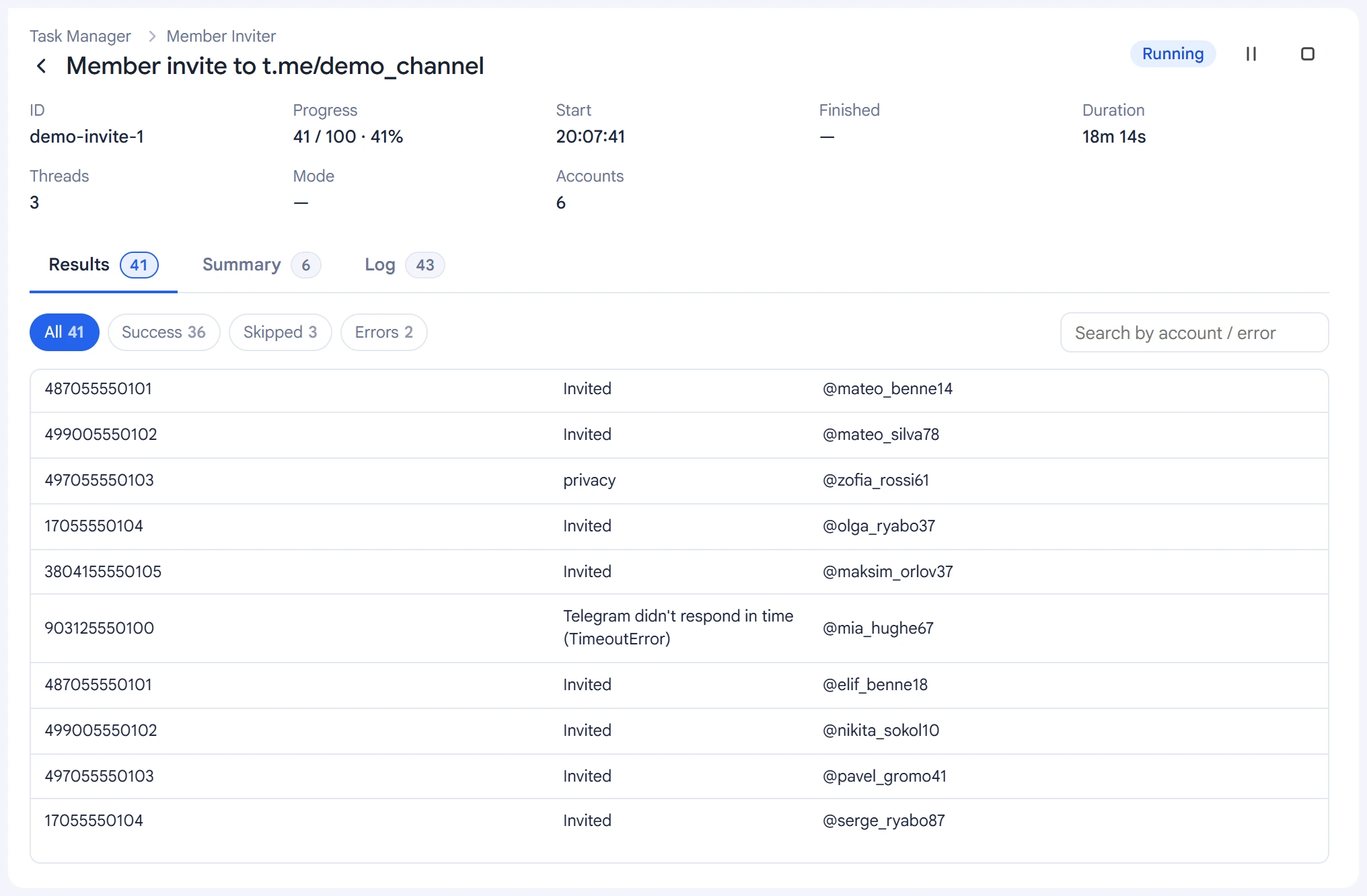
This tab shows the results for individual objects: successful actions, skips and errors with their reasons.
The “Success”, “Skipped” and “Errors” buttons filter the list by result type. Search helps you find a record by account or error text.
Summary#
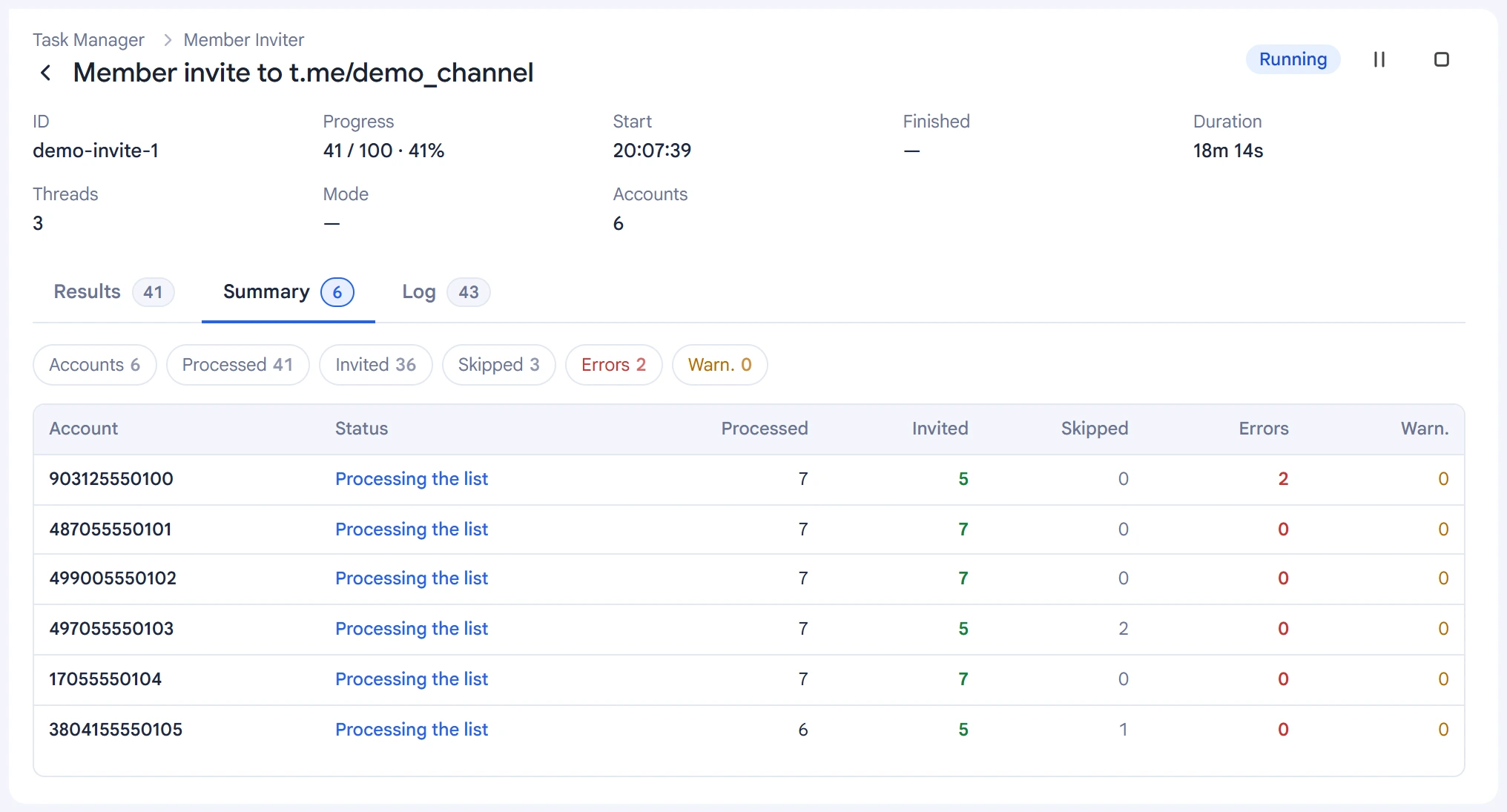
This tab shows statistics for each account: the number of objects processed, successful actions, skips and errors, plus the account's current status.
Log#
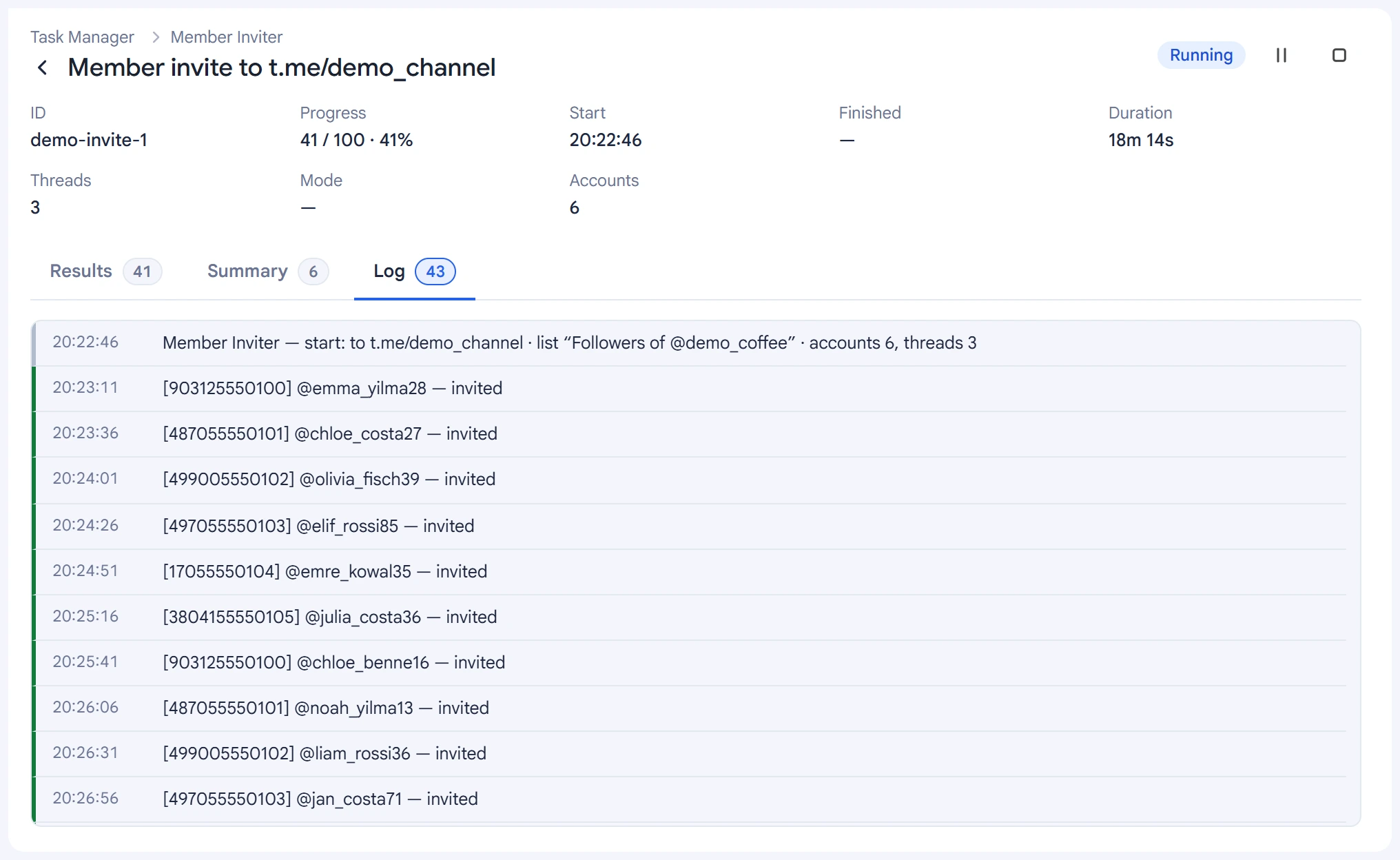
The log is a chronological record of the task. The time of each entry is shown on the left.
The first entry describes the task start and the settings used, and the last one gives the outcome. Entries about account actions show the account's number and the result, for example:
[79161112233] @ivan_petrov — invitedWarnings are marked with an orange bar, errors with a red one. The log also shows Telegram's wait restrictions (FloodWait).
Running several tasks at once#
The program can run several tasks at the same time. However, using one account in several tasks increases the total load and the risk of restrictions from Telegram.
Where possible, spread tasks across different accounts. Tags can make this easier.
Troubleshooting#
If a task isn't working as expected, do the following:
- Go through the errors in the log. If errors come one after another, stop the task, check their causes in the log and adjust the limits and pauses if needed.
- Lower the load if FloodWait is frequent. Increase the intervals between actions and reduce the number of threads.
- Check the proxies. If accounts don't connect, check that the proxies are available and check the connection settings.
- Make sure the task is alive. If progress isn't changing, open the log: new entries mean the task is still processing data or waiting for a response from Telegram.
Don't start the task again with the same settings until you find out why it stopped. First study the log and adjust the run parameters if needed.