
Modules
Chat & Channel Creator
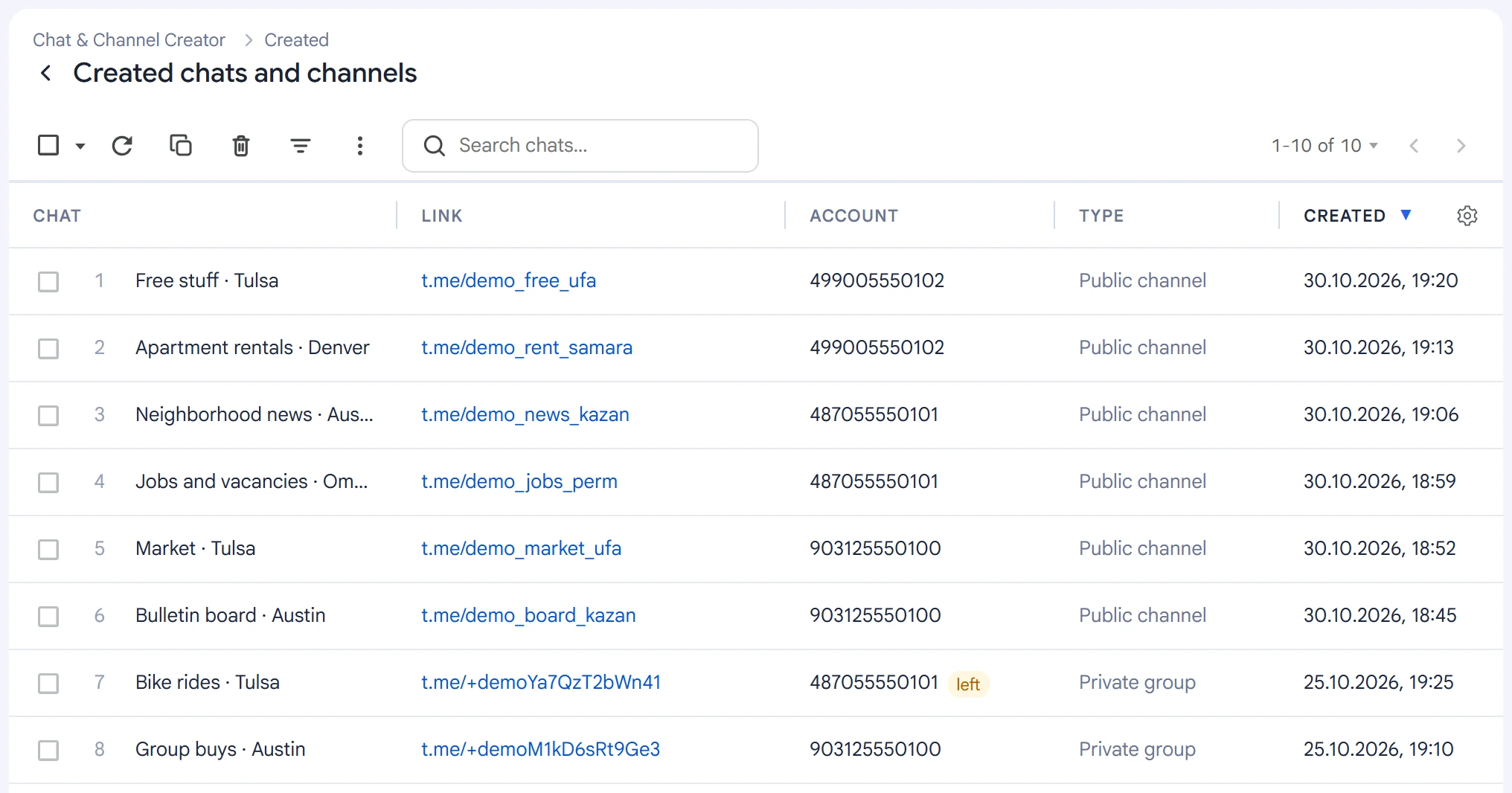
This module creates channels and groups with your accounts and sets them up right away: public link, description, avatar, posts and admins. Everything created is collected in the “Created chats and channels” log.
What to create#
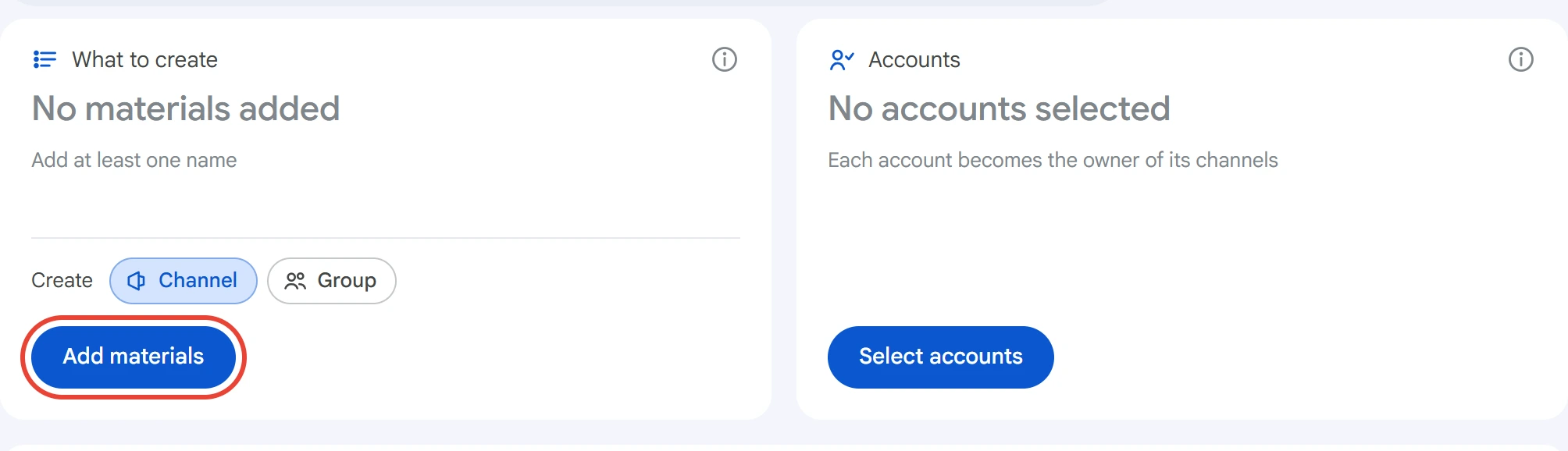
Click “Add materials” on the “What to create” card.
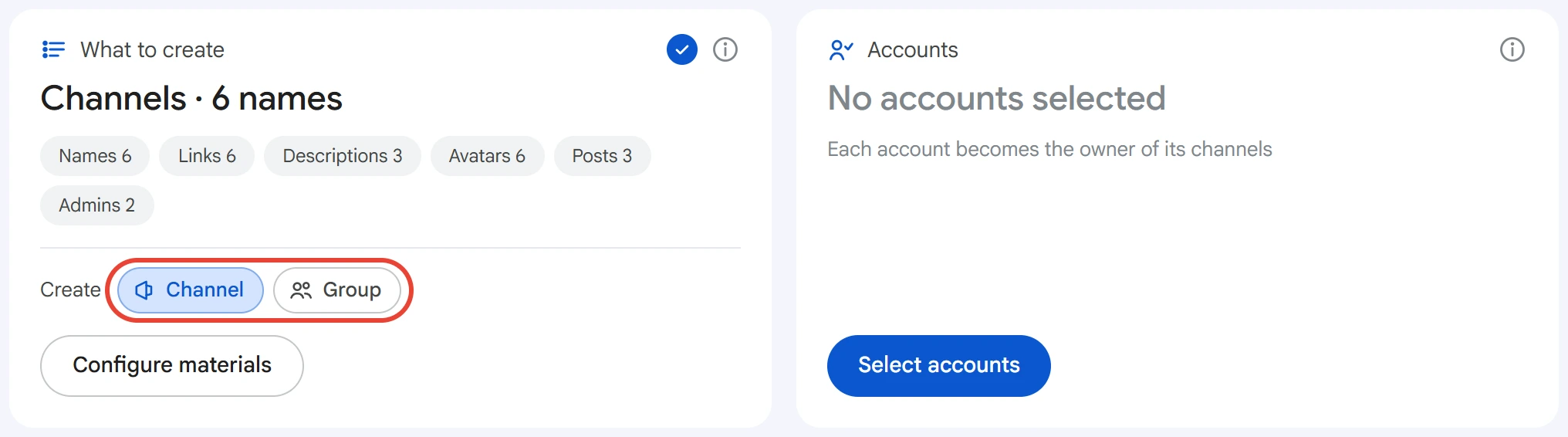
Choose what to create: a channel or a group. In a channel, admins post and everyone else reads. In a group, all members can write.
Materials#
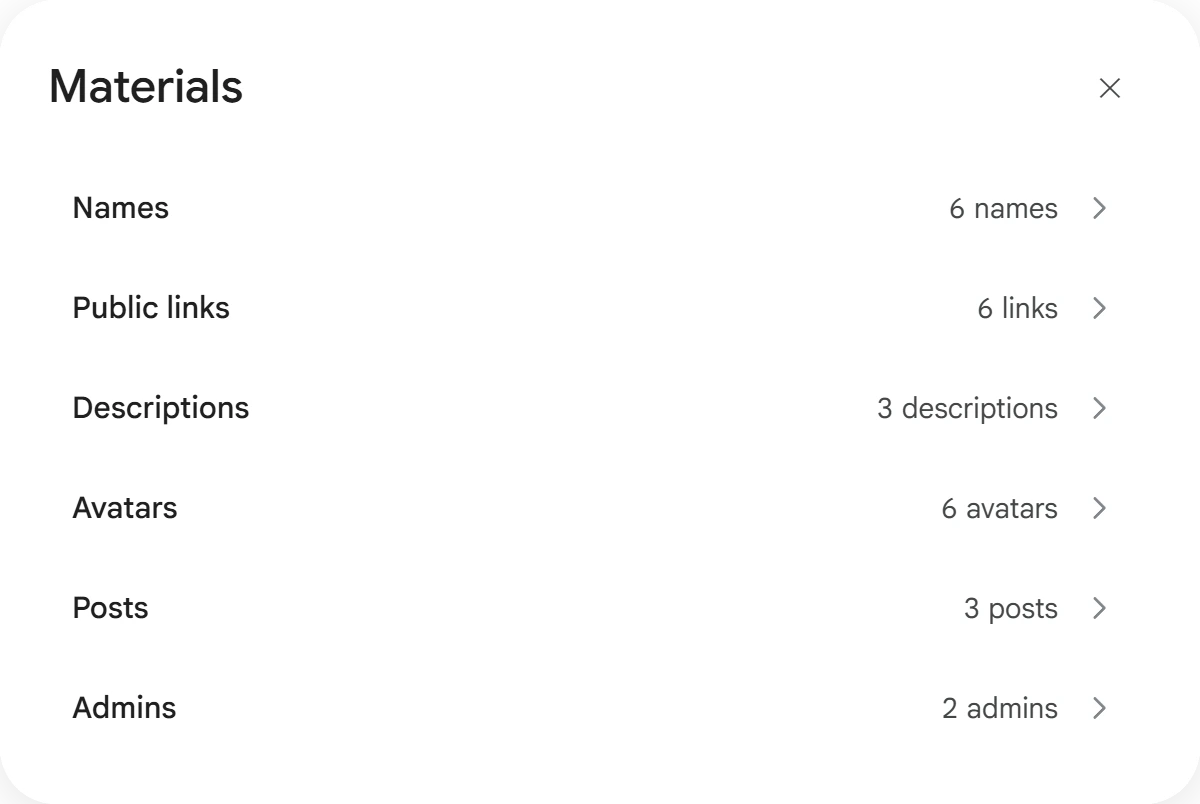
The “Materials” window has six lists. Only names are required; the rest are optional. Click a row to open a list, and the “‹” arrow takes you back to the window.
Names#
Enter names one per line, or upload a .txt / .csv file. Variants in curly braces give different names from one line: {Market|Storefront} · Ufa becomes “Market · Ufa” or “Storefront · Ufa”. If there are fewer names than channels, the list starts over.
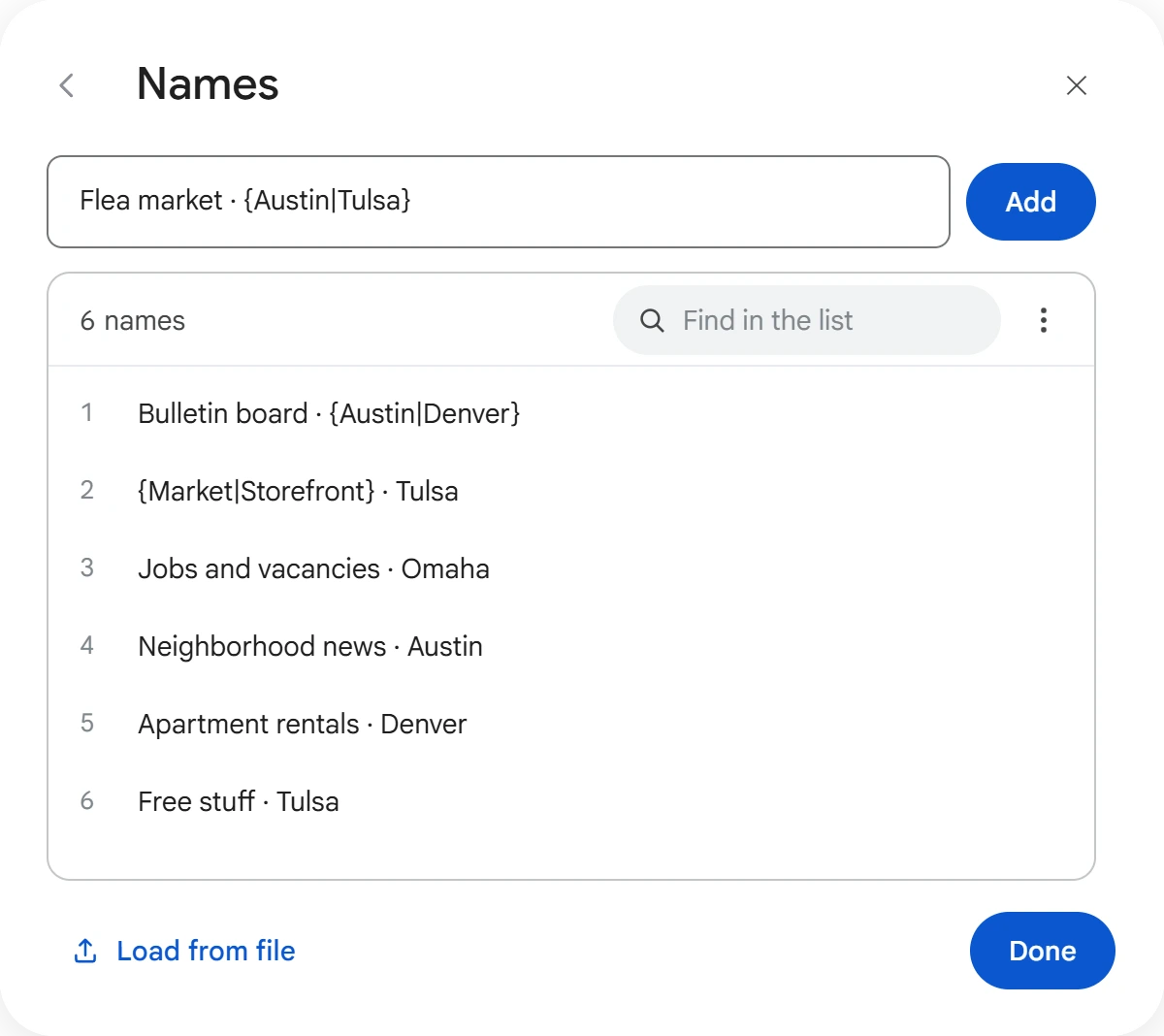
You can search, edit and delete lines in the list. The “⋮” menu has “Edit as text”, “Delete after use” and “Clear list”. While the list is empty, examples appear below it: click one to add it. The list is saved when you click “Done” or “‹”, or close the window.
Public links#
One link per line: t.me/name, @name or just the name. A channel with a public link opens at t.me/name and can be found in Telegram search. If the list is empty, channels and groups will be private, and people join by invite link.
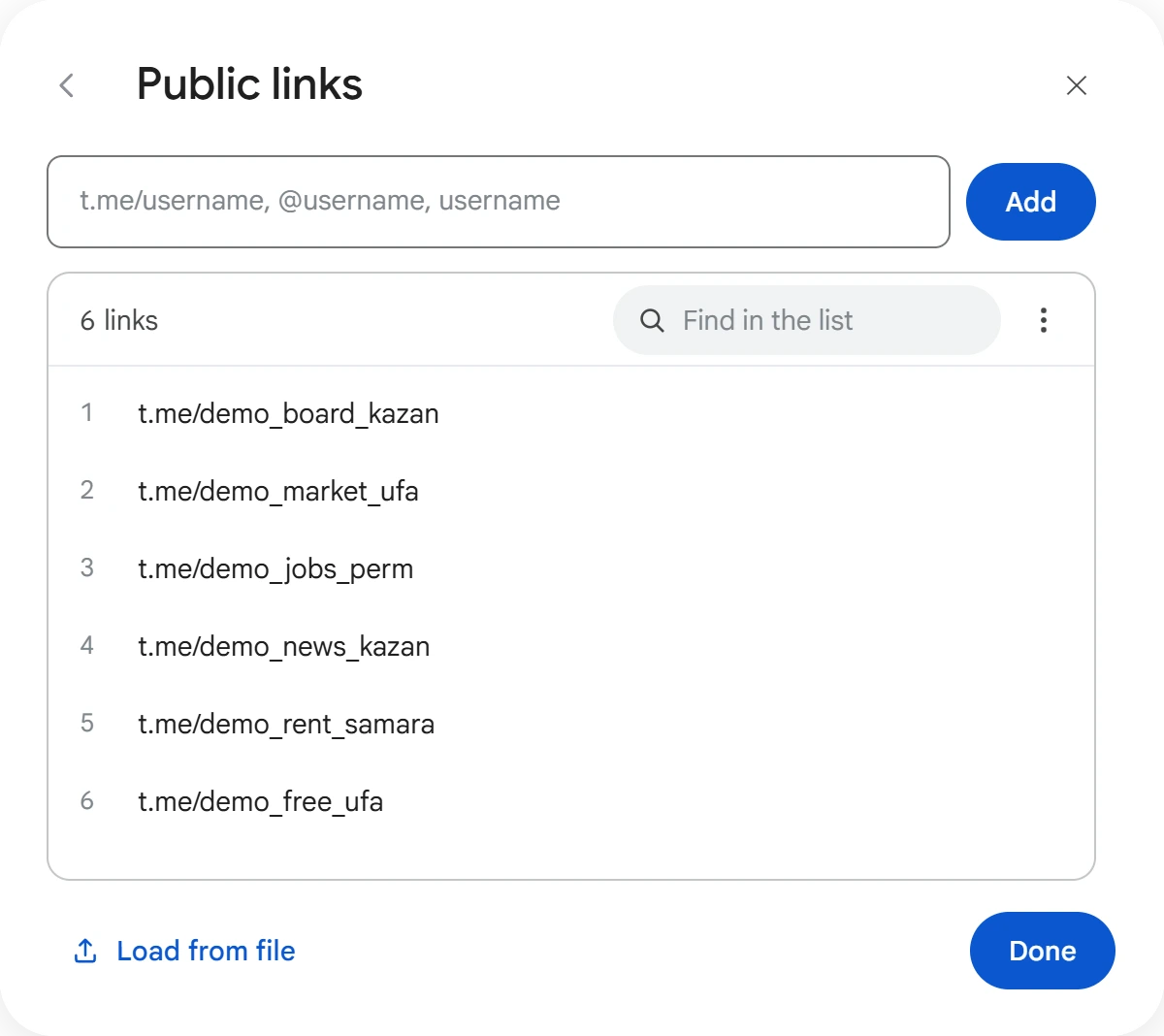
Every public channel has its own link, so used links are removed from the list after the task. If a link is taken, the program skips it and takes the next one.
Descriptions#
Channels take descriptions in turn. Variants like {Latest|Top} work here too. A description can have several lines: in the field, press Shift+Enter; in text, descriptions are separated by an empty line. Telegram accepts descriptions of up to 255 characters.
Avatars#
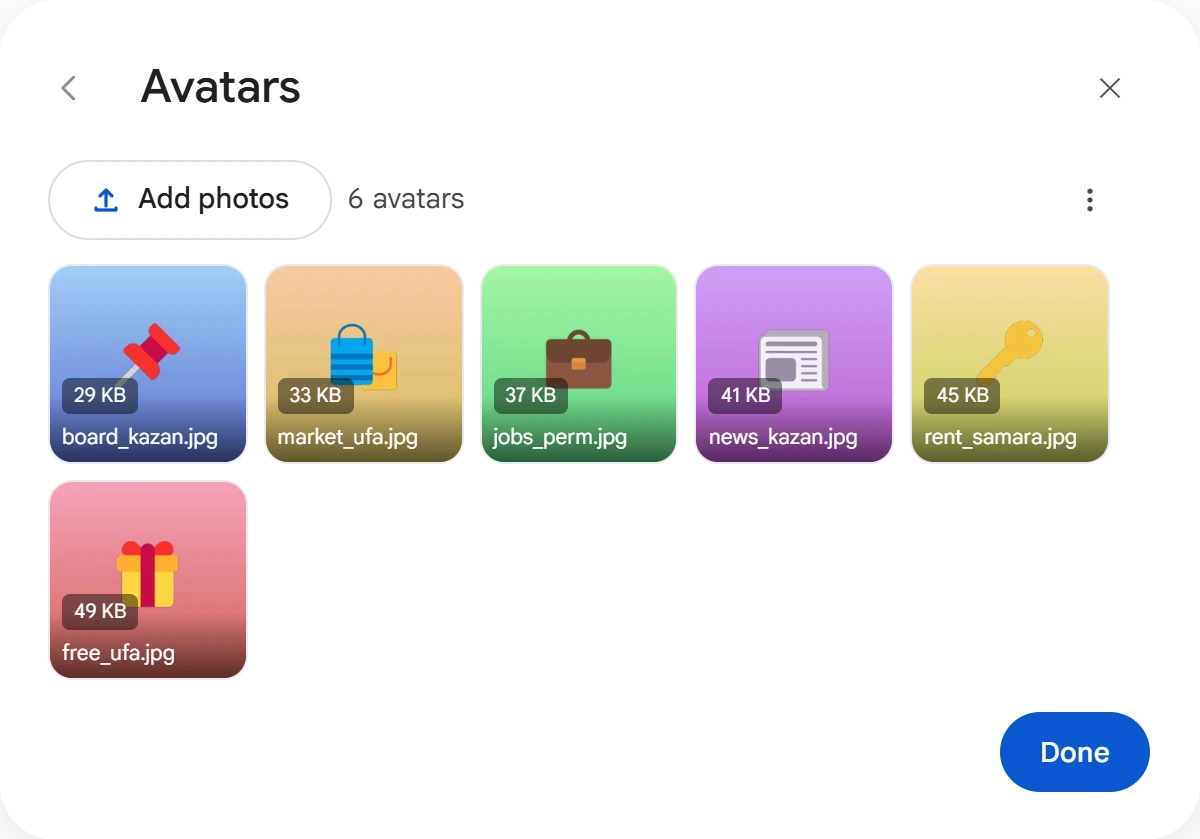
Click “Add photos” or drag files into the window: JPG, PNG, WebP or GIF. Channels take avatars in turn. To remove a photo, click the cross on its tile.
Posts#
Posts are published right after creation. Each channel or group gets all the posts in order.
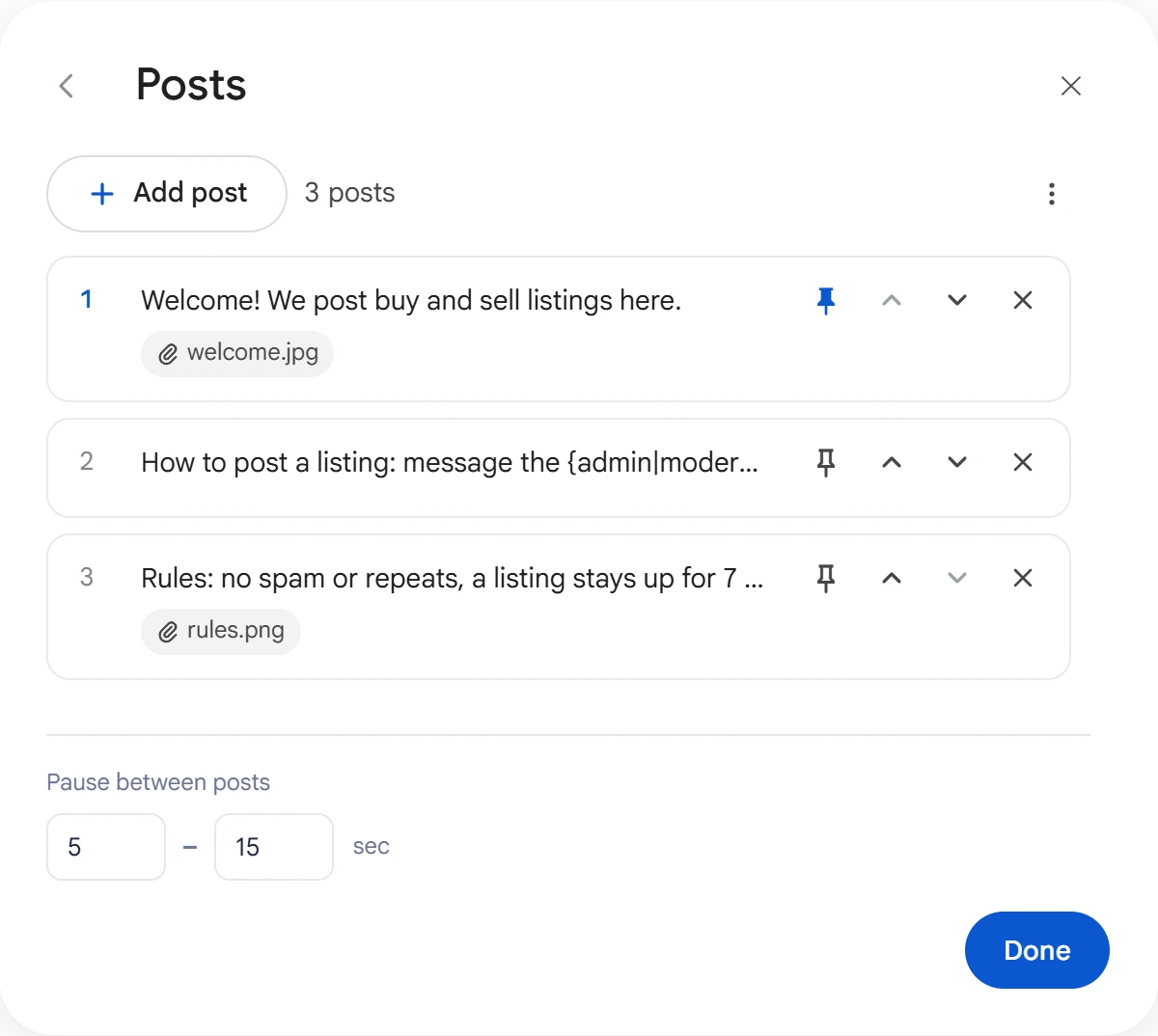
Click “Add post” to write a new one, or click a post to edit it. The arrows change the order, the pin pins the post in the channel, and the cross deletes it. Below the list is “Pause between posts”.
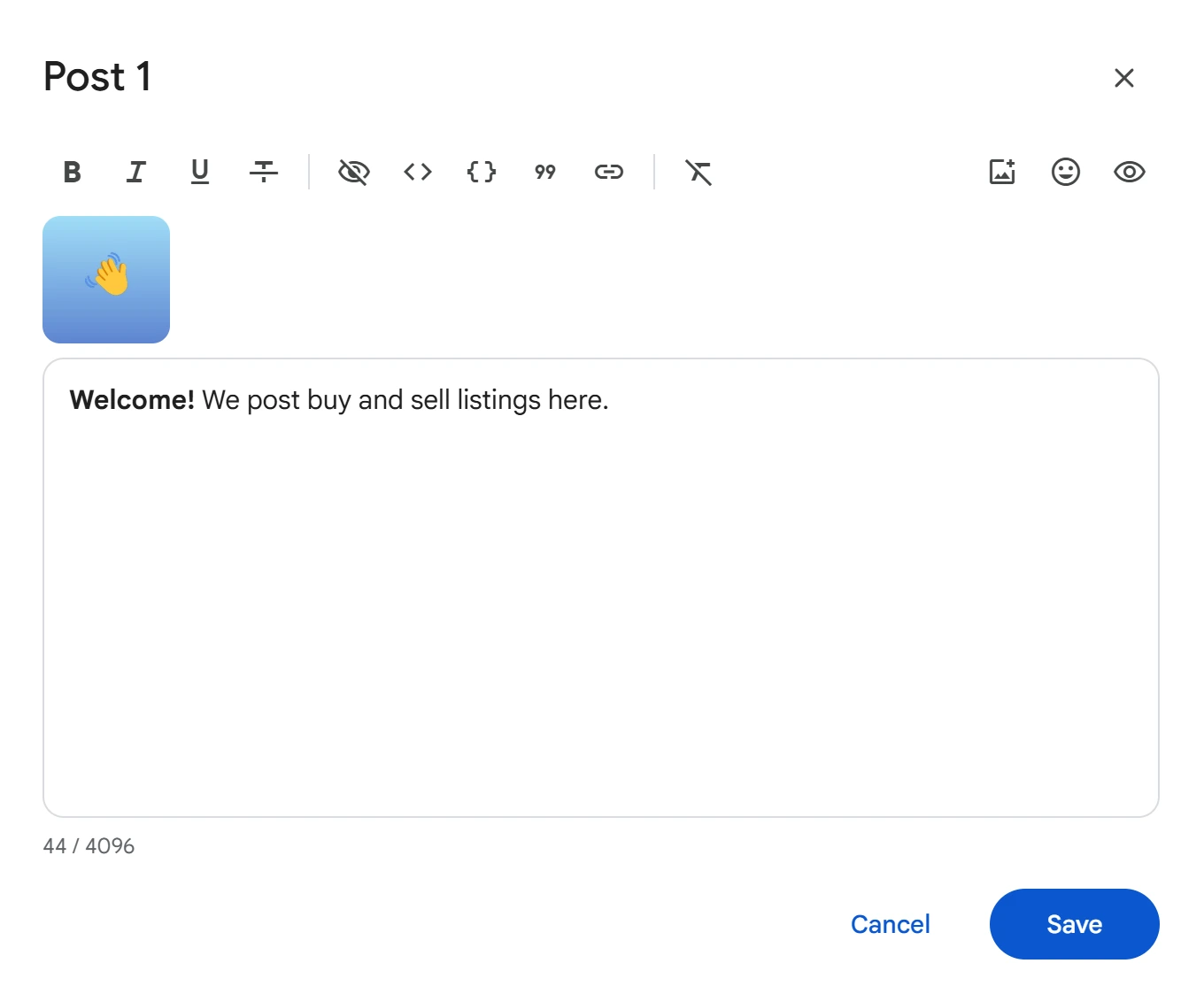
You can format the post text and add emoji, {a|b} variants and files with the buttons above the field. Click “Save”.
Admins#
Who to make admins: an @username, a link or a phone number. A person can be found by number only if they allow people to find them that way, so @username is more reliable.
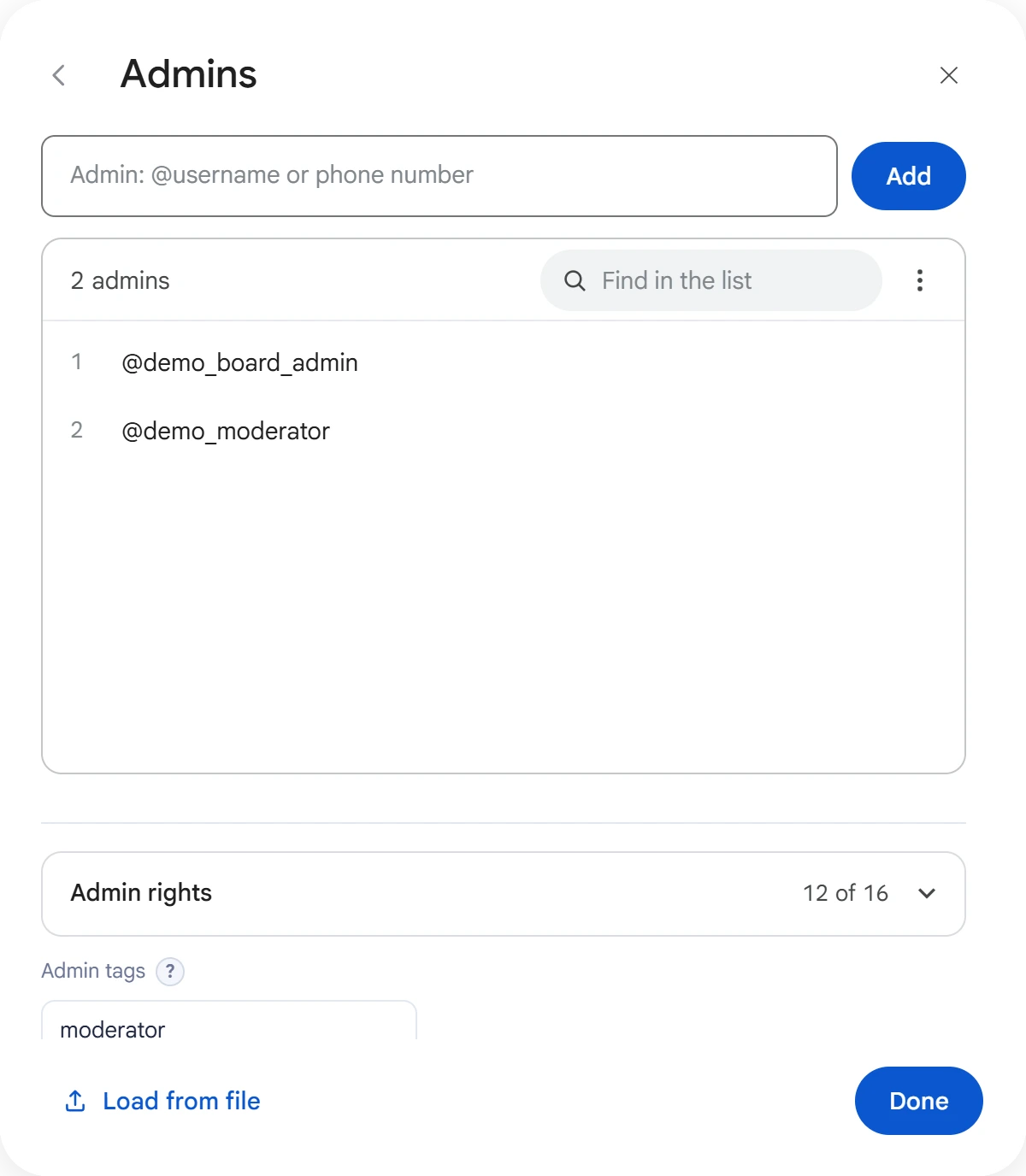
Below the list is “Admin rights”: click the row and check what admins are allowed to do. “Admin tags” is a label next to the admin's name, up to 16 characters. If you leave it empty, Telegram shows “admin”.
Accounts#
Click “Select accounts”, check the ones you need and click “Save”.
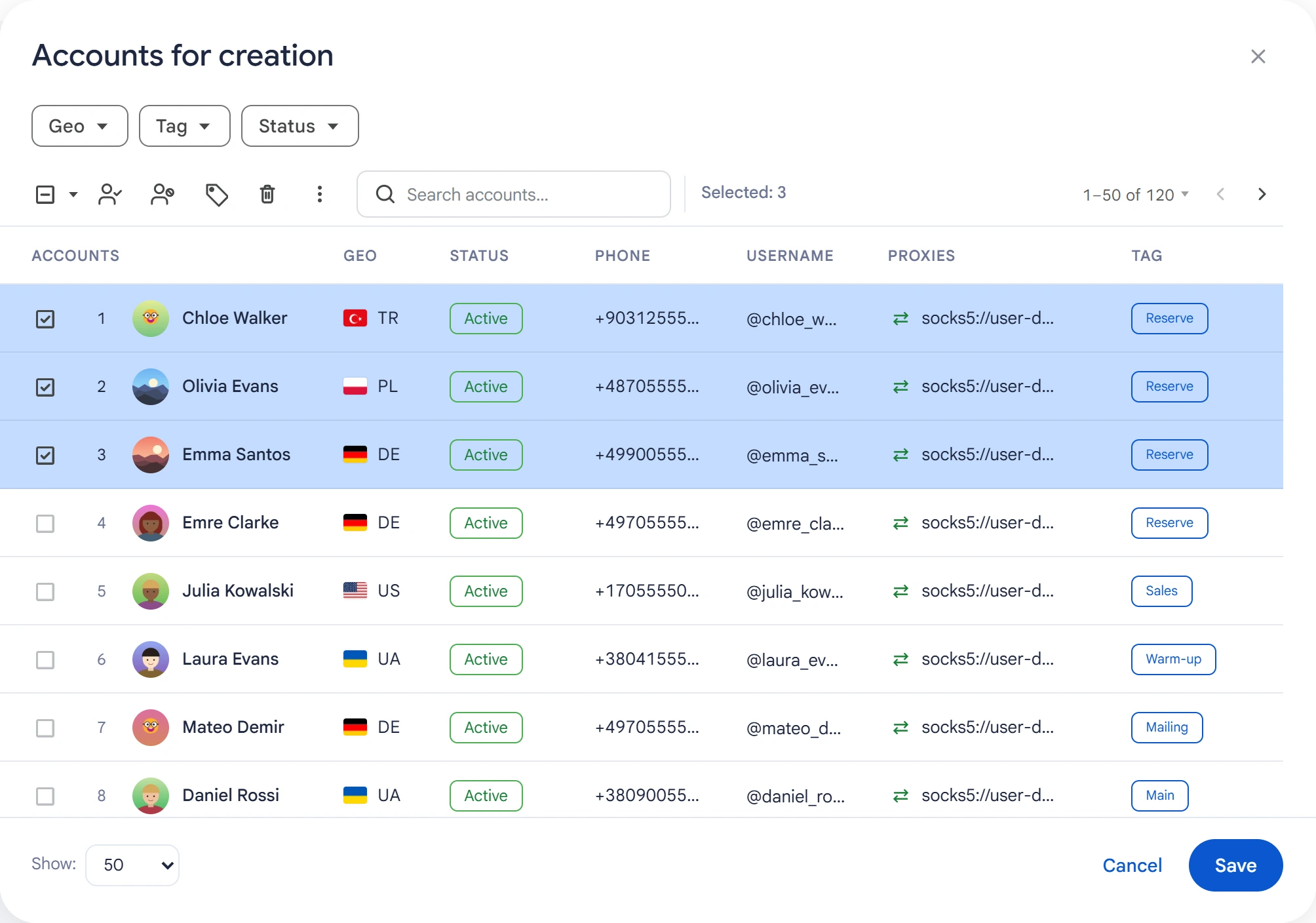
Each account creates its own channels and groups and becomes their owner.
How many to create#
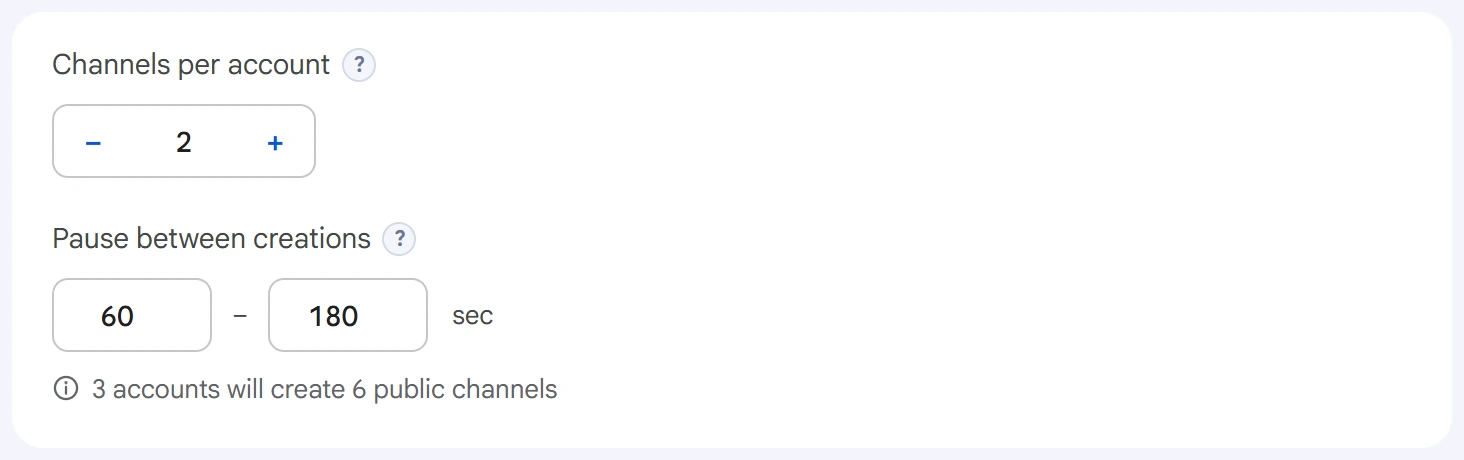
- Channels per account (for groups, Groups per account) — how many each account creates. The total is this number multiplied by the number of accounts.
- Pause between creations — a random pause, in seconds, before the same account's next creation.
Below the fields, you can see how many channels will be created. If there are fewer public links than needed, only as many are created as there are links.
Advanced settings#
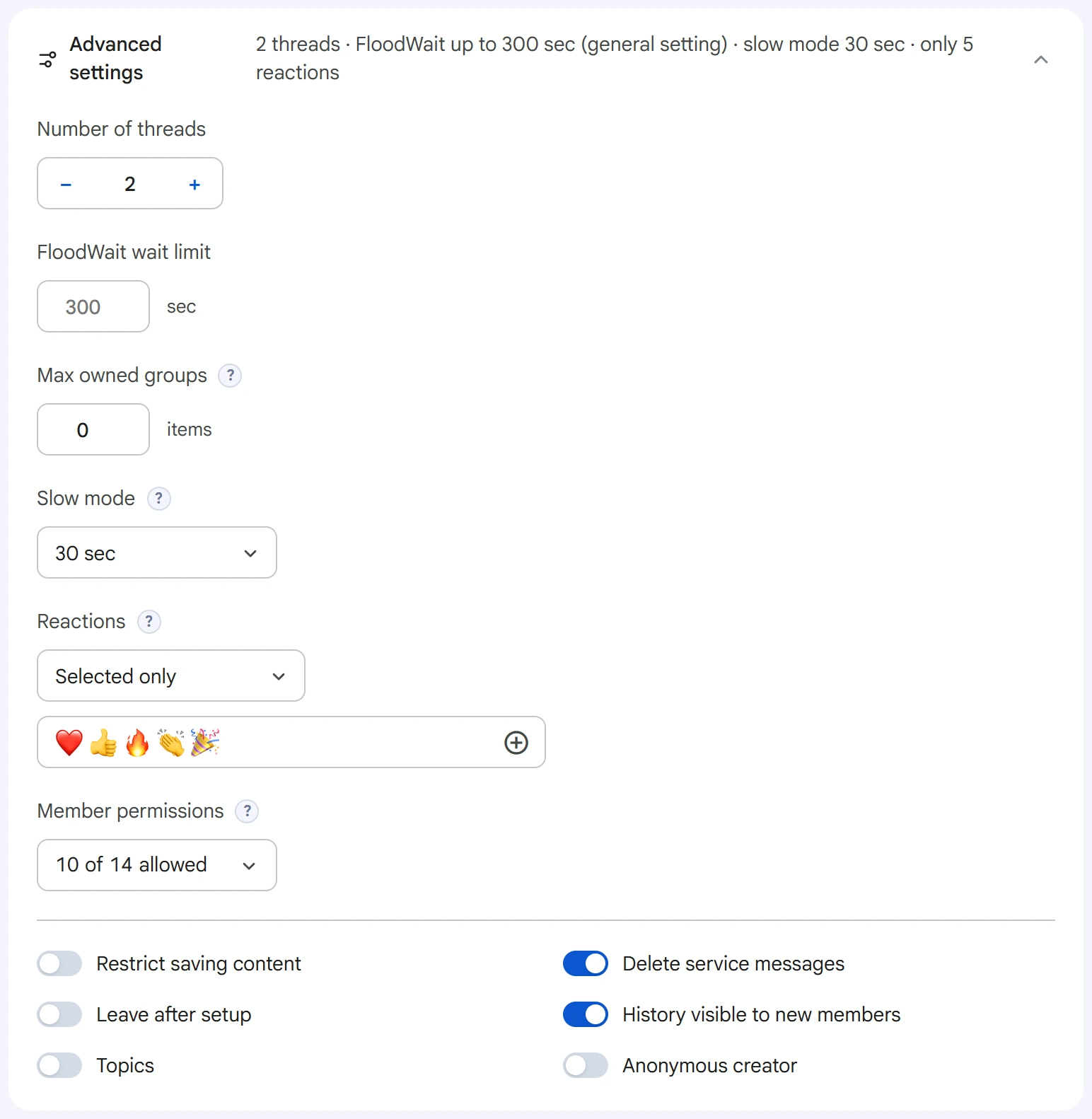
- Number of threads — how many accounts work at the same time.
0uses the value from the Settings section. - FloodWait wait limit — the maximum time to wait out a restriction. If it's longer, the account stops working. An empty field uses the shared setting;
0means waiting with no limit. - Max owned channels (for groups, Max owned groups) — how many channels of its own an account may already have. The task skips accounts with this many or more.
0means no limit. - Slow mode — groups only: how often a member can send messages.
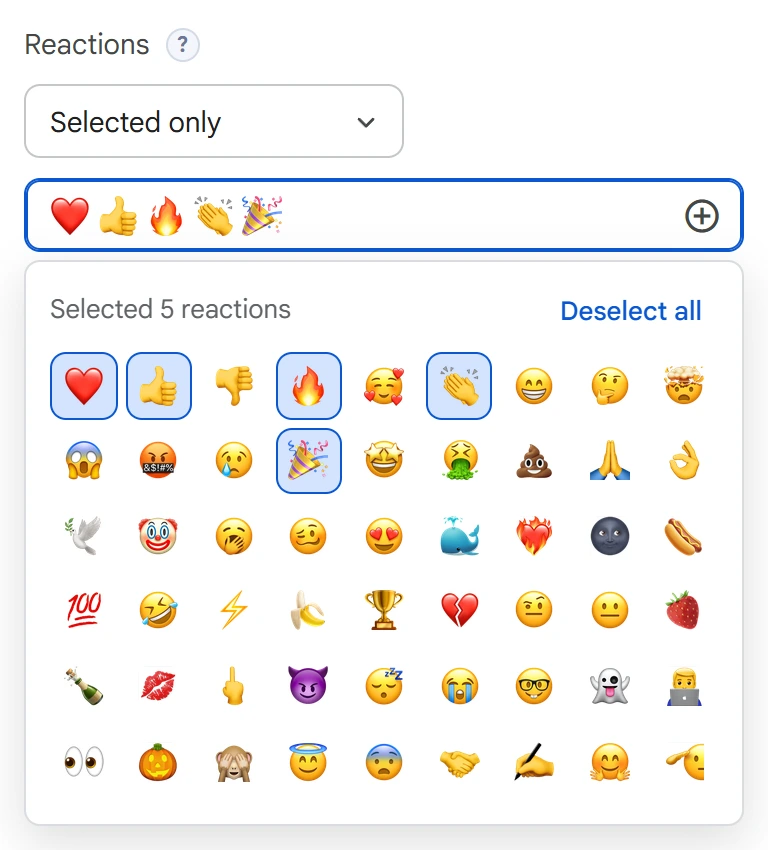
Reactions — all reactions, selected ones only, or no reactions. For “Selected only”, click the field below the list and check the reactions you want.
Member permissions — groups only: what regular members can do. Click the “… of 14 allowed” field and turn permissions on or off. They don't affect admins.

Toggles at the bottom:
- Restrict saving content — messages can't be forwarded or saved.
- Delete service messages — entries like “Channel created” and “Photo updated”.
- Leave after setup — the creator account leaves when everything is set up. The appointed admins stay in charge.
- History visible to new members, Topics, Anonymous creator — groups only.
Start and results#
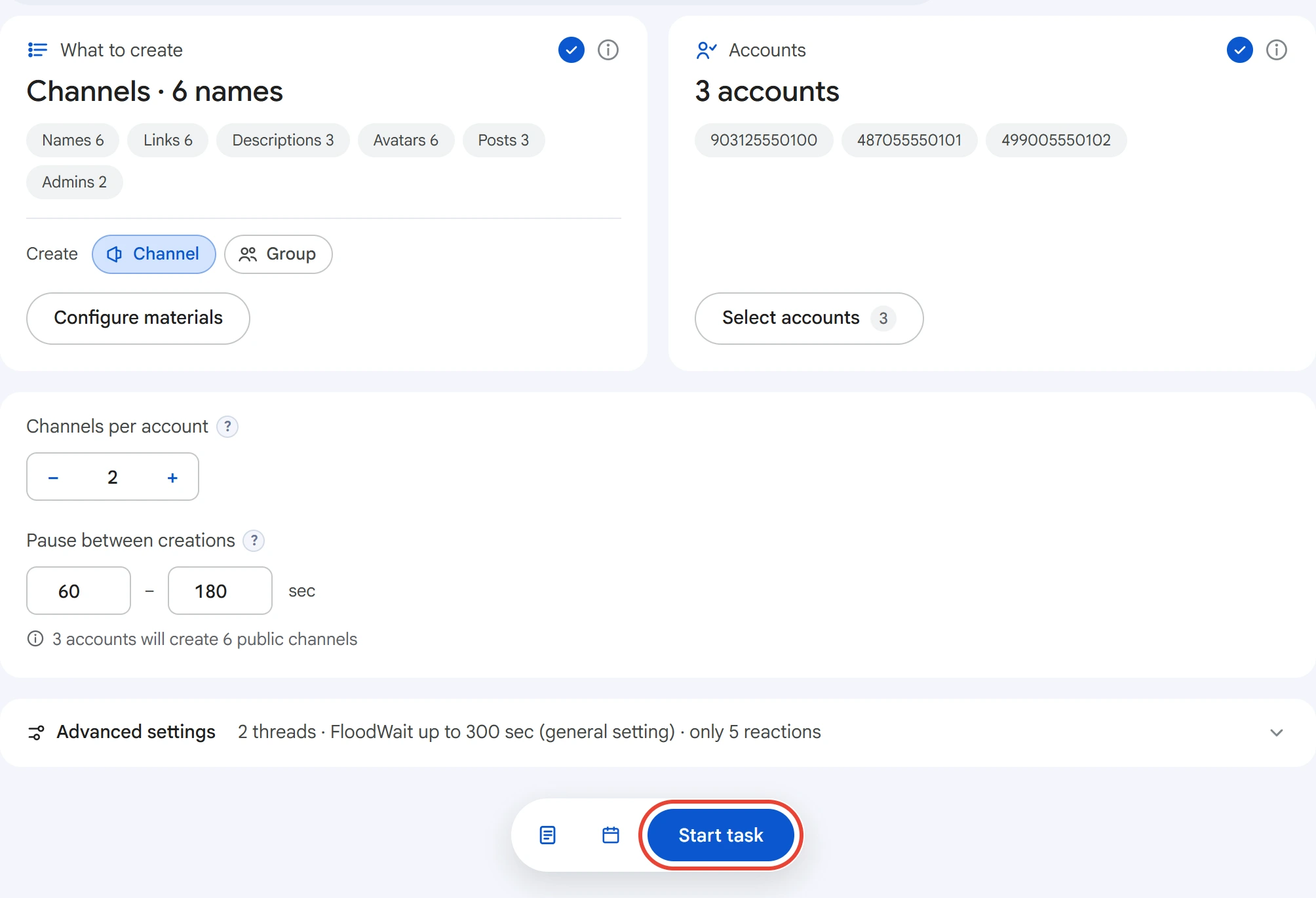
Click “Start task”. You can track progress in the Task Manager.
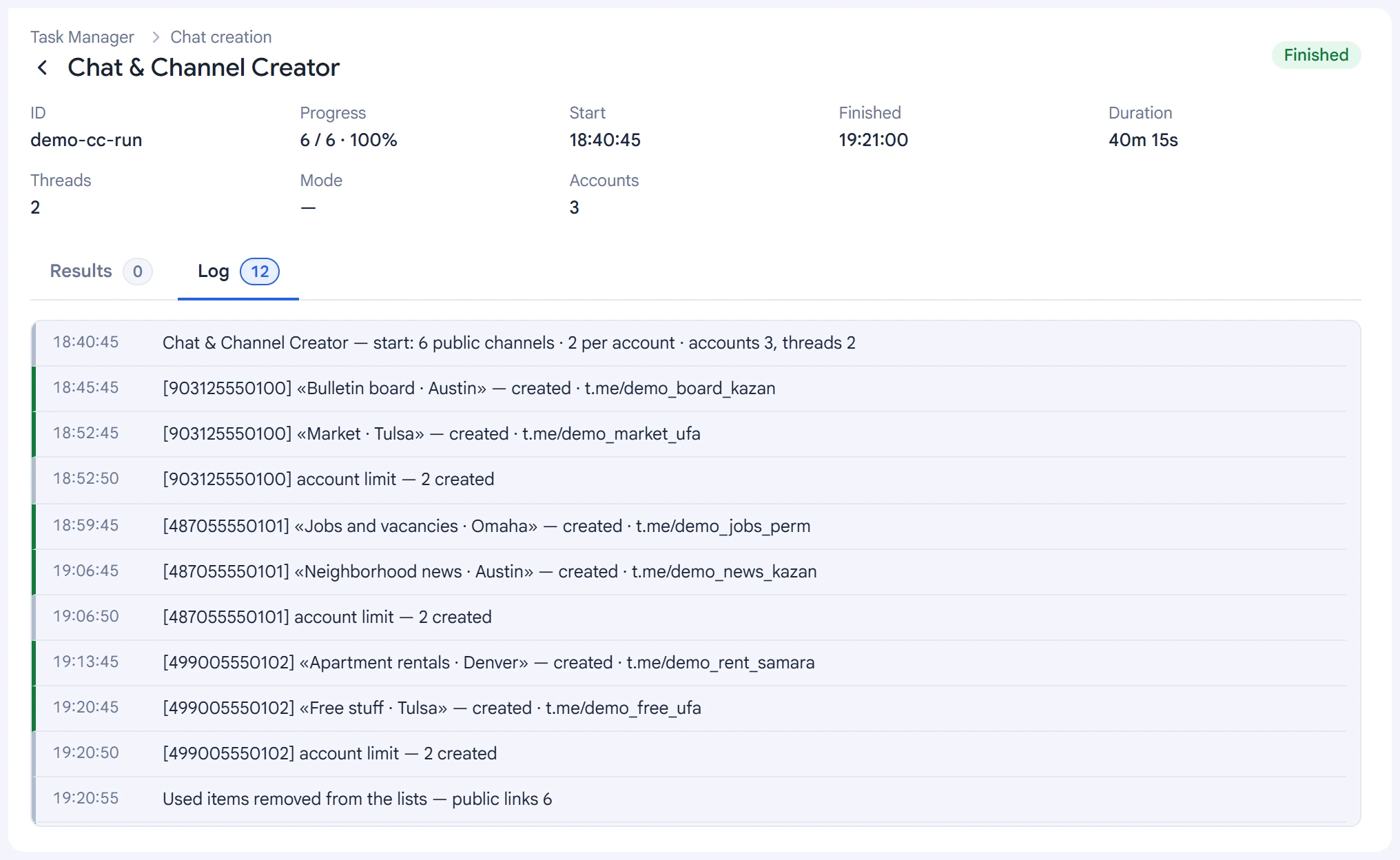
The log has one line per created channel: account, name and link. If a photo couldn't be set, an admin couldn't be appointed or a post couldn't be published, that's shown on a separate line.
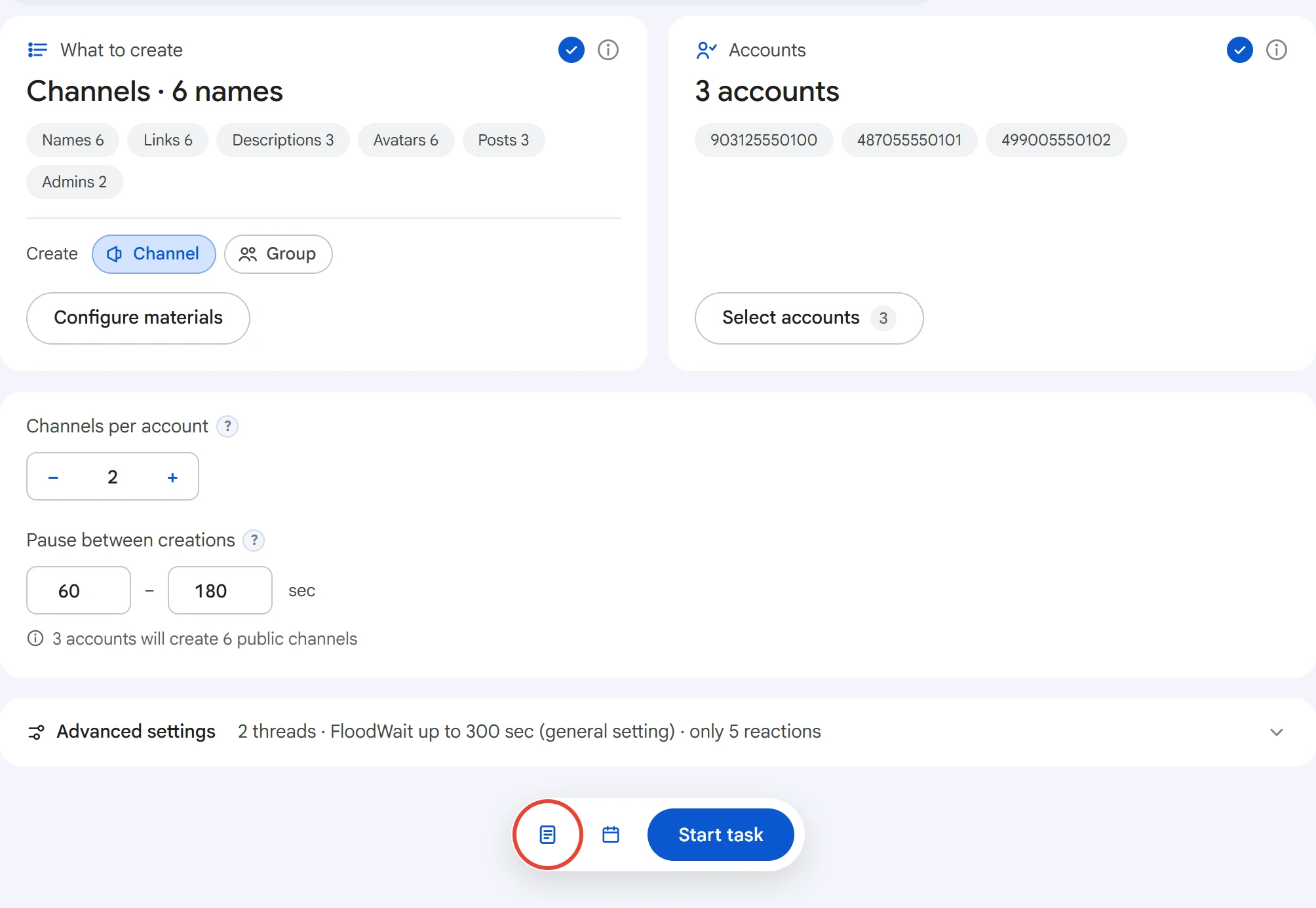
All created channels and groups are collected in a log. Open it with the icon to the left of the “Start task” button.
The log shows the name, link, owner account, type and creation date. Click a link to copy it. You can copy selected rows as links or remove them from the log; the chats themselves stay in Telegram. The “⋮” menu has export options: links, link and owner, or the whole table as CSV.
Tips#
- Telegram limits the number of channels and groups on one account (no more than 500 combined) and the number of public links. Set one or two channels per account and a longer pause.
- Prepare extra public links: taken ones are skipped.
- Add admins before turning on “Leave after setup”, or nobody will be able to manage the chat.
- Using
{…|…}variants in names and descriptions makes channels look different from each other.