
Modules
Chat Cloner
This module copies messages from one chat to another using your accounts. Messages are posted anew rather than forwarded, so there's no “Forwarded from” label, and you can copy even from groups that restrict forwarding.
Source#
In the “Source” card, paste a link to the chat you want to copy from: @username, t.me/chat or an invite link t.me/+….
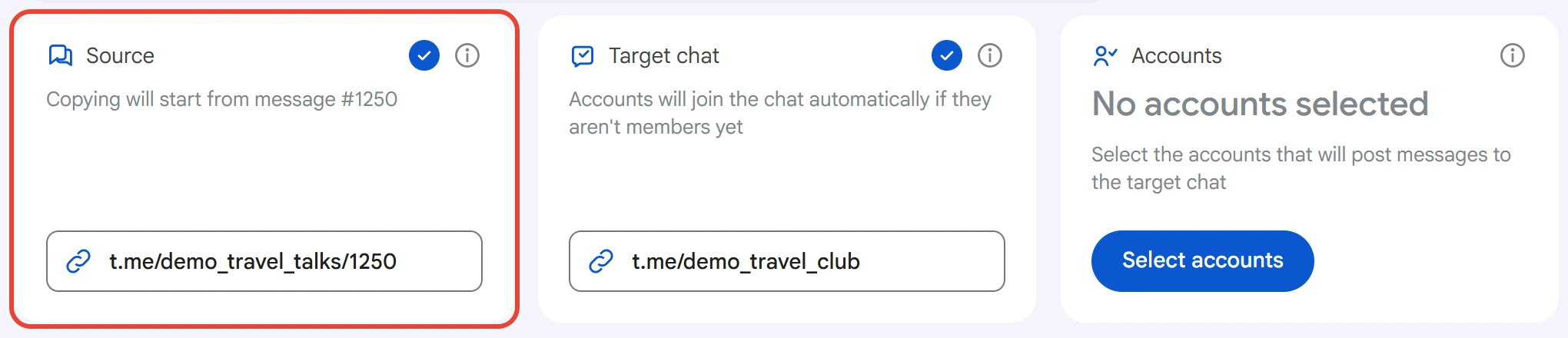
A link to a message, for example t.me/chat/1250, sets which message “History” starts from. The line under the card title shows how the program understood the link. A link to a message in a forum topic limits copying to that topic.
A private group with a t.me/c/… link opens only for accounts that are already in it: an account can't join it by its number. For “History” in such a group, all selected accounts must be members.
Channels are copied by a separate module, Channel Cloner.
Target chat#
In the “Target chat” card, paste a link to the chat where messages will be posted. Accounts join it on their own if they aren't members yet. In a private t.me/c/… group, only accounts that are already in it can post.
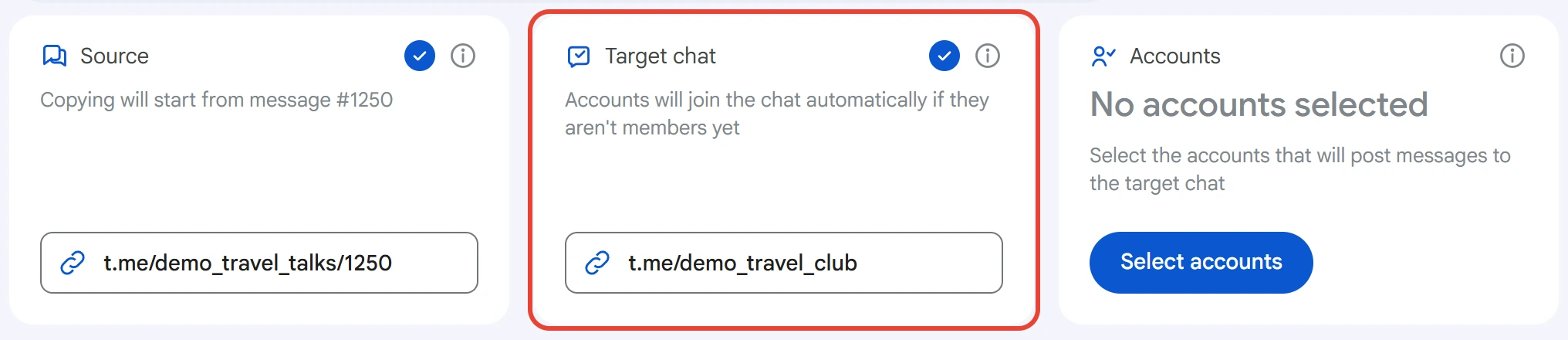
Members of the target chat must be allowed to send messages and media.
Accounts#
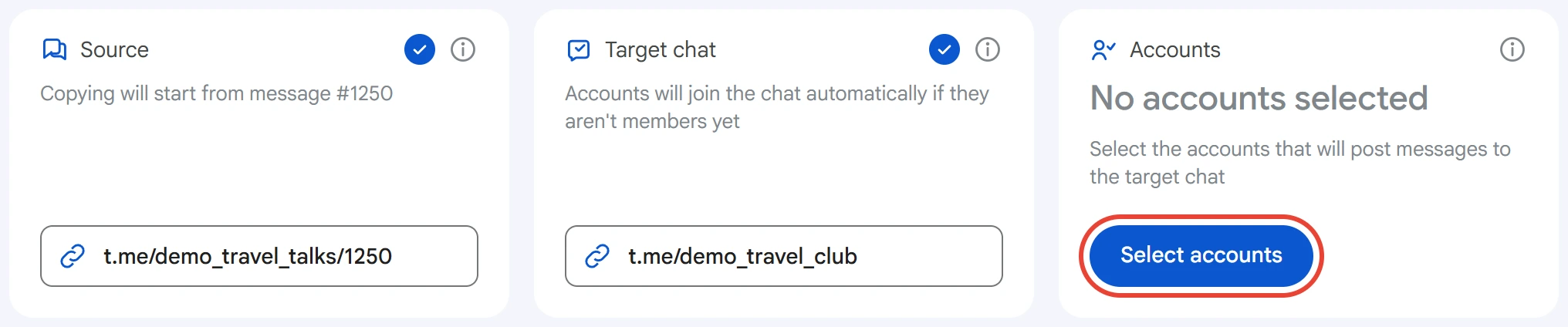
Click “Select accounts” in the “Accounts” card.
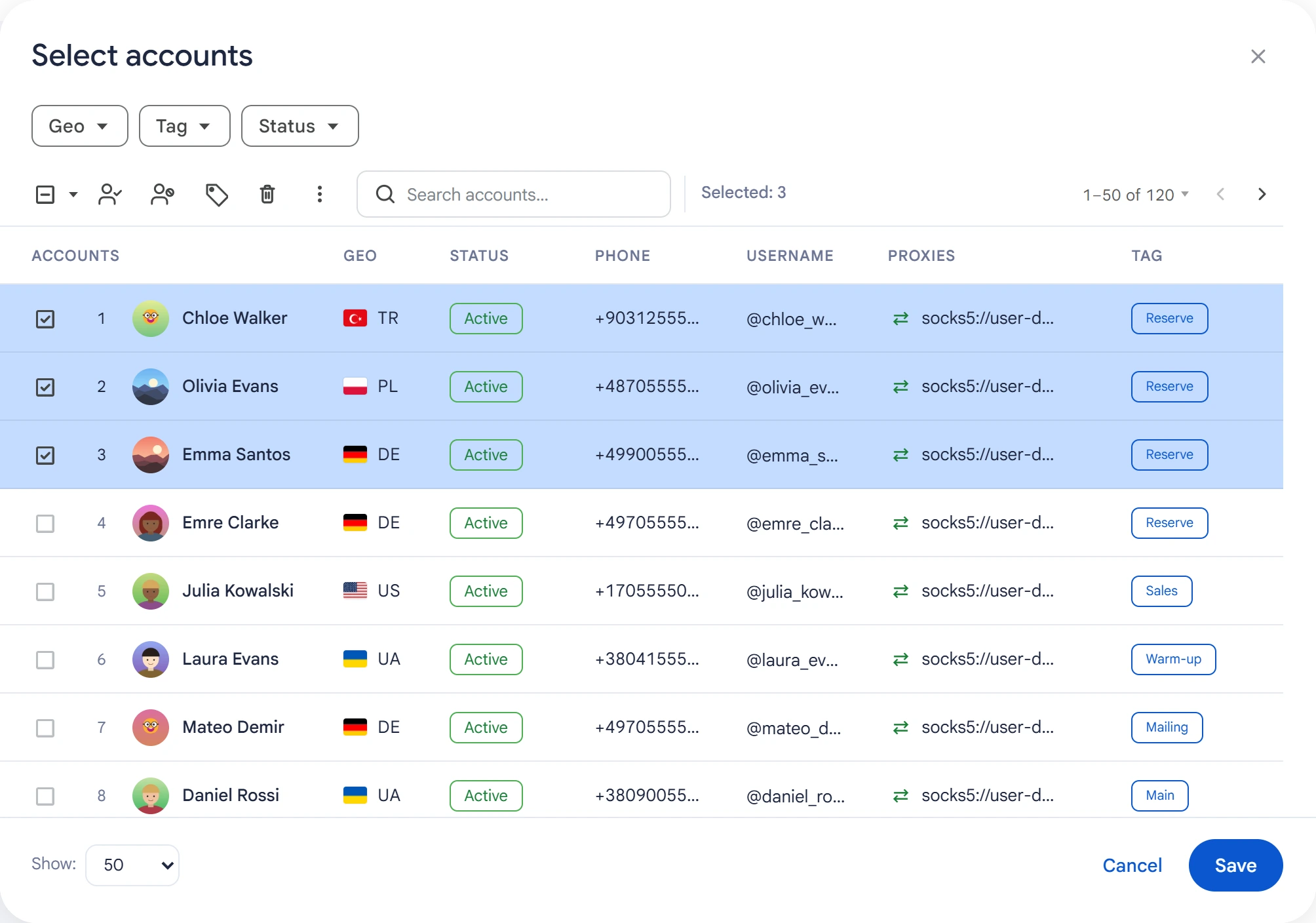
Select the accounts you need and click “Save”.
“Number of threads” in Advanced settings sets how many accounts post at the same time. The other selected accounts stay on standby: a standby account replaces one that couldn't start working because it failed to connect or join the target chat.
What to copy#
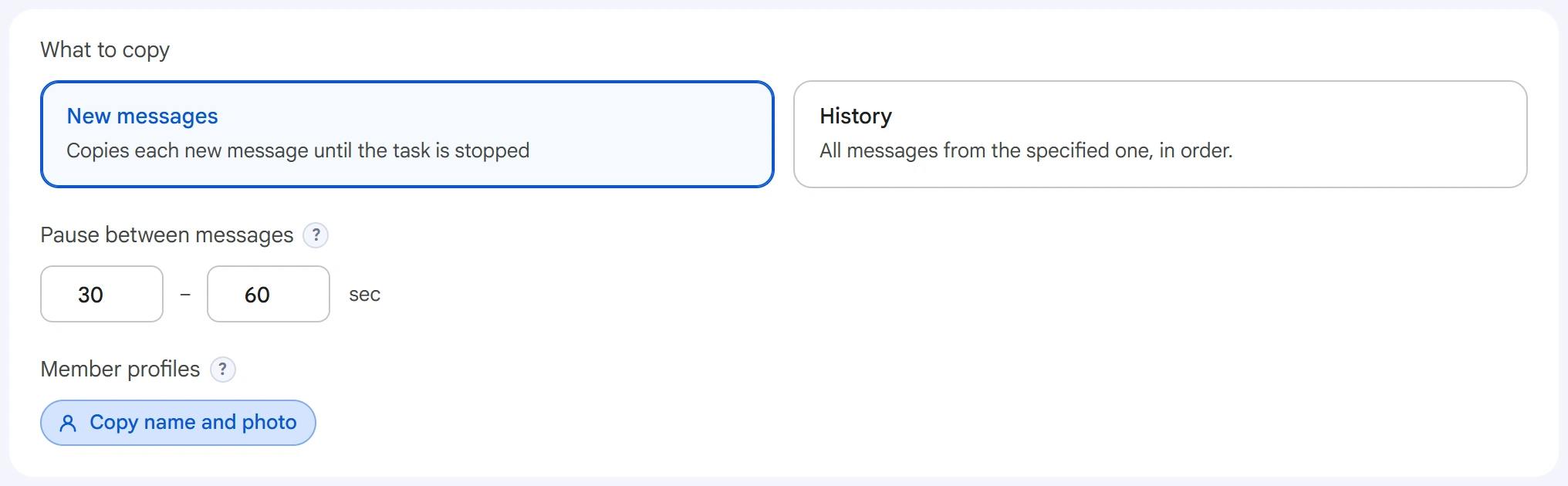
- New messages — the task watches the source and copies each new message until it's stopped. Each member of the source gets their own account. If there aren't enough free accounts, the other members' messages are split between all accounts.
- History — already written messages are copied in order: from the one set in the link or from the start of the chat. Accounts split the messages evenly. The task finishes on its own when everything is copied.
Select users to clone#
This field exists only for “History”. Click “Select users”.
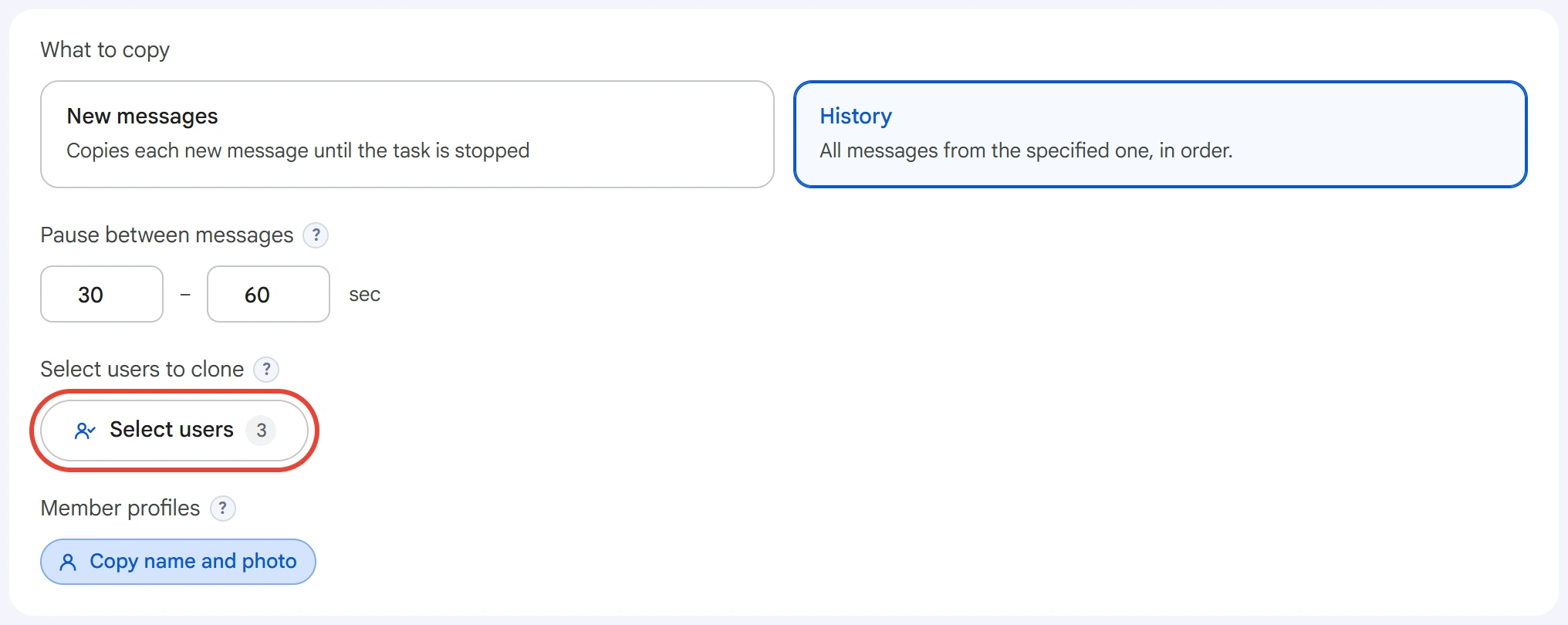
The first time, the program collects data: one of the selected accounts reads the source's history. The progress appears under the button, and you can stop it with the “Stop” button. When the data is ready, a window opens with a list of members and their message counts.
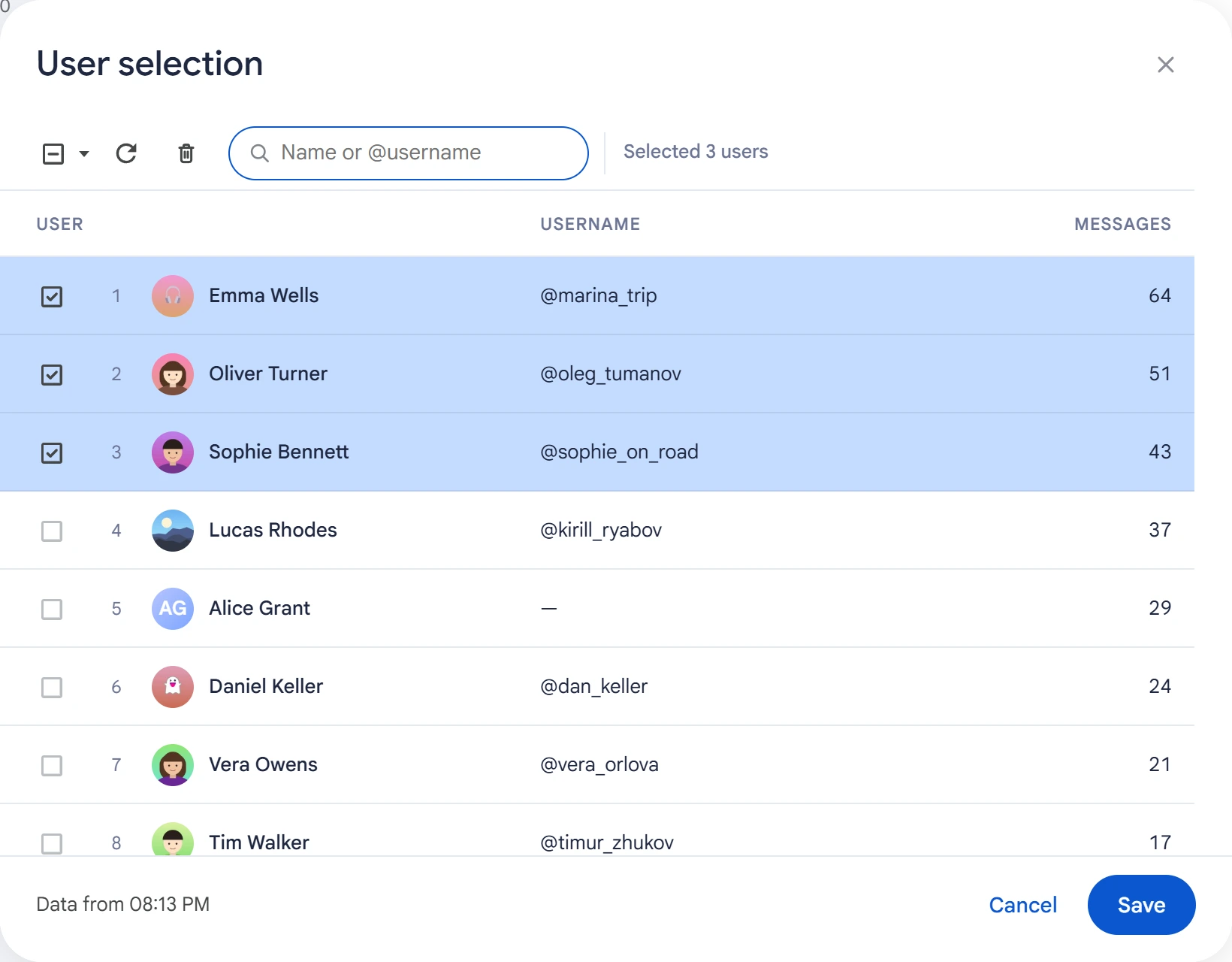
Select the members you need and click “Save”. You can find a member by name or @username. The bottom of the window shows when the data was collected; to refresh it, click the arrow icon.
- If you select anyone, only the selected members' messages are copied.
- If there are no more selected members than accounts, each member gets their own account.
- If there are more selected members, their messages are split evenly between accounts.
- If you select no one, the whole history is copied.
Pause between messages#
In “History”, this is the pause in the target chat: the next message goes out this long after the previous one, whoever sent it. The first message goes out right away. In “New messages”, it's the pause between one account's messages.
The shorter the pause, the faster the copying and the higher the risk of FloodWait.
Member profiles#
If “Copy name and photo” is on, the account takes the first name, last name, bio and photo of the member whose messages it copies. In “History”, this works only for selected members and only when each of them has their own account.
The account's previous name, bio and photo aren't saved.
Advanced settings#
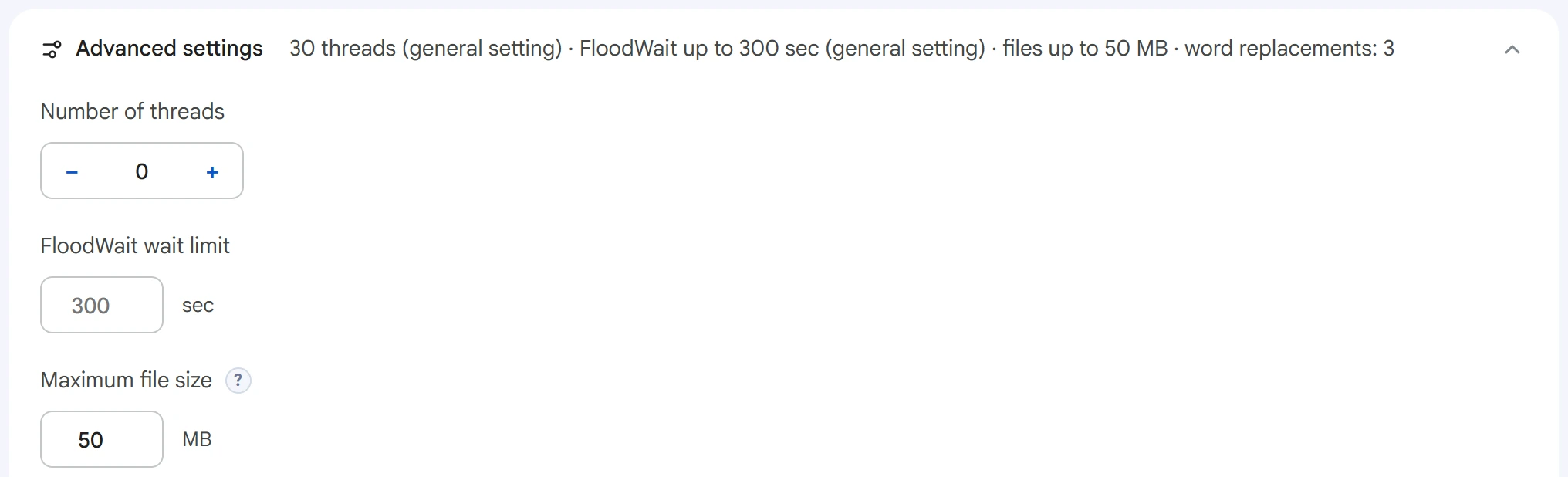
- Number of threads — how many accounts post at the same time.
0uses the value from Settings, but no more than the number of selected accounts. - FloodWait wait limit — how long an account can wait out the restriction. If the wait is longer, the account is removed from the task and the others continue. An empty field uses the general setting, and
0means waiting with no limit. - Maximum file size — files over the limit aren't copied: a message with text goes out without the file, and a message with no text is skipped. Photos are always copied.
0means no limit.
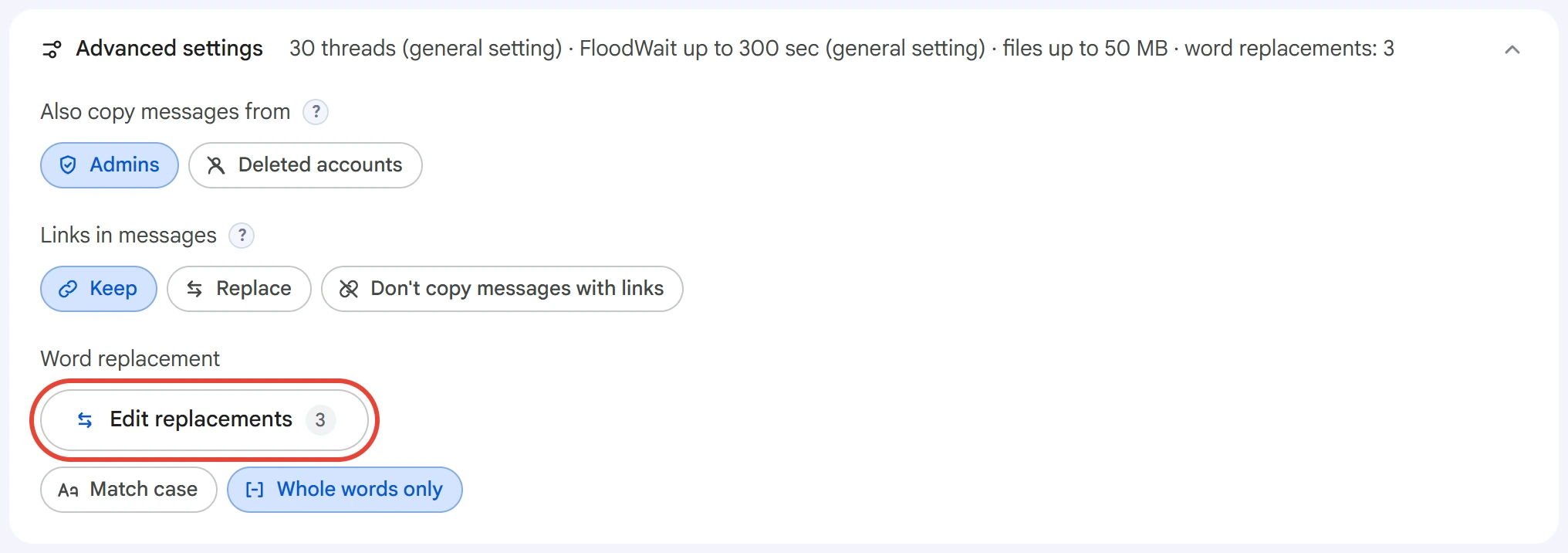
- Also copy messages from — “Admins” (including messages sent on behalf of the chat itself) and “Deleted accounts”. Bot messages are never copied.
- Links in messages — “Keep”, “Replace” or “Don't copy messages with links”. With “Replace”, three fields appear: for public links (
@username,t.me/username), invite links (t.me/+…) and external links (http://,https://,www.). An empty field leaves links of that kind as they are. - Word replacement — click “Add replacements” (if you already have some, “Edit replacements”) and enter rules, one per line. The “Match case” and “Whole words only” chips set how the word is searched for.
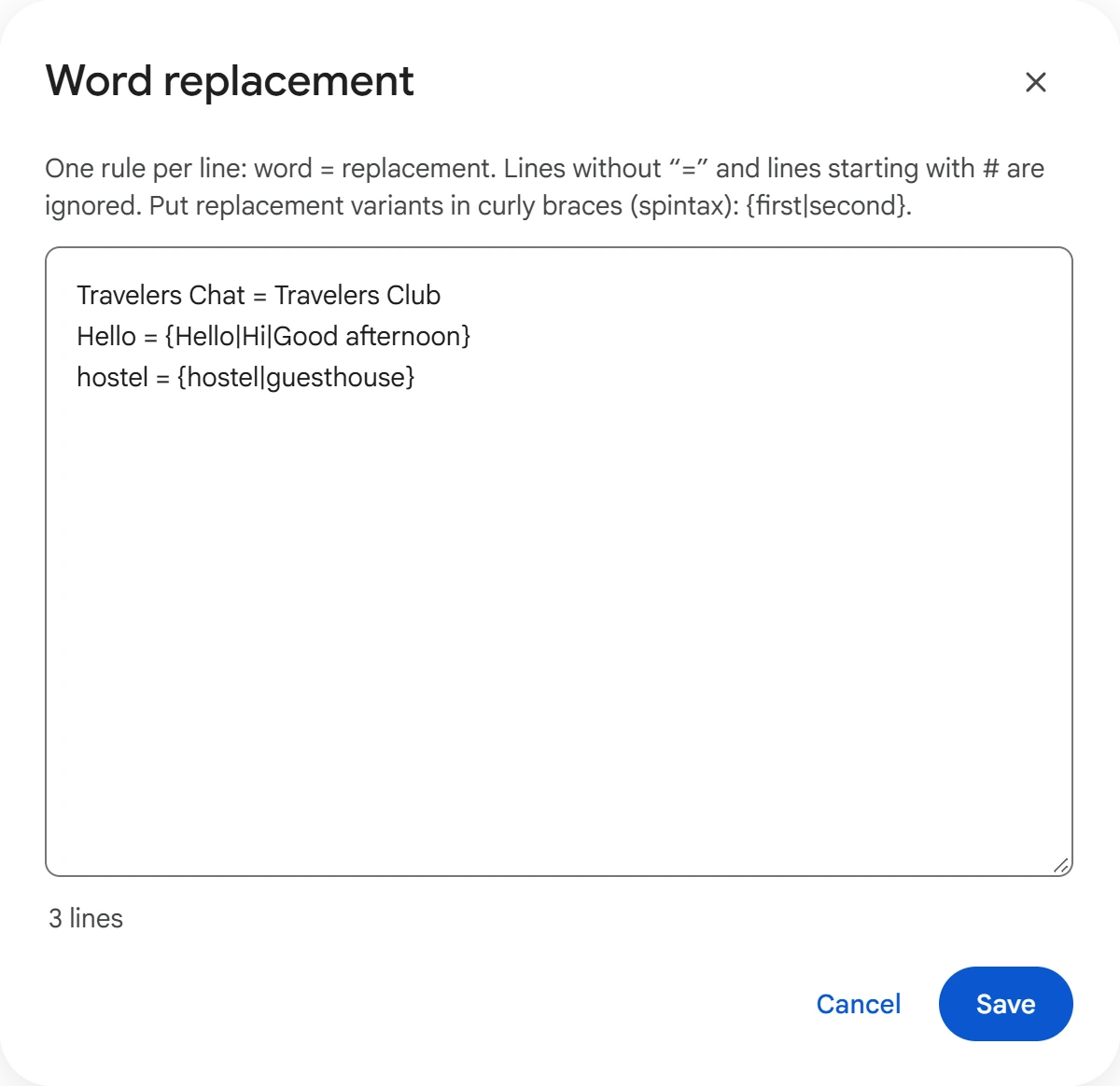
A rule looks like this: word = replacement. Put several replacement variants in curly braces, for example {Hi|Hello}, and the program picks one of them.
Start and results#
Click “Start task”. You can follow the copying in Task Manager.
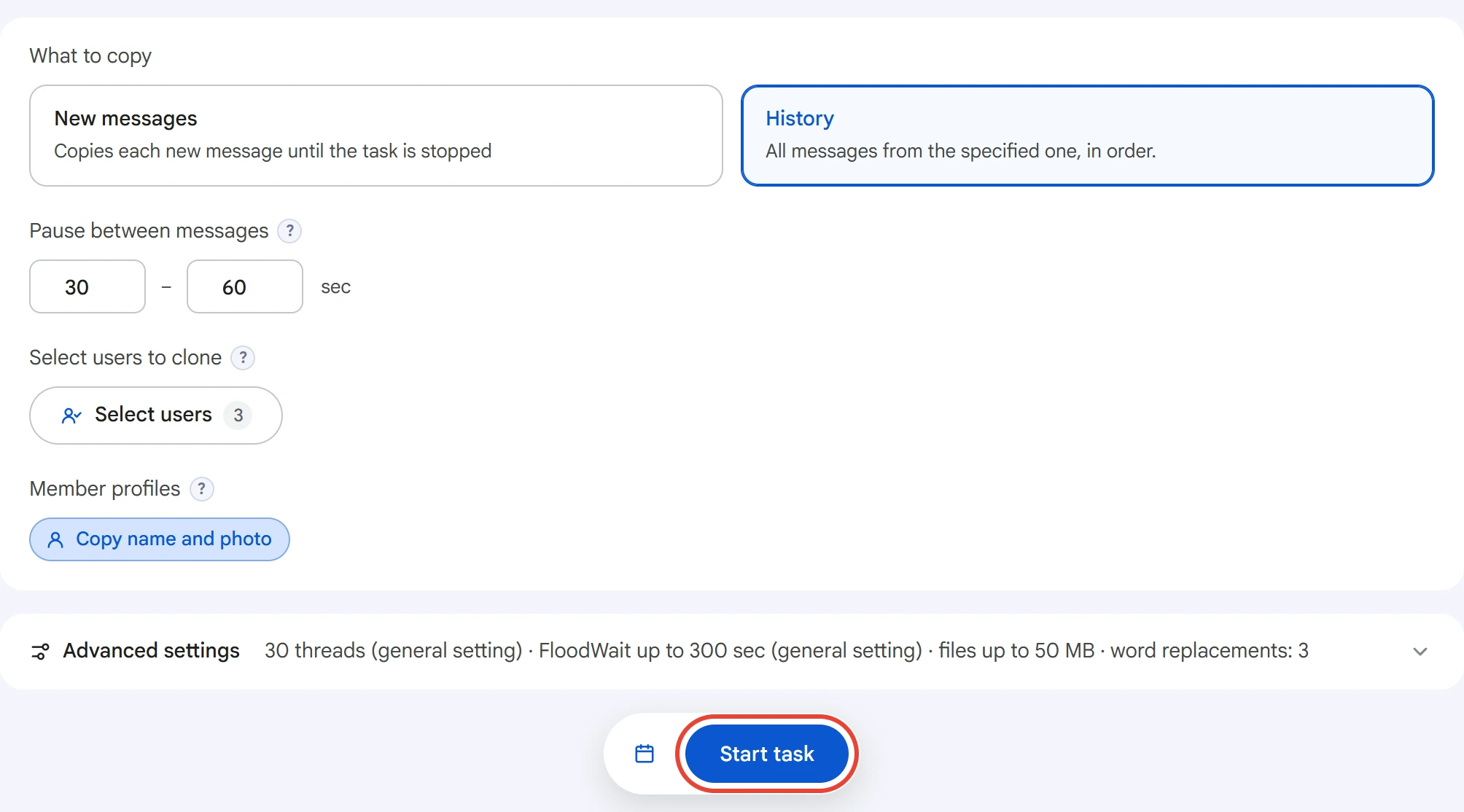
After the start, the source and target chat fields are cleared: their values have gone into the task. Word replacements stay.
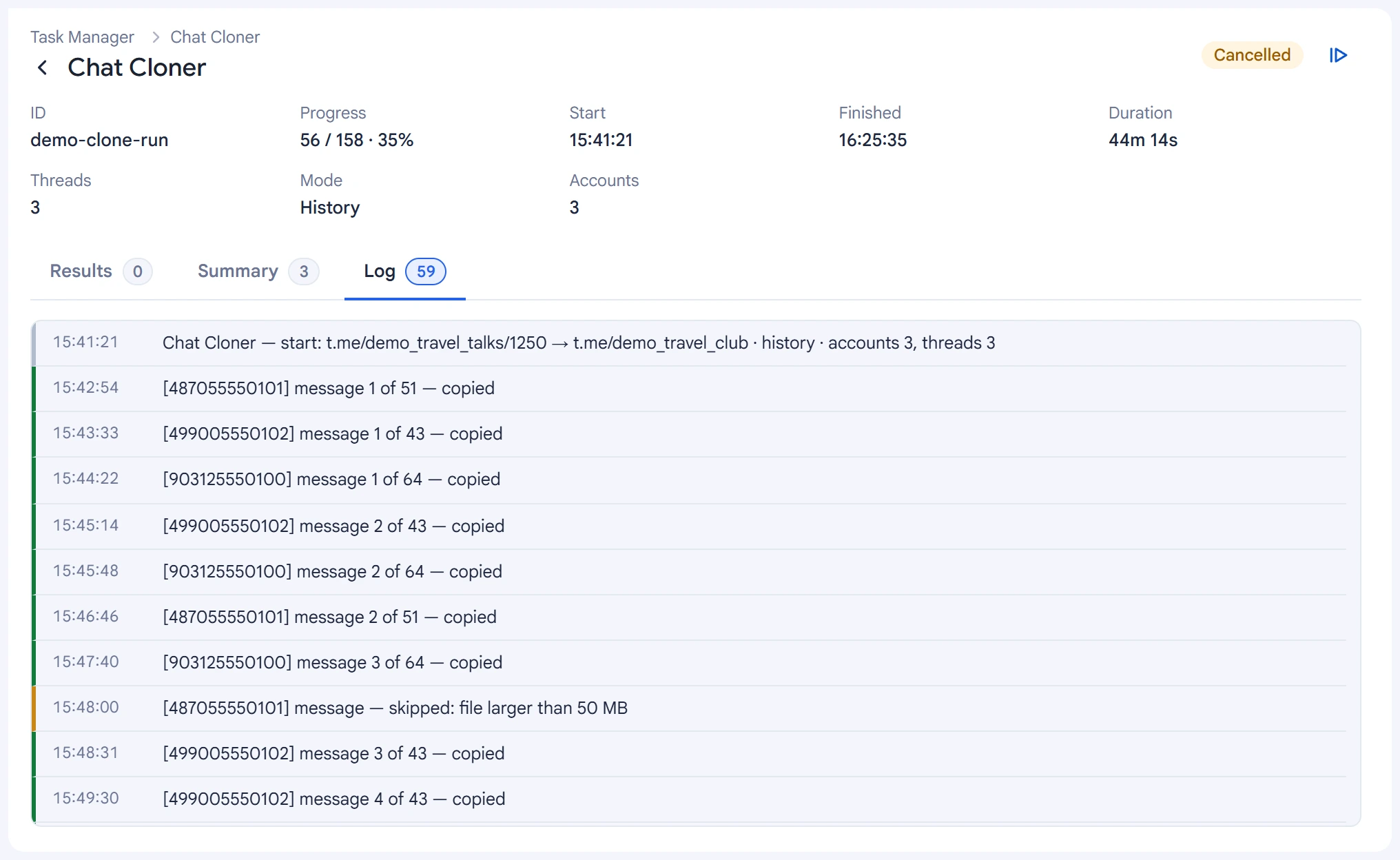
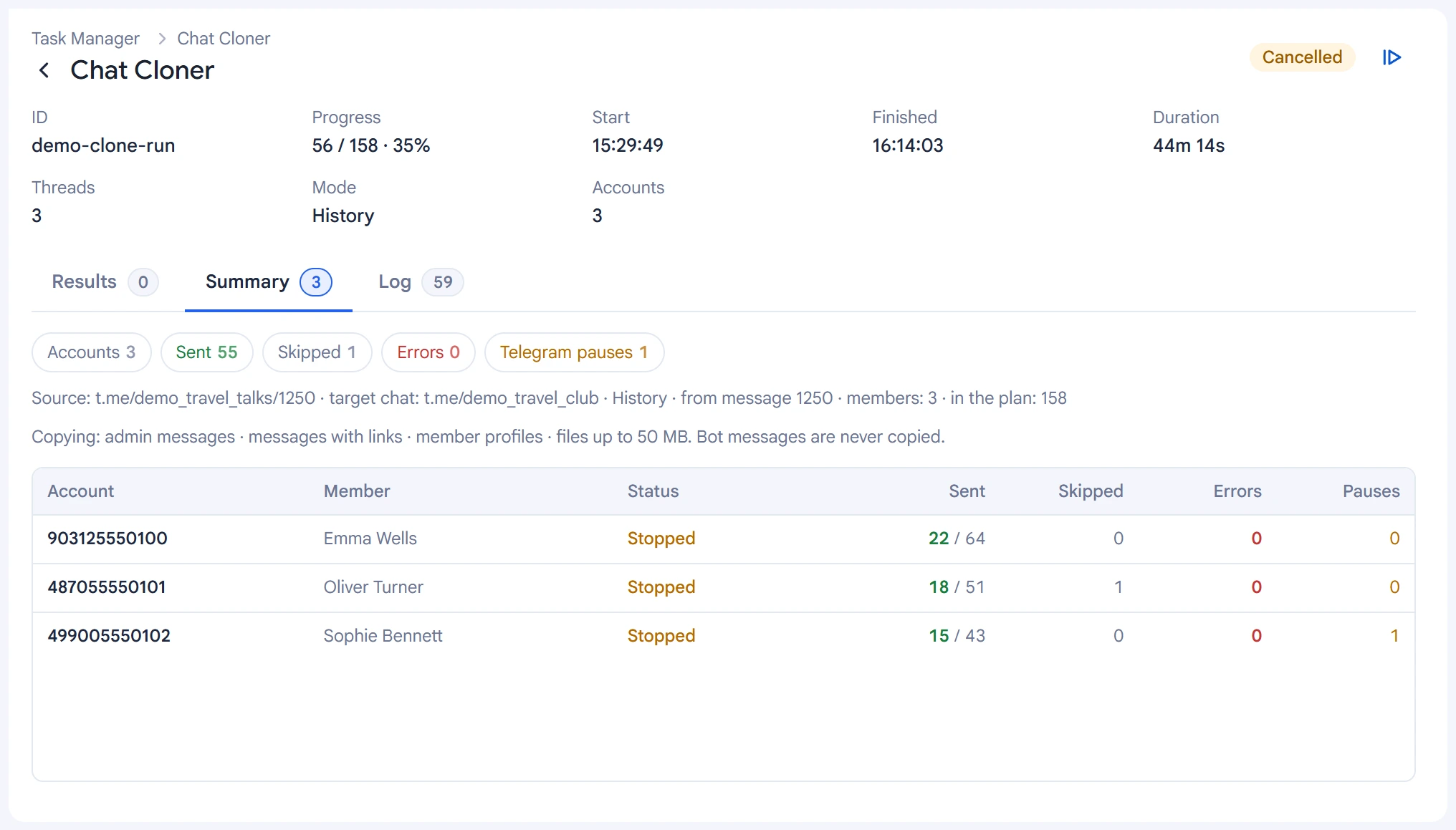
The task log has a line for each copied message, skips with the reason, and FloodWait. The last line gives the totals.
On the “Summary” tab, you can see for each account whose messages it copied, how many it sent out of its share, how many it skipped and how many times it waited for Telegram.
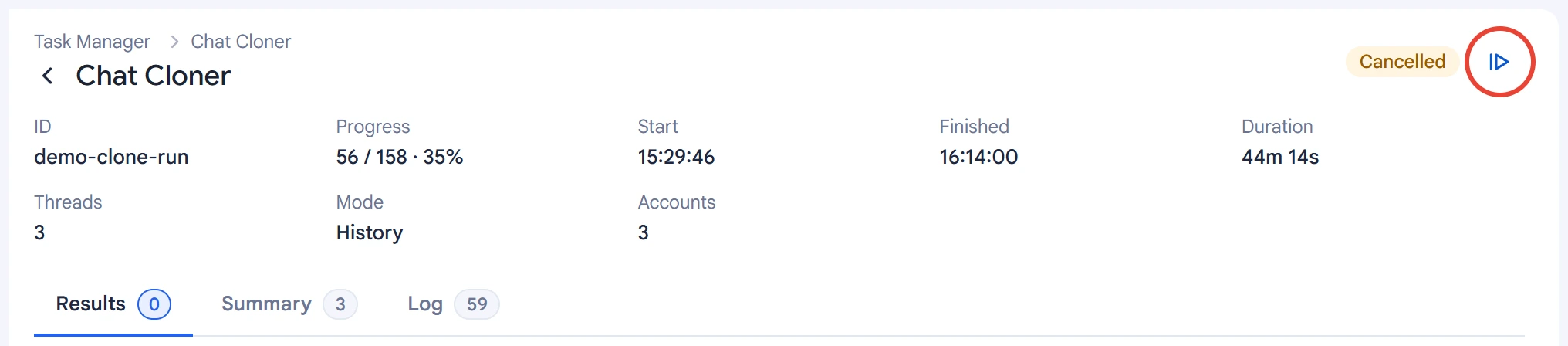
You can resume a stopped “History” task with the icon to the right of the status in the task card, or with the “Resume” button in Task Manager. Copying continues from where it stopped, and already copied messages aren't sent again. “New messages” tasks can't be resumed: start such a task again.
Service messages (“Joined”, “Pinned”) and messages with no text or file aren't copied. Locations, contacts and polls without text are skipped. Replies to messages go out as regular messages, with no quote.
Tips#
- Start with a small piece of history: paste a link to one of the latest messages and check the result.
- For “History”, set a longer pause: speed depends on the pause, not on the number of accounts.
- The account's profile changes for good. Turn on “Copy name and photo” only on accounts you don't mind renaming.
- Before you start, check that the accounts are allowed to post in the target chat.