
Modules
Reaction Boost
Accounts add reactions to posts in channels and groups, and vote in polls. Each selected account goes through every post in the list.
Posts#
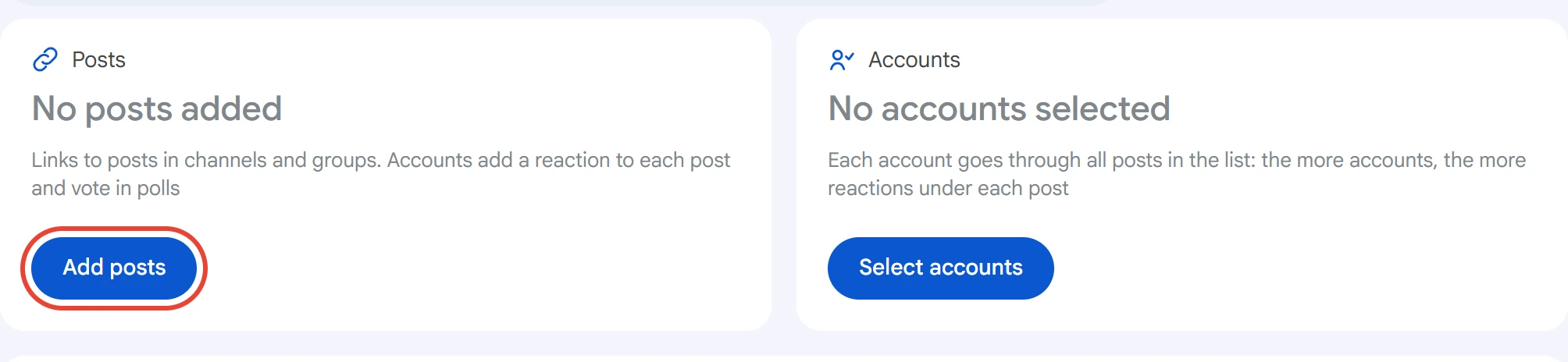
Click “Add posts” in the “Posts” card.
Paste a post link and click “Add”, or upload a list as a .txt / .csv file. Public and private channels, groups and forum topics work: t.me/channel/123, t.me/c/1234567890/45. You can paste several links at once, separated by line breaks, spaces, commas or semicolons. Duplicates and lines that don't look like a post link aren't added to the list.
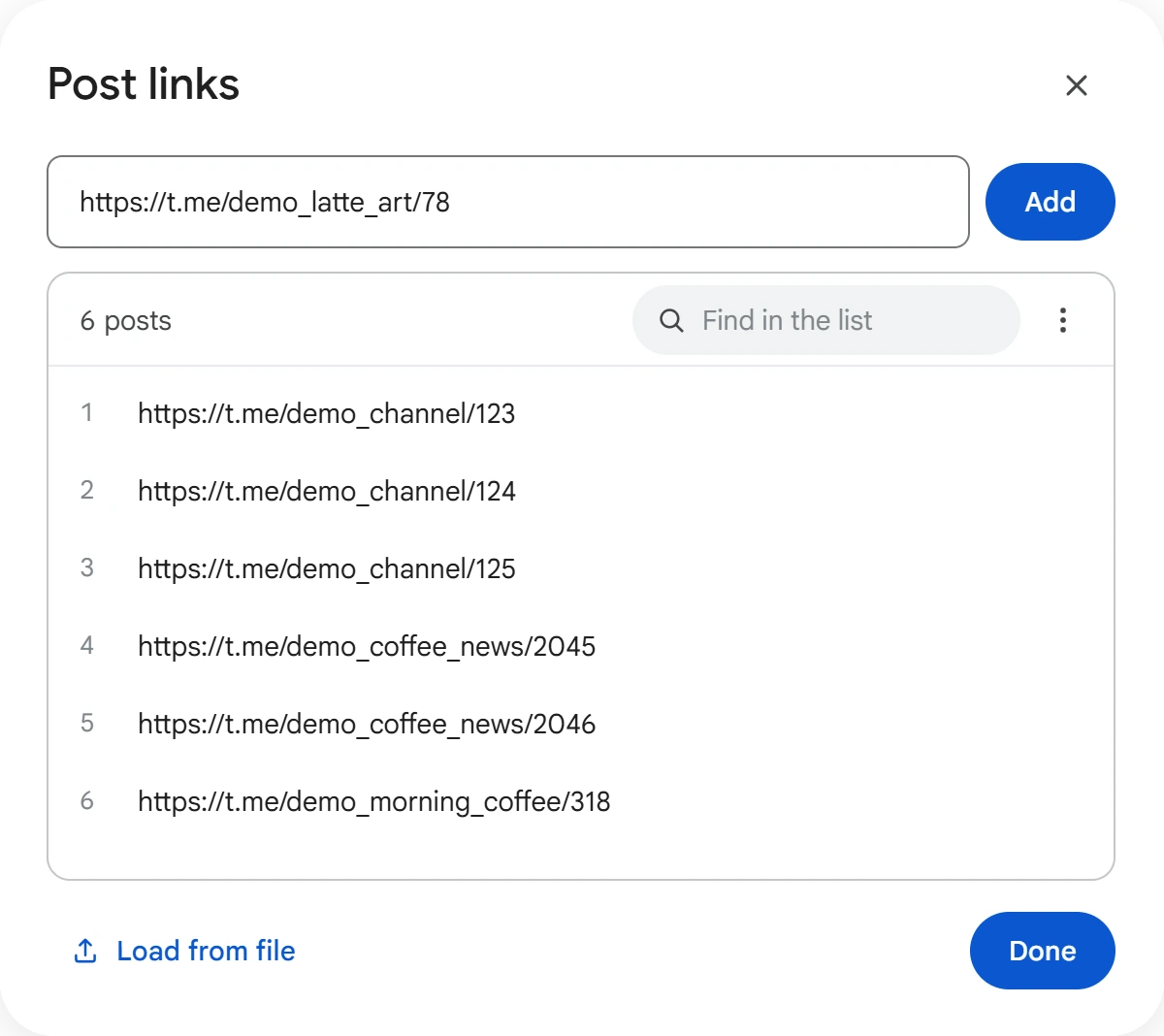
To fix a link in the list, click it. To remove one, click the cross. Use “Find in the list” to look up a link. The “⋮” menu has “Edit as text” and “Clear list”. The list is saved when you close the window: click “Done”.
The module doesn't accept links to bots or chat invites. Use Join / Leave for those.
Accounts#
Click “Select accounts”, check the ones you need and click “Save”.
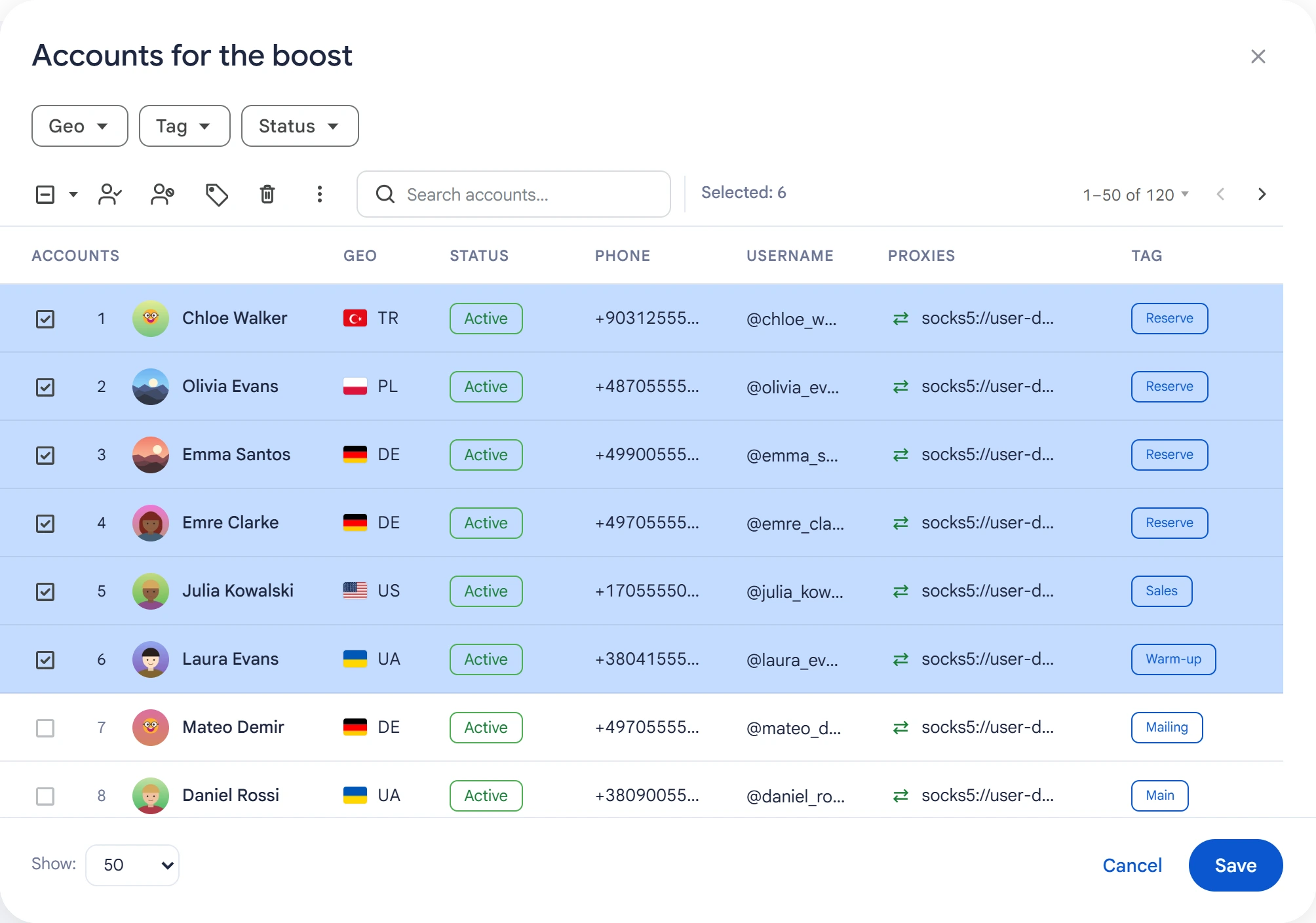
Each account goes through the whole post list, so more accounts means more reactions on each post. An account joins a public channel on its own if needed. In a private channel it must already be a member, otherwise the reaction won't go through.
Reactions#
Click “Select reactions”, check the emoji you need and click “Done”. “Deselect all” clears the selection.
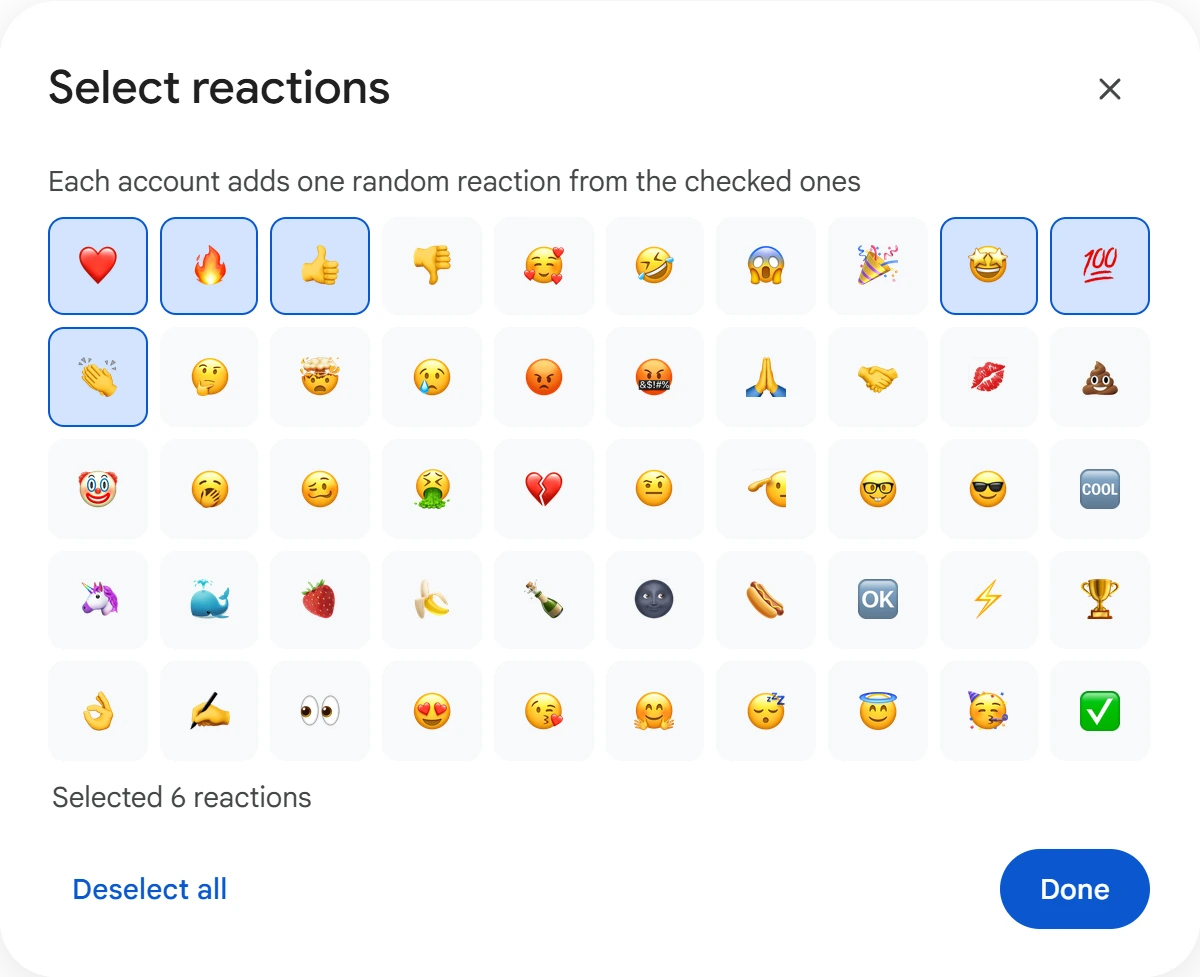
Each account adds one random reaction from your selection to a post. The wider the set, the more natural the reactions look. If the post is a poll, the account votes for a random option instead of reacting.
Telegram allows one reaction per album. If a reaction is already on the album, the account skips the album's other posts.
Limit and pause#
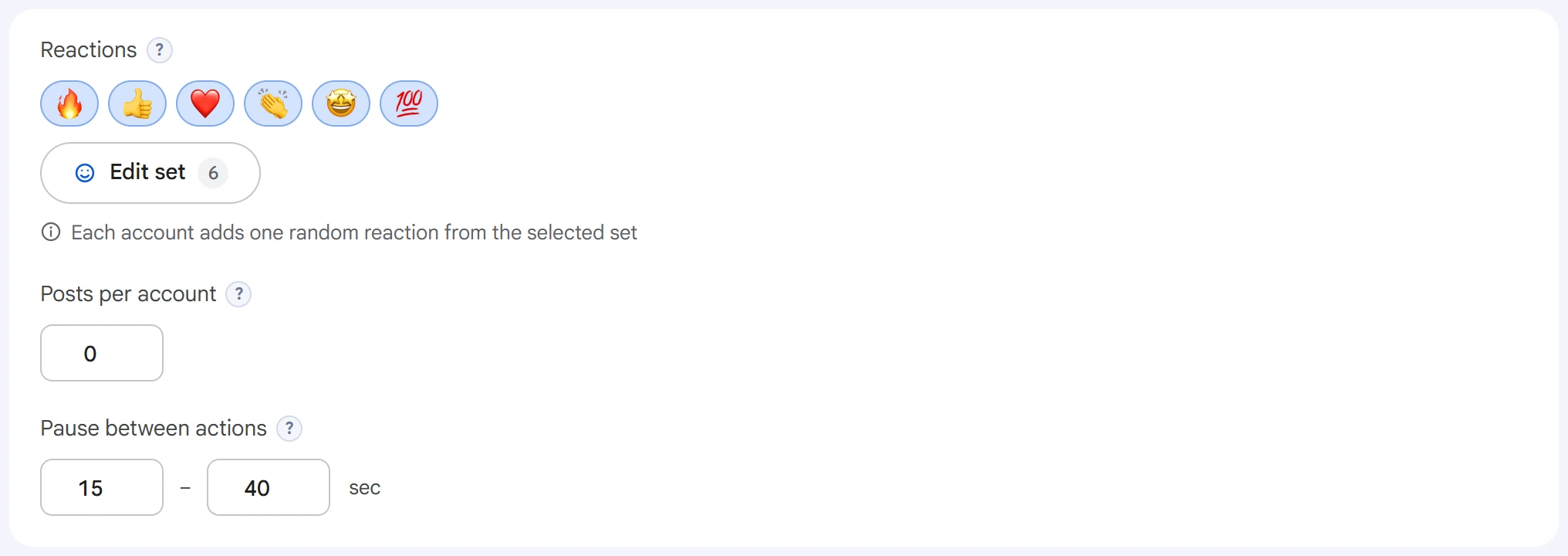
- Posts per account — the maximum number of posts one account handles per run. Only posts where the reaction or vote went through count.
0means the account goes through the whole list. - Pause between actions — a random pause between one account's actions, in seconds. With several threads, each thread keeps the pause separately.
Advanced settings#
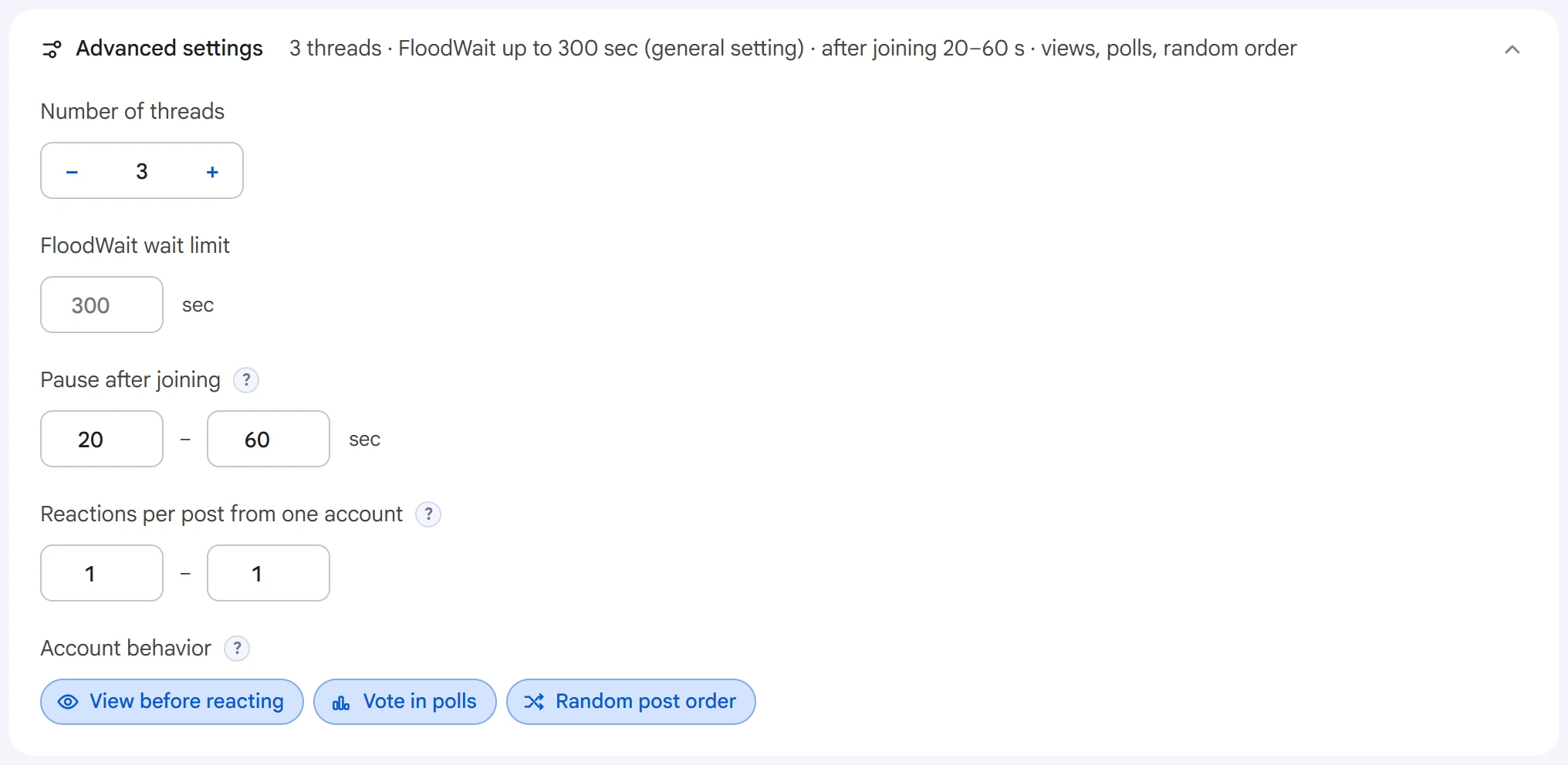
- Number of threads — how many accounts work at the same time.
0uses the value from Settings. - FloodWait wait limit — the account waits out a short FloodWait and moves on to the next post. If the wait is longer than the limit, the account is removed from the task. An empty field uses the general setting, and
0means waiting with no limit. - Pause after joining — if an account has just joined a channel or group, it waits this long before its first action. There's no pause in chats it's already a member of.
0means no pause. - Reactions per post from one account — from 1 to 3. Telegram allows more than one only for accounts with Premium; the others add one.
Everything in “Account behavior” is on by default:
- View before reacting — the account opens the post first, and the post's view count goes up.
- Vote in polls — votes for a random option; a vote already cast isn't changed. When this is off, polls are skipped.
- Random post order — each account goes through the posts in its own order.
Start and results#
Click “Start task”. The calendar icon next to it schedules the start for later. You can follow progress in Task Manager.
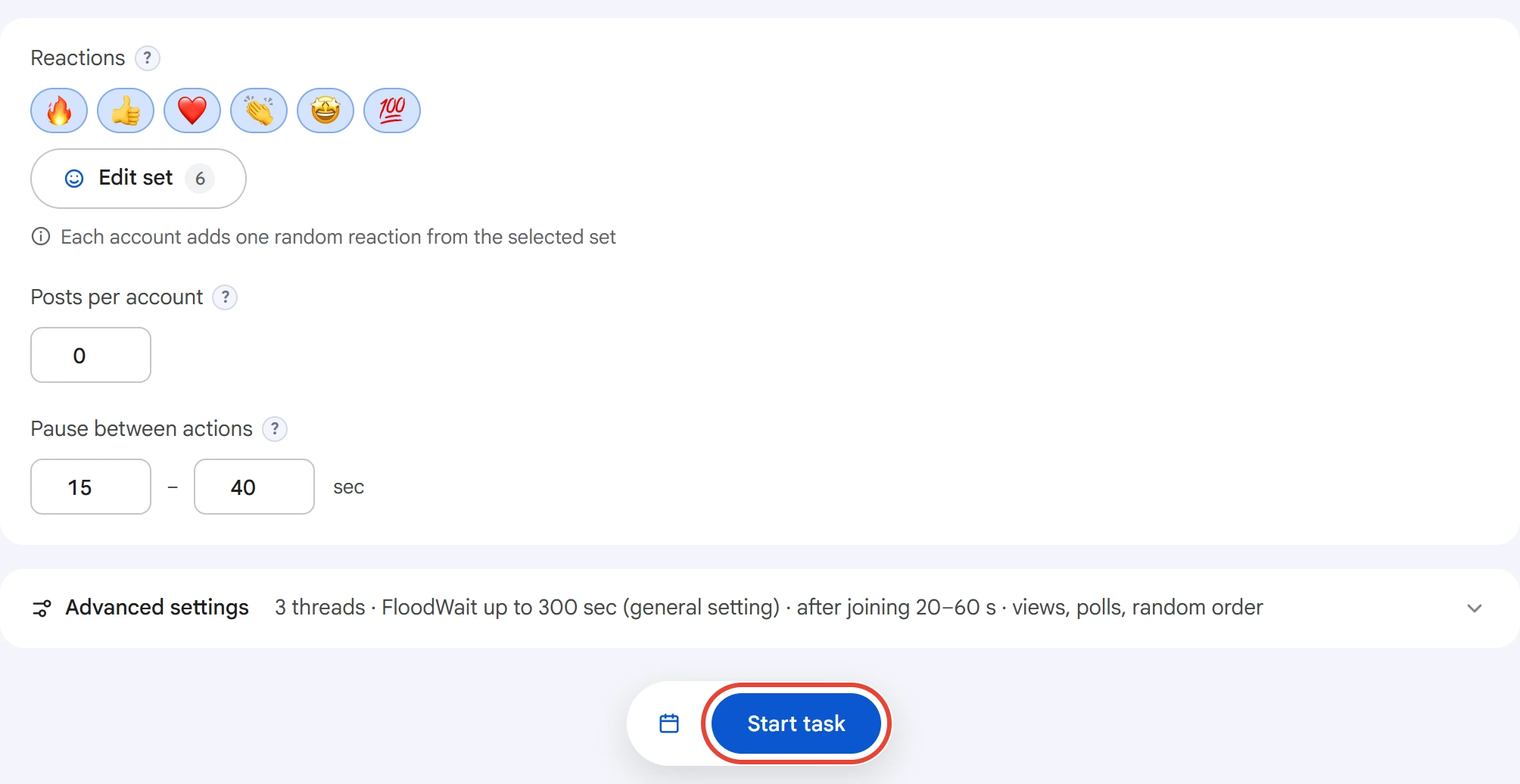
After the start, the post list on the screen is cleared, so the next task begins with a new list.
The log has a line for each reaction and each vote with the account's number, plus skips and errors with the reason. The last line is the total: how many went through out of the planned number.
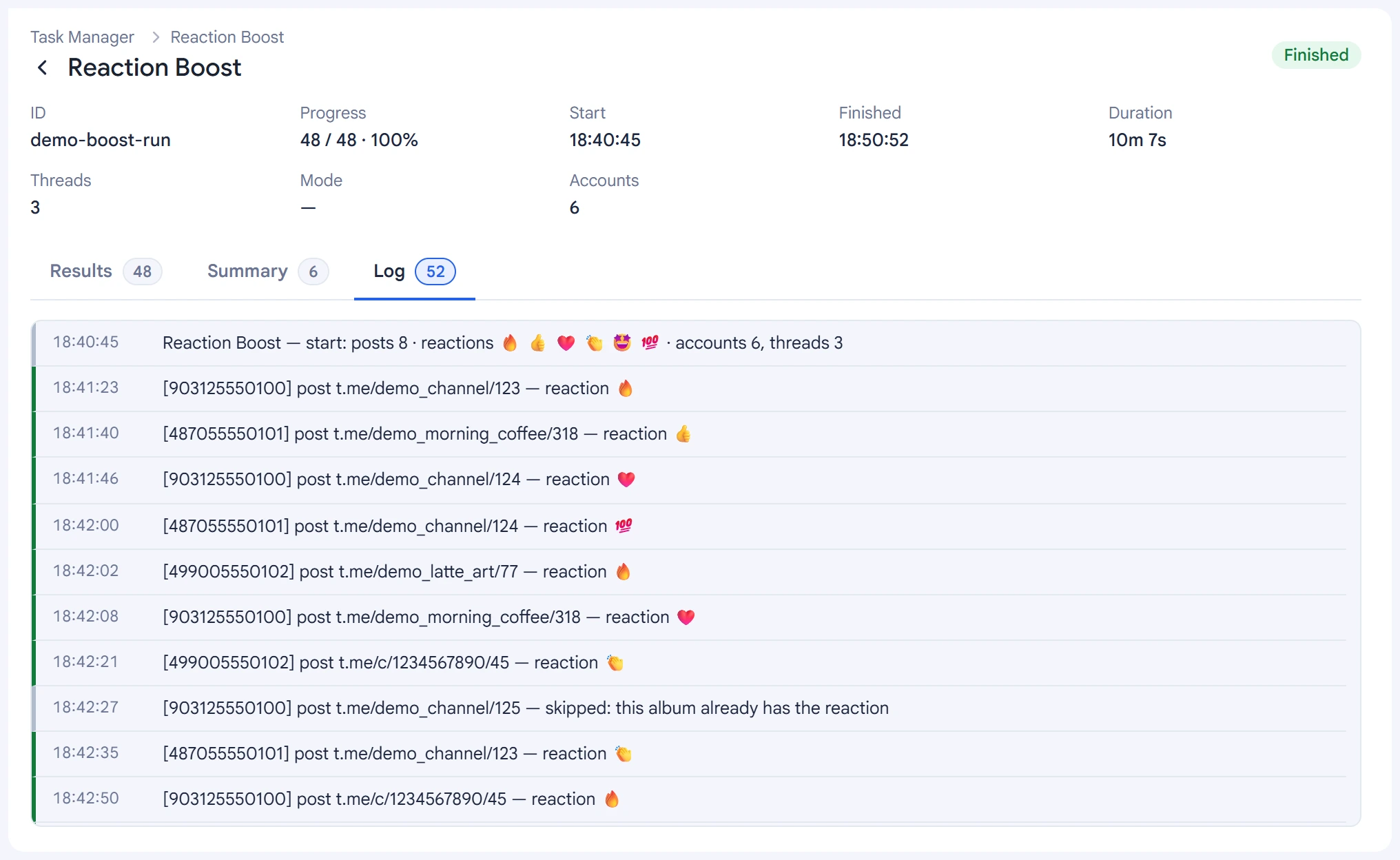
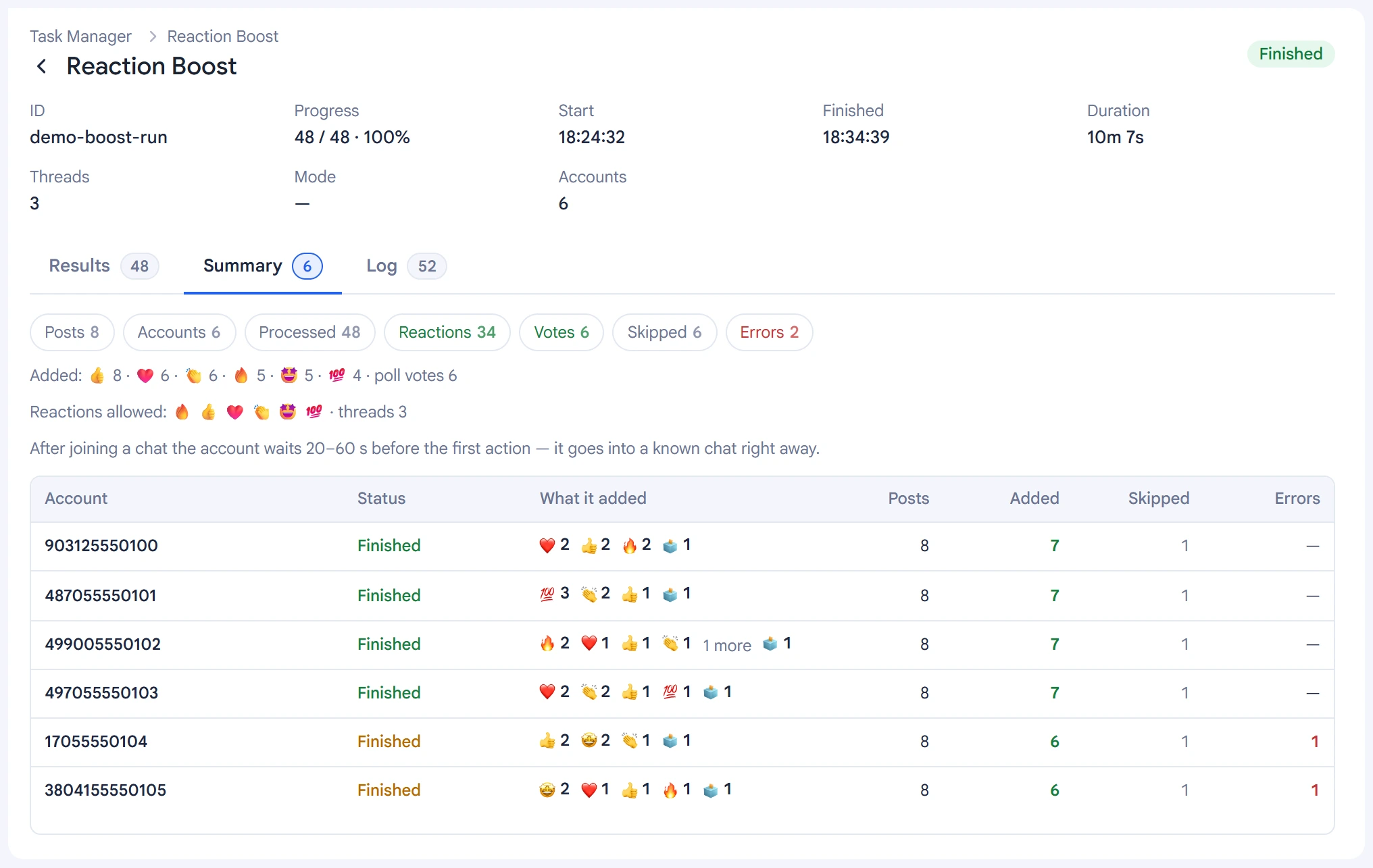
The “Summary” tab shows the result for each account: what it added, how many posts it went through, how many reactions and votes it left, and how many skips and errors it had.
You can resume a stopped task in Task Manager. Accounts that have already gone through the whole list aren't used again.
New channel posts#
Choose “New channel posts”. Enter one channel per line, select accounts and reactions, and set the target range, worker count and pause. The list accepts channel addresses only. Reaction counts, emoji and pauses come from module settings.
The application joins channels, receives new publications and checks for missed posts. Private invitations and approval requests are supported; groups are excluded. Each account contributes one reaction per post, capped by the selected roster. All selected accounts remain busy until the task stops.
The rolling 24-hour limit is shared by linked posts and all monitoring tasks. Set it in either mode's advanced settings; 0 means unlimited. The catch-up age controls recovery after interruptions; 0 disables offline catch-up. Worker counts and pauses can be edited while running. FloodWait releases the worker and the account returns automatically when Telegram's waiting period ends.
Task Manager supports pause, stop and continue. The summary shows channels, accounts, targets and confirmed reactions. Uncertain requests are verified before retrying. Monitoring does not restart automatically when the app opens.
Tips#
- Gradual growth is safer than a sudden jump: fifty reactions in an hour look more natural than fifty in a minute.
- Select several reactions rather than one, so the set under a post looks real.
- For private channels, add the accounts to the channel in advance with Join / Leave.