
Modules
DM Broadcast
The module sends direct messages to people from your lists, contacts or account dialogs. You can send your own text with a photo or forward a channel post.
Recipients#
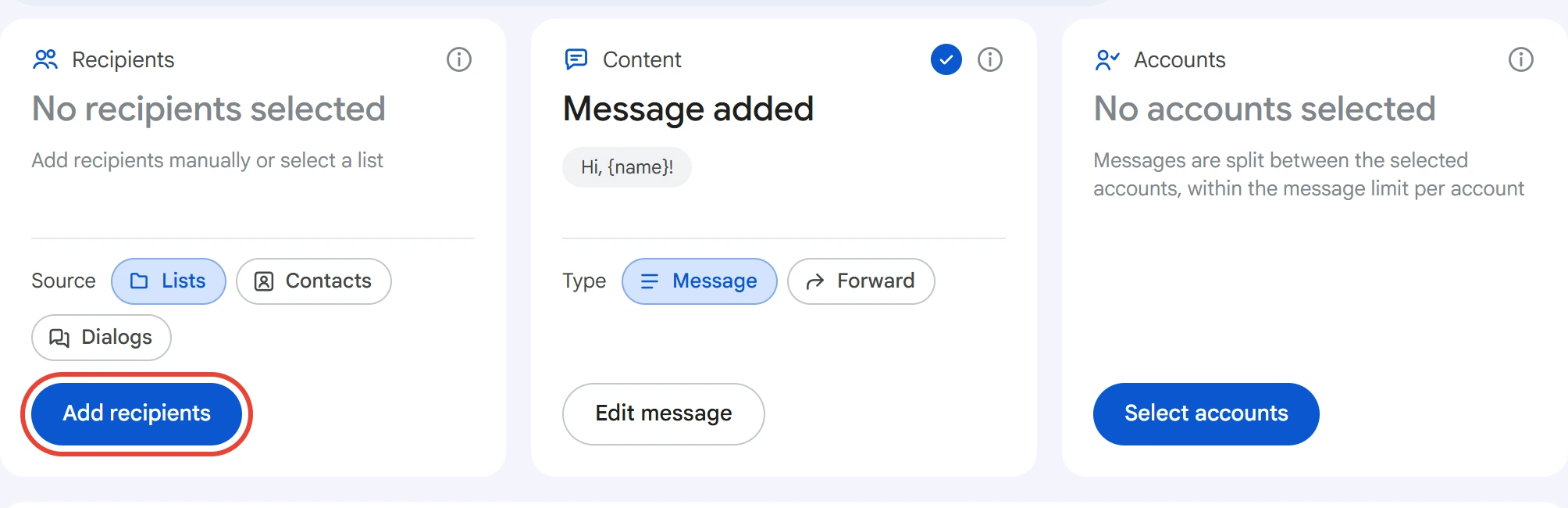
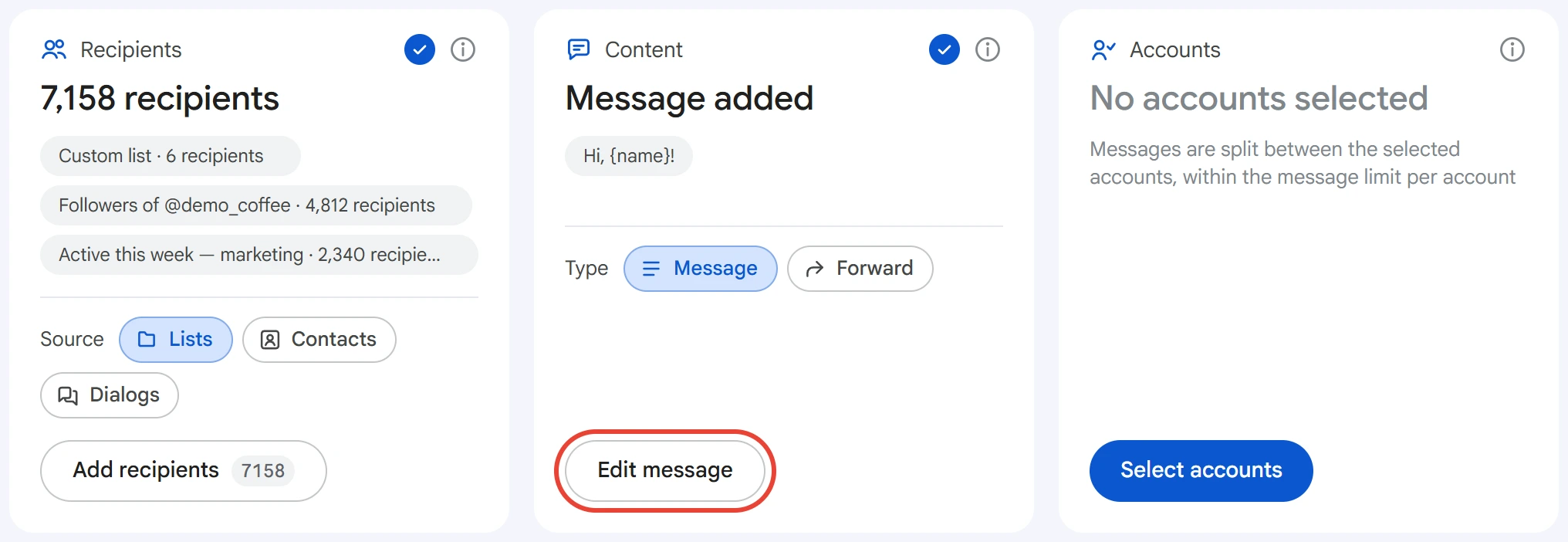
Click “Add recipients” in the “Recipients” card.
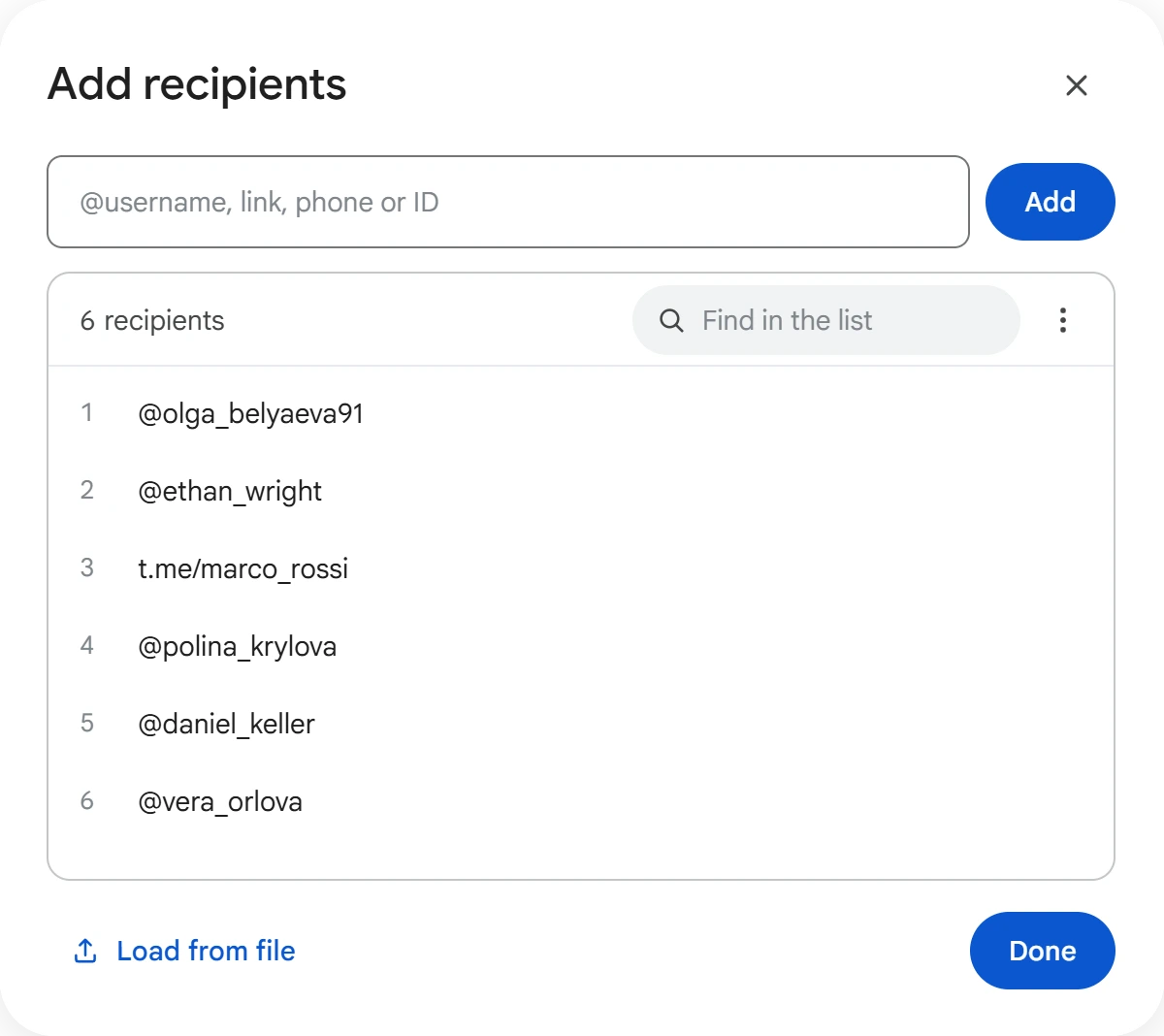
Enter recipients in the line at the top and click “Add”, or upload a .txt / .csv file. You can use a @username, a t.me/… link, a phone number or an ID, each on a new line. Duplicates don't get into the list.
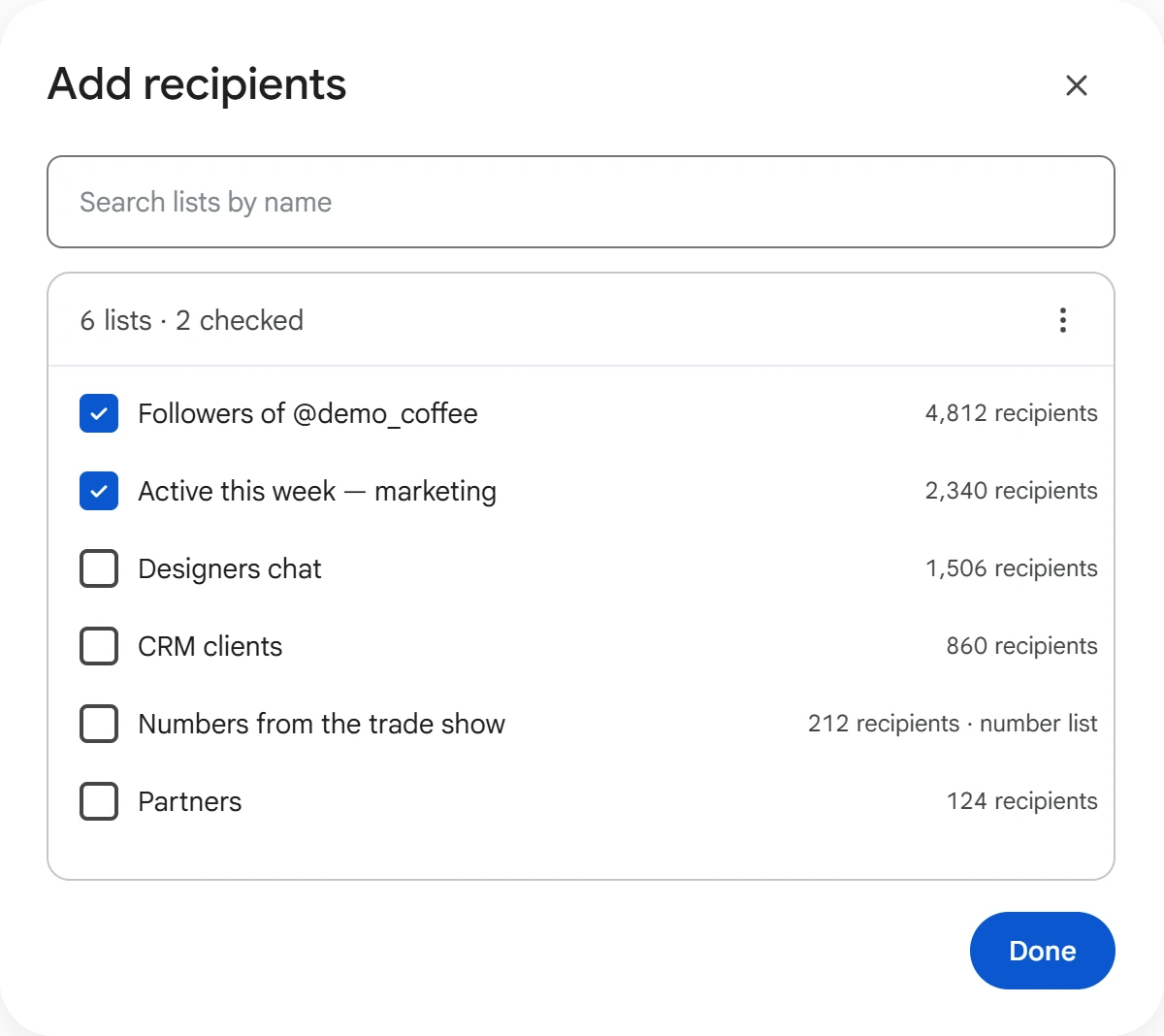
To take people from a list, open the “⋮” menu in the window and select “From a list”. Check one or more lists from the Lists section and click “Done”.
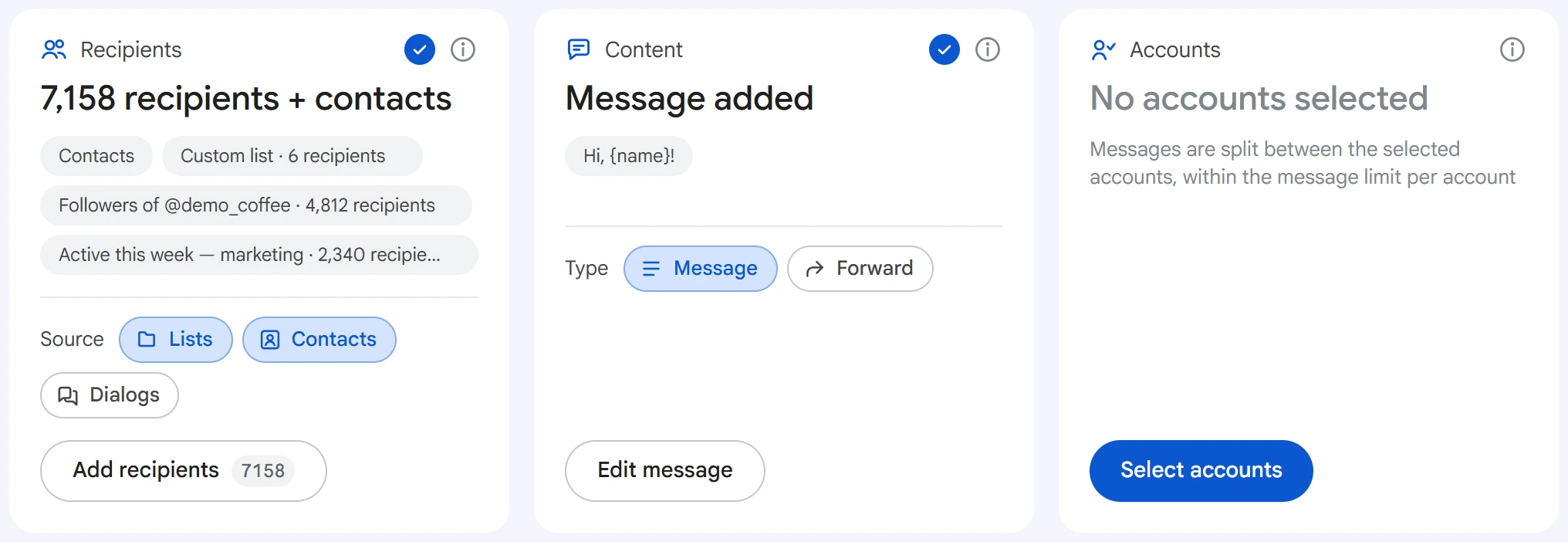
Below the card, choose where to take recipients from. You can check several sources at once:
- Lists — lists and your custom list from the “Add recipients” window. They're shared by all accounts.
- Contacts — each account messages its own contacts.
- Dialogs — each account messages people it already has a conversation with.
The broadcast doesn't message the same person twice. In the list, they get a “Broadcast: OK” mark. You can remove it in the Lists section, and the person becomes available for broadcasts again. An account remembers on its own which of its contacts and dialogs it has already messaged. A custom list isn't checked: the message will be sent to everyone you added to it.
Content#
Click “Edit message” in the “Content” card. If there's no message yet, the button is called “Add message”.
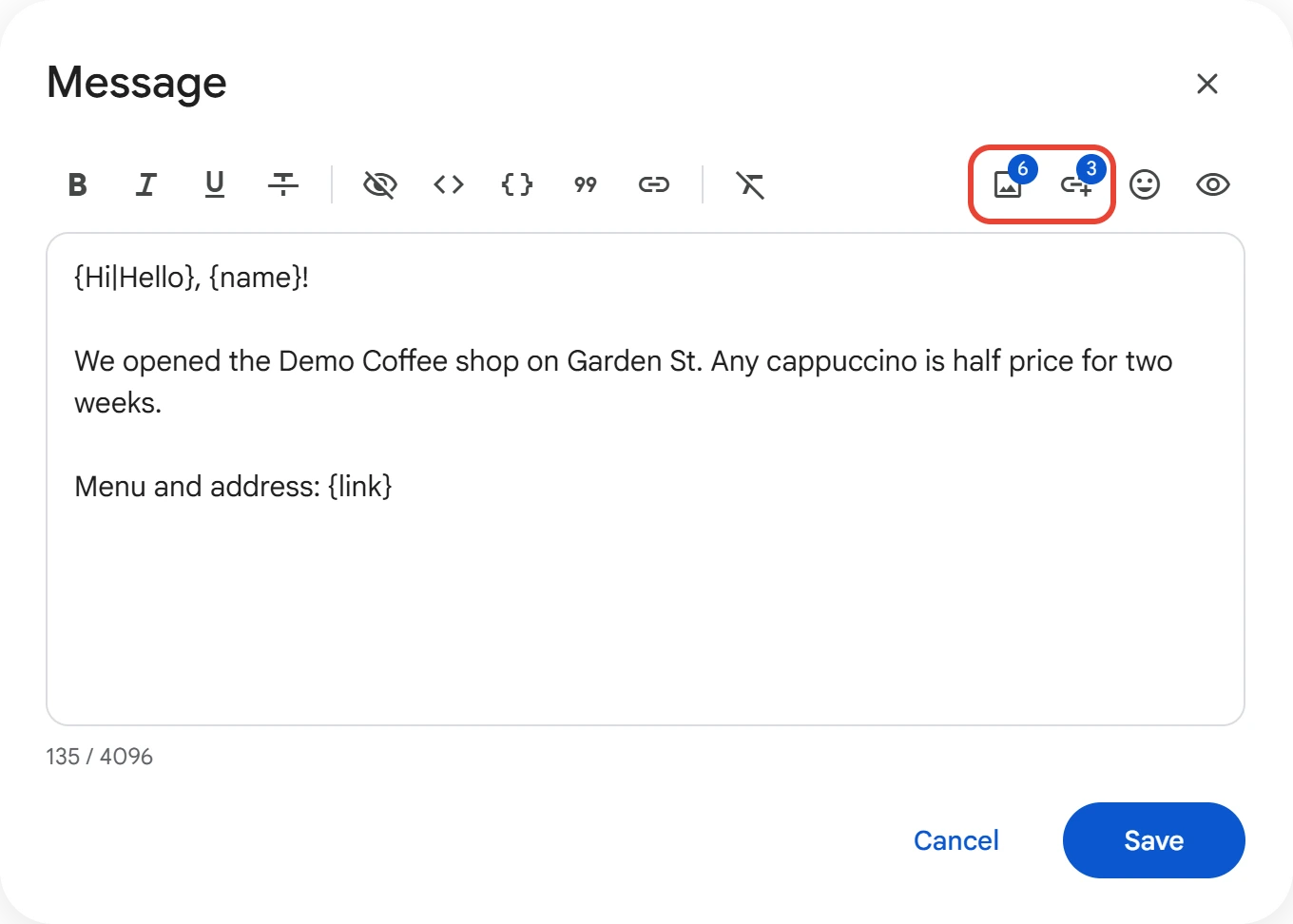
Write your text. Formatting — bold, italics, links, quotes — is set with the buttons at the top and goes to Telegram as is. In the text you can use:
{name}— the recipient's name;{link}— a link from the link list;{Hi|Hello}— variants: each recipient gets one of them. More details: Text variants and list formats.
On the right of the panel are the photo and link icons, which show how many have already been added. Click “Save”.
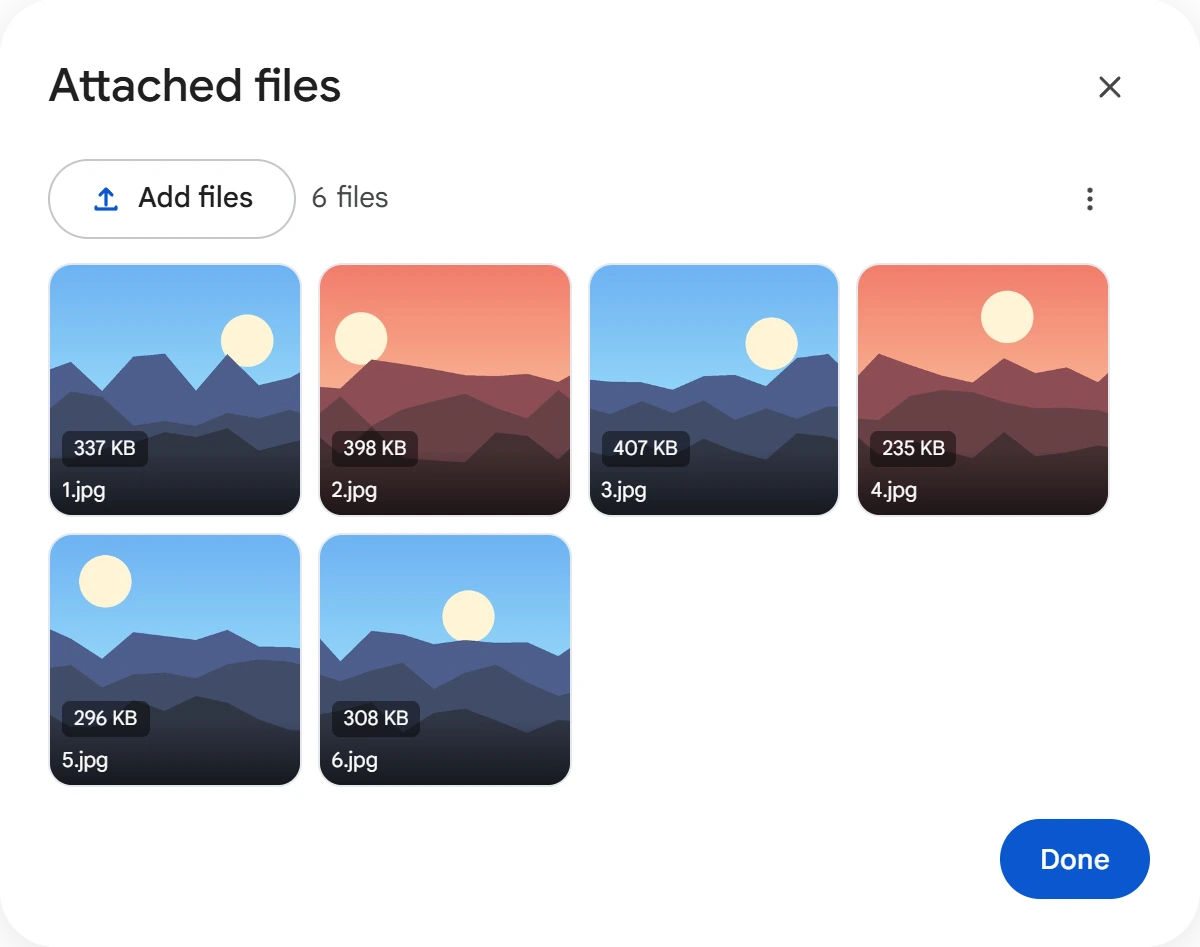
The photo icon opens the “Attached files” window. Click “Add files” and select photos. Each message gets one random photo attached. To send a specific one, write its name in the text, for example [1.jpg]. If there's no text, recipients get only the photo.
The link icon opens the “Links for {link}” window: add links one per line, and a random one will replace {link} in each message. If each link and each photo should be sent only once, turn on “Delete after use” in the “⋮” menu of these windows.
Forward#
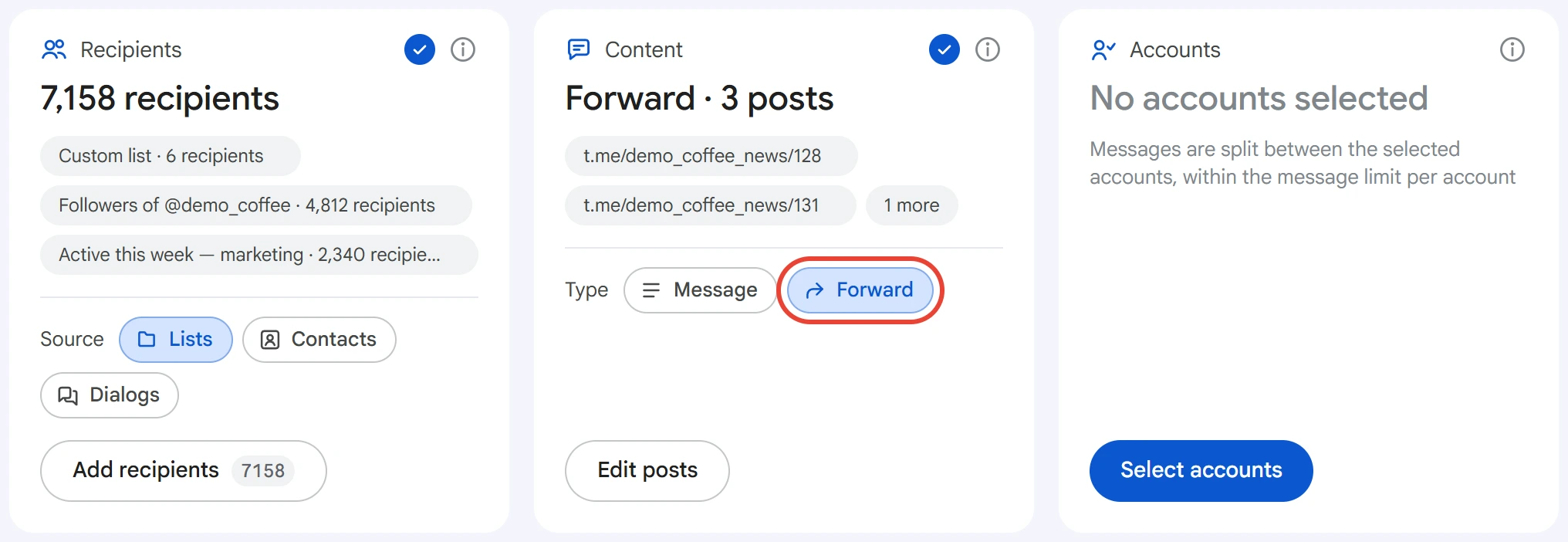
To forward a channel post instead of your own text, select the “Forward” type and click “Add posts”. Paste post links: t.me/channel/123 or t.me/c/1234567890/45. Posts are sent in turn. The recipient sees the post with the “Forwarded from …” label and the post's buttons. You can forward a post from a private channel only if the accounts are members of it.
Accounts#
Click “Select accounts”, check the ones you need and click “Save”.
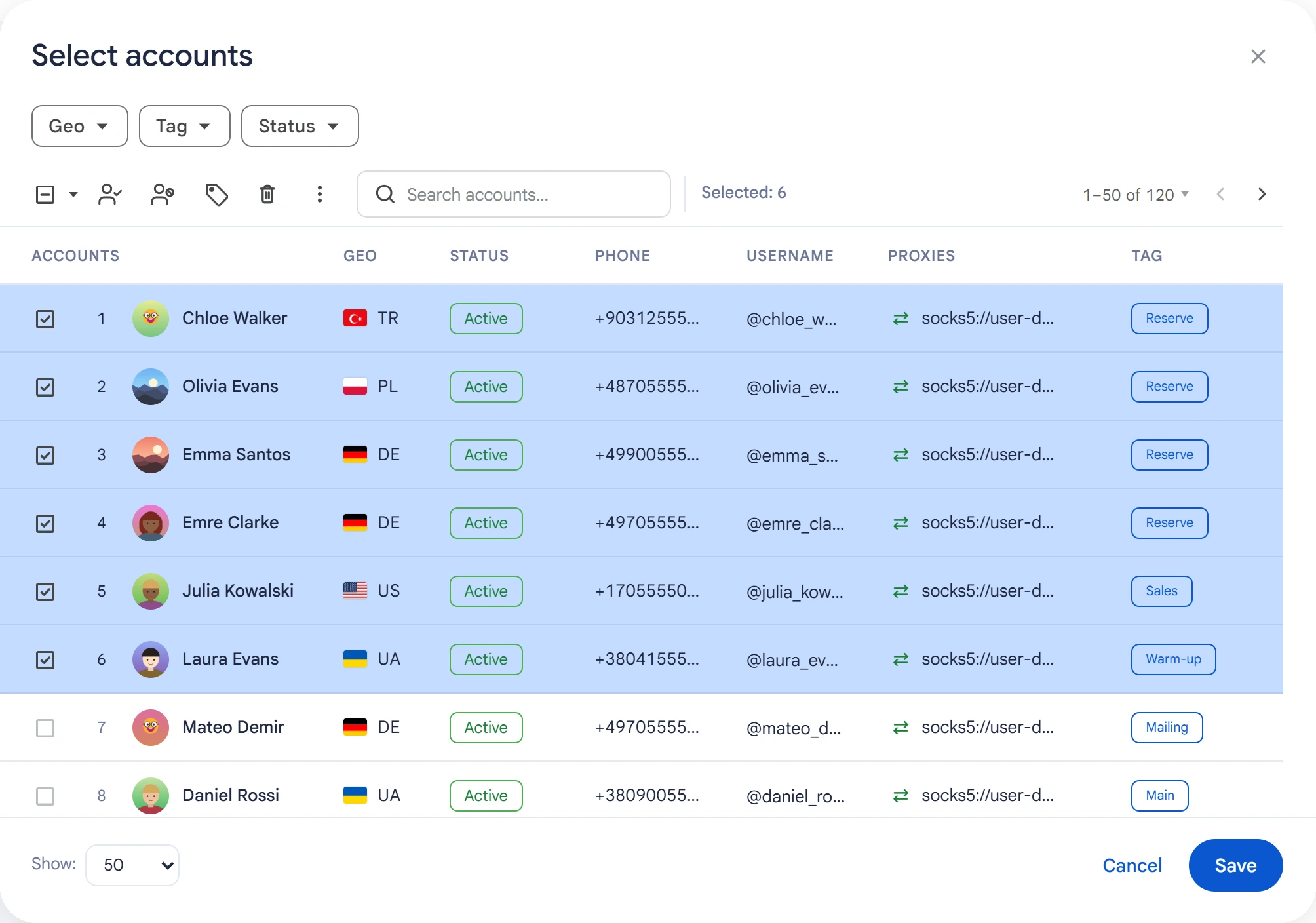
Messages are split between the selected accounts, and each one sends up to its limit per account.
Limits and delay#
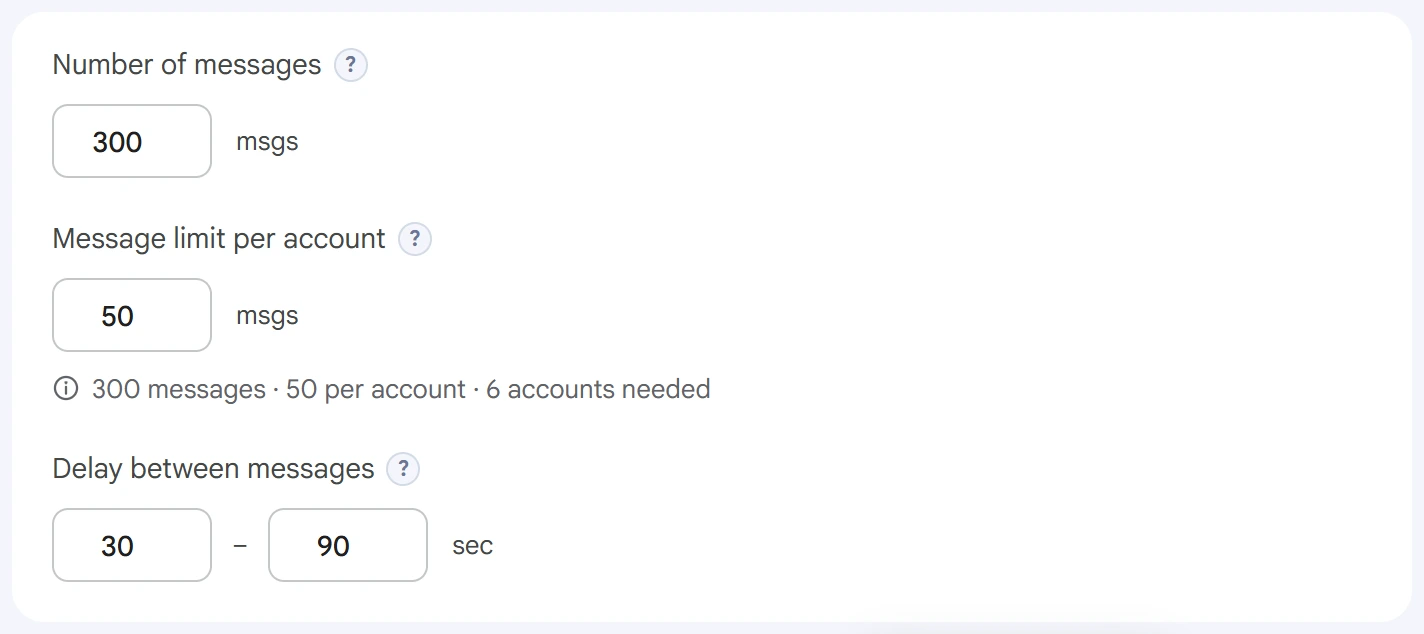
- Number of messages — how many messages all accounts send together.
0— no limit. - Message limit per account — how many messages one account sends. After that, the next account takes over. The line under the field shows how many accounts you'll need.
- Delay between messages — a random pause between messages from one account, from and to, in seconds. The shorter it is, the faster the broadcast runs and the higher the risk of a spam block.
Advanced settings#
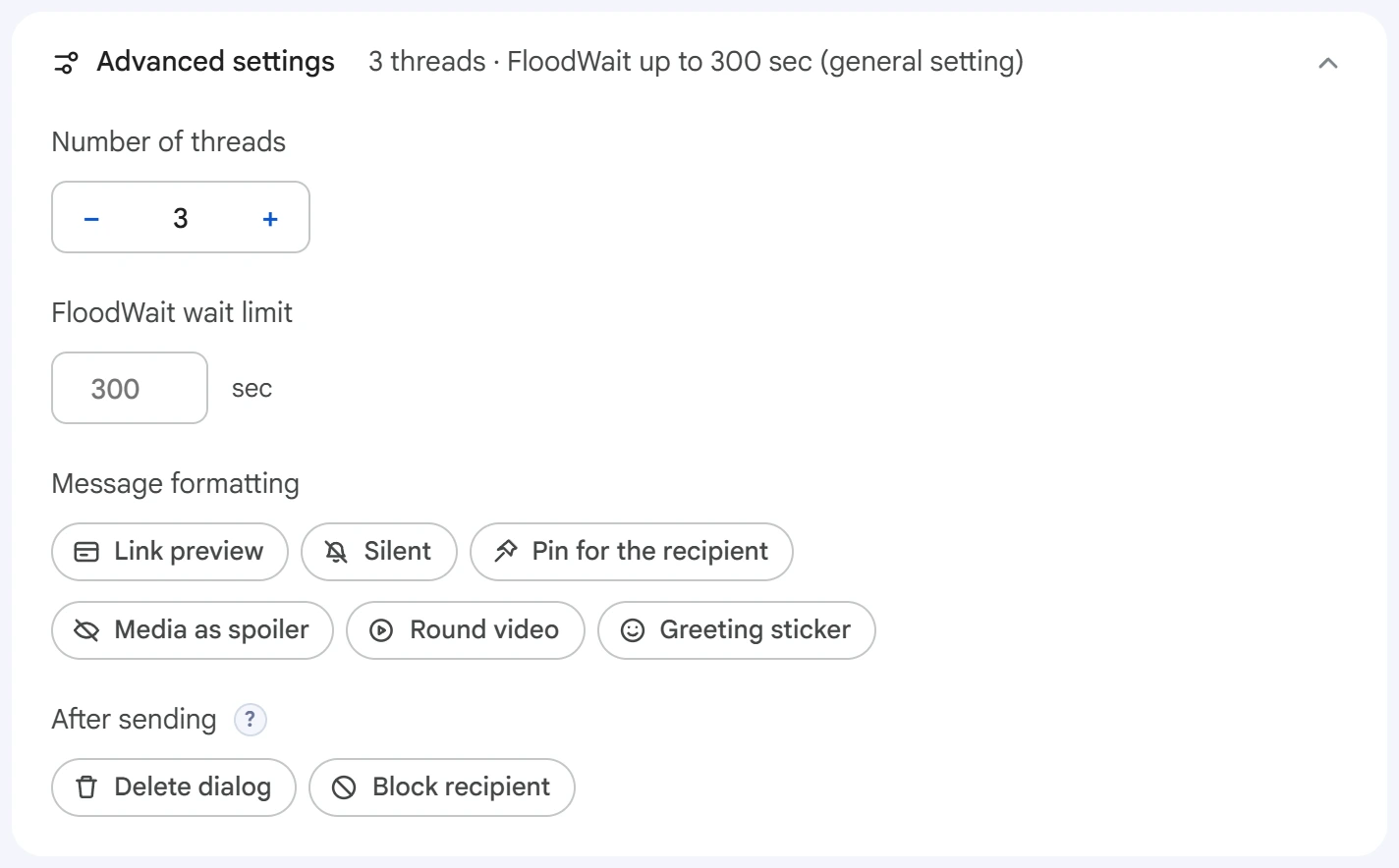
- Number of threads — how many accounts work at the same time.
0— the value from the Settings section. - FloodWait wait limit — the maximum time to wait out a restriction. If it's exceeded, the account stops working. An empty field uses the general setting,
0means waiting with no limit. - Message formatting — link preview, silent sending, pinning the message for the recipient, media as spoiler, round video message, a greeting sticker a few seconds before the message.
- After sending — delete the dialog or block the recipient. The dialog is deleted only on your account's side, and Auto-Reply won't work for this broadcast.
Start and results#
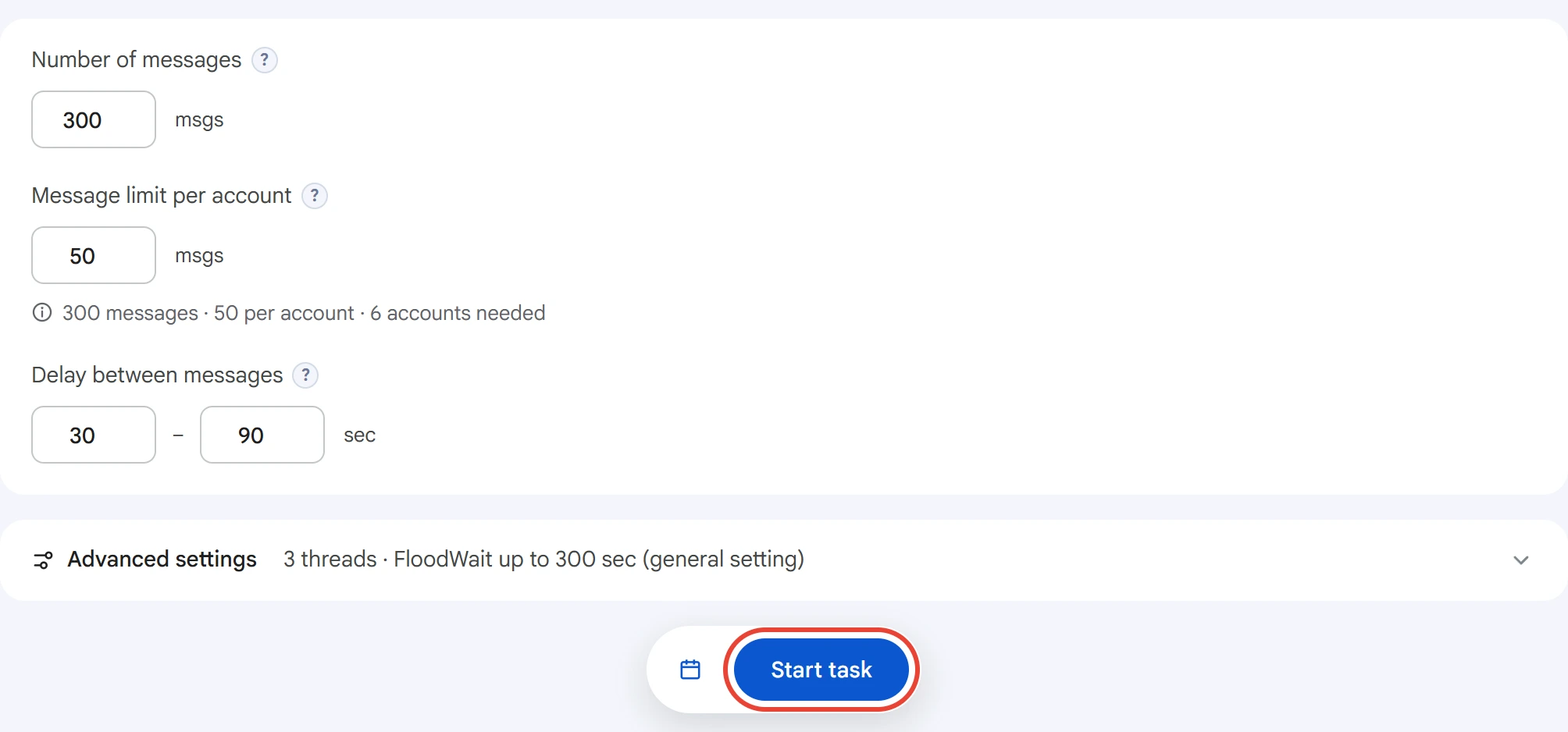
Click “Start task”. The calendar button next to it runs the task on a schedule. You can track the broadcast in the Task Manager.
The task log has one line per message: which account messaged whom and how it ended — “sent”, “skipped” with a reason, or “error”. At the end there's a summary: how many messages were sent and skipped, and how many errors there were.
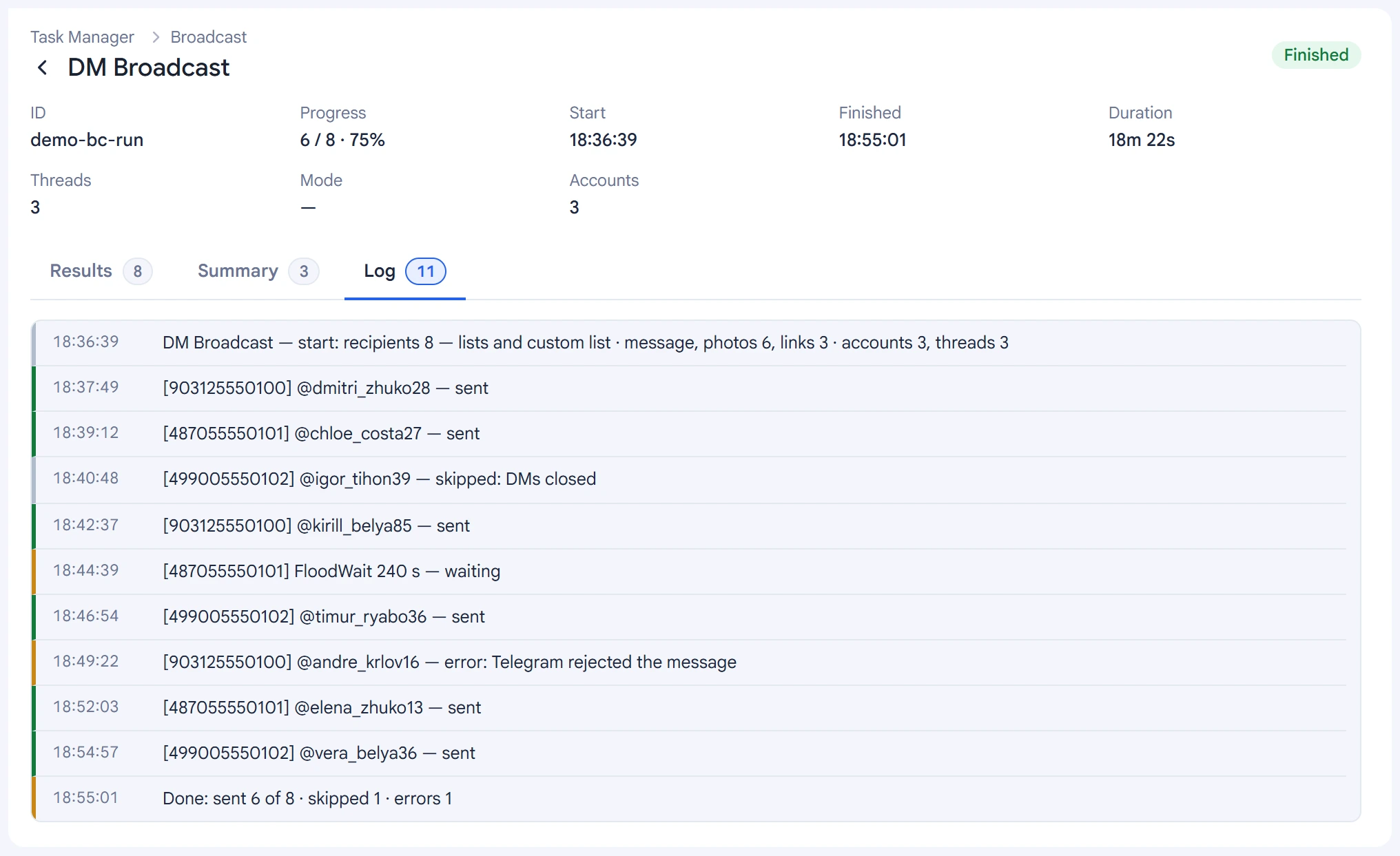
You can resume a stopped broadcast in the Task Manager: people who were already messaged won't get the message again.
Tips#
- Add several text variants — identical messages from a dozen accounts stand out right away.
- Fill in account profiles: identical names with no photo look suspicious.
- Start with a small limit per account and a longer delay.
- Message people who may be interested: recipient complaints are the fastest way to a spam block.
- Don't use valuable accounts for broadcasts, and keep spare ones.