
Modules
Join / Leave
This module makes accounts join the channels and groups on your list, or leave all channels and groups except your exceptions.
Mode#
Choose what to do: “Joining” or “Leaving”. The cards below depend on the mode.
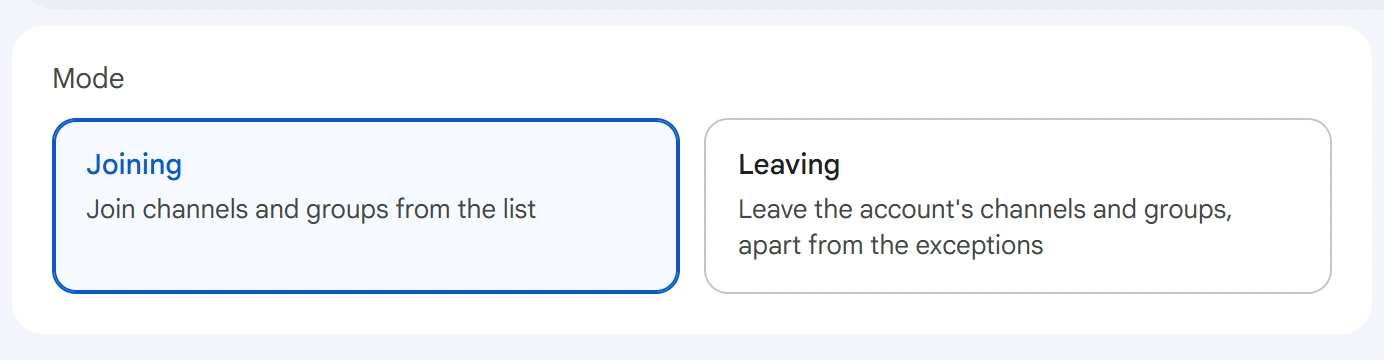
- Joining — accounts join the channels and groups on the list.
- Leaving — accounts leave their channels and groups, except your exceptions.
Joining#
Channels and groups#
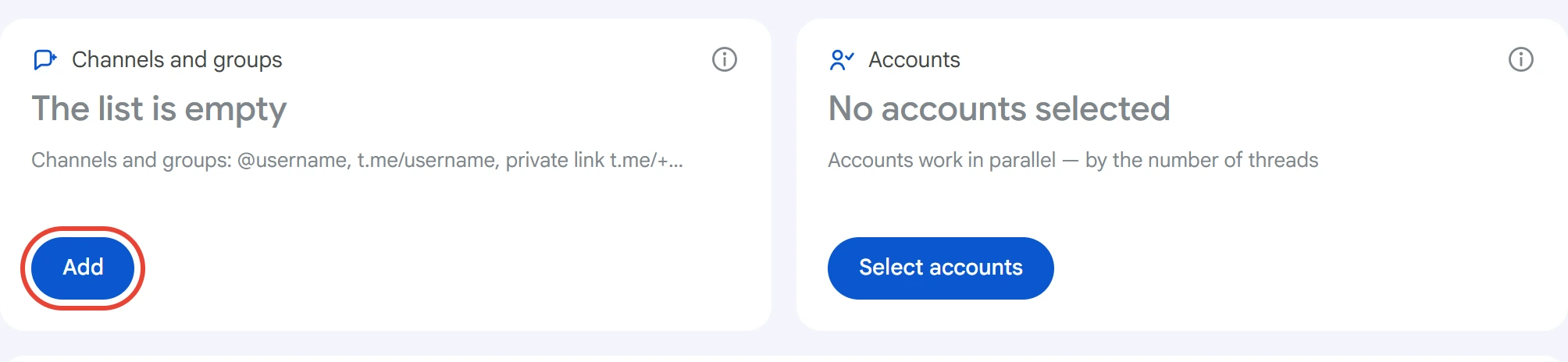
Click “Add” on the “Channels and groups” card.
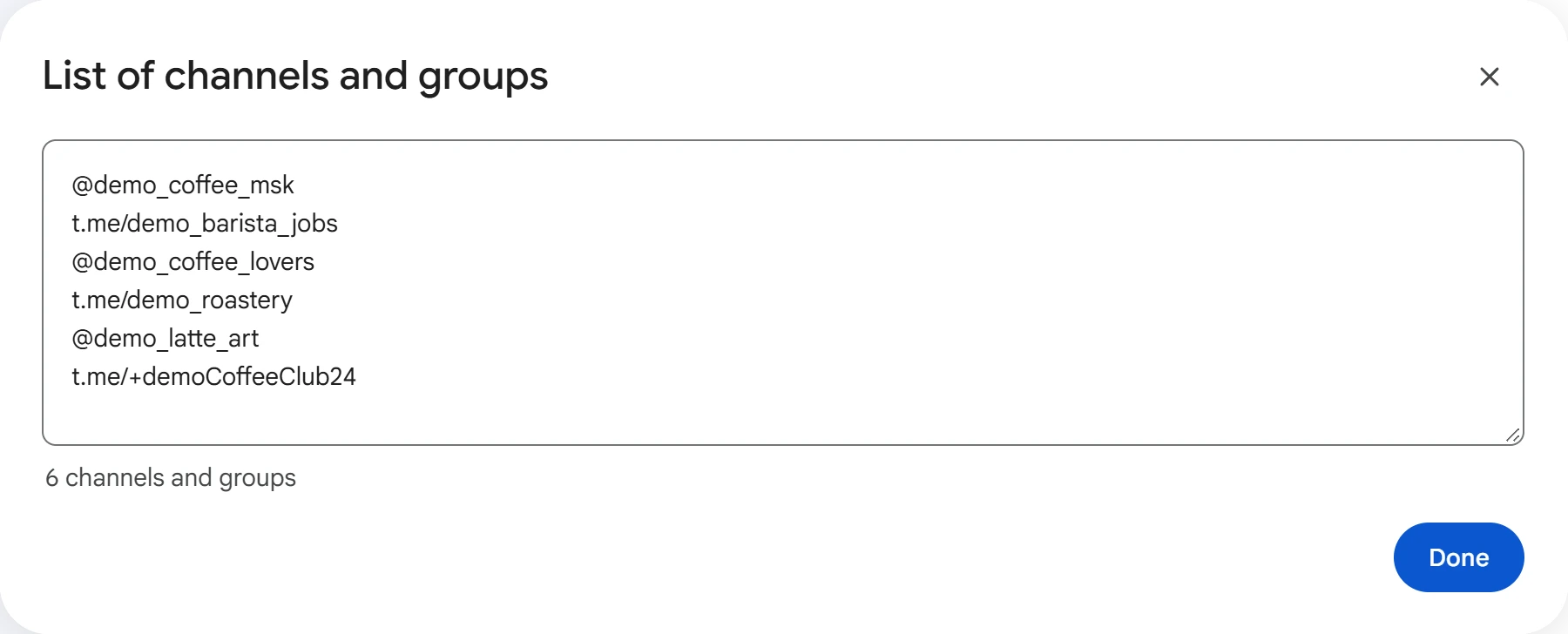
Paste links, one per line: @username, t.me/username or a private link t.me/+…. Duplicates are merged, and below the field you can see how many channels and groups are on the list. Links to individual posts won't work. Click “Done”.
For private groups and channels that admit people by request, the account sends a join request. An account doesn't rejoin channels and groups it's already a member of.
Accounts#
Click “Select accounts”, check the ones you need and click “Save”.
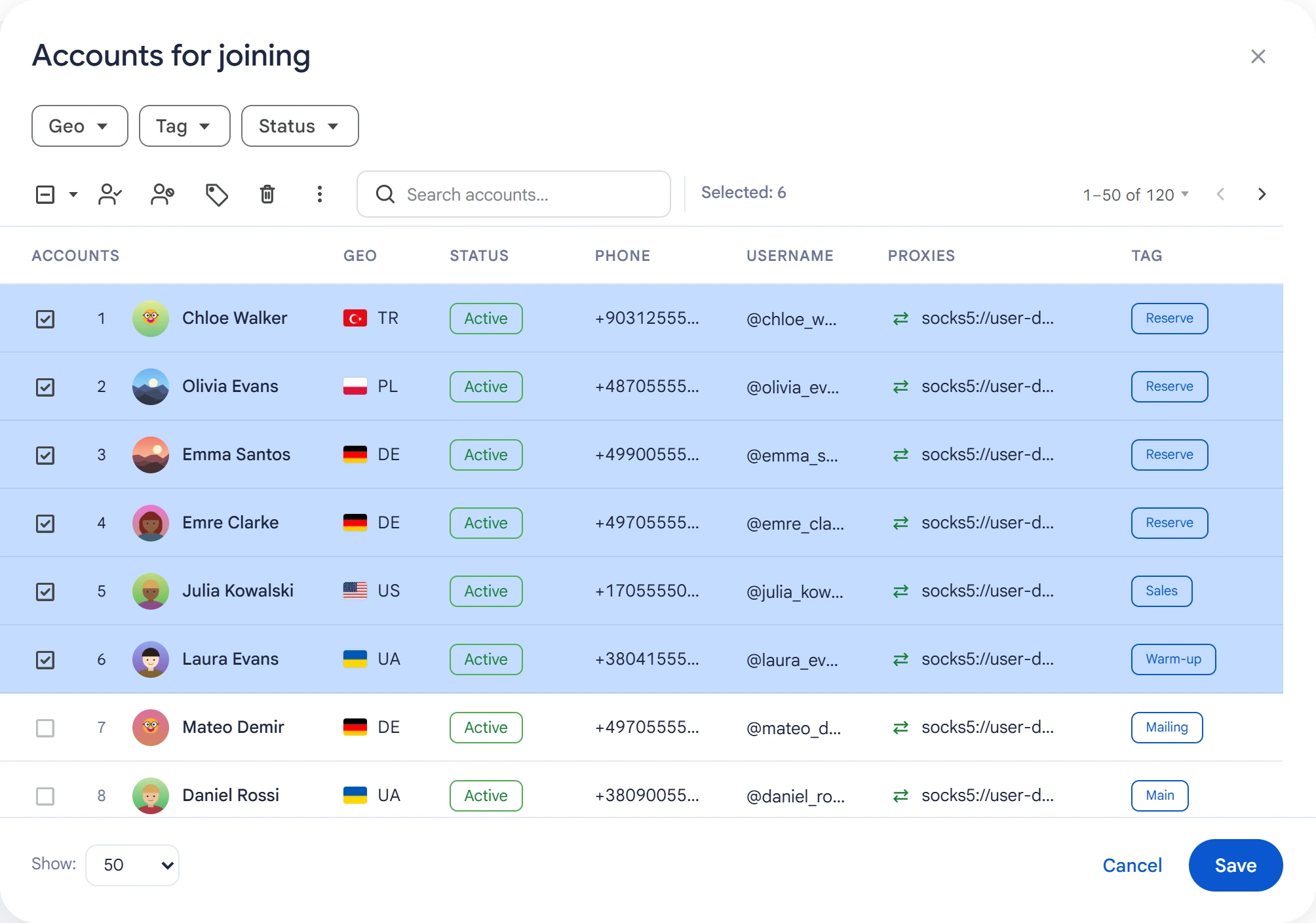
Accounts work in parallel, as many at a time as set in the “Number of threads” field. Accounts that are busy with another task or not working aren't included in the task.
Delay and limit#
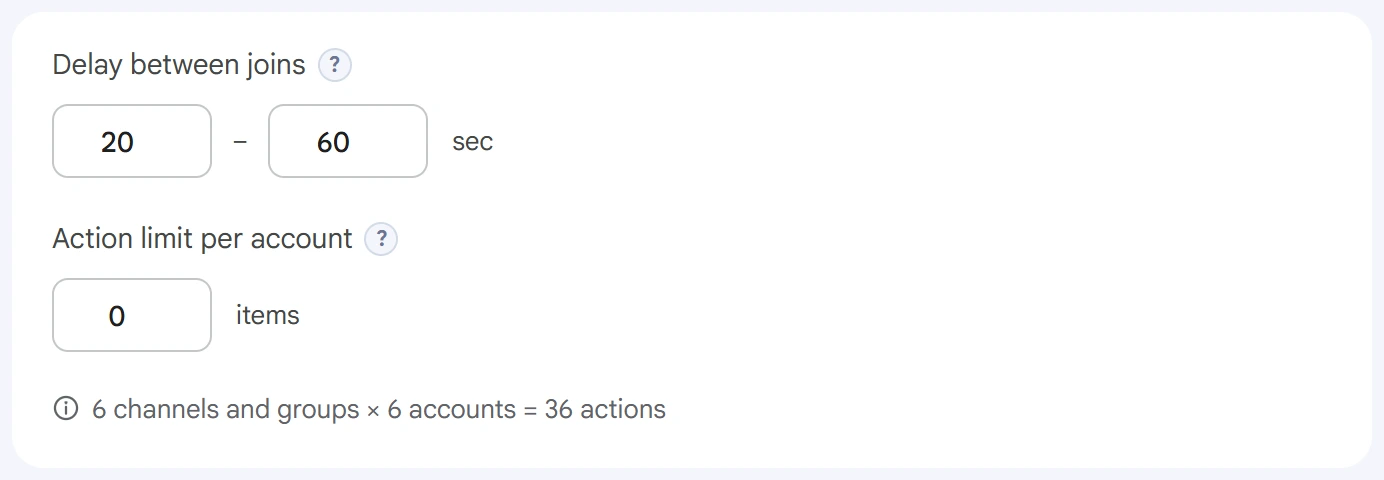
- Delay between joins — a random pause between one account's actions, in seconds. The shorter it is, the higher the risk of FloodWait.
- Action limit per account — how many successful joins one account makes per task. Skips don't count toward the limit.
0means no limit.
Below the fields, you can see the total number of actions in the task.
Leaving#
Exceptions#
Turn on “Leaving”. The channel list is replaced by the “Exceptions” card: click “Set exceptions”.
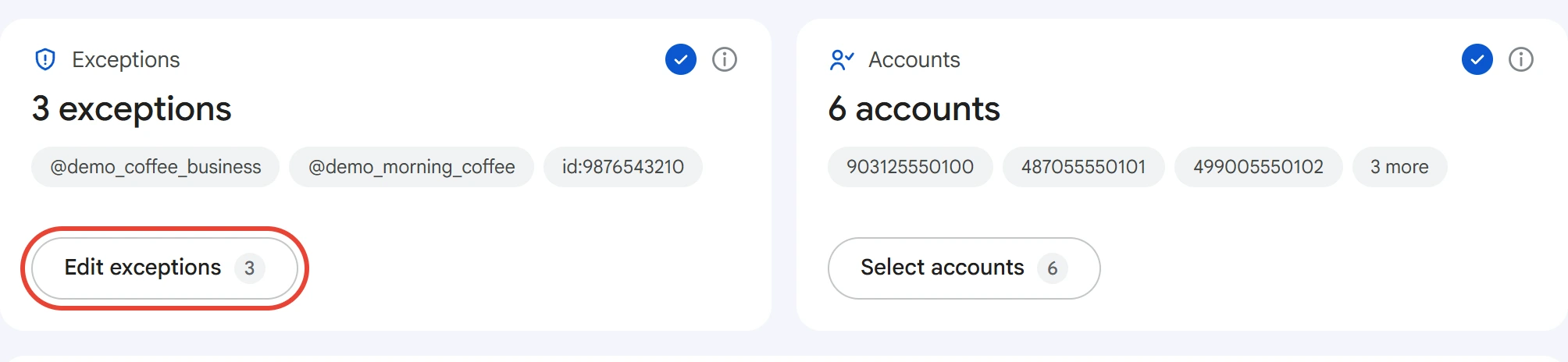
Specify the channels and groups your accounts won't leave: an @username, a link or a numeric ID. Click “Done”.
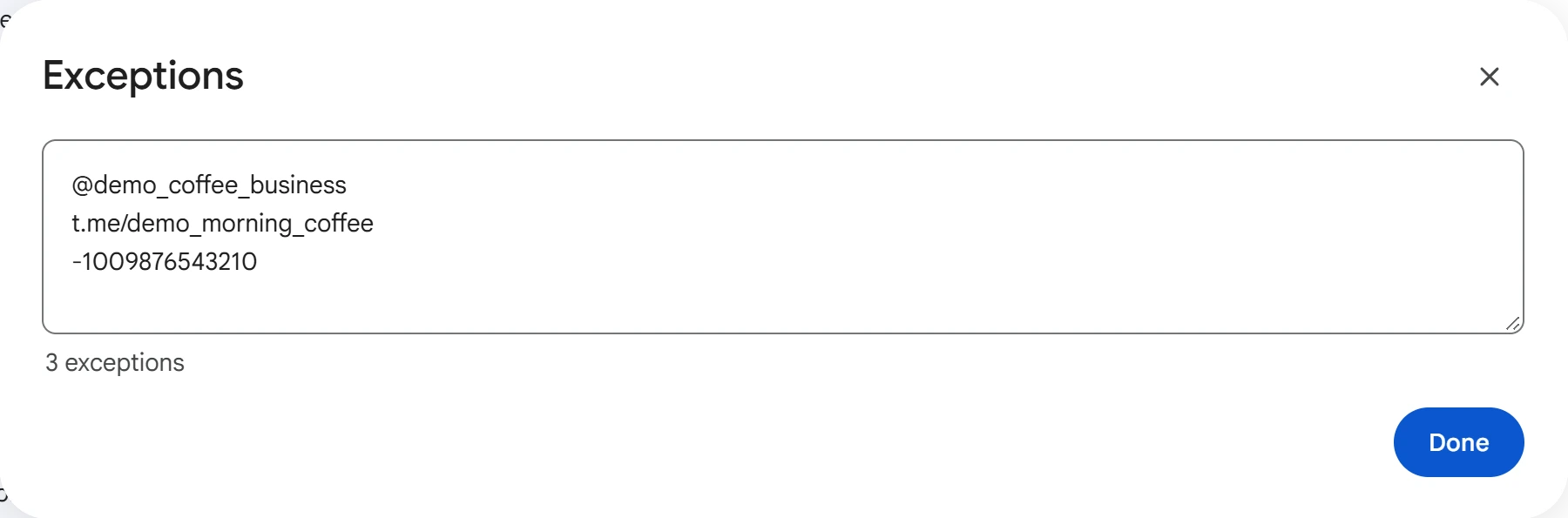
Leaving never affects direct chats, Saved Messages, or channels and groups created by the account.
Accounts are selected the same way as for joining.
Delay and what to leave#
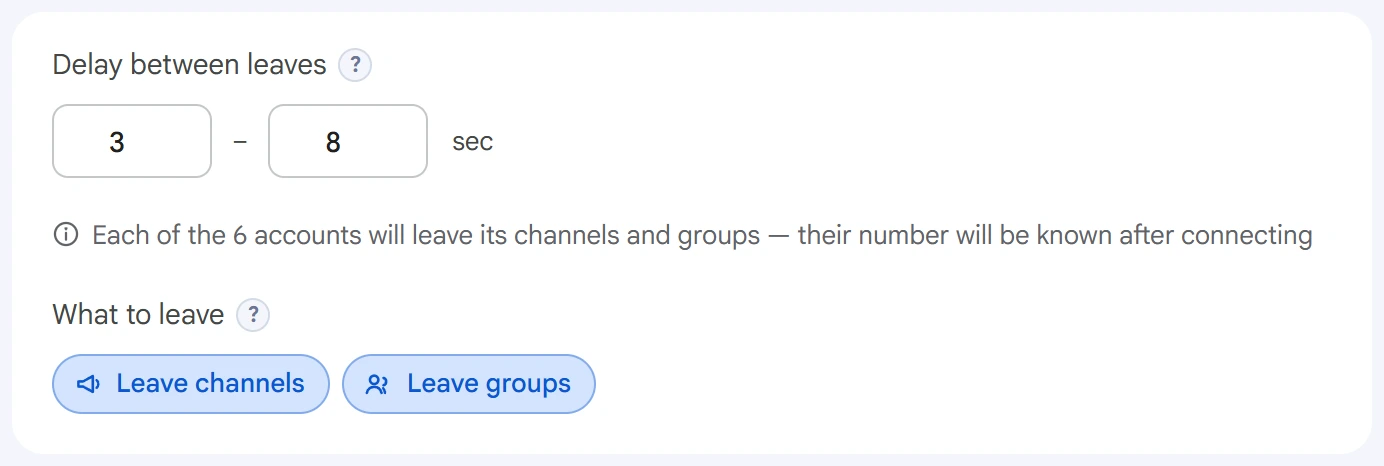
- Delay between leaves — a random pause between one account's leaves. By default, it's shorter than for joining.
- What to leave — “Leave channels”, “Leave groups” or both.
Leaving has no action limit: an account leaves everything that isn't in the exceptions. How many channels and groups it has becomes known only after it connects.
Advanced settings#
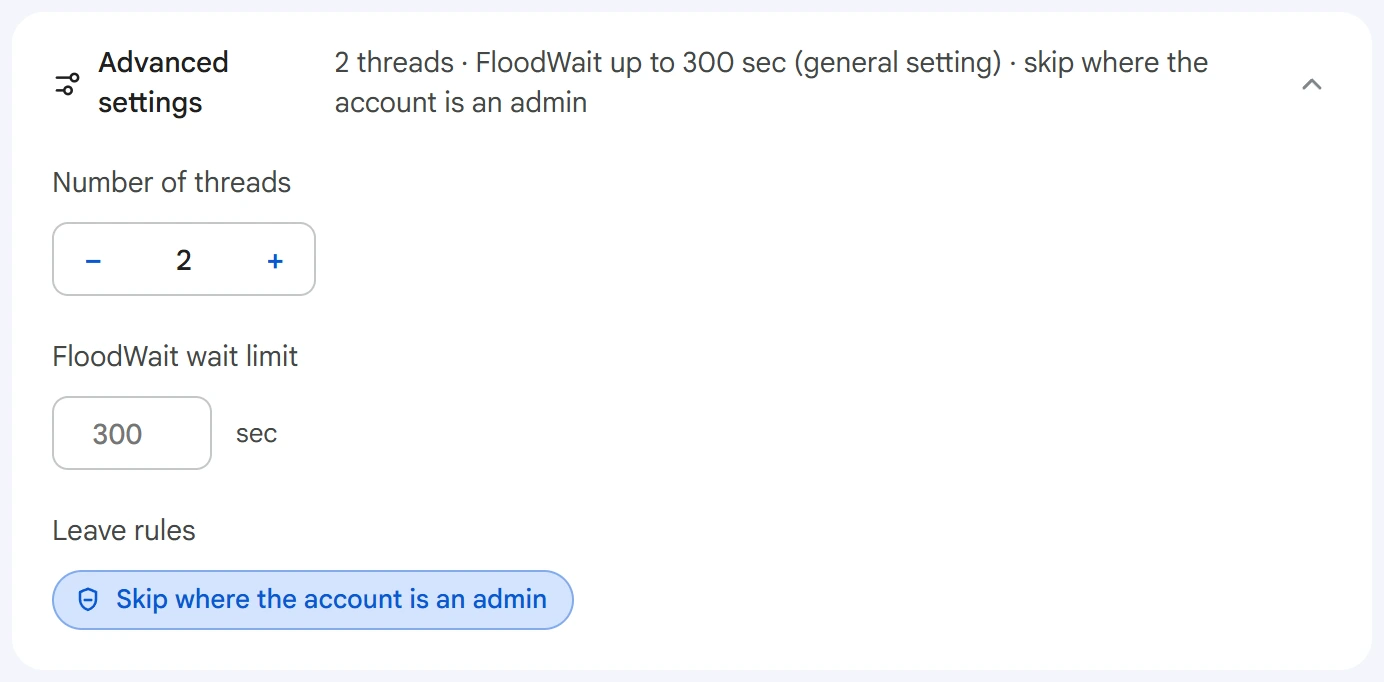
- Number of threads — how many accounts work at the same time.
0uses the value from the Settings section. - FloodWait wait limit — how long an account can wait out a restriction. If the wait is longer, the account stops working. An empty field uses the shared setting;
0means waiting with no limit. - Leave rules — in “Leaving” mode only. “Skip where the account is an admin” keeps channels and groups where the account has admin rights. On by default.
Start and result#
Click “Start task”. The calendar icon next to it is for a scheduled run. You can track progress in the Task Manager.
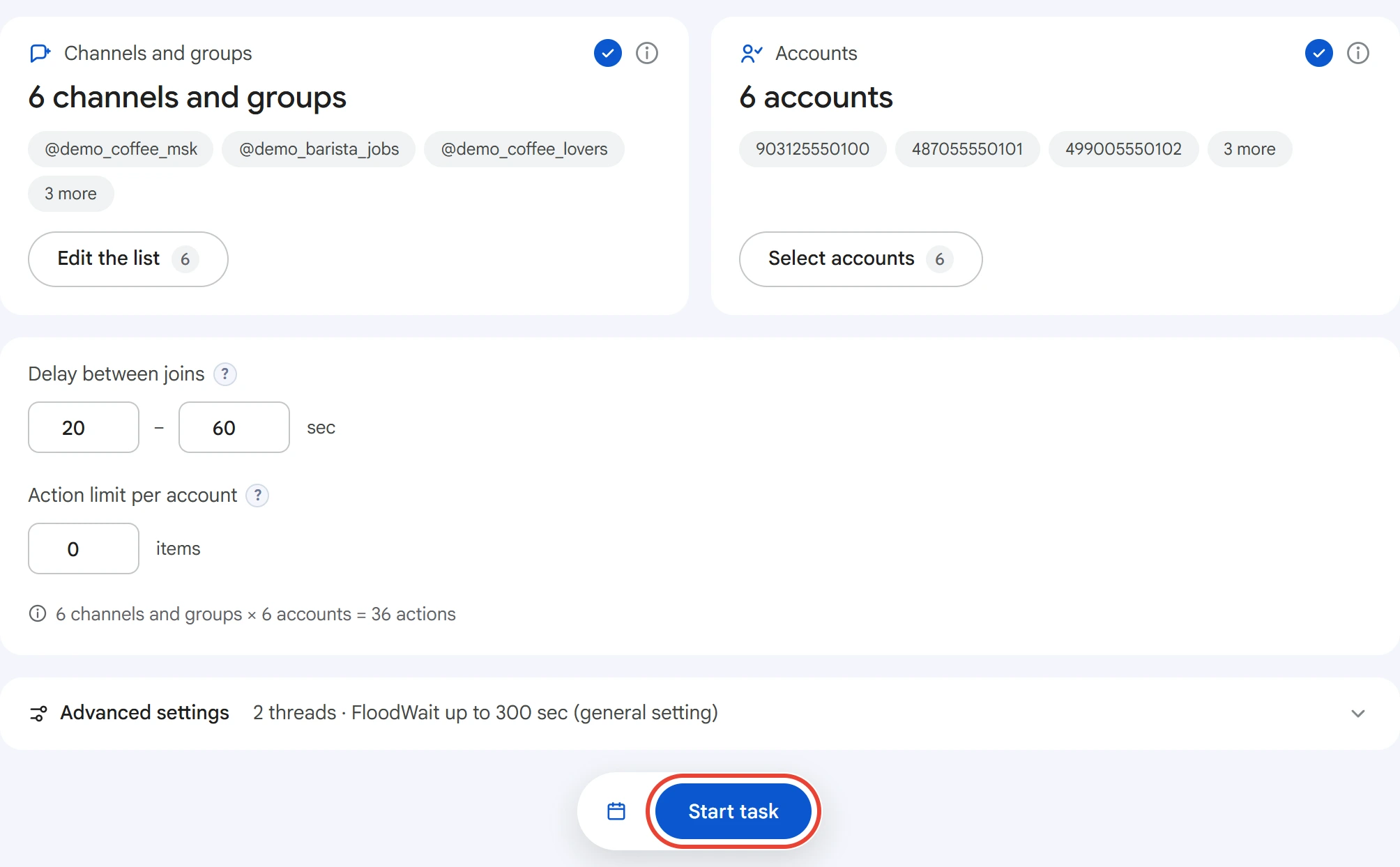
After the start, the list of channels and groups is cleared, so build a new one for your next task. The exceptions for leaving stay.
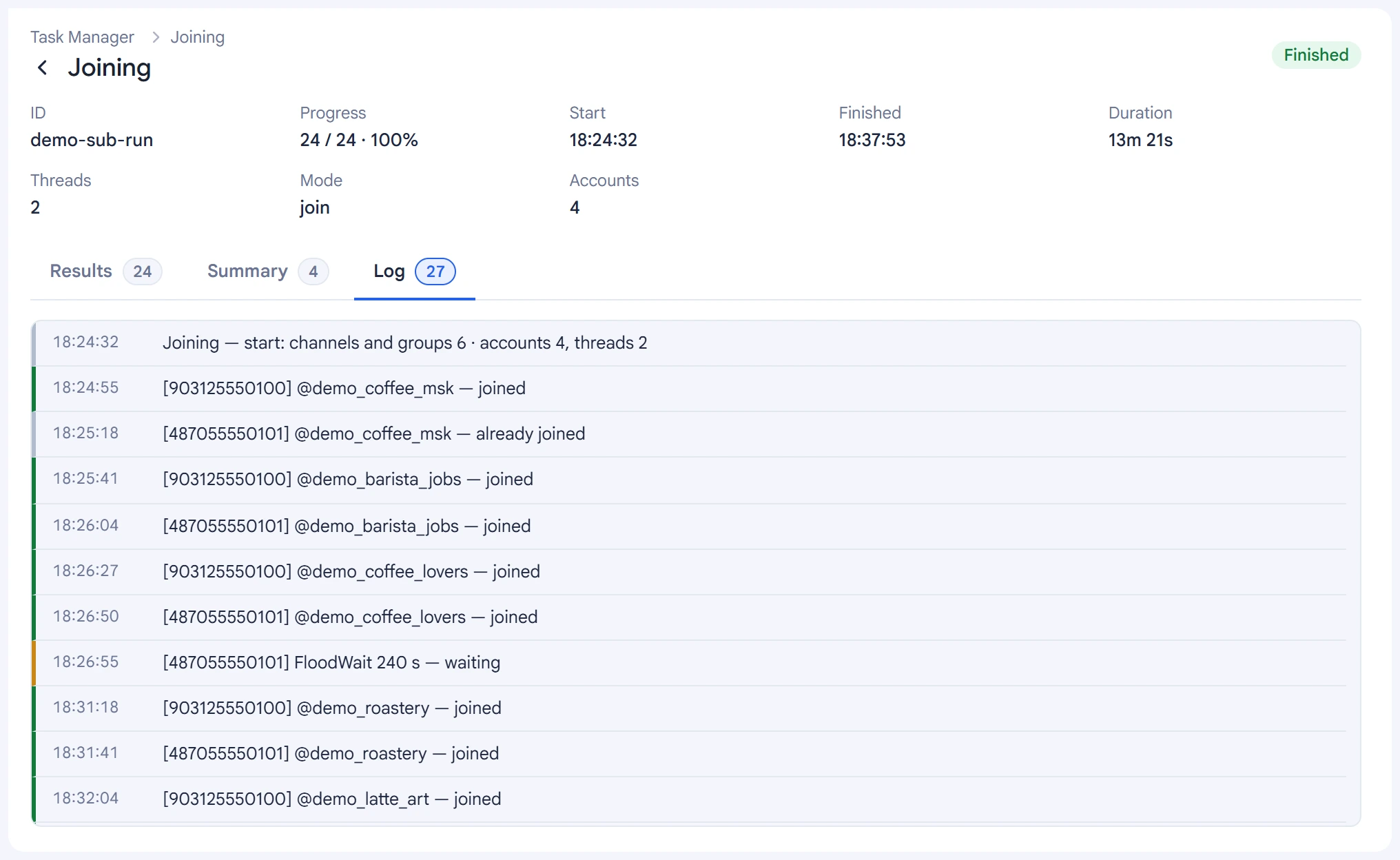
The log shows every action: which account joined or left what, where a join request was sent, where the account was already a member and what failed.
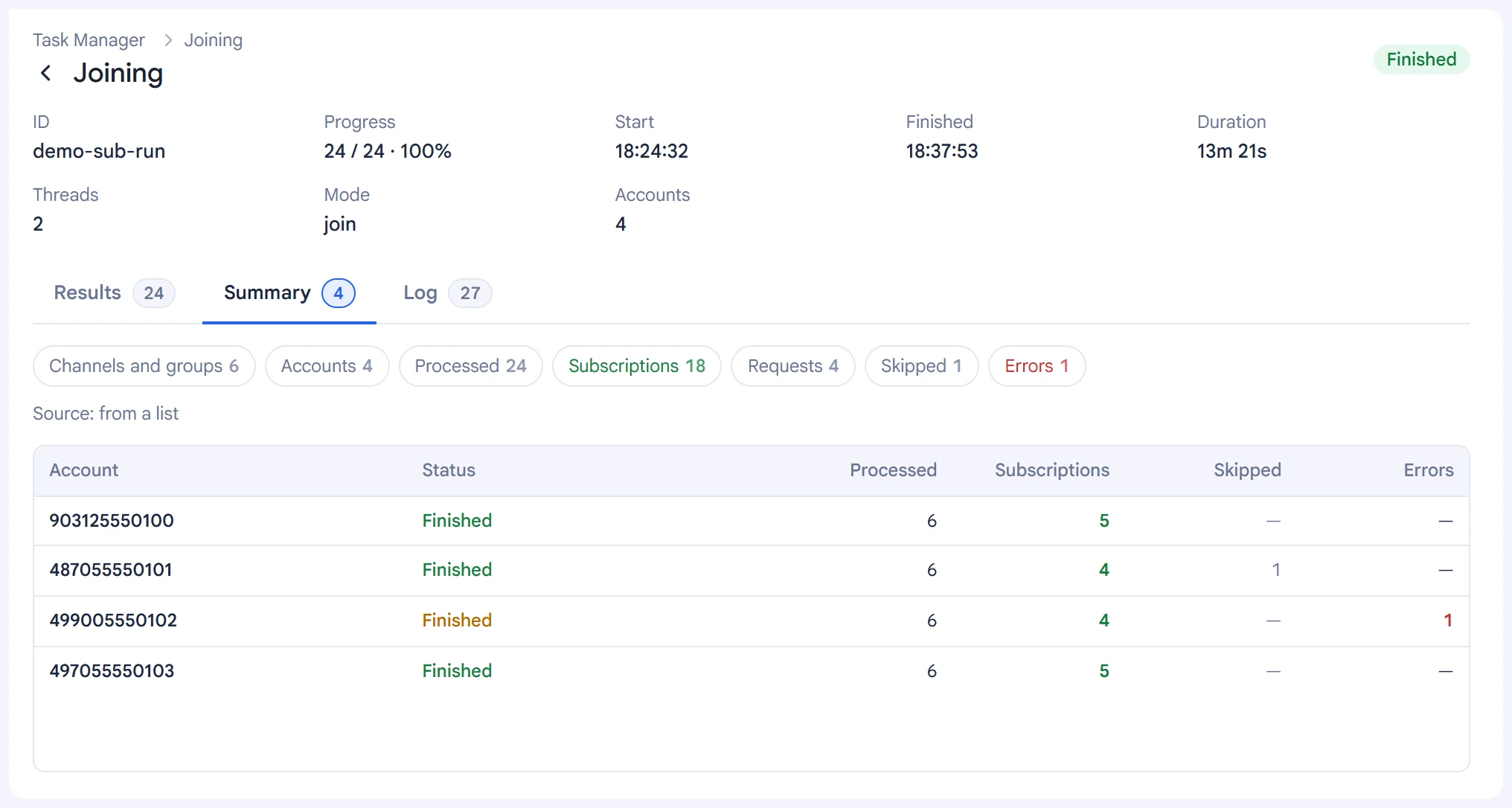
The “Summary” tab shows the outcome for each account: how many channels and groups were processed, and the number of joins, skips and errors. Join requests are counted separately from joins.
You can resume a stopped task in the Task Manager. Accounts that have already gone through the whole list don't run again.
Tips#
- Joining is one of the riskiest actions, on par with inviting. A fresh account that joins about fifty channels in an hour will almost certainly get restrictions. Spread joins over several days and set a limit per account.
- Don't shorten the delay between joins for speed: a short pause is the fastest way to FloodWait.
- Check your exceptions before leaving: the account will leave everything that isn't on them.
- Join requests to private groups wait for an admin's decision. The next time you join the same group, the program checks whether the request was approved.