
Modules
Member Inviter
The “Member Inviter” module invites users from selected lists or your custom list to a target Telegram group. The work is split between the selected accounts according to the limits you set.
Target group#
Click “Add group” and enter a link: t.me/group, @group or an invite t.me/+…. Add the group to the list, select it and click “Save”.
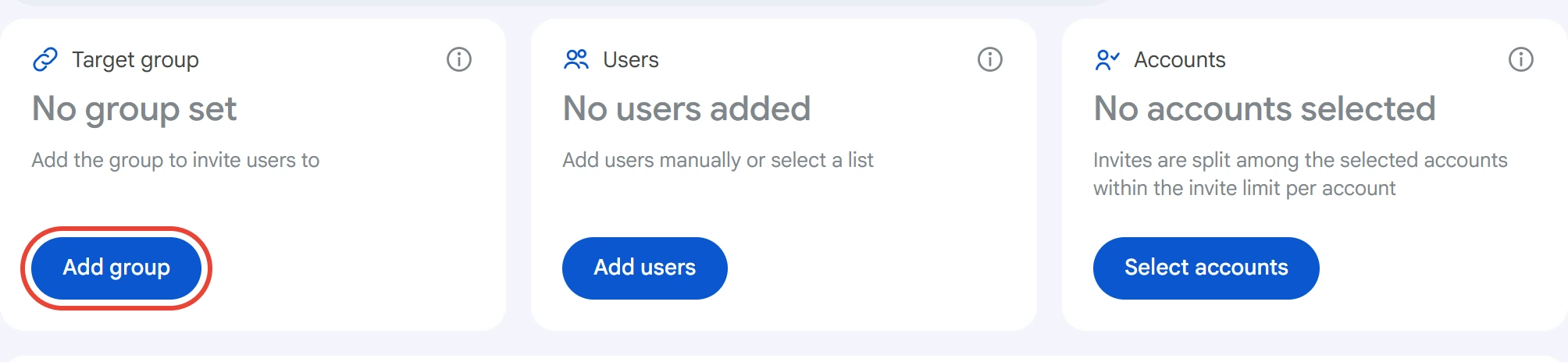
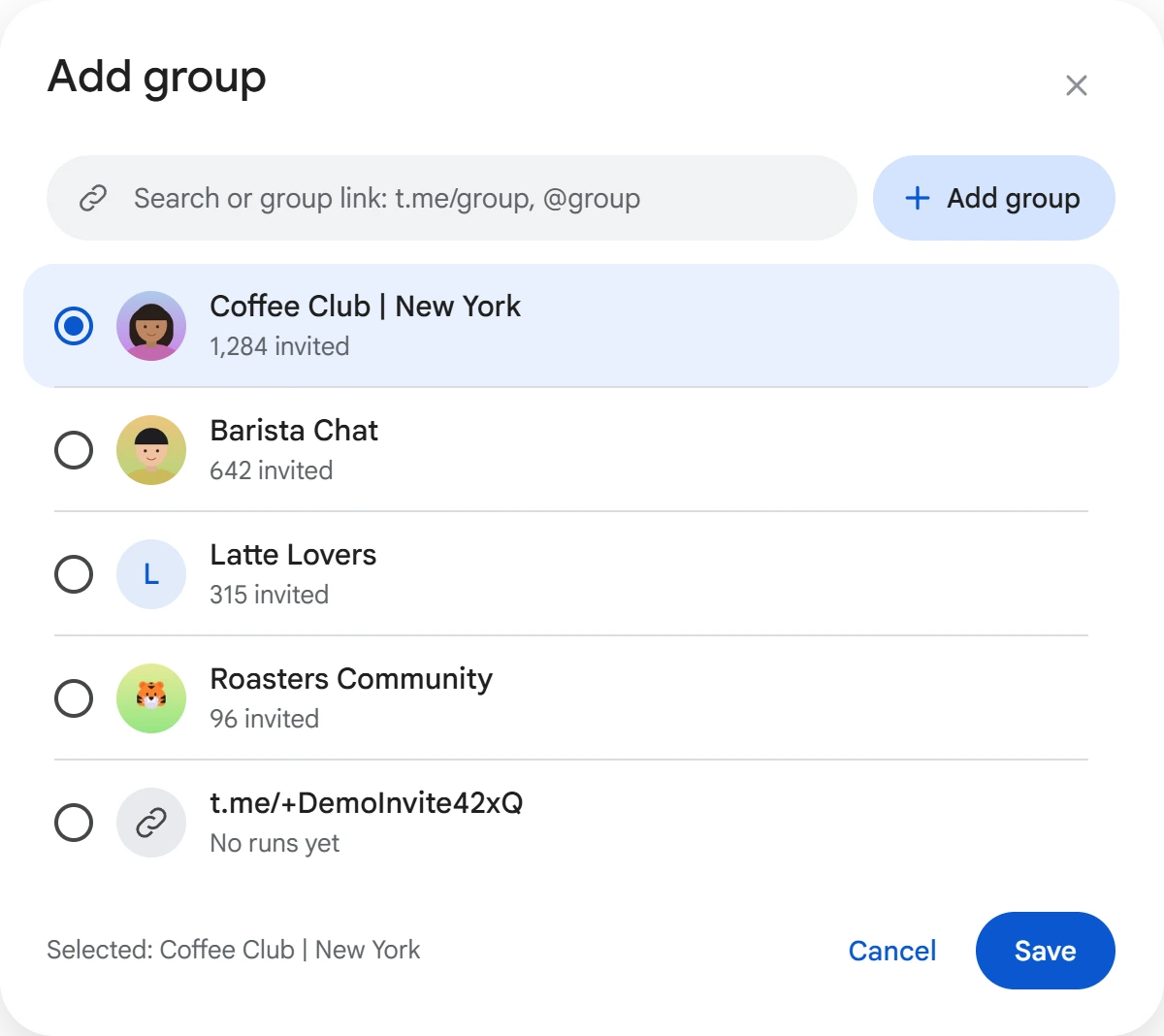
Added groups are saved for future runs. The list shows the number of invited users, and the “⋮” menu lets you copy the link or delete the group. The list is shared with the Admin Inviter module.
If an account isn't in the target group yet, the program will try to join it before starting work.
Users#
In the “Users” card, click “Add users”. Enter a @username, a profile link, a phone number or an ID. You can add a list with separators or upload a .txt / .csv file. Duplicates are removed.
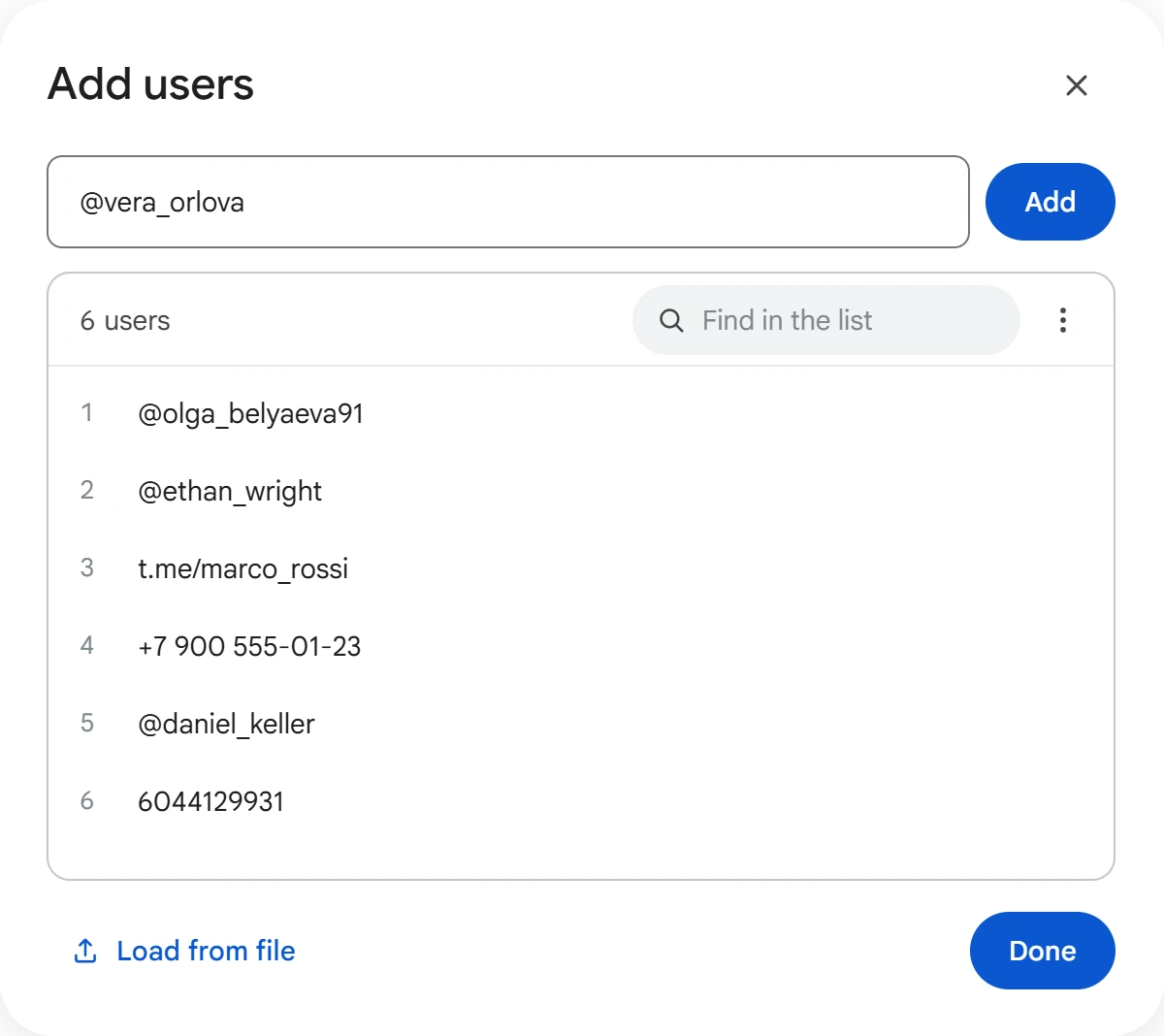
Click a record to edit it, or the cross to delete it. The “⋮” menu lets you edit the list as text, clear it, or select users from a list.
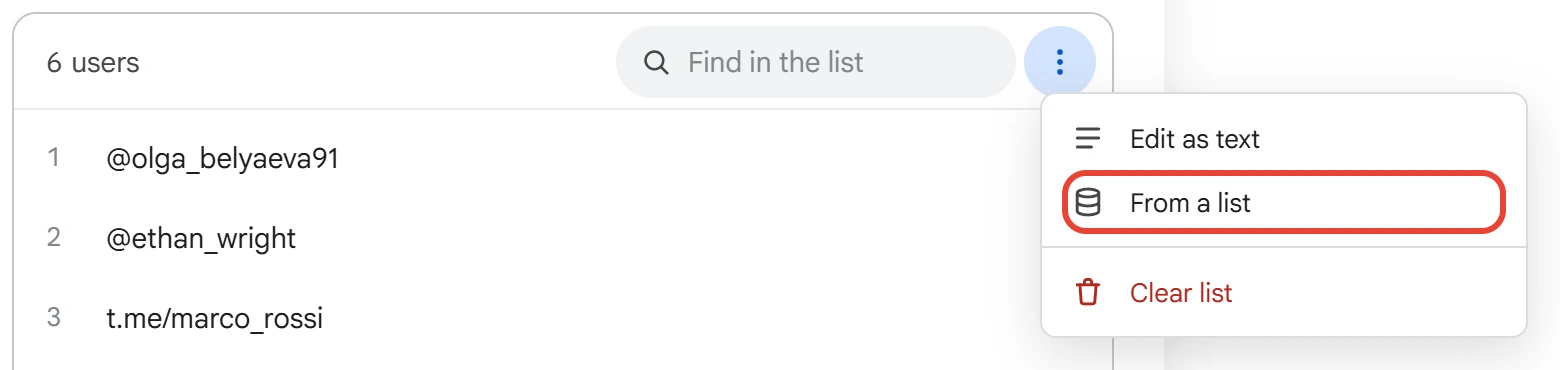
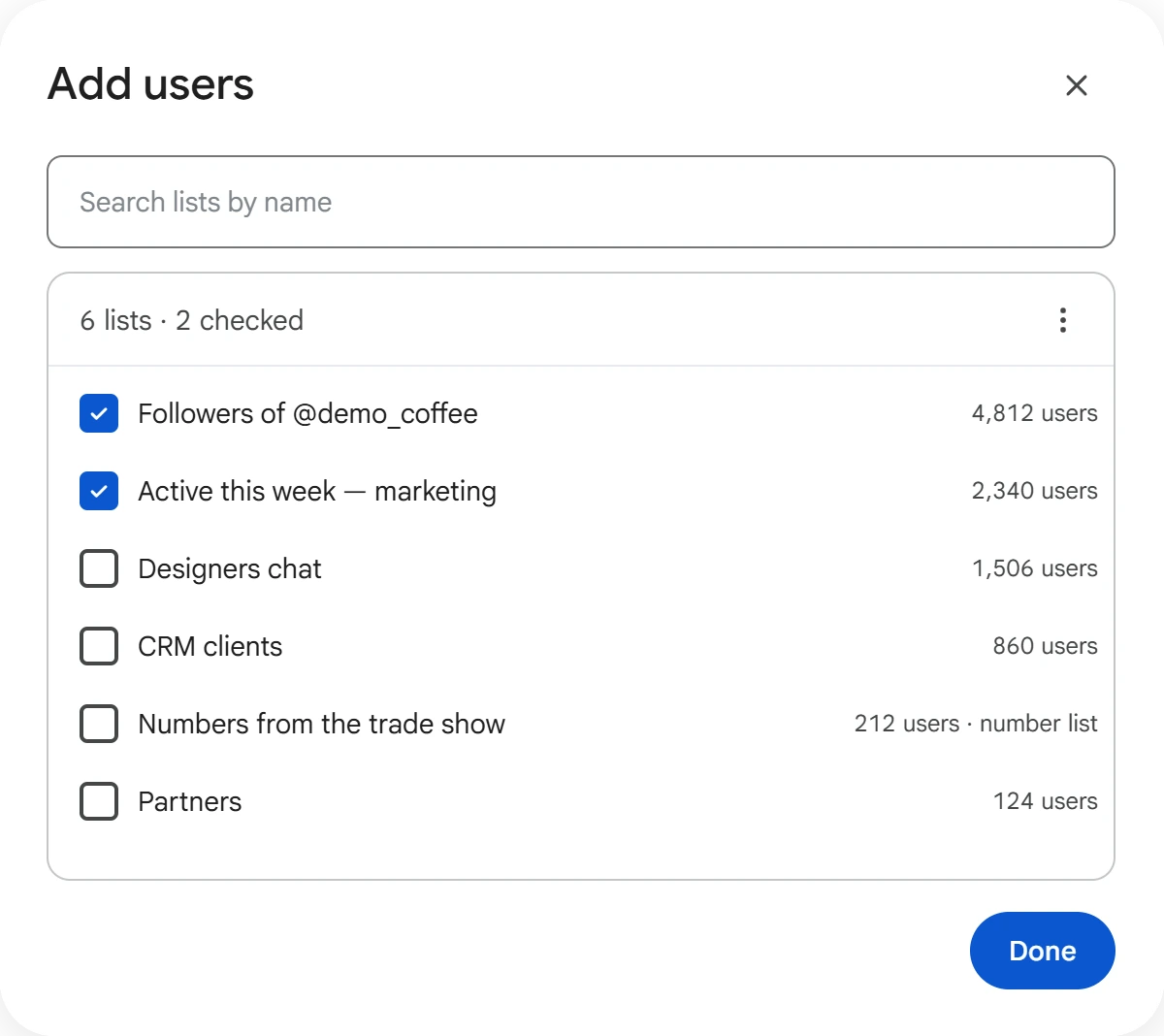
When selecting lists, check the sources you need and click “Done”. User lists and number lists from the Number Checker are supported. From a number list, only numbers found in Telegram are used. You can combine a custom list with user and number lists.
Your custom list and selected lists appear on the card as separate labels. The cross removes a source from the current task without affecting the list itself in the Lists section.
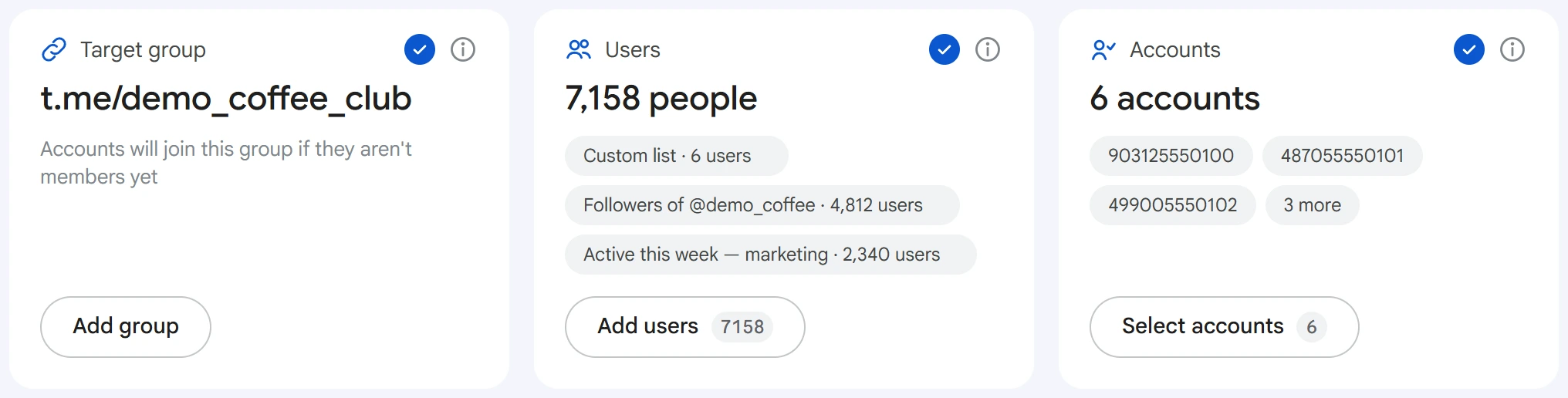
Users already invited to the target group aren't processed again. Users with the “Invite: privacy” status are skipped too. You can remove this status in the list if the information is no longer accurate.
Accounts#
Click “Select accounts”, check the ones you need and click “Save”.
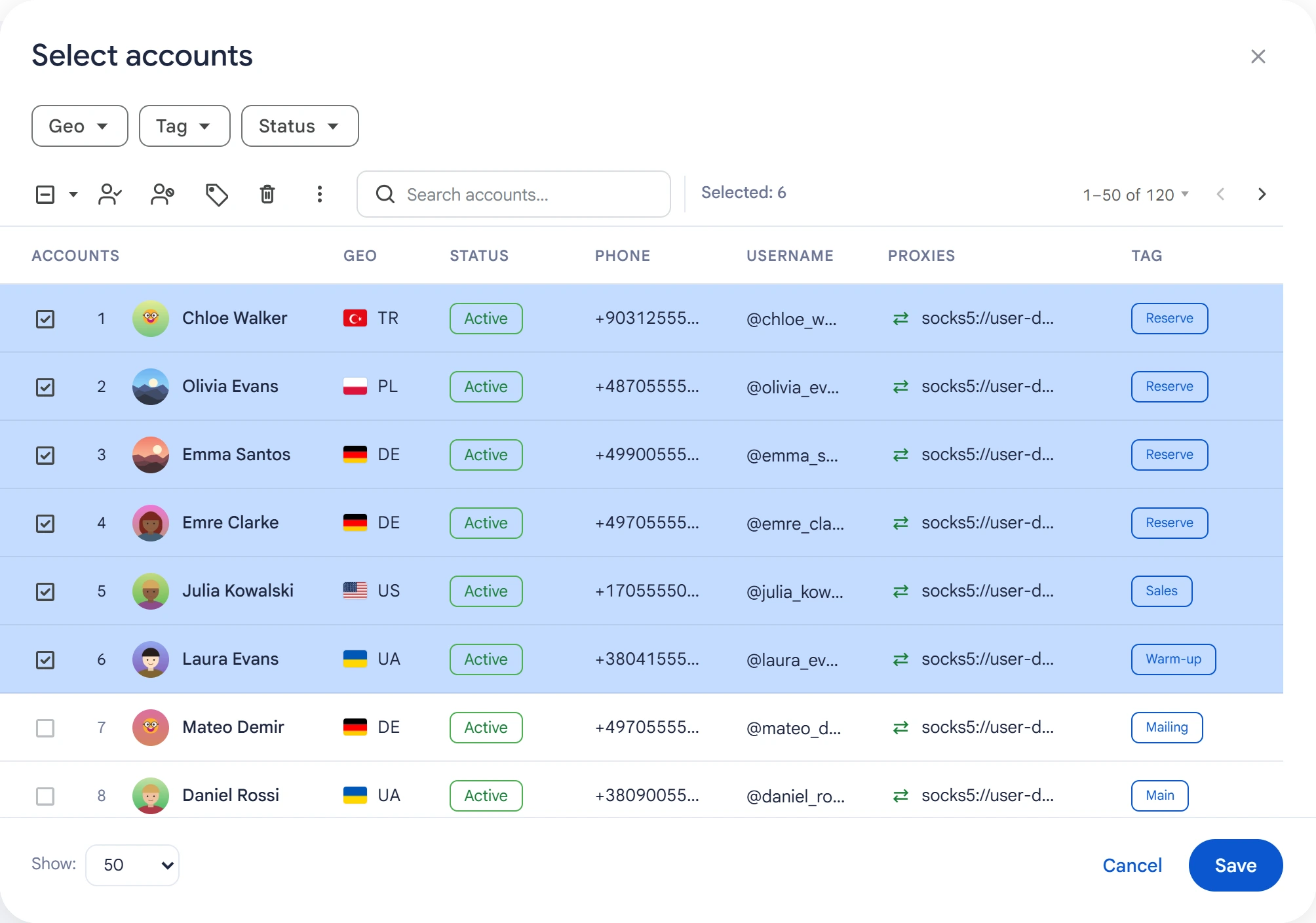
Before starting, check the account statuses and whether the assigned proxies are available.
Limits and delay#
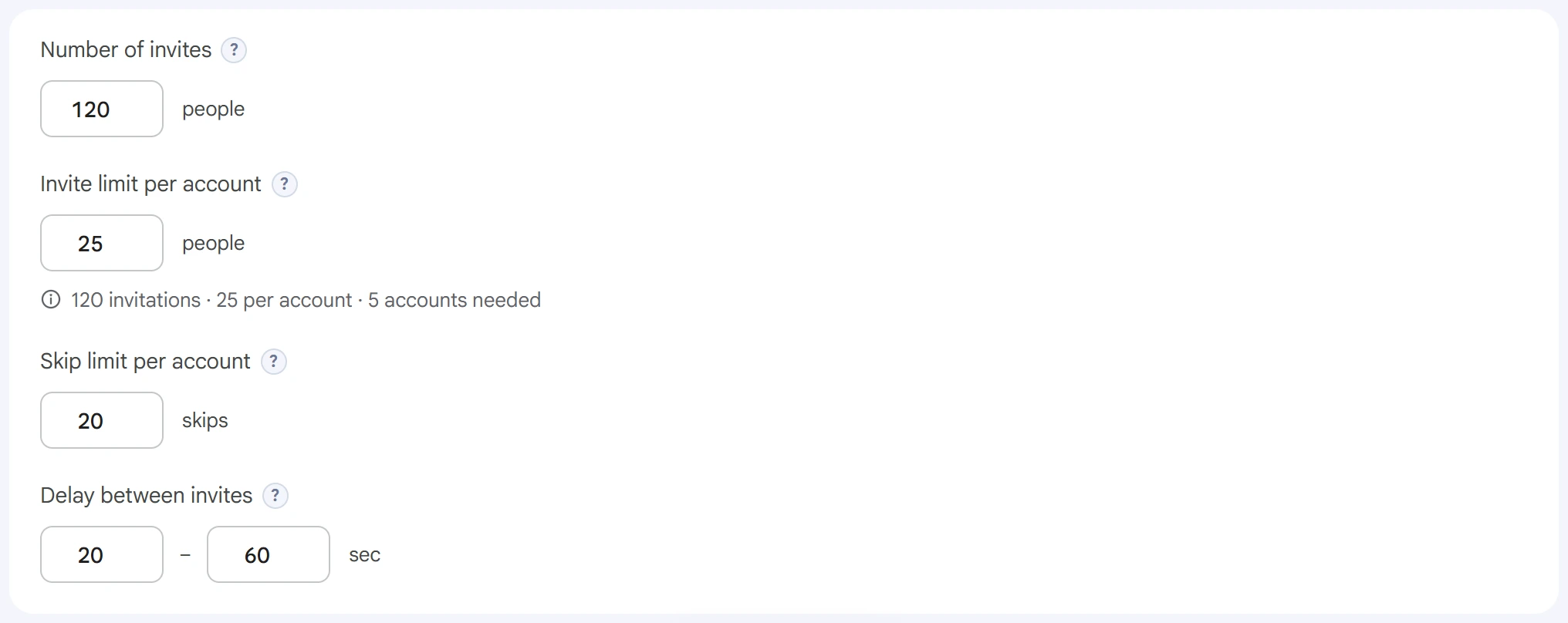
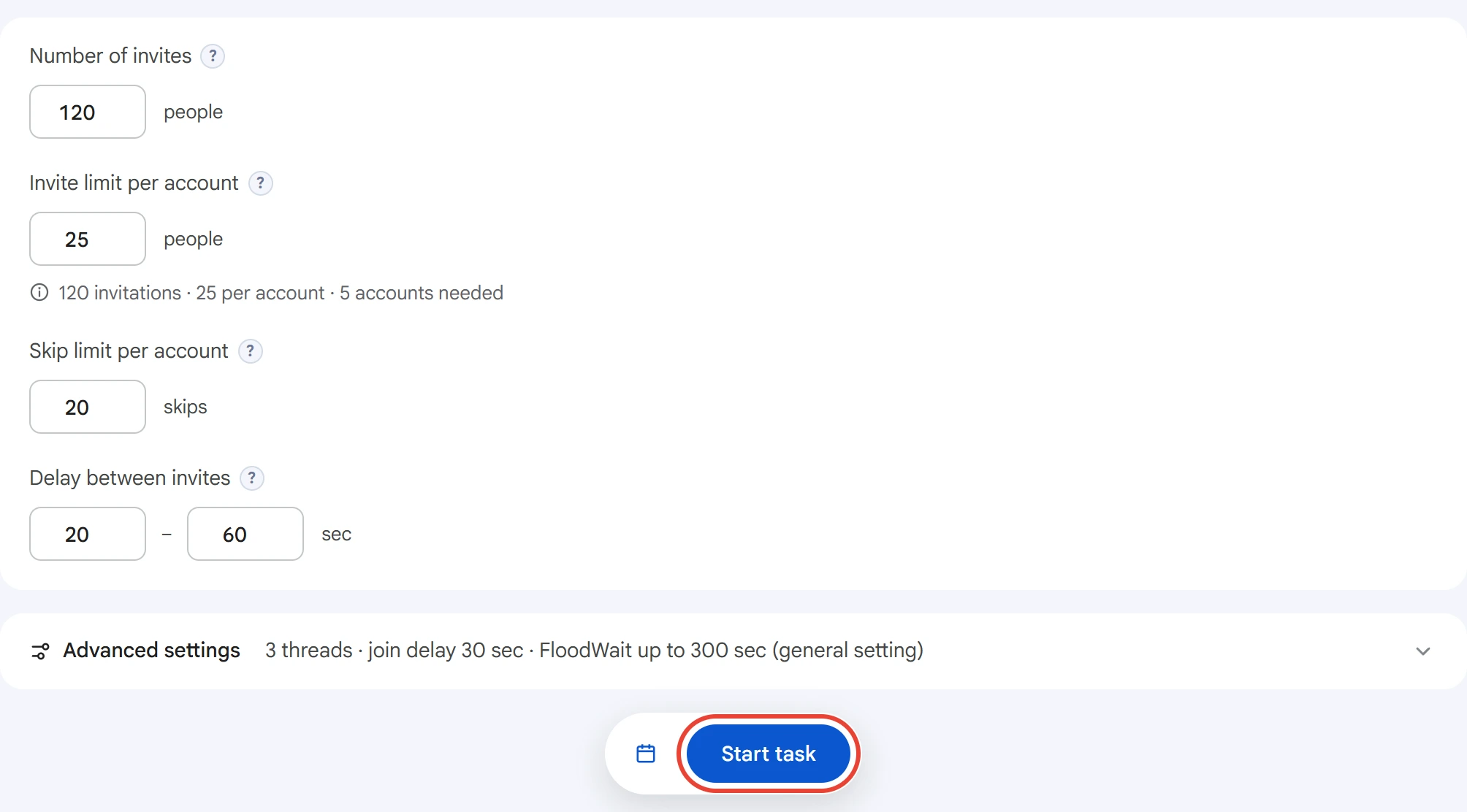
- Number of invites — the total limit for the whole task.
0— no limit. - Invite limit per account — the maximum number of invites from one account. Once it reaches the limit, the account stops working in the task.
0— no limit. - Skip limit per account — the number of failed attempts after which an account stops working in the task.
0— no limit. - Delay between invites — a random interval between actions, in seconds.
Advanced settings#
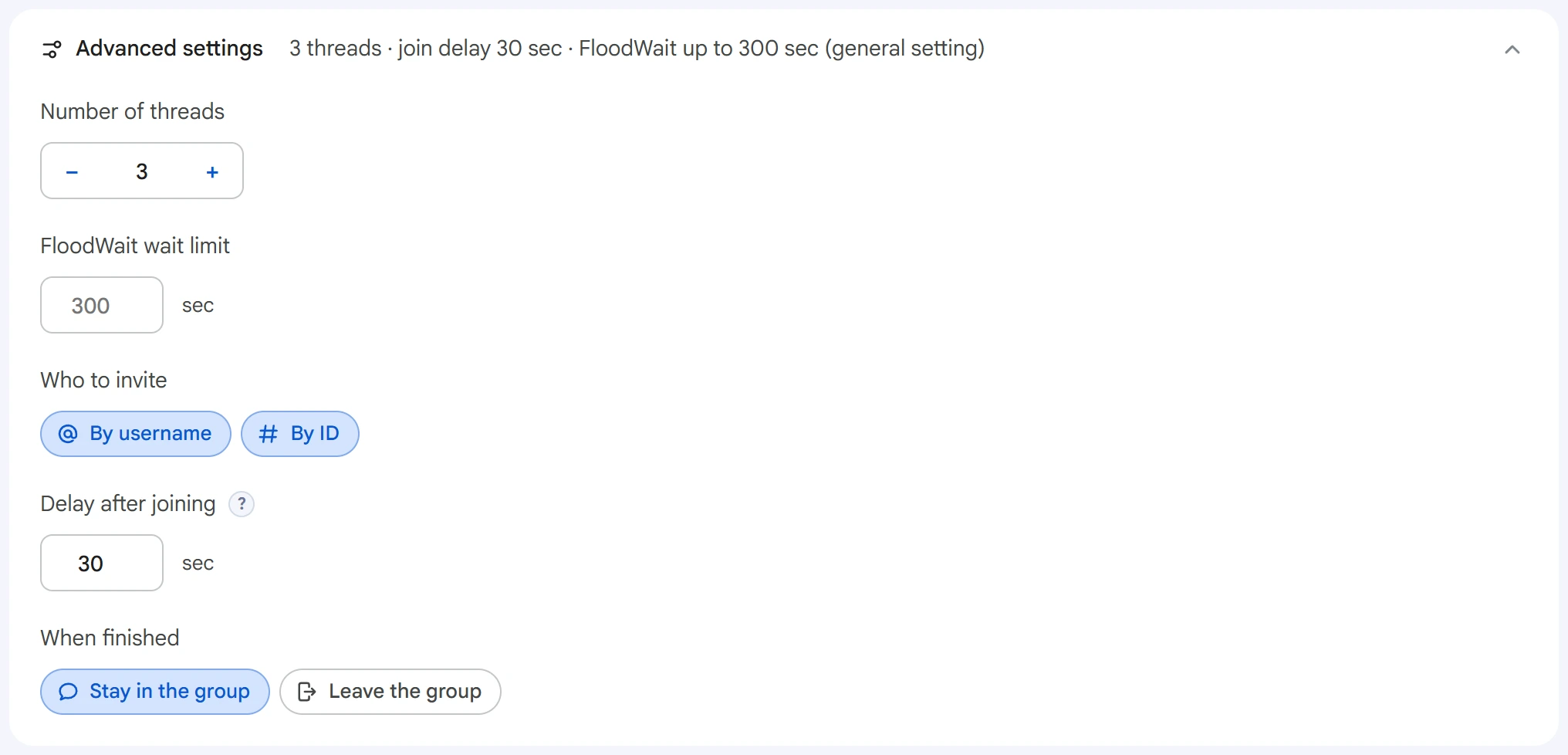
- Number of threads — how many accounts work at the same time.
0— the value from the Settings section. - FloodWait wait limit — the maximum time to wait out a Telegram restriction. An empty field uses the general setting,
0means waiting with no limit. - Who to invite — by username, by ID, or both. Inviting by ID requires access to the group the user was collected from by the Audience Scraper module.
- Delay after joining — how long to wait after an account joins the target group before it starts inviting.
- When finished — stay in the group or leave it once the account finishes working.
Start and results#
Click “Start task”. To run on a schedule, use the calendar button. Progress is shown in the Task Manager.
The log shows actions on users, skip reasons and errors. It also shows FloodWait waits and accounts finishing their work.
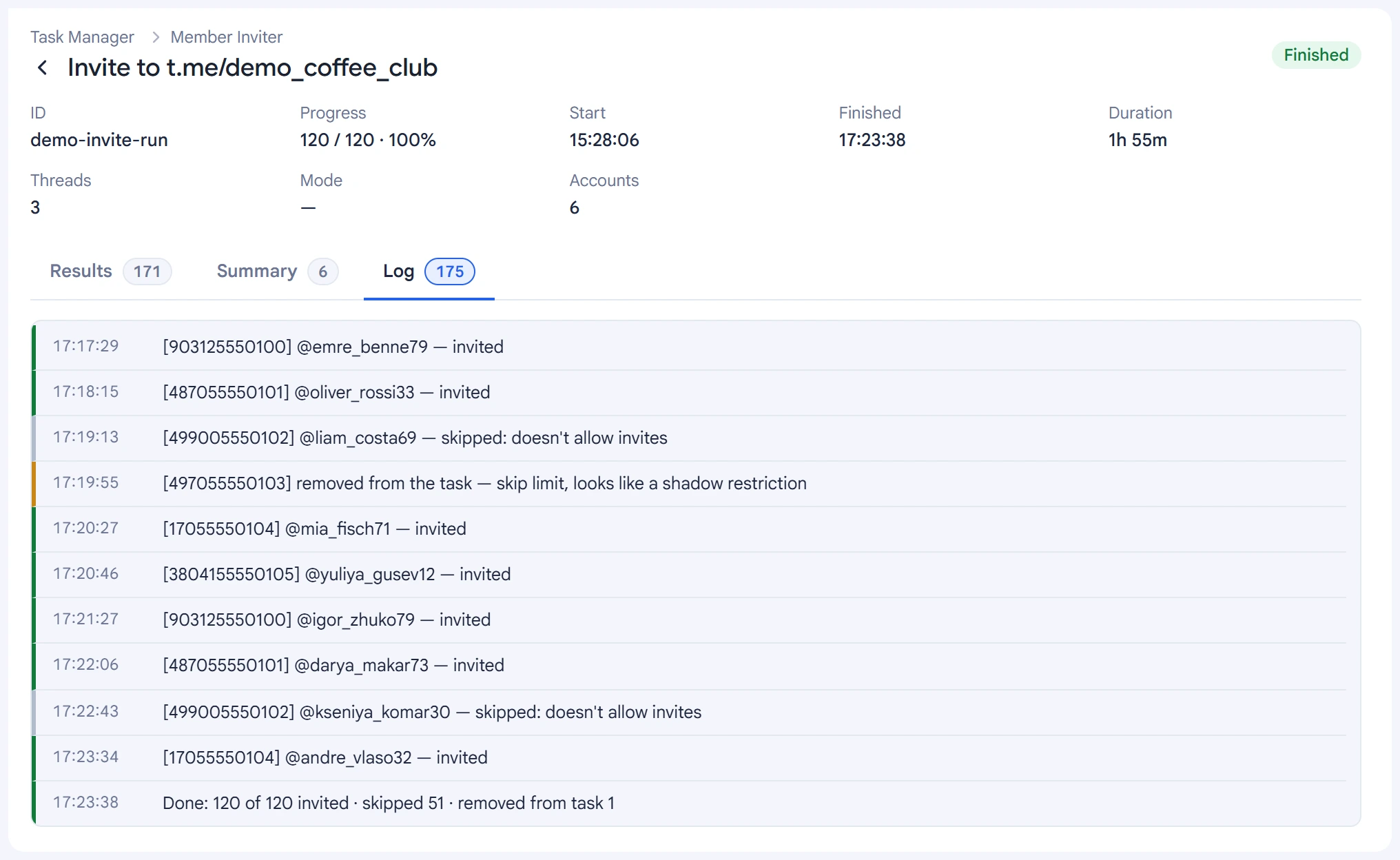
Main skip reasons:
- Privacy — the user's settings don't allow adding them to groups.
- Already in the group — the user is a member of the target group.
Results for users from lists are saved with statuses like “Invite: …”. The number of invited users may differ from the current member count: users may leave the group, and some of them may have been in it before the run.
You can resume a stopped task from the Task Manager.
Recommendations#
- Before starting, check the target group, the list of users and the account statuses.
- If there are many errors, review the log and the skip reasons.
- If you get a FloodWait, respect the wait time Telegram specifies.
- If only admins can invite users, use the Admin Inviter module.