
Modules
Remove Restrictions
This module sends an appeal to @SpamBot, Telegram's official bot, on behalf of accounts with a permanent spam block. Telegram's moderators decide whether to lift the restriction.
Accounts#
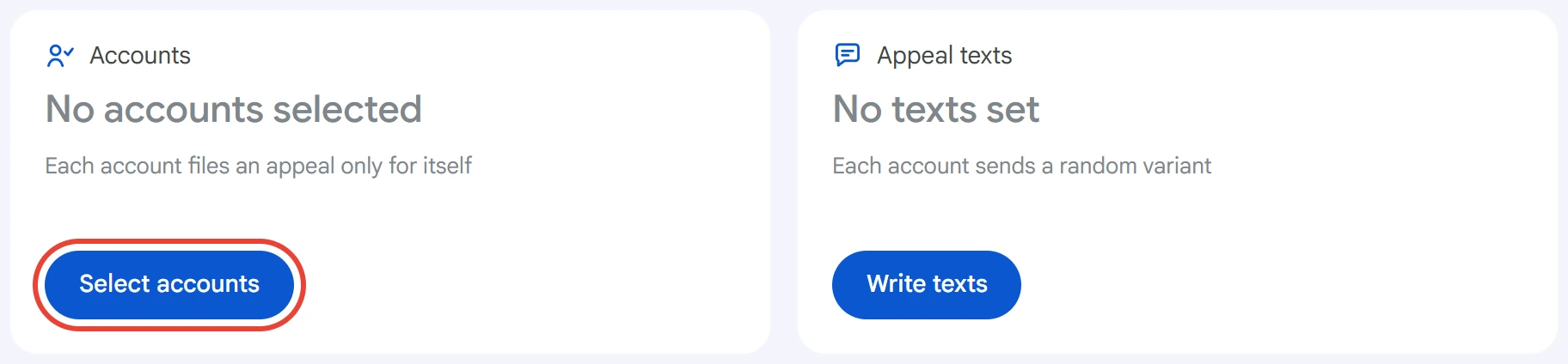
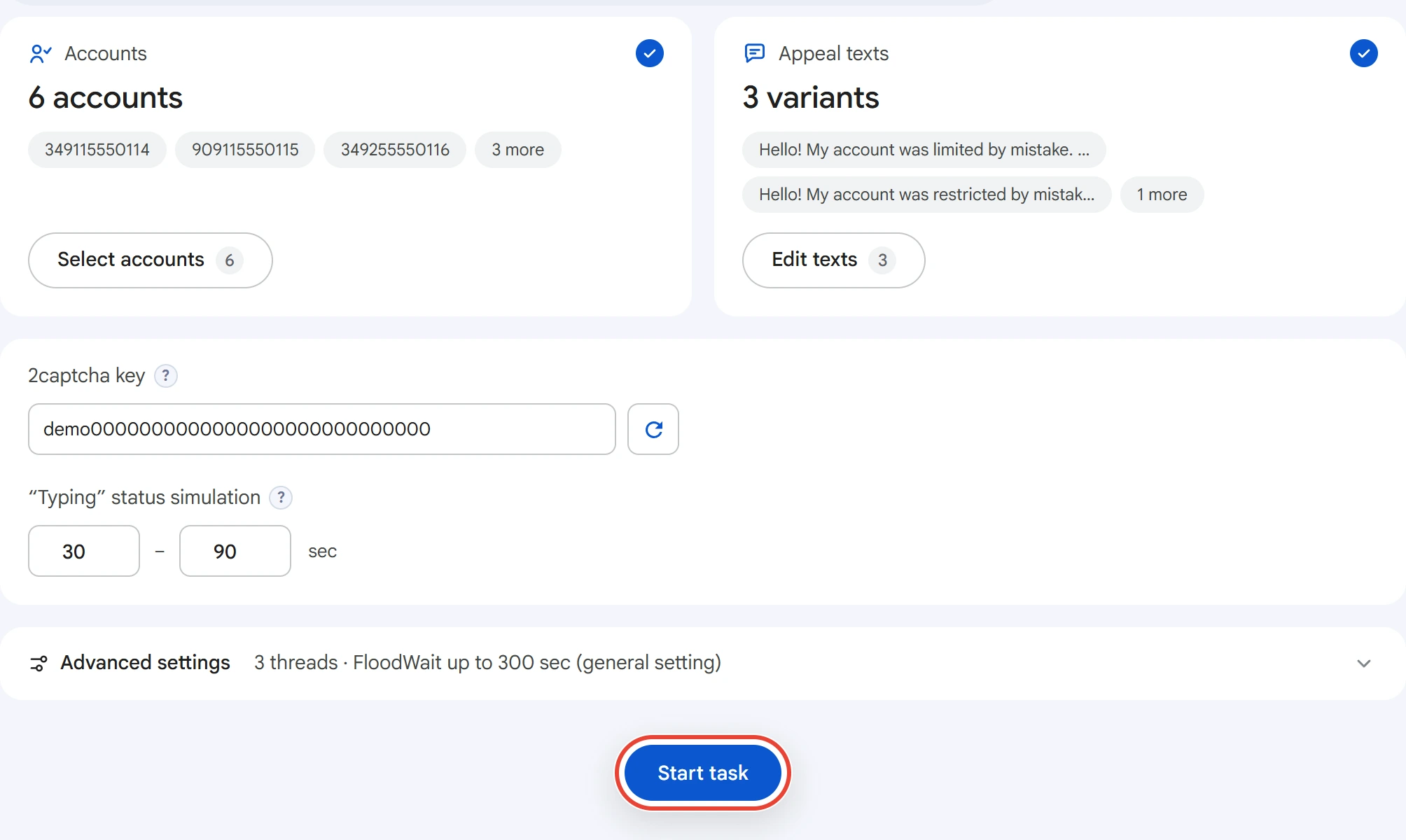
Click “Select accounts” on the “Accounts” card.
Check the accounts and click “Save”. The fastest way to pick the right ones is the “Status” → “Permanent spam block” filter.
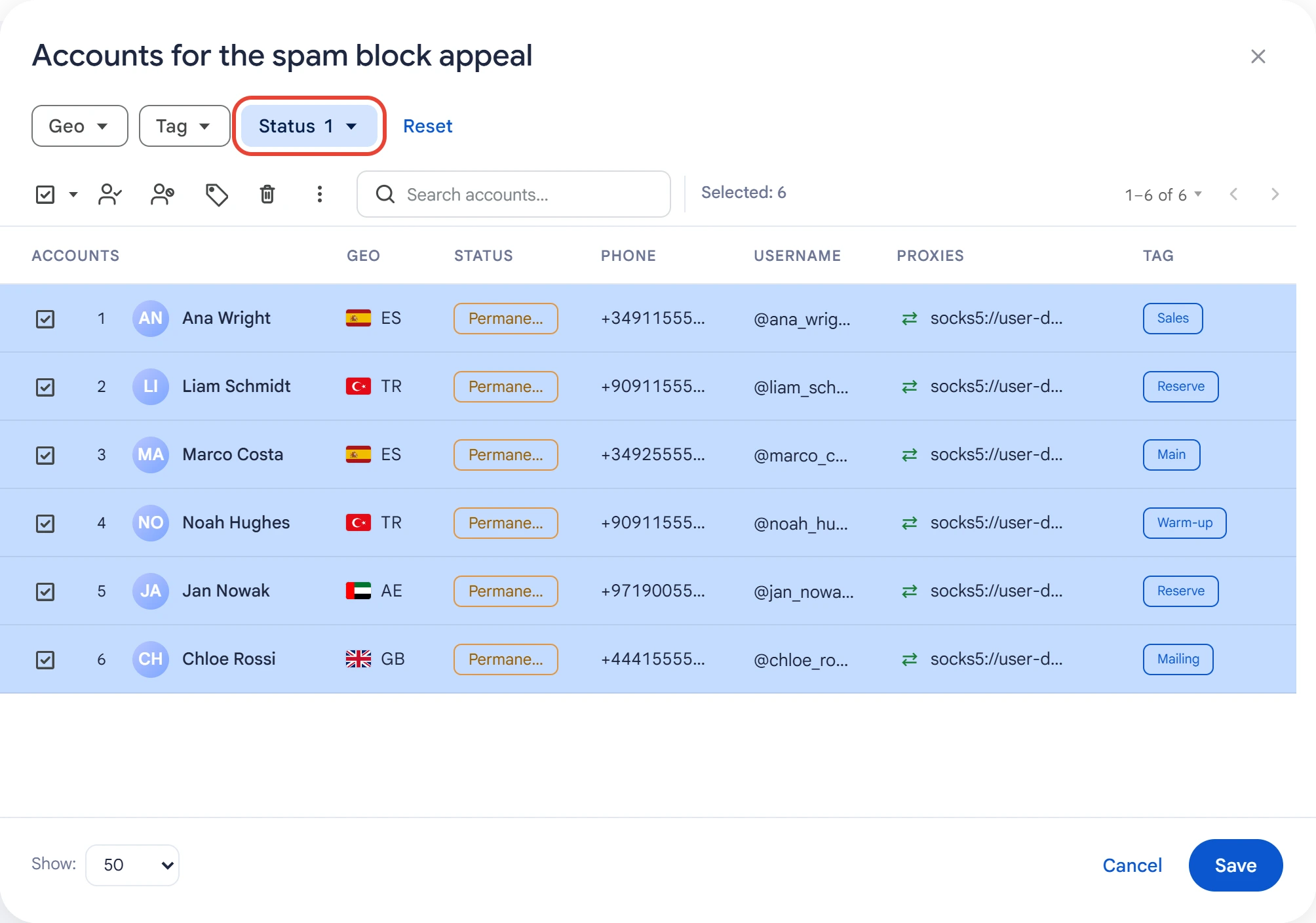
Each account files an appeal only for itself. Banned or frozen accounts and accounts with an invalid session aren't included in the task: @SpamBot can't help them. Accounts busy with another task are skipped.
Appeal texts#
Click “Write texts”, enter the appeal text and click “Save”.
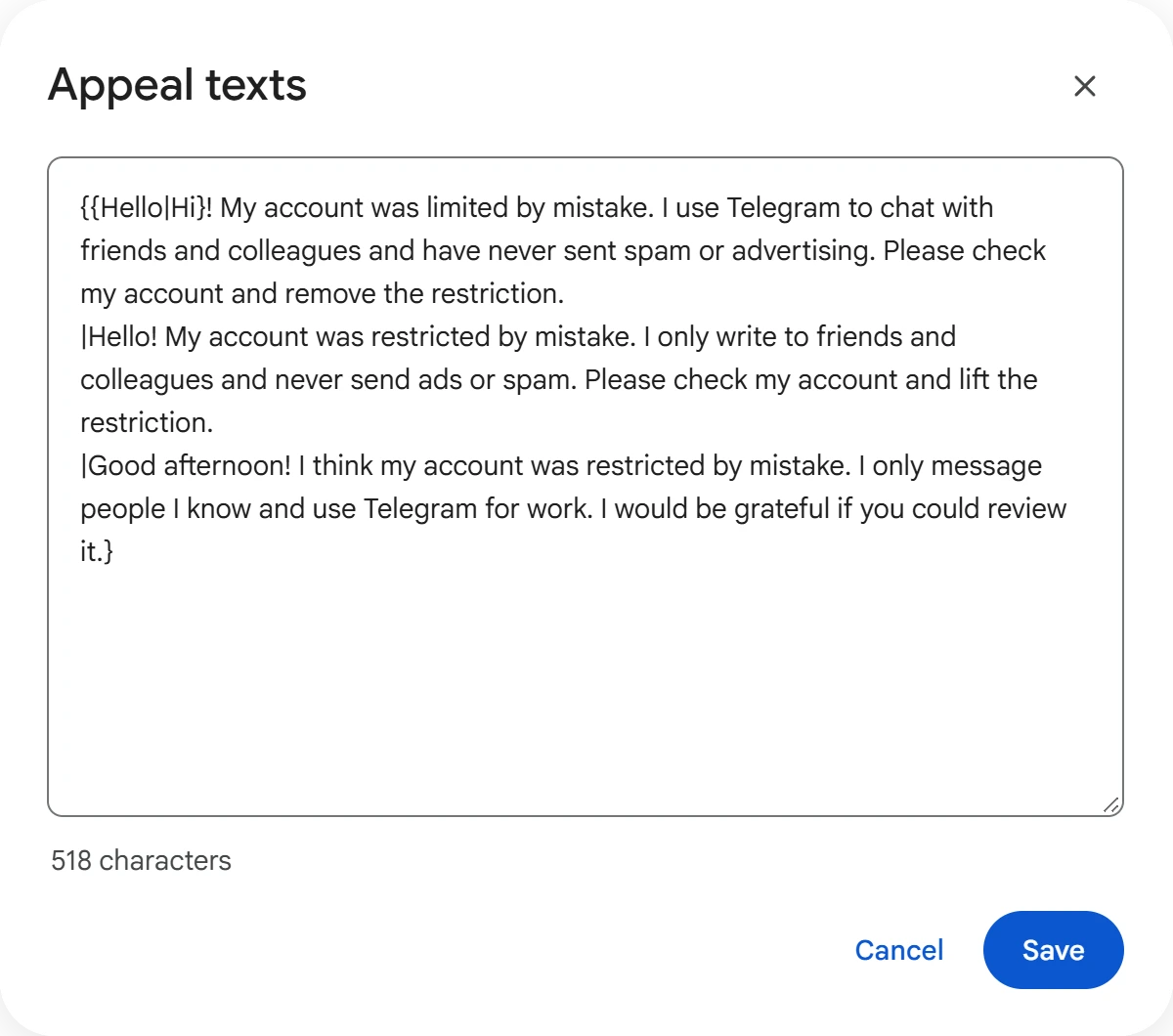
Write several variants in curly braces, separated by a vertical bar: {first text|second text}. Variants also work inside a text, for example {Hello|Hi}. For details, see Text variants. Each account sends a random variant.
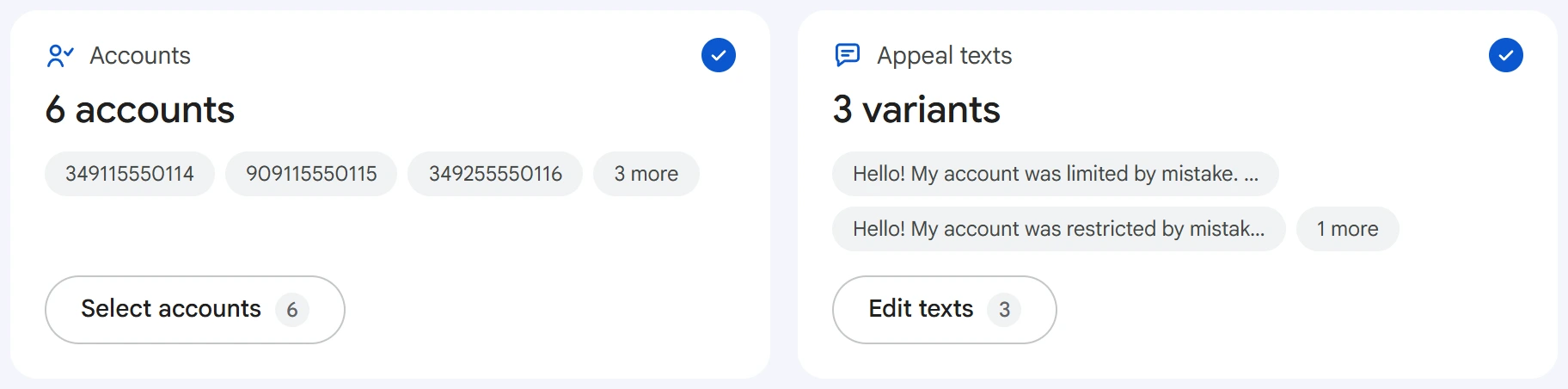
The card shows how many accounts are selected and how many text variants there are.
2captcha key and “typing”#
@SpamBot sometimes asks for a captcha. The program solves it through the 2captcha.com service: paste the service's API key into the “2captcha key” field. Without a key, an account that the bot shows a captcha to won't send its appeal.
The button to the right of the field checks the key. Below the field you'll see the balance or the reason the key doesn't work, such as a zero balance.
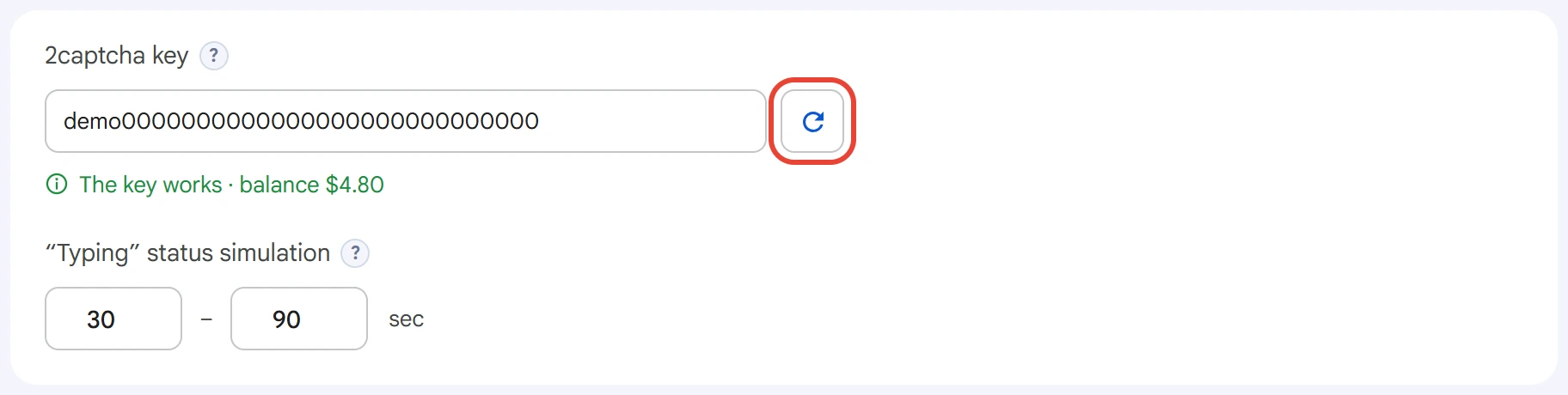
“Typing” status simulation — how many seconds the account is “typing” the appeal before sending it. A random value from the range is used each time.
Advanced settings#
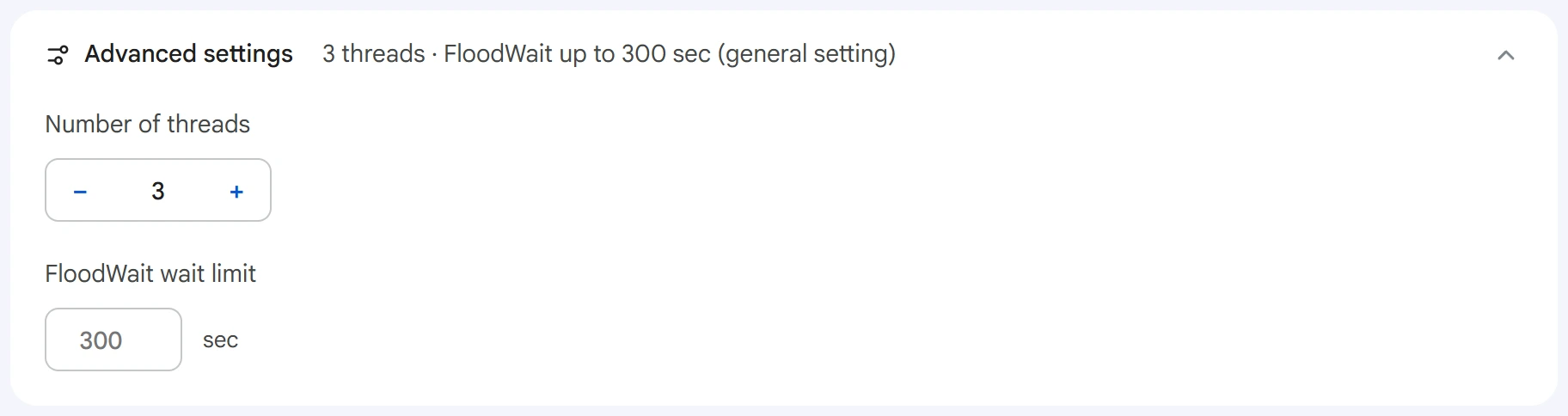
- Number of threads — how many accounts work with @SpamBot at the same time.
0uses the value from the Settings section. - FloodWait wait limit — the maximum time to wait out a pause requested by Telegram. If the pause is longer, the account is skipped. An empty field uses the shared setting;
0means waiting with no limit.
Start and results#
Click “Start task”. The button becomes available once accounts are selected and there's at least one text. You can track progress in the Task Manager.
The account opens a dialog with @SpamBot and goes through its flow: it clicks buttons, solves the captcha and sends the appeal. It writes only when the bot itself leads to an appeal or asks for text. If the program doesn't recognize the bot's reply, no appeal is sent: the outcome shows “Unrecognized @SpamBot reply” and the reply itself.
The outcome for each account is on the “Results” tab of the task card.
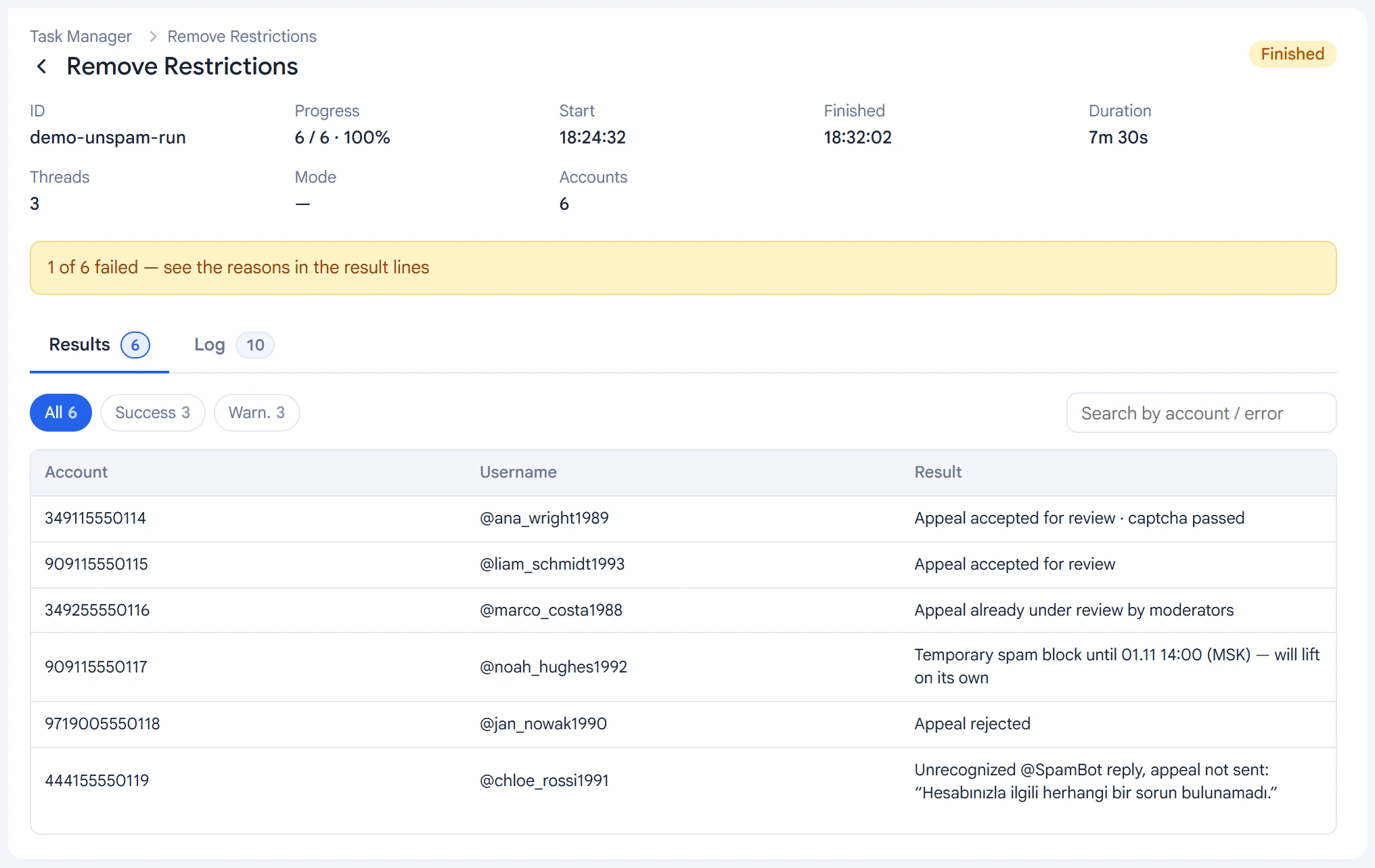
- Appeal accepted for review — the appeal was sent to the moderators.
- Appeal already under review — it was filed earlier, so a second one isn't sent.
- No restrictions or Spam block removed — the account is free.
- Temporary spam block — it will be lifted on its own when it expires, so no appeal is needed.
- Appeal rejected — the permanent spam block stays.
- Captcha failed — there's no 2captcha key, or the service didn't solve the captcha.
The account's status in the Accounts section is updated from @SpamBot's latest reply.
The log shows the start with its settings, one line per account and the task outcome.
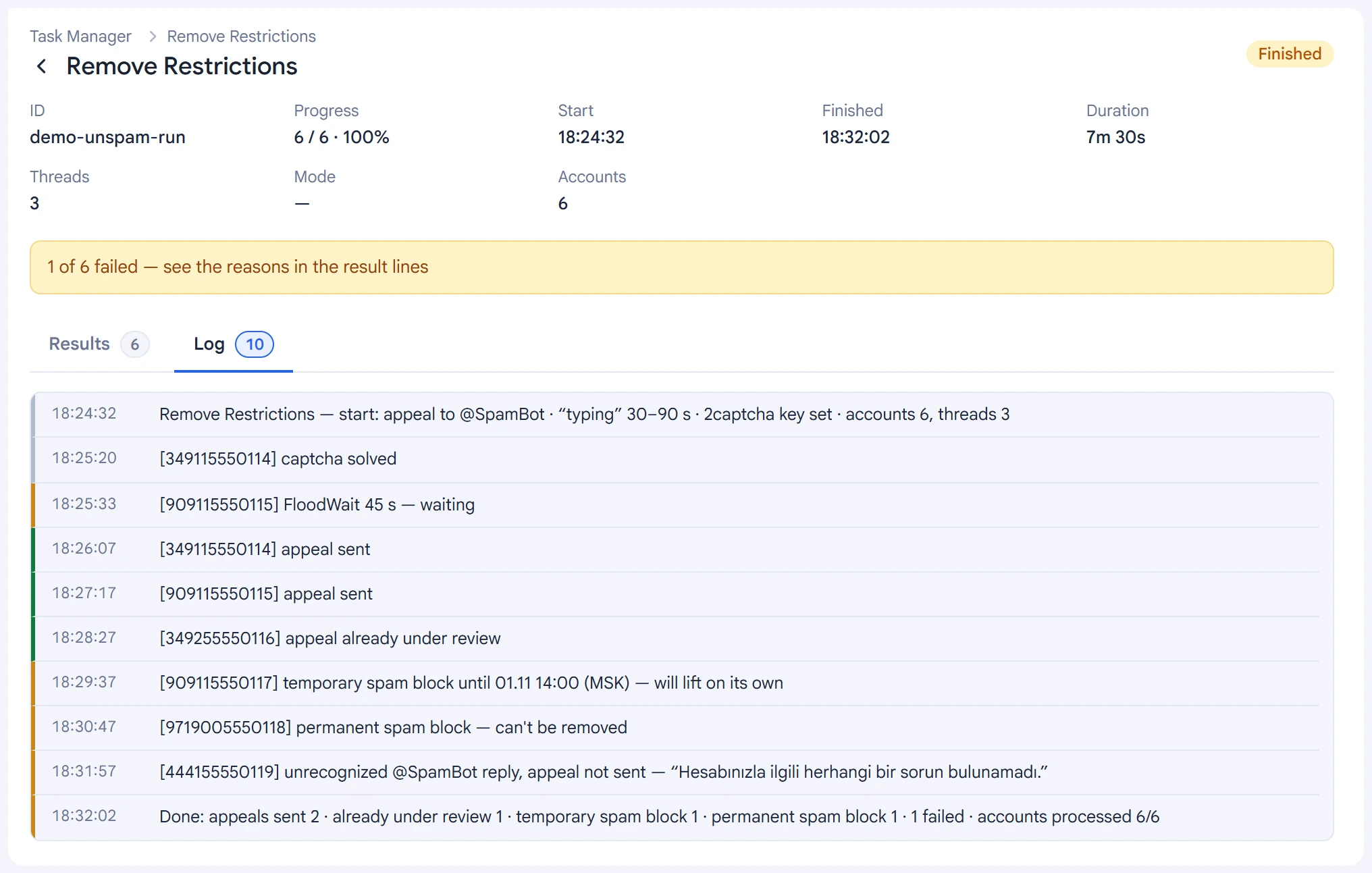
You can resume a stopped task in the Task Manager. Before resuming, the program looks through the chat with the bot and doesn't send a second appeal if the first one has already gone out.
The moderators' answer comes later. You can check it with the “Check restrictions” action in the Accounts section.
Tips#
- Appeal only a permanent spam block: a temporary one is lifted on its own.
- Prepare several different appeal variants.
- Check your 2captcha key and its balance before starting.
- Why restrictions appear and how to avoid them: Spam block and FloodWait.
- A permanent spam block isn't always lifted: the decision is up to Telegram's moderators.