
Modules
Group & Channel Search
This module searches for Telegram groups and channels by keyword and saves the results to “Lists” → “Sources”. You can use these lists in other modules.
Search queries#
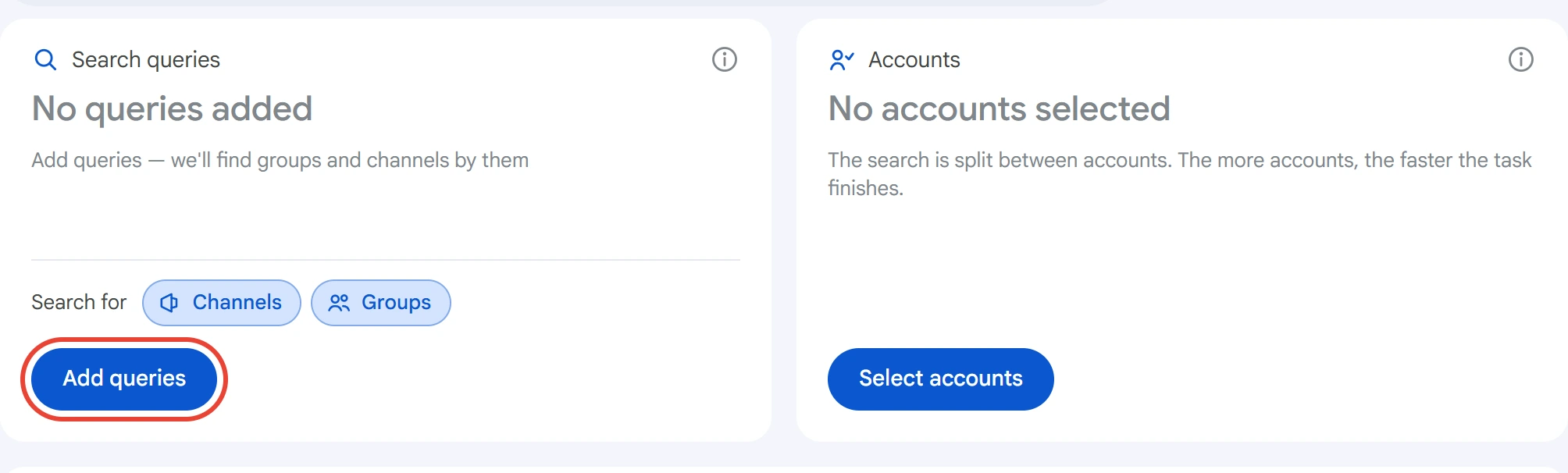
Click “Add queries” in the “Search queries” card.
Enter queries by hand or load a .txt / .csv file. You can paste several queries as a list, separated by line breaks, commas or semicolons. Duplicates are removed regardless of case.
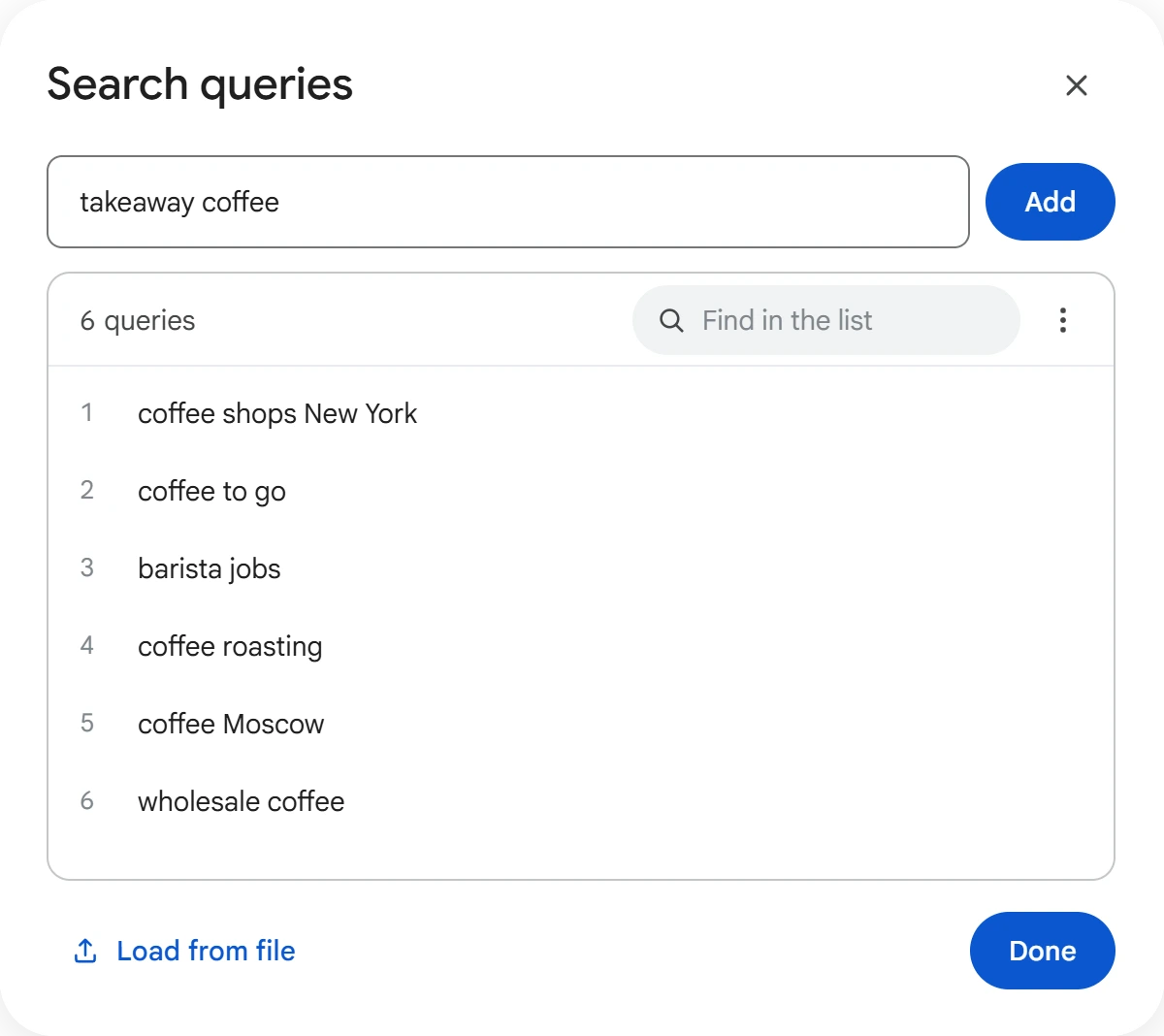
In the list you can edit and delete queries, search them by text, edit the whole list in text mode or clear it. When you've made your changes, click “Done”.
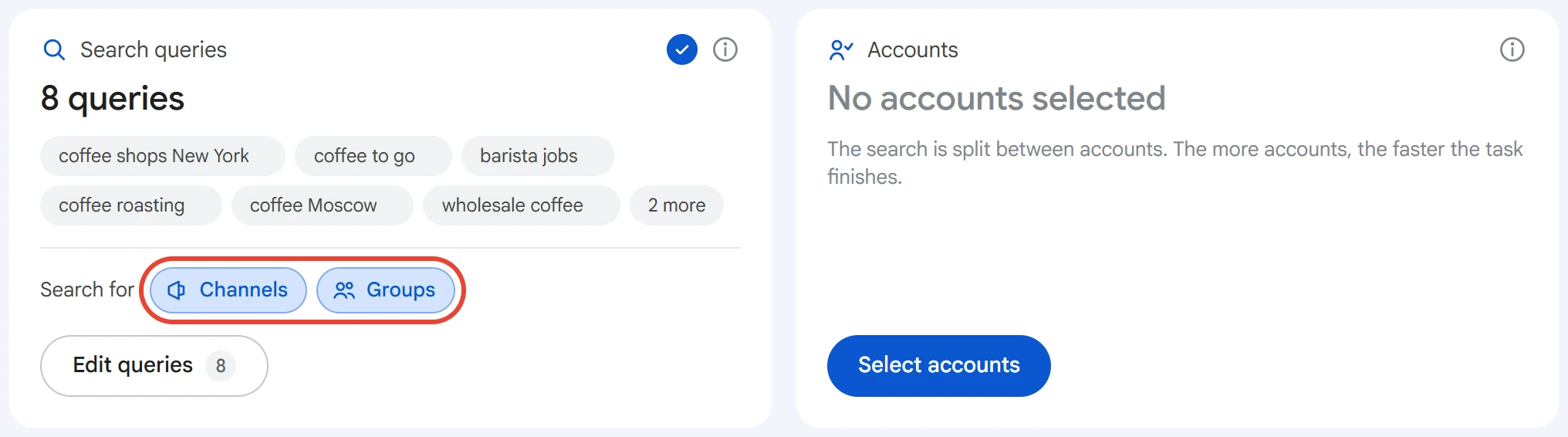
Select what to search for: channels, groups or both. Both are on by default.
Accounts#
Click “Select accounts”, tick the ones you need and click “Save”.
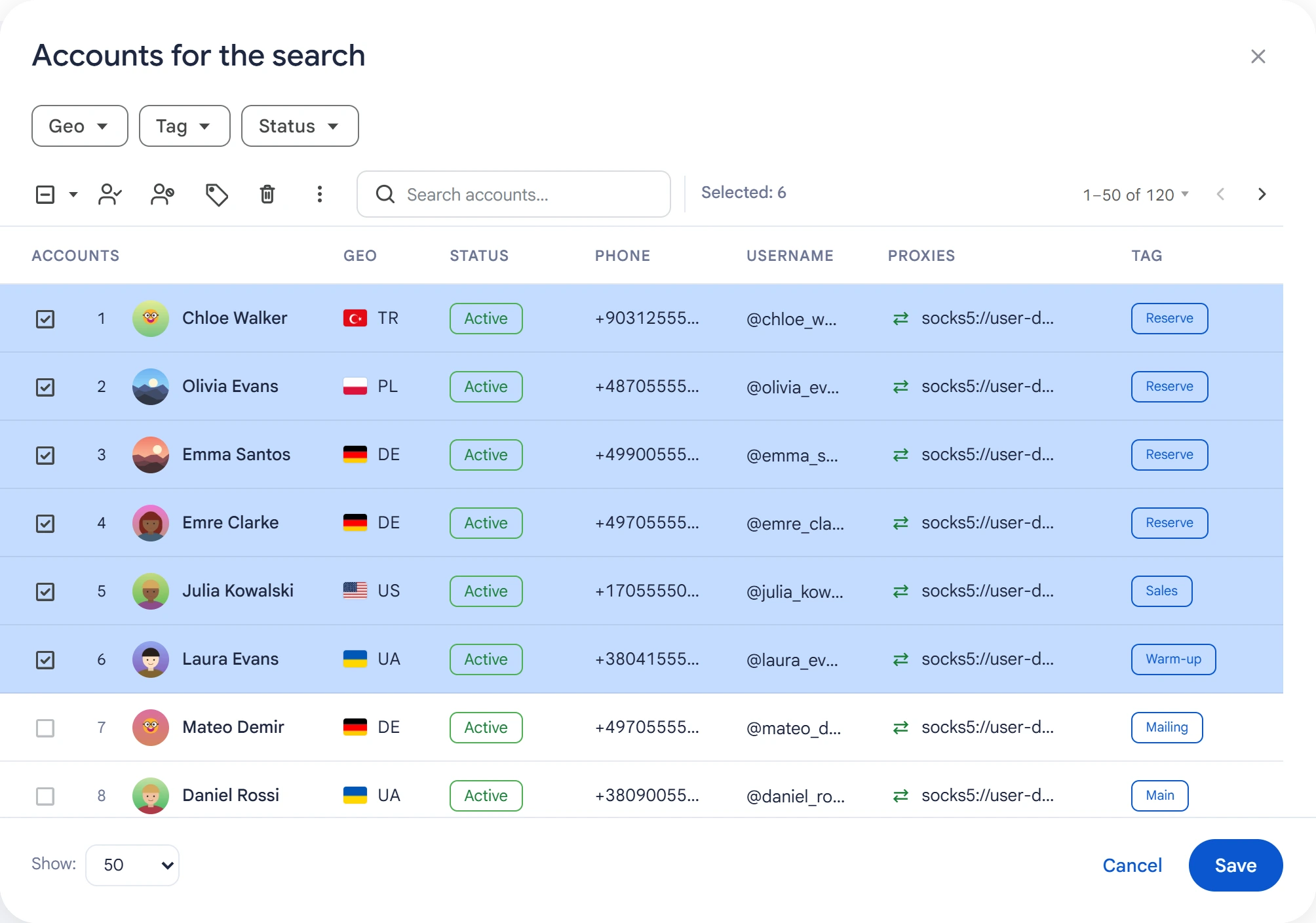
Queries are split among the selected accounts. If an account gets a long FloodWait, its unfinished queries can be handed over to other accounts.
Search mode#

- Standard — one search per query. Faster, but usually returns about ten results per query.
- Extended — automatically builds extra query variants. Finds more communities, but takes longer.
Advanced settings#
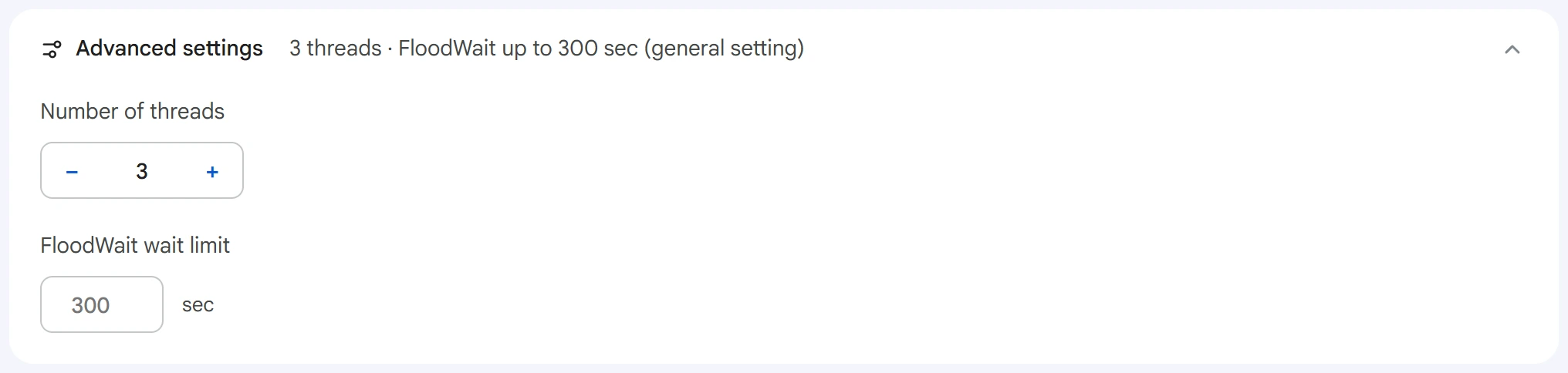
- Number of threads — how many accounts work at the same time.
0— the value from the Settings section. - FloodWait wait limit — the maximum time to wait out the restriction. If it's exceeded, the account stops working, and its queries can move to other accounts. An empty field uses the general setting;
0means waiting with no limit.
The program adjusts the pauses between queries automatically.
Two additional search methods are off by default:
- Channel recommendations — adds similar channels for channels found by text search. Applies when channels are selected as a result type.
- Linked discussion groups — adds discussion groups for channels found by text search. Applies when groups are selected as a result type.
Enable either method or both. They work in both search modes and take extra time. Discovery goes one level deep: recommendations and discussion groups are not used for further discovery. Continuing a task preserves the methods selected when that task was started.
Start and results#
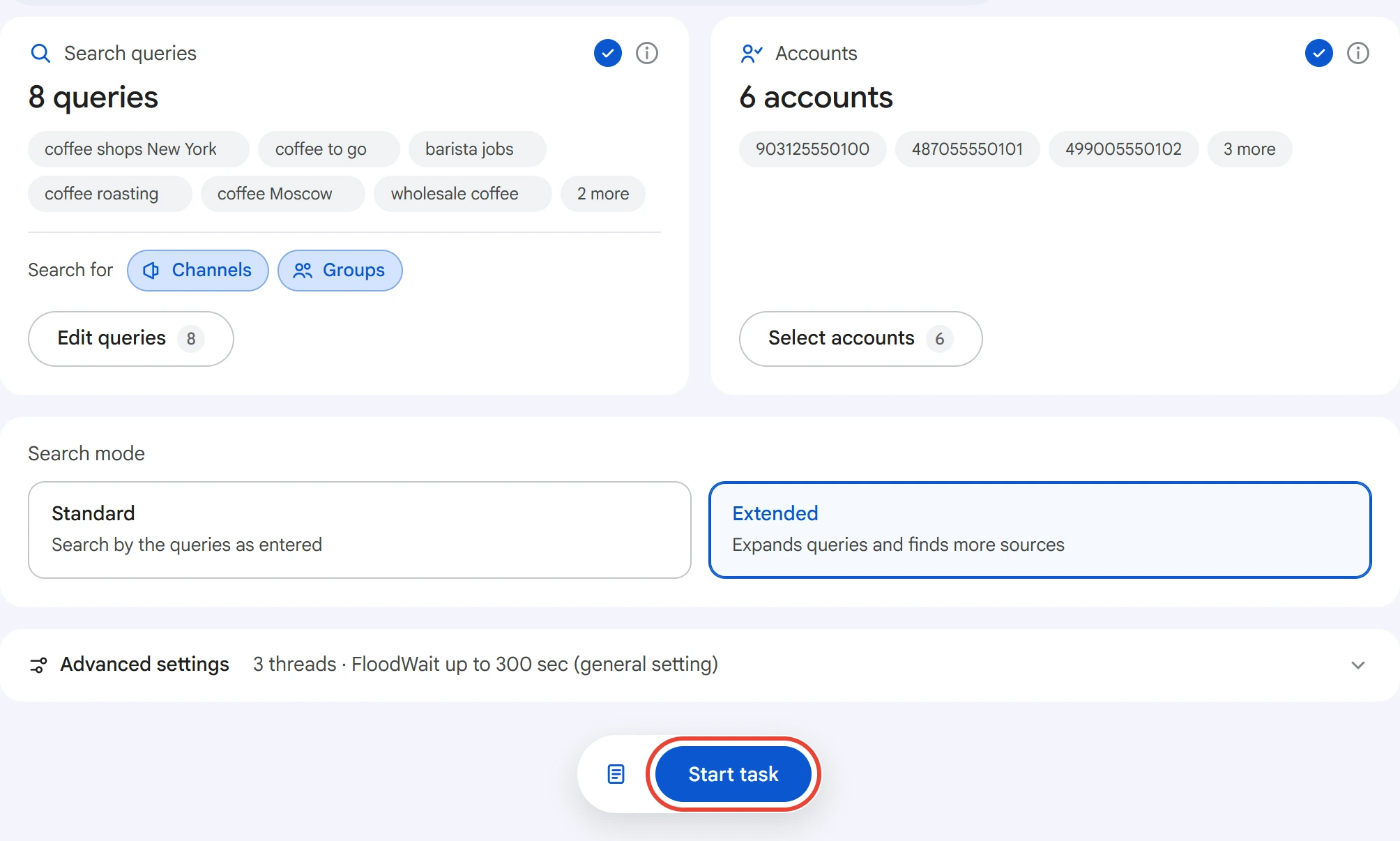
Click “Start task”. You can follow the search in the Task Manager.
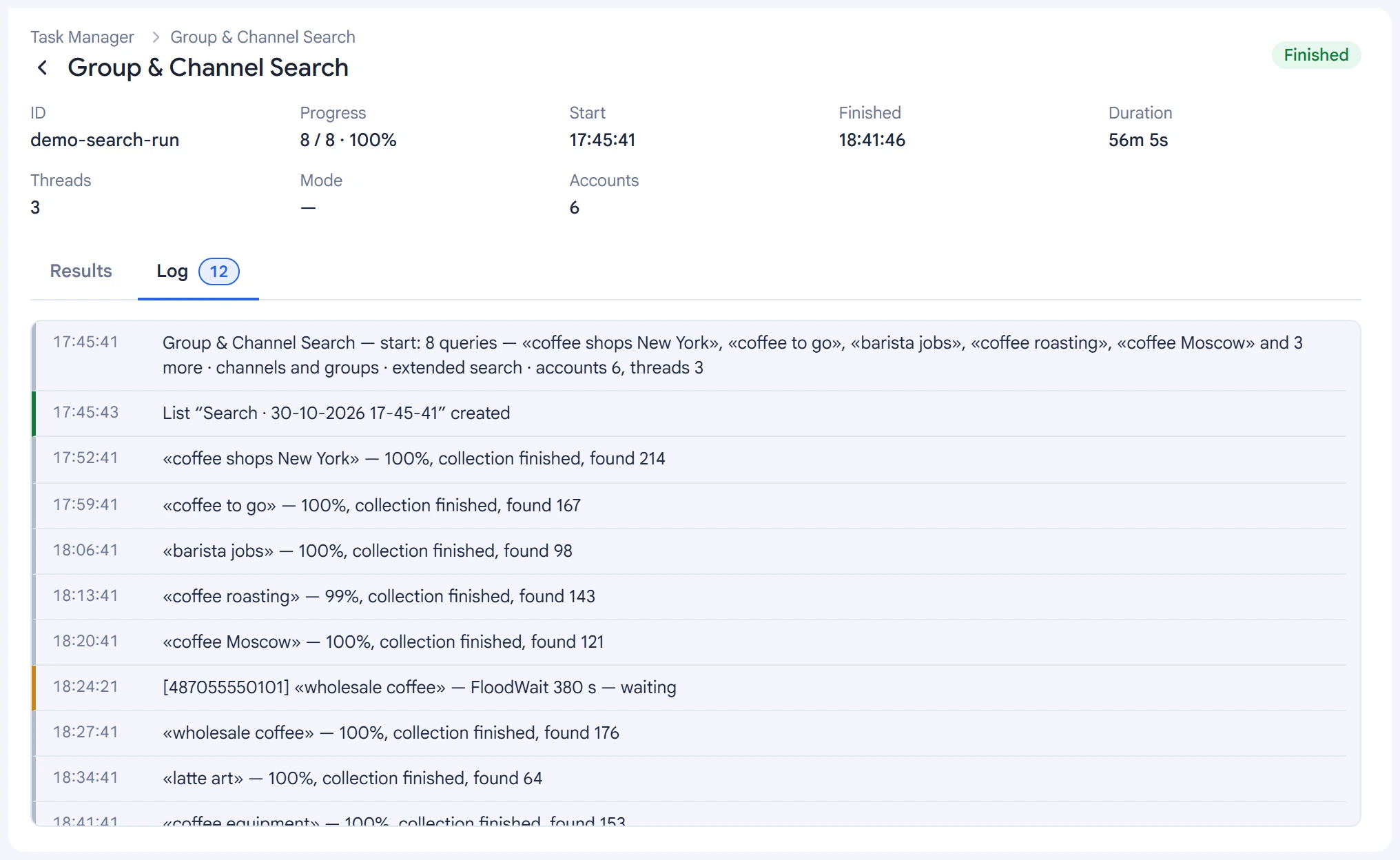
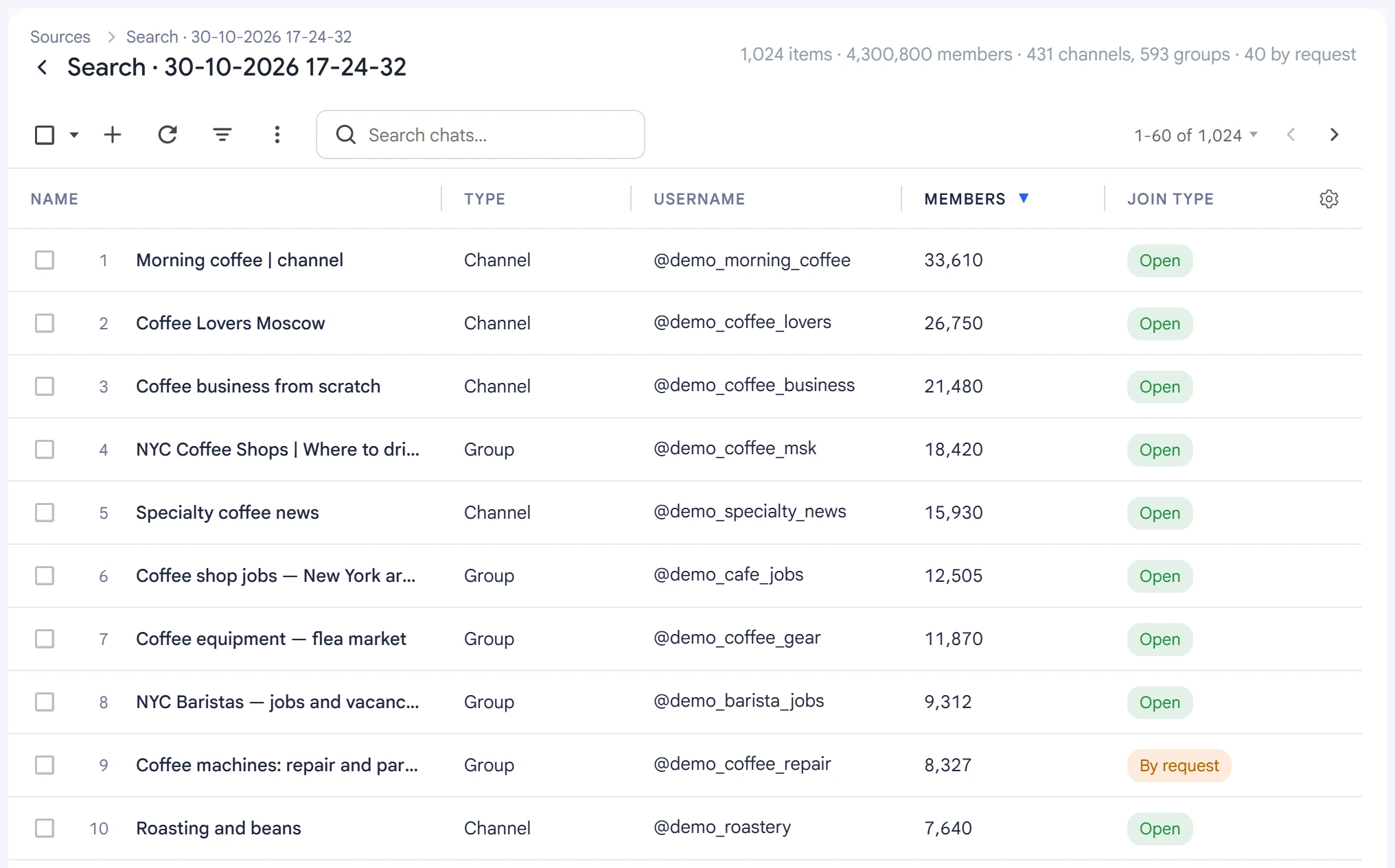
The log shows the processed queries and the number of results found. Each run creates a separate list in “Lists” → “Sources” with the date and time in its name.
Open the list with the icon to the left of the “Start task” button.
The Channel comments column shows discussion group availability at the time of search: Yes, No, or Not checked for older data. Groups show a dash. Filling this column requires no additional requests. A linked discussion group does not guarantee comments on every post. If you use a custom column selection, enable the new column in the table's column settings.
The list shows each community's name, type, username, member count and join conditions — open or by request. Duplicates aren't saved.
You can resume a stopped search in the Task Manager. Processed queries aren't run again.
Recommendations#
- Use topic-based queries, for example “jobs Moscow” or “flea market Kazan”.
- Try queries both in the local language and in English: the same phrase can bring up different groups.
- Use “Standard” mode for a quick check and “Extended” for a wider search.
- Before you use a list, delete irrelevant communities from it.