
Modules
Comment Broadcast
The module leaves comments under channel posts from your accounts. A comment appears in the post's discussion, and everyone who reads the comments sees it.
Channels#
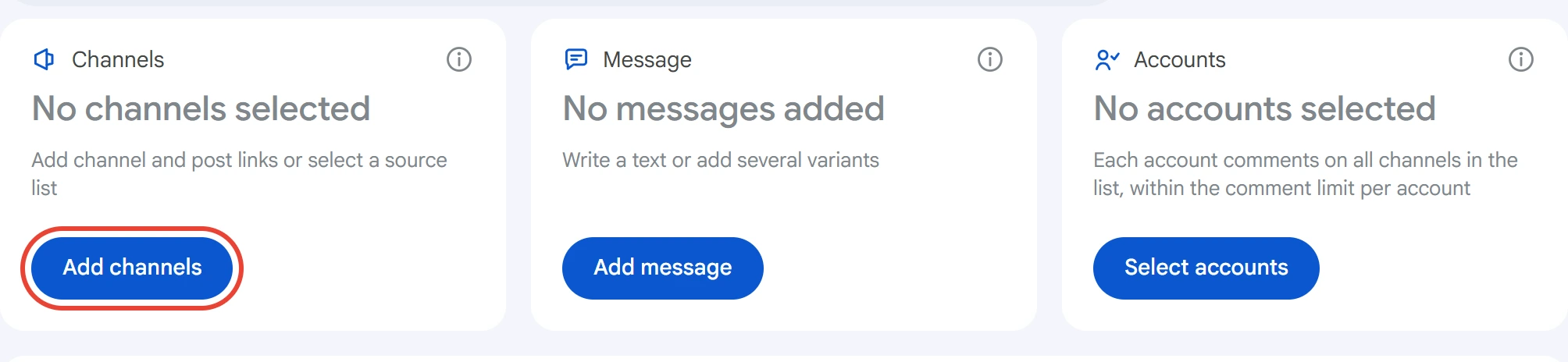
Click “Add channels” in the “Channels” card.
Paste links in the line at the top and click “Add”, or upload a list as a .txt or .csv file (“Load from file”). You can use t.me/channel, @channel and a post link t.me/channel/123.
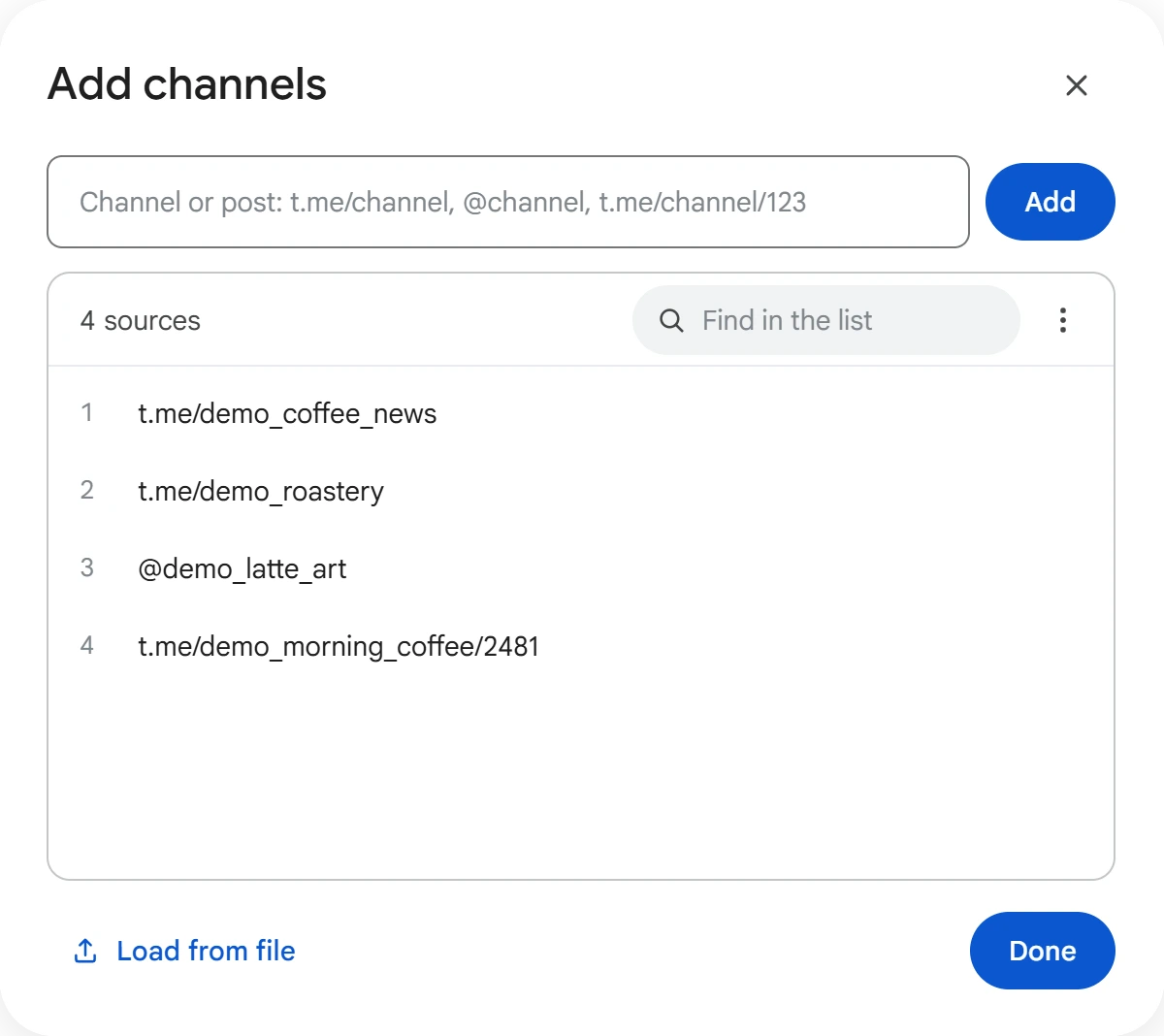
A channel link counts from its latest post. A post link counts from that post: the comment goes under it, and in “Several posts” mode, under it and the previous ones.
You can also take channels from lists in “Lists” → “Sources”, for example from Group & Channel Search results. Click “⋮” → “From a list” and check the lists you need. Groups aren't taken from lists: Group Broadcast posts to groups.
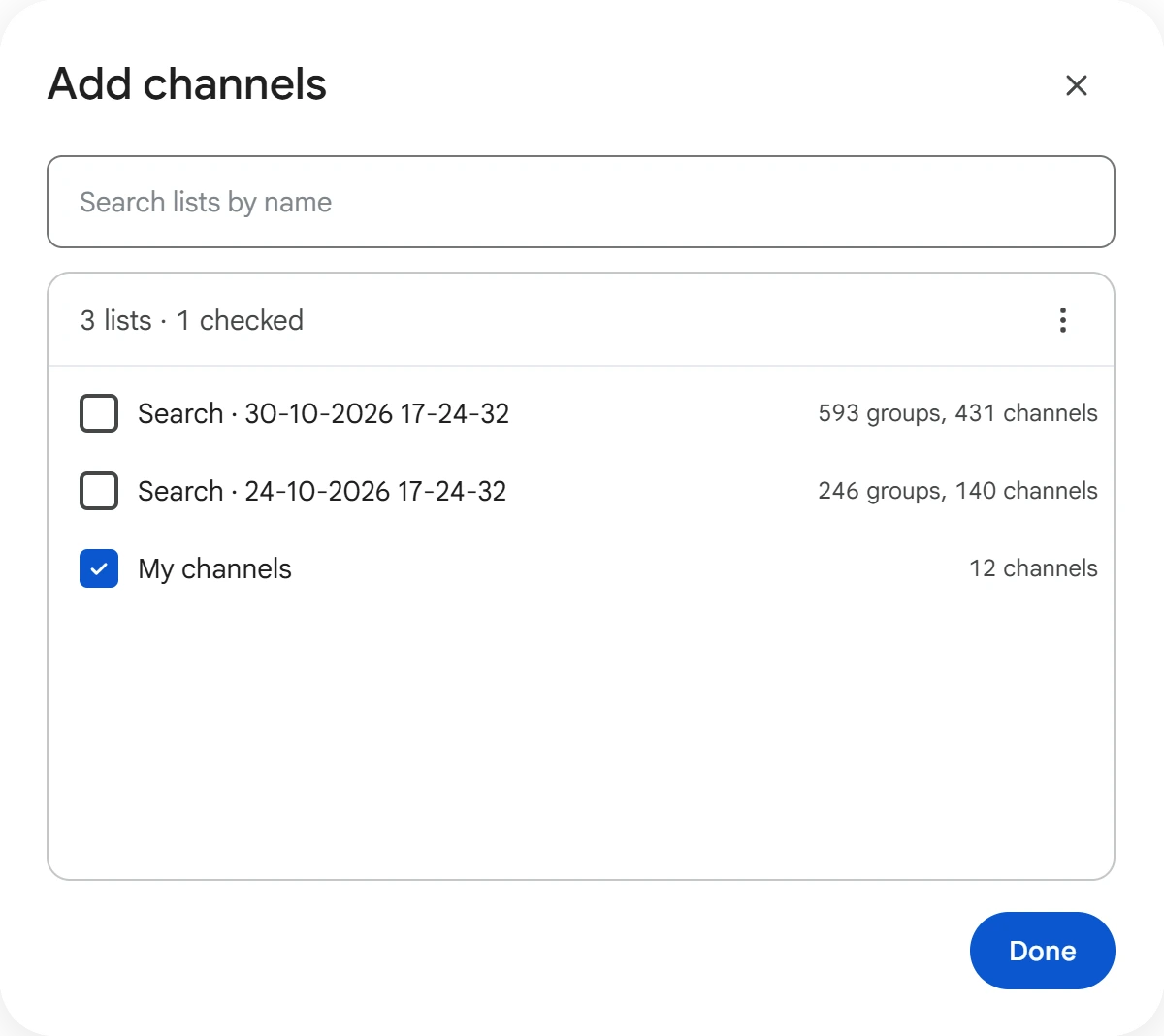
Click “Done”. Your custom list and each selected list appear on the card as a separate line, and the cross removes what you don't need.
Message#
Click “Add message” and write the comment text.
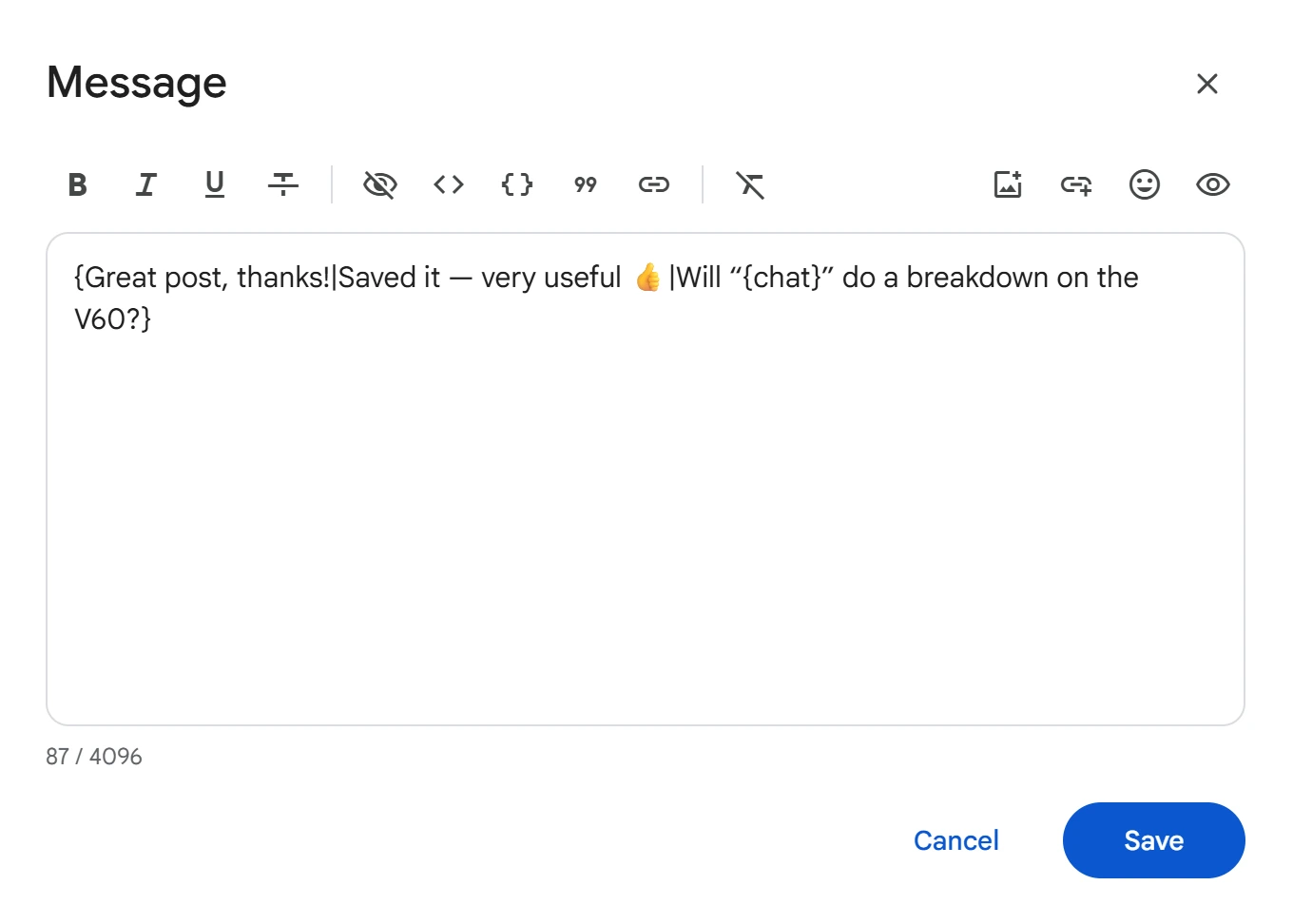
- Variants —
{first|second|third}: different variants go under posts in turn. More details on the Text variants page. {chat}— replaced with the channel name.- Photo or video — the picture icon on the window's panel. One random photo goes under a post;
[1.jpg]in the text sends that exact one. A comment can also have no text, just a photo. {link}— a random link from the list opened by the link icon with a plus.
Click “Save”. The card shows the start of each variant.
Accounts#
Click “Select accounts”, check the ones you need and click “Save”.
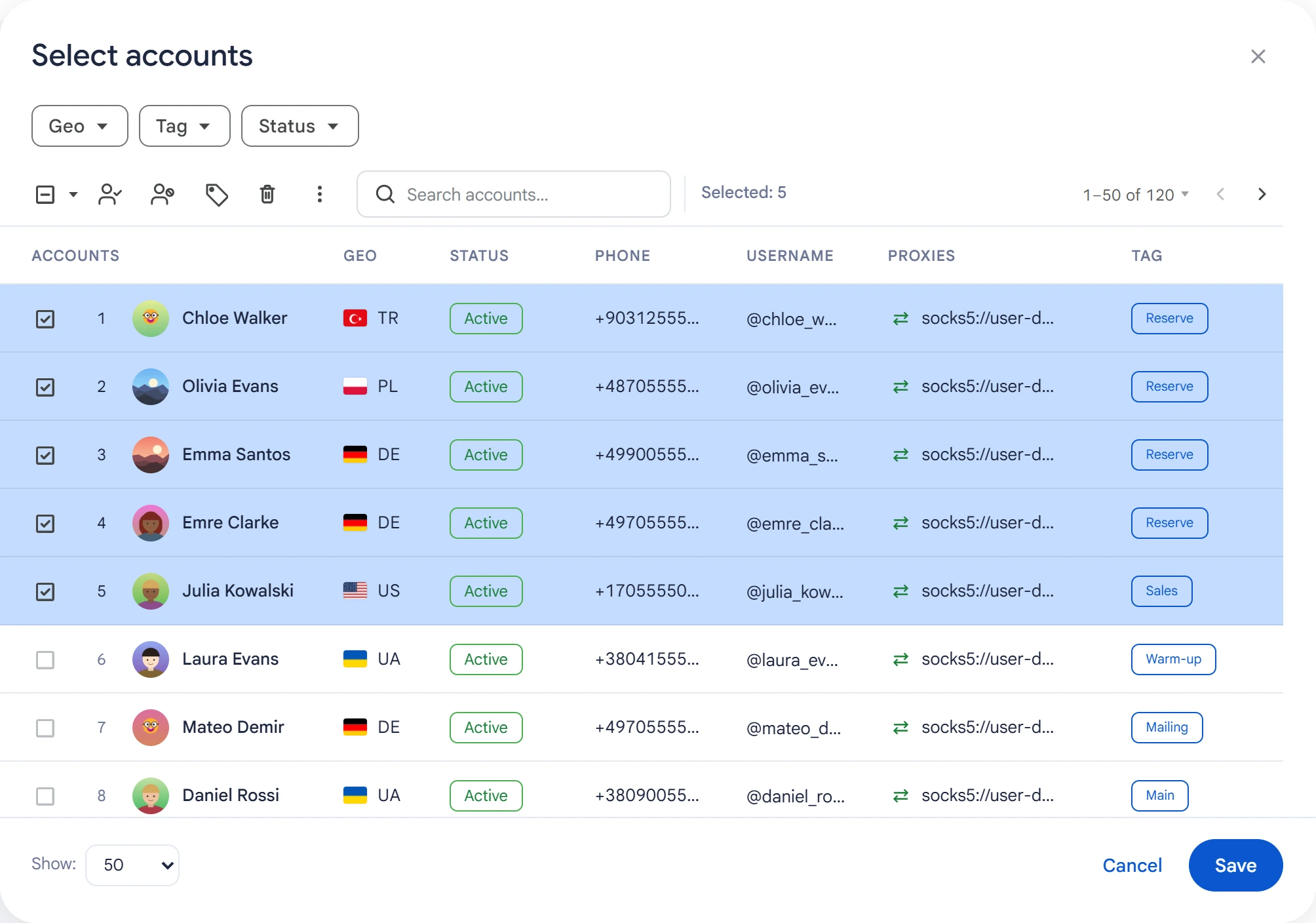
Each account goes through all the channels on the list, in its own random order. Accounts busy with another task won't be included in the run. Accounts in a spam block don't take part: Telegram doesn't let them post in discussions.
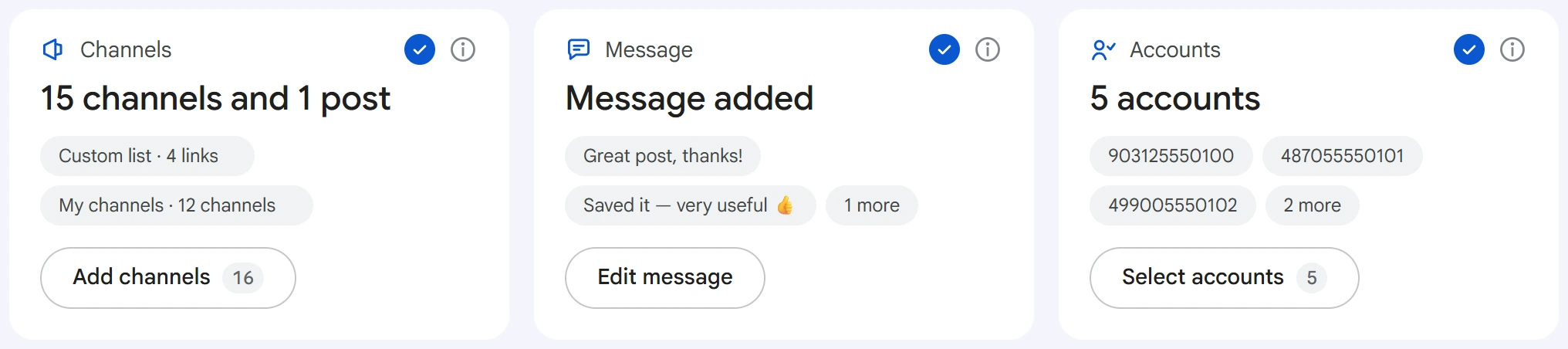
When everything is selected, the cards show check marks.
Which posts#
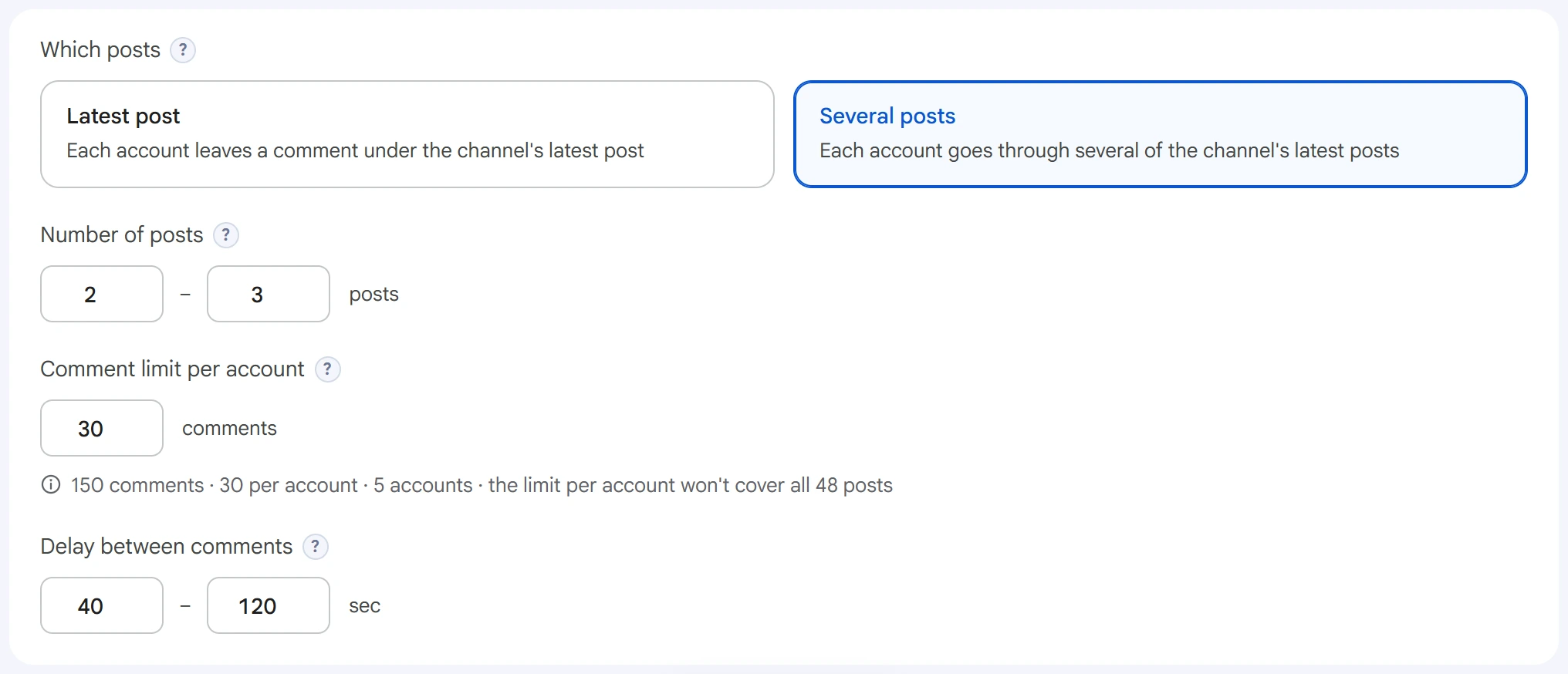
- Latest post — each account leaves a comment under the channel's newest post.
- Several posts — each account goes through several recent posts. “Number of posts” sets how many: a random number from the range, different for each account and channel.
Only posts with open comments are used. All selected accounts comment under the same post, once each: one channel and five accounts means five comments.
Comment limit per account — how many comments one account leaves. Once it reaches the limit, the account finishes working. 0 — no limit. Under the field, the program calculates how many comments there will be in total and warns you if the limit won't cover all posts.
Delay between comments — a random pause between comments from one account, in seconds. The shorter it is, the higher the risk of a discussion ban and a spam block.
Advanced settings#
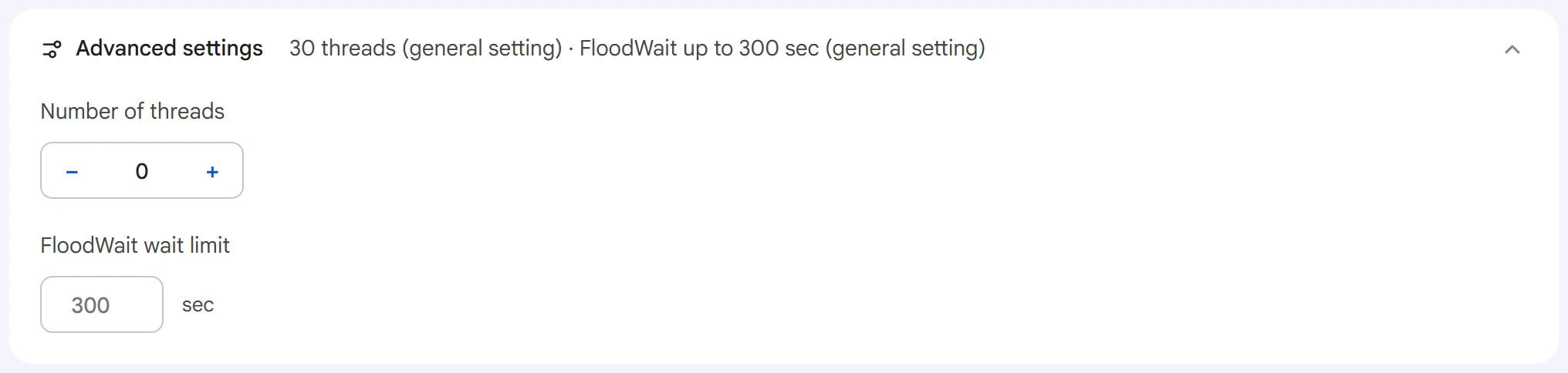
- Number of threads — how many accounts work at the same time.
0— the value from the Settings section. - FloodWait wait limit — how long an account can wait out a Telegram restriction. If the wait is longer, the account finishes working. An empty field uses the general setting,
0means waiting with no limit.
Start and results#
Click “Start task”. You can track the broadcast in the Task Manager.
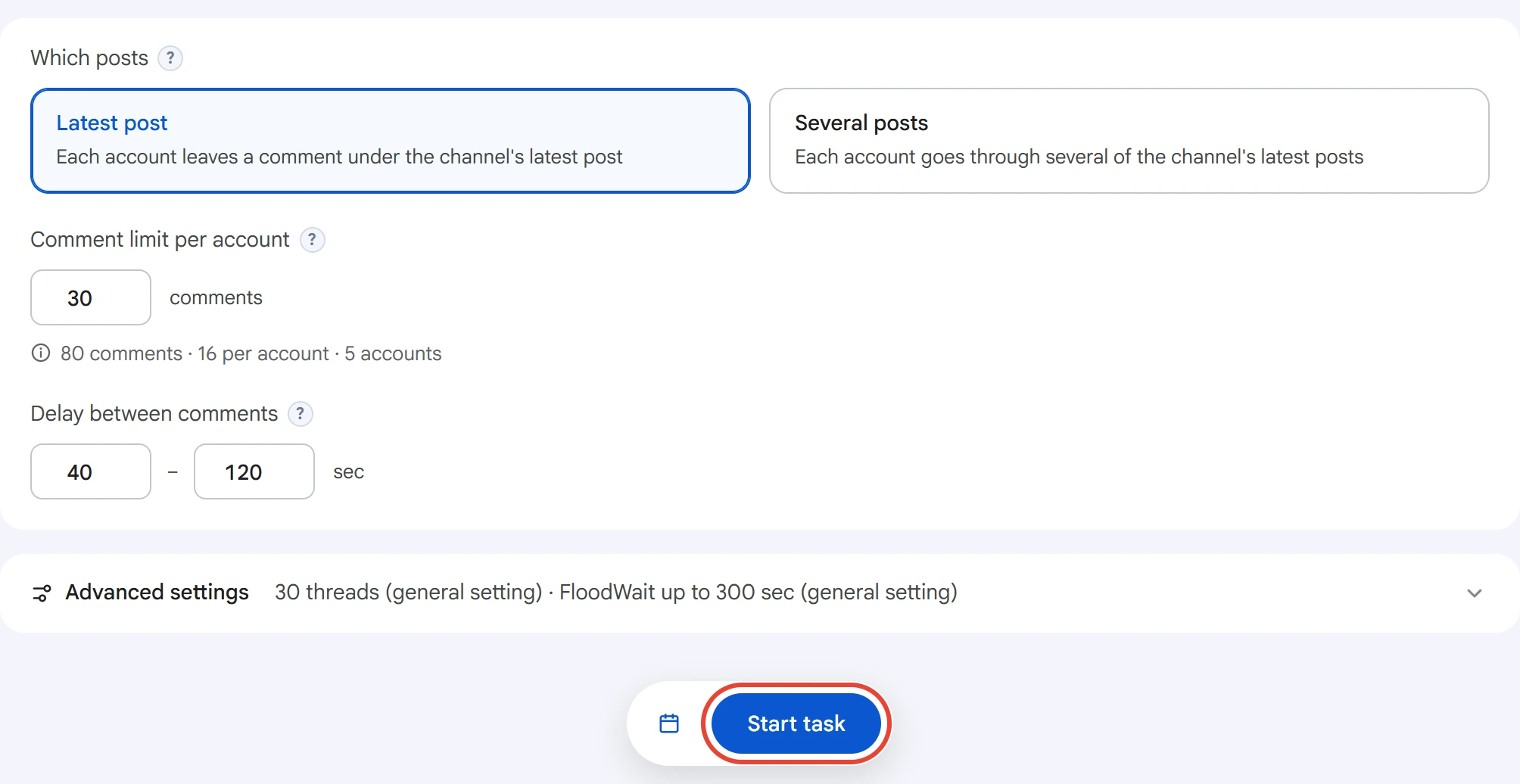
After the start, the channels and account selection on the screen are cleared, so you set up the next broadcast from scratch.
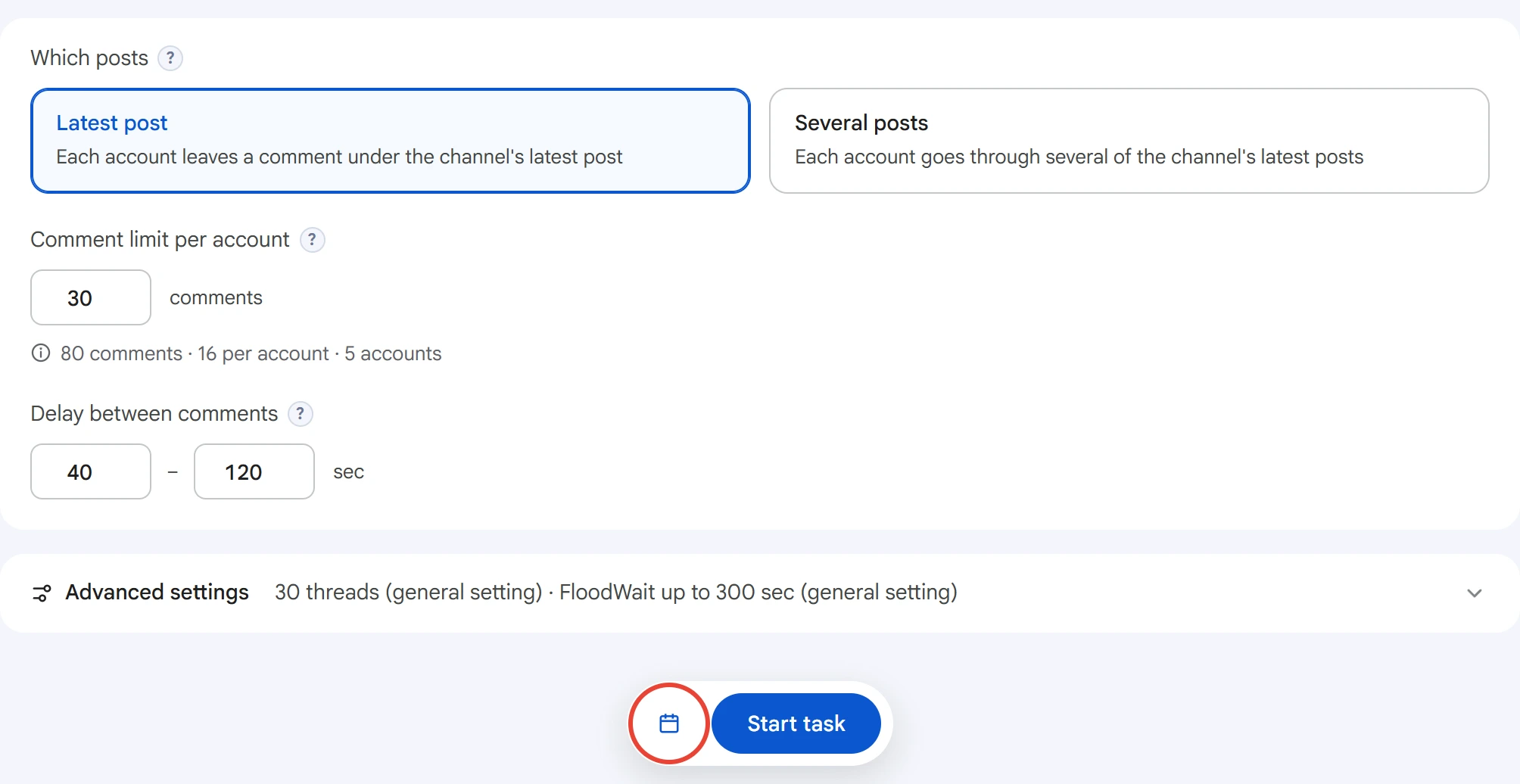
One run goes through the channels once. To repeat the broadcast, click the calendar button and set “How many times to run” and “Break between runs”.
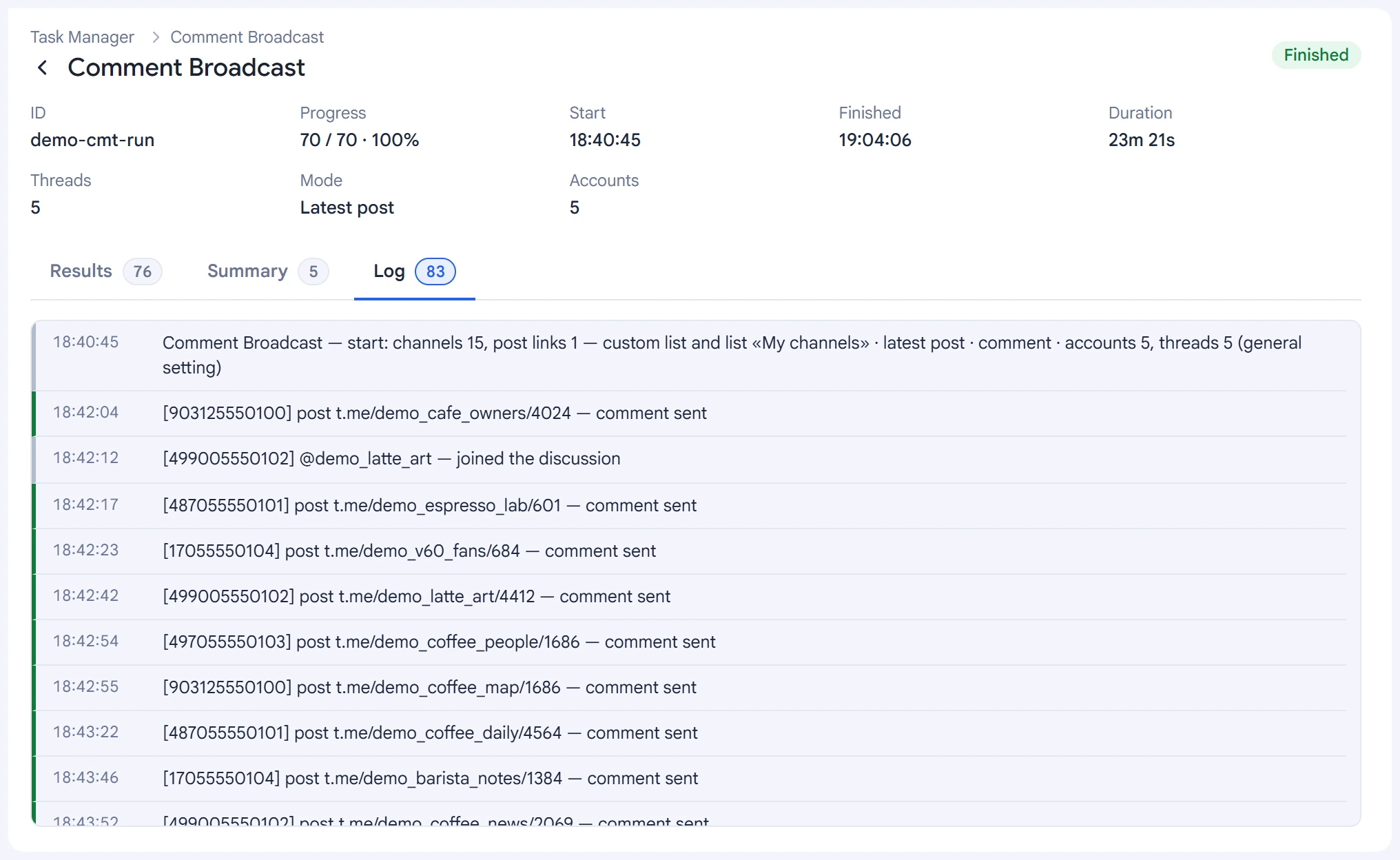
The task log shows each comment sent with a link to the post, joins to discussions, and skips with a reason.
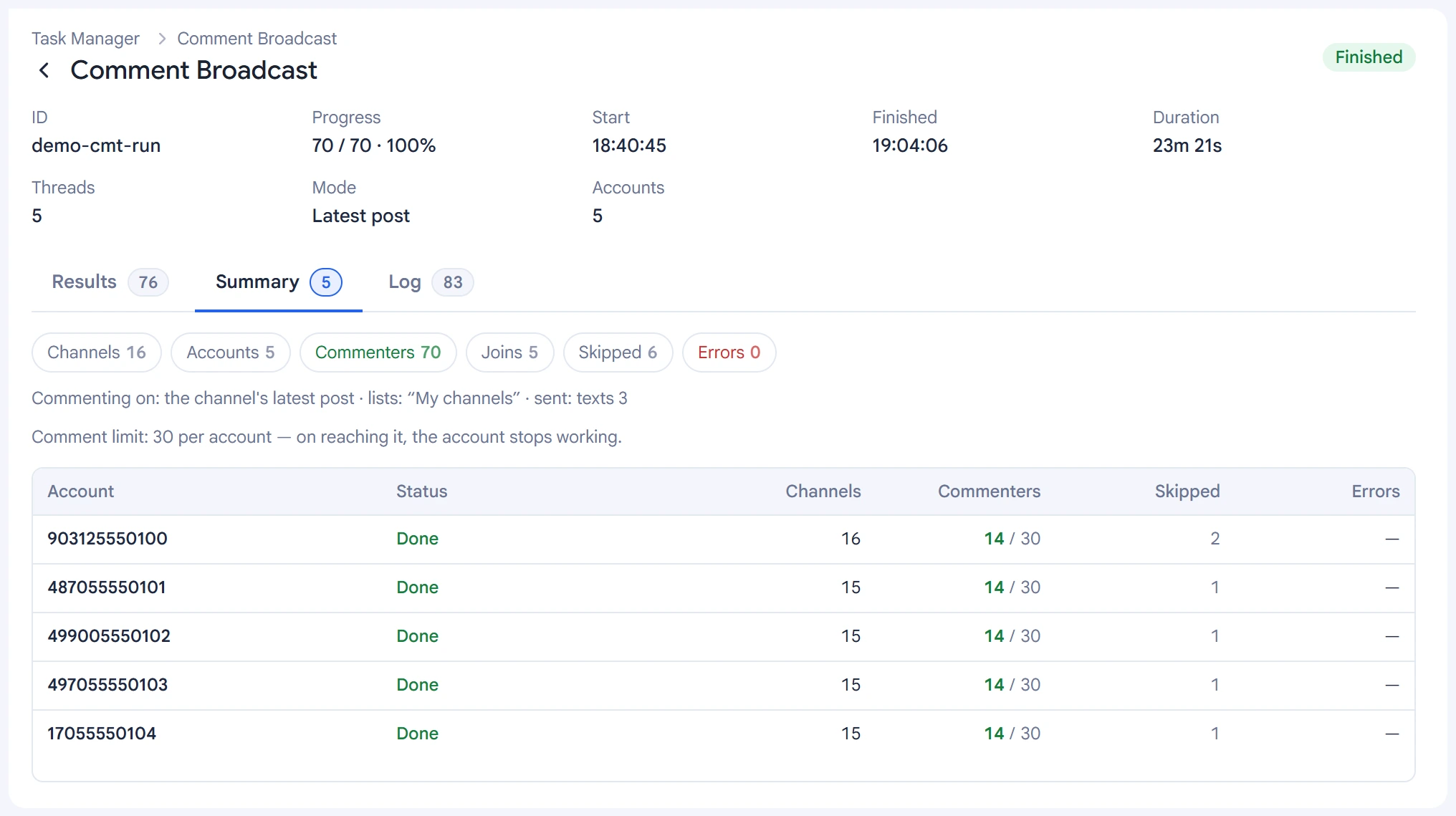
The “Summary” tab has one line per account: how many channels it went through, how many comments it left out of its limit, and how many it skipped.
What can happen with channels:
- Channels without comments are skipped. If a channel came from a list, it gets a “no comments” mark there.
- Discussion for members only — the account joins the discussion group on its own, waits and posts. You can leave these groups with the Join / Leave module.
- Join requests for the discussion — the account sends a join request and skips the channel this time. Once the request is approved, the comment goes out on the next run.
Tips#
- Several comments in a row from unknown accounts under one post stand out right away. Use only as many accounts as you need and don't shorten the delay.
- Write several text variants so the comments under posts differ.
- First test the broadcast on a couple of channels with one or two accounts.