
Modules
Admin Inviter
This module adds people to your group by granting admin rights. Worker accounts do the inviting, and the group's main admins grant them the rights to do it for the duration of the work. Afterwards, the rights are removed.
Unlike Member Inviter, a worker account doesn't need the right to invite in advance: a main admin grants it. The account adds a person through admin rights, granting them and removing them right away, so the person appears in the group as joined, not invited.
Target group#
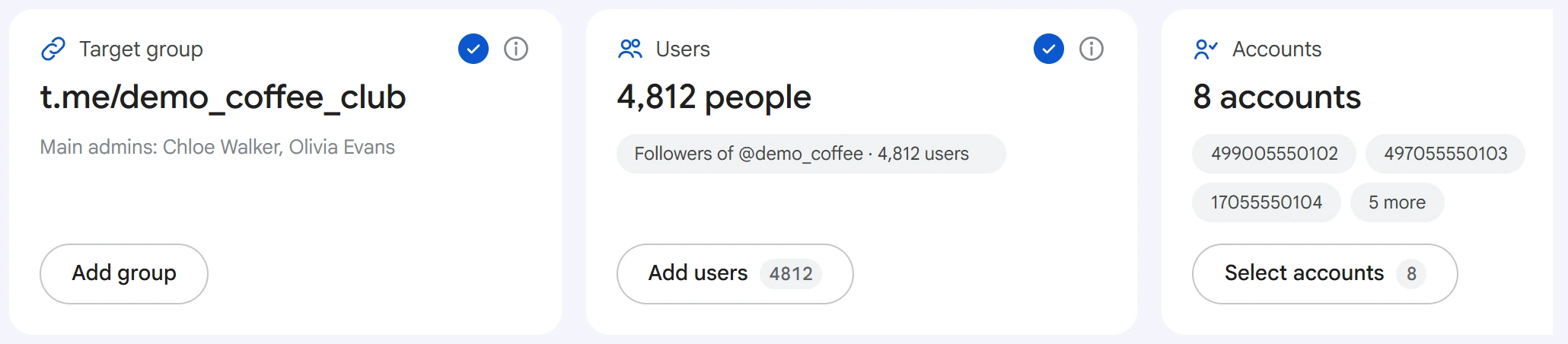
Click “Add group” in the “Target group” card.
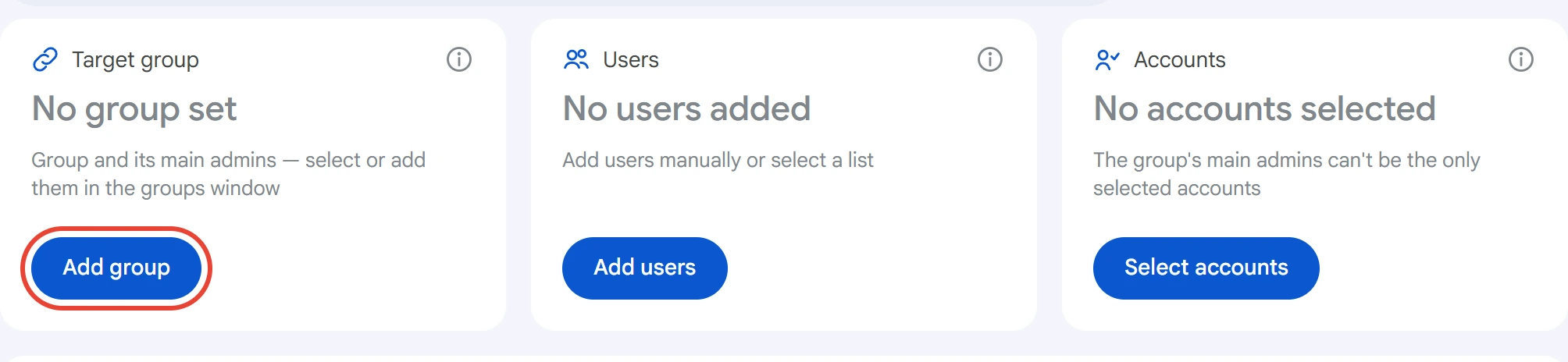
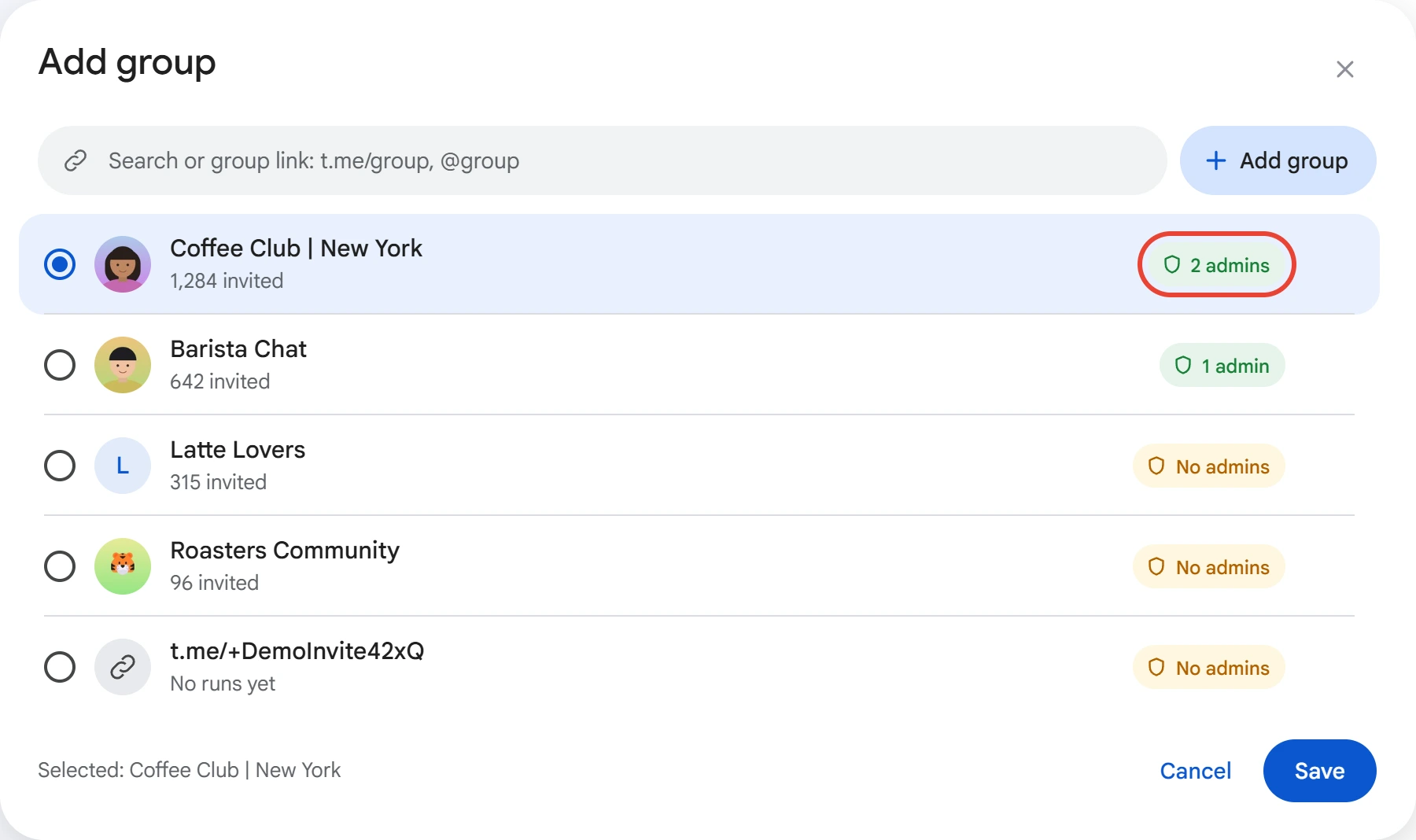
Paste a link to the group — t.me/group or @group — and click “Add group”. The same field searches your saved groups. The group list is shared with Member Inviter.
Each group has a main admins button on the right: “2 admins” or “No admins”. Click it to select main admins. The “Main admins” item in the row's “⋮” menu does the same.
Main admins#
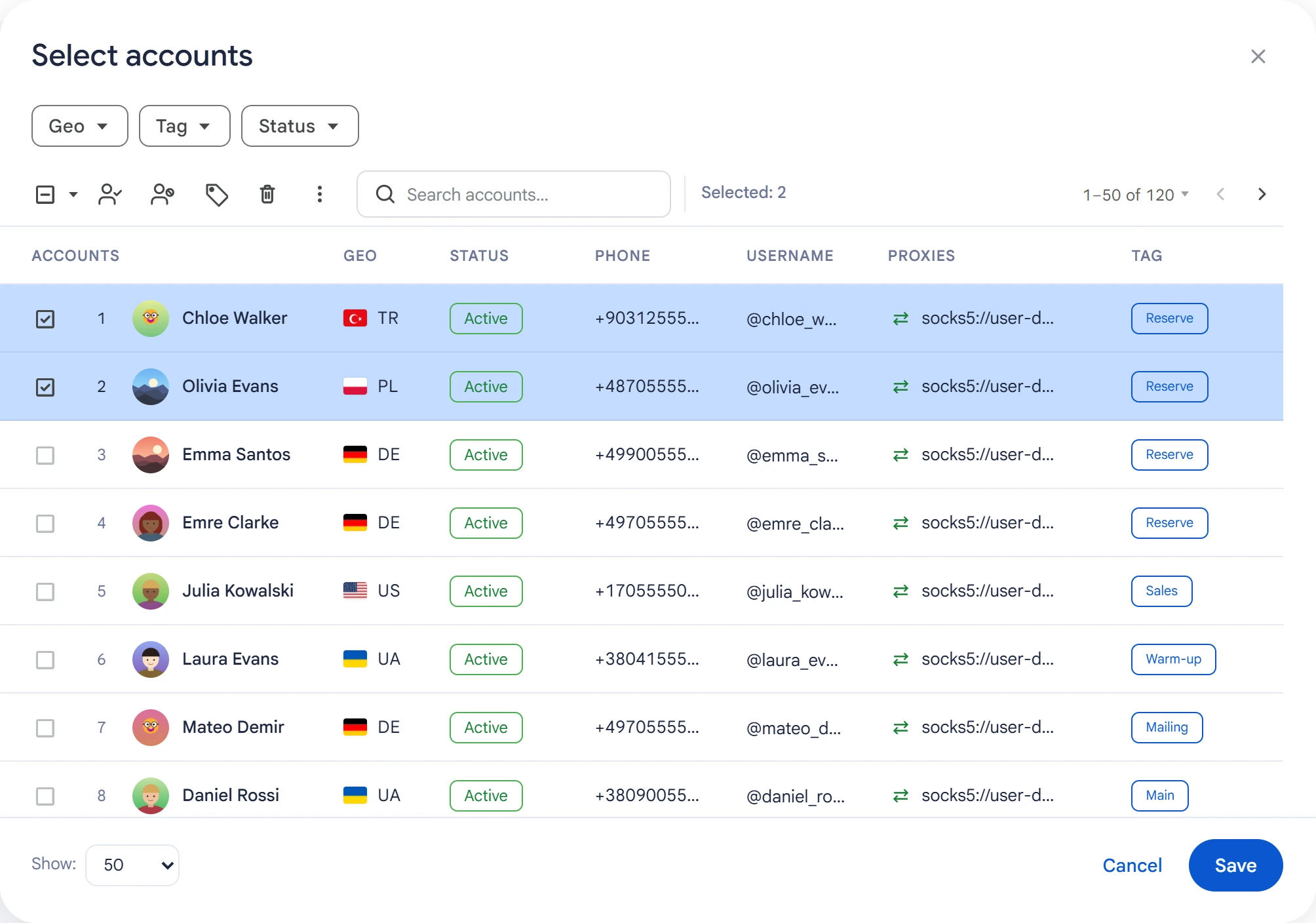
Main admins are your accounts that are already admins of this group with the “Add New Admins” right. When an admin is appointed in Telegram, this right is off. Turn it on manually, otherwise the main admin won't be able to grant rights.
Check the main admins and click “Save”.
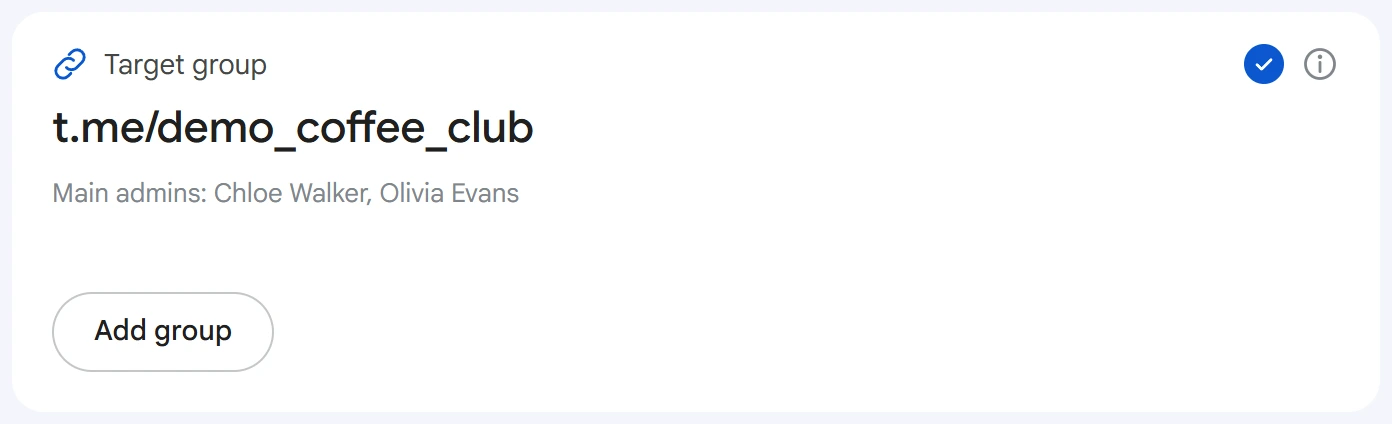
Select the group in the list and click “Save”. The group and its main admins appear on the card. If the group has no main admins, the hint on the card turns yellow and you won't be able to start the task.
It's better to appoint two or three main admins. Telegram requires a pause between grants of rights, and each account has its own pause, so several admins grant rights faster. If one of them gets a restriction or loses its rights, the others carry on.
Users#
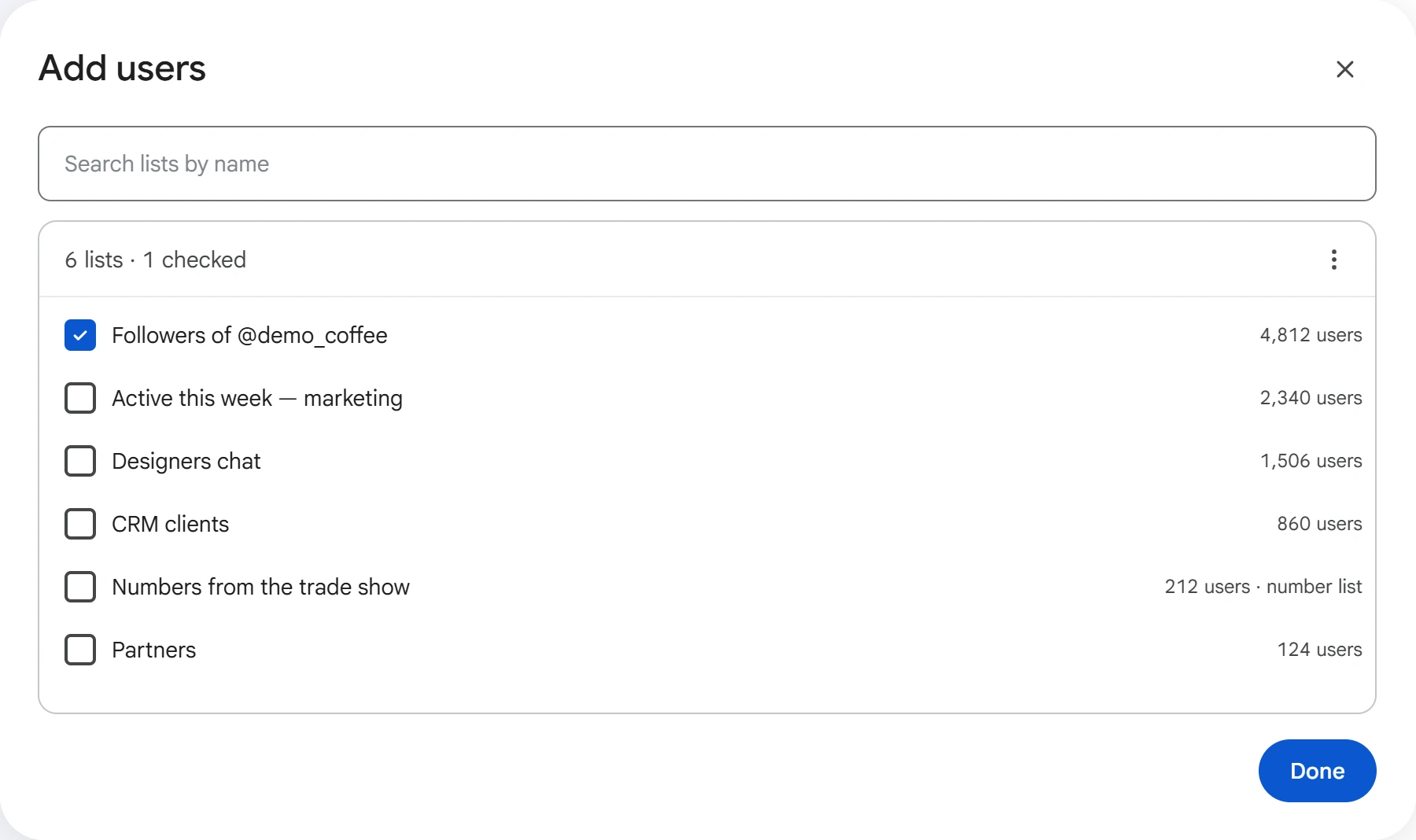
Click “Add users”. Add people as a list — @username, t.me/username, a number or an ID, one per line — or use the “…” menu → “From a list” to check lists from “Lists” → “Users”. You can load the list from a file. Click “Done”.
Accounts#
Click “Select accounts”, check the worker accounts and click “Save”. Main admins don't invite: if they're in your selection, the task skips them. So you need at least one account besides the main admins.
Once the group, users and accounts are selected, all three cards show a check mark.
Limits and delay#
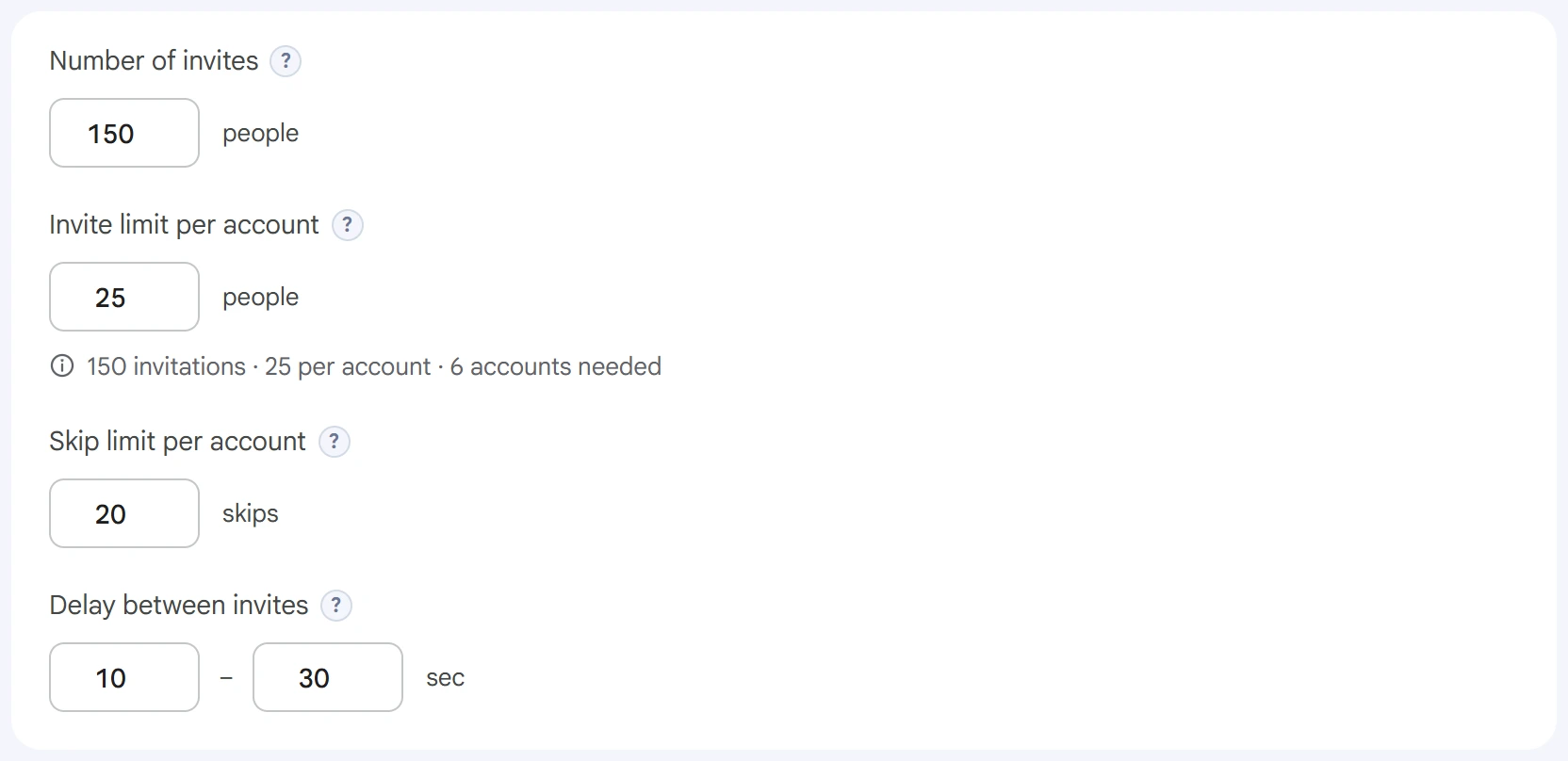
- Number of invites — how many people to invite in a task, across all accounts.
0— no limit. - Invite limit per account — how many people one account can invite. Once it reaches the limit, it gives way to the next one. The line under the field shows how many accounts you'll need.
- Skip limit per account — how many times in a task an account can fail to add a person before it stops; the next account takes its place. Here each invite means granting and removing rights, so extra attempts cost more than in a regular invite.
- Delay between invites — a random pause between invites, in seconds.
Advanced settings#
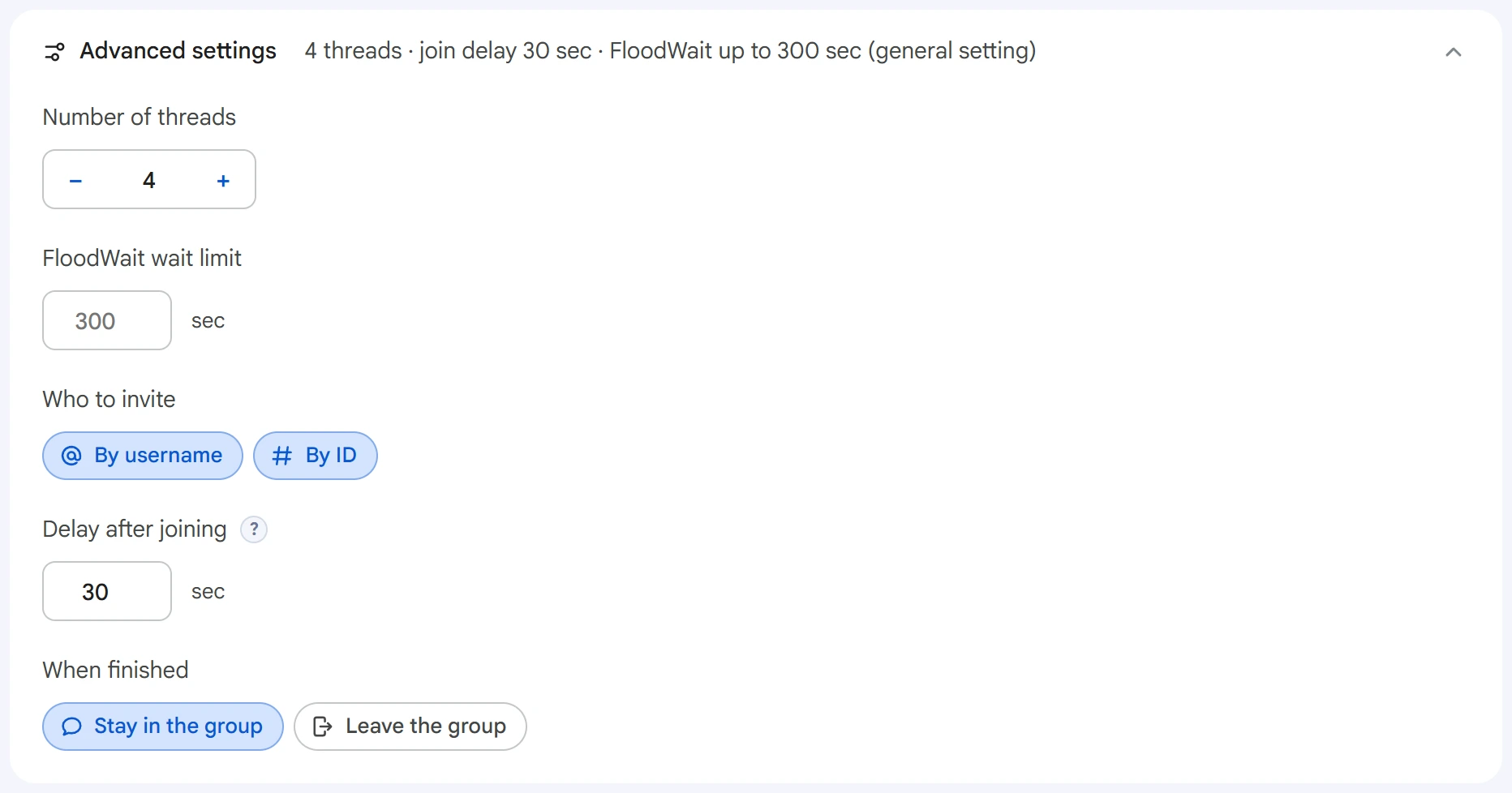
- Number of threads — how many accounts work at the same time.
0— the value from the Settings section. - FloodWait wait limit — how long an account is willing to wait out a Telegram restriction. If the wait is longer, it finishes working. An empty field uses the general setting,
0means waiting with no limit. - Who to invite — “By username”, “By ID” or both. Both are on by default.
- Delay after joining — a pause after an account joins the group, before the first invite.
- When finished — whether the account stays in the group or leaves it.
Start and result#
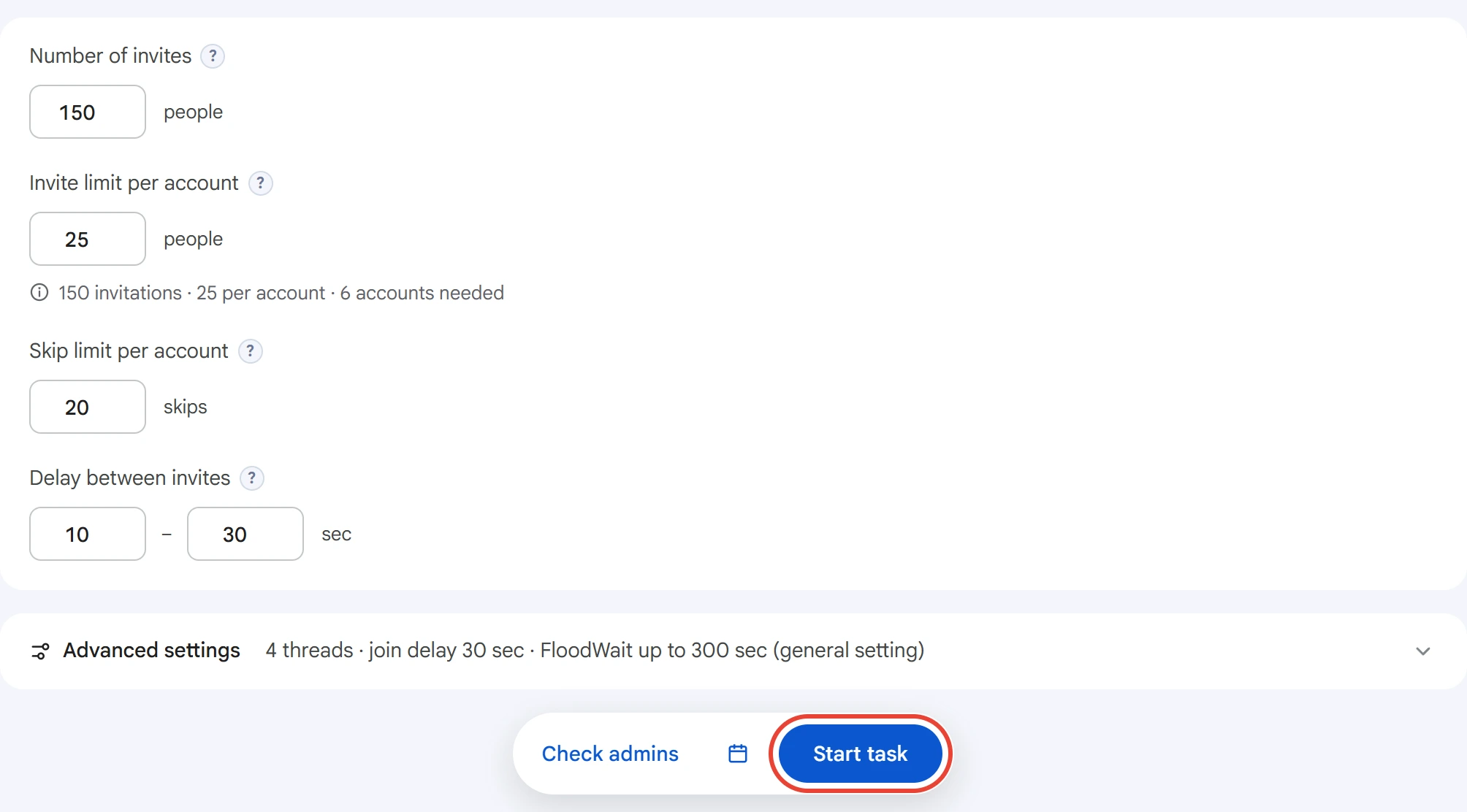
Click “Start task”. You can track progress in the Task Manager.
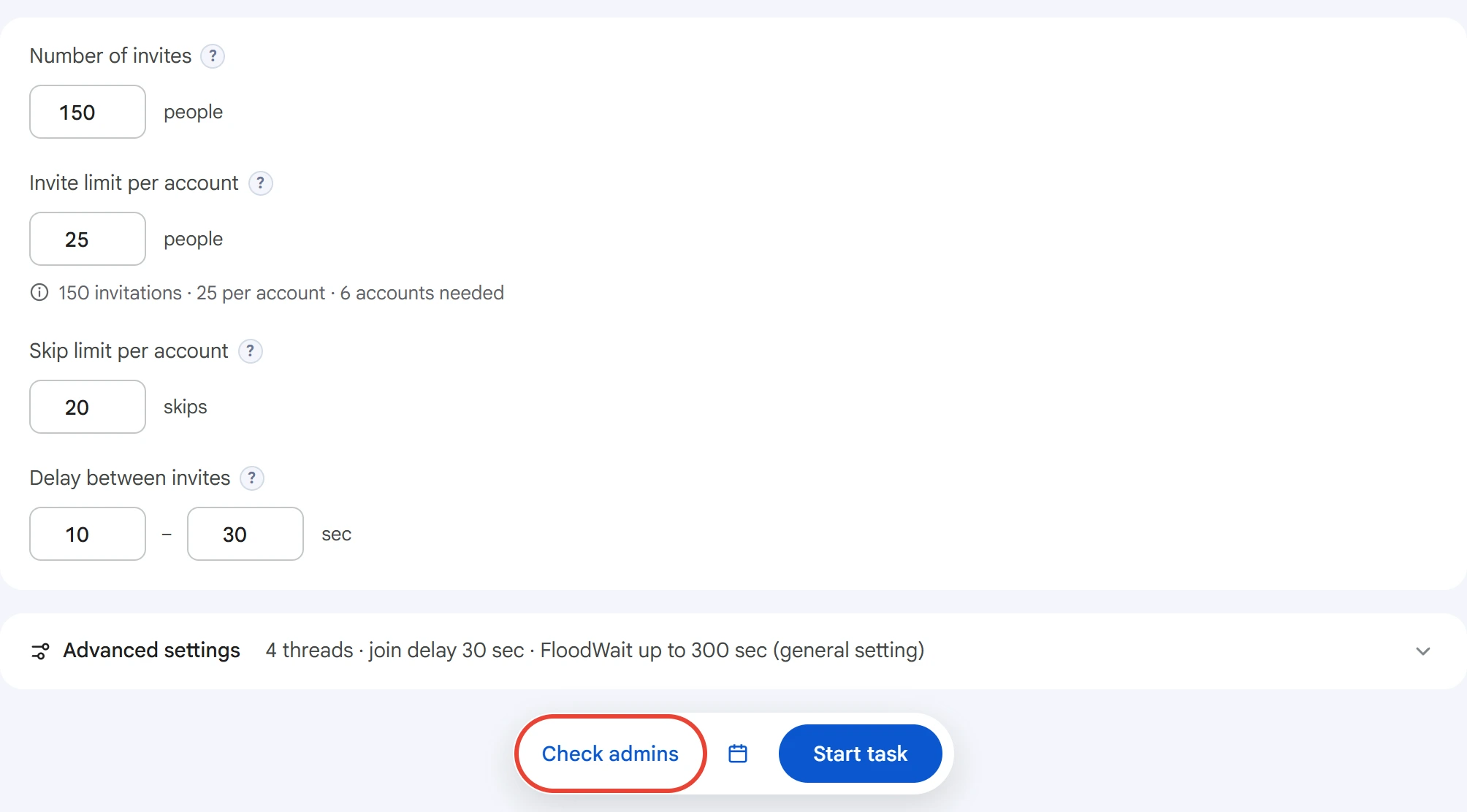
Admin rights are removed by the same main admin that granted them. If the task was stopped or the program was closed mid-work, the program remembers who it gave rights to and removes them at the next start. You can also do this separately: the “Check admins” button looks at who is currently an admin in the group and removes rights left on your accounts from past runs. It doesn't invite anyone. It doesn't touch admins the program didn't appoint.
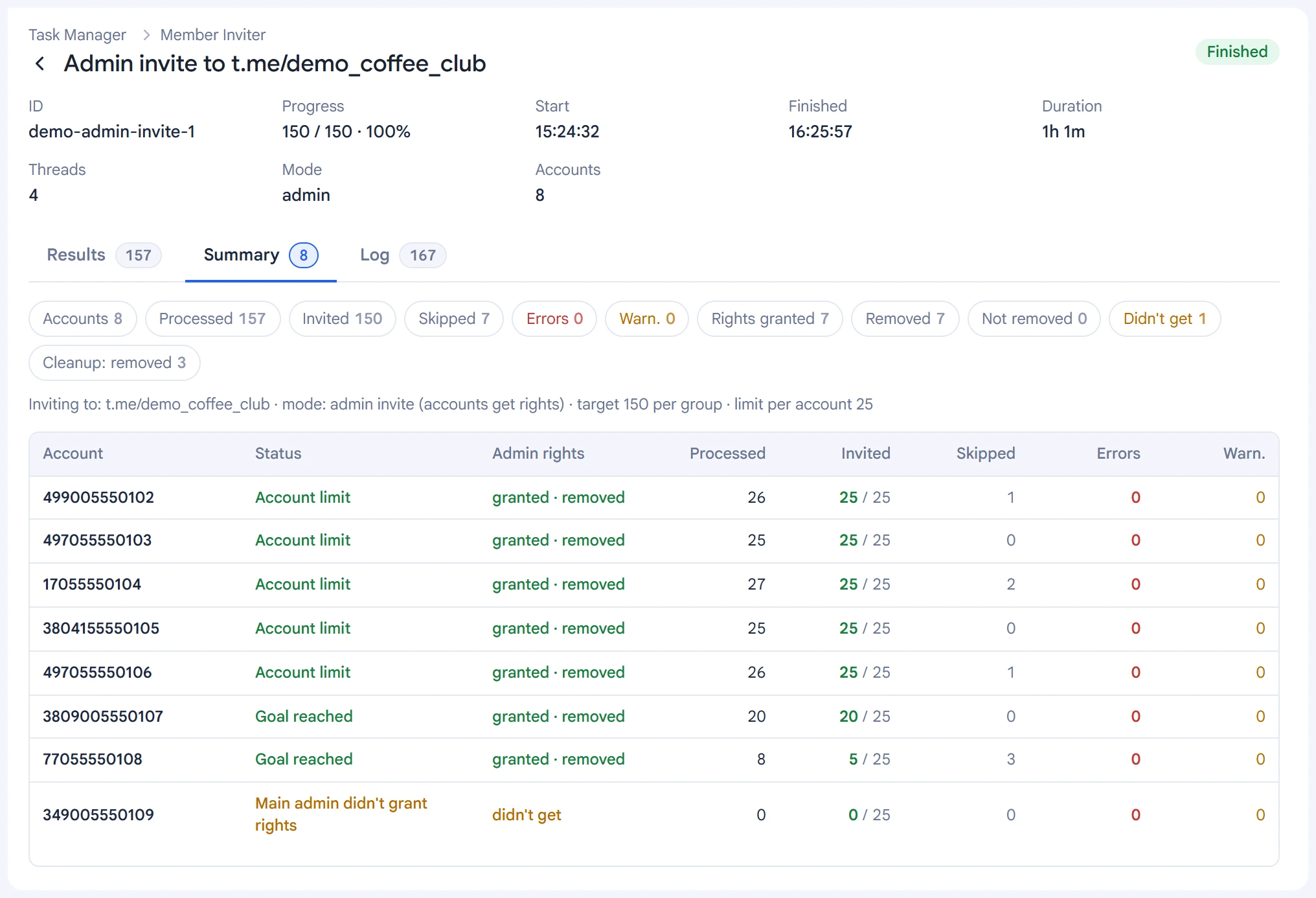
On the “Summary” tab, each account has an “Admin rights” column: “granted · removed”, “didn't get” or “not removed”. Above the table you can see how many rights were granted, removed and not removed, and “Cleanup: removed” shows how many rights left from past runs the task removed. The time and reason appear in a tooltip when you hover over the cell.
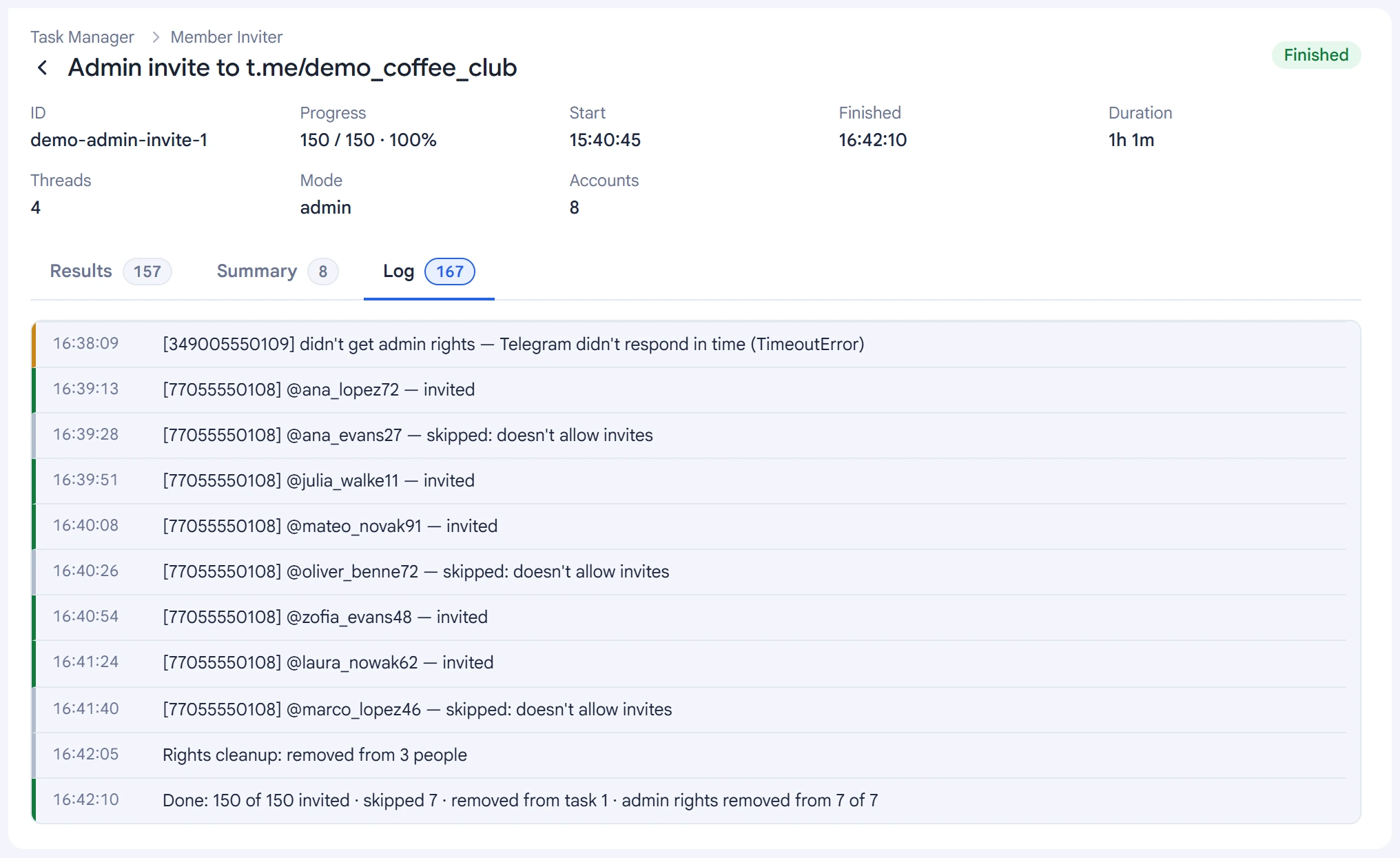
The log has one line per invite with the account number. Failures get a separate line with the reason: the account didn't get rights, rights couldn't be removed, the main admin isn't ready to work. The last line is the result: how many people were invited and how many accounts had their rights removed.
Tips#
- Make your most reliable, long-running accounts main admins, and use more than one.
- Check that main admins have the “Add New Admins” right turned on.
- Leave free admin slots in the group: there can be no more than 50 admins, and worker accounts also take up slots during the work.
- If the group accepts members only by join request, a worker account won't be able to join and won't take part in the work.
- After a stopped task, click “Check admins”.