
Modules
Group Broadcast
This module sends your message to groups and forum topics from the accounts you select. Unlike DM Broadcast, a message in a group is seen by all members right away.
The module doesn't work with channels: to post under channel posts, use Comment Broadcast.
Groups#
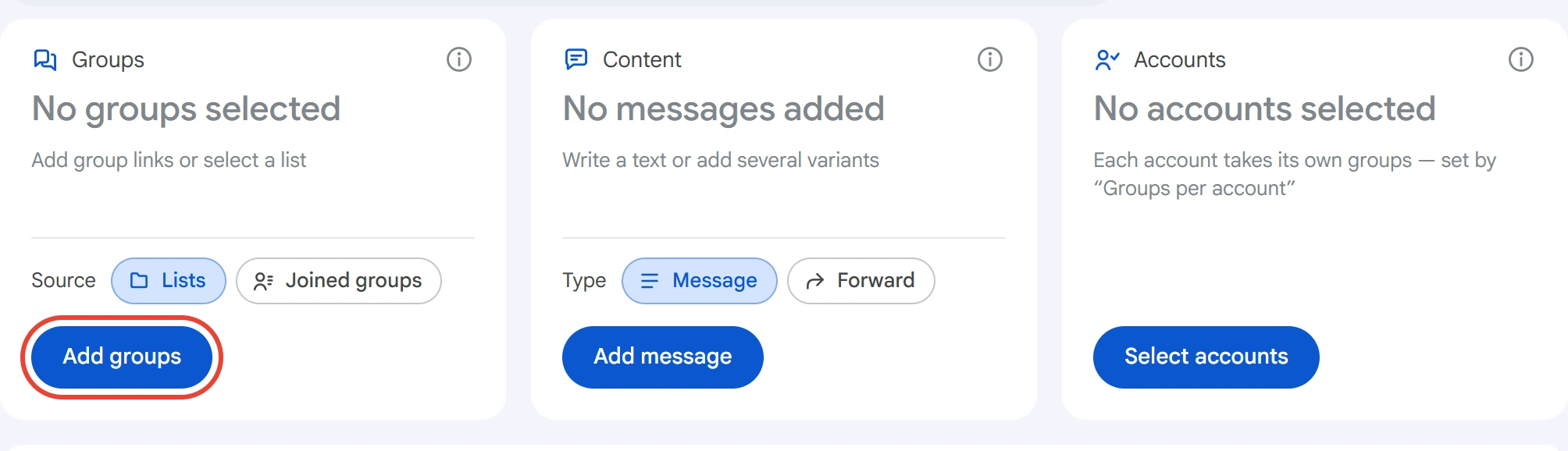
Click “Add groups” in the “Groups” card.
Paste group links into the field at the top or upload a file. You can use @name, t.me/name, invite links t.me/+… and a group ID like -100…. When you've made your changes, click “Done”.
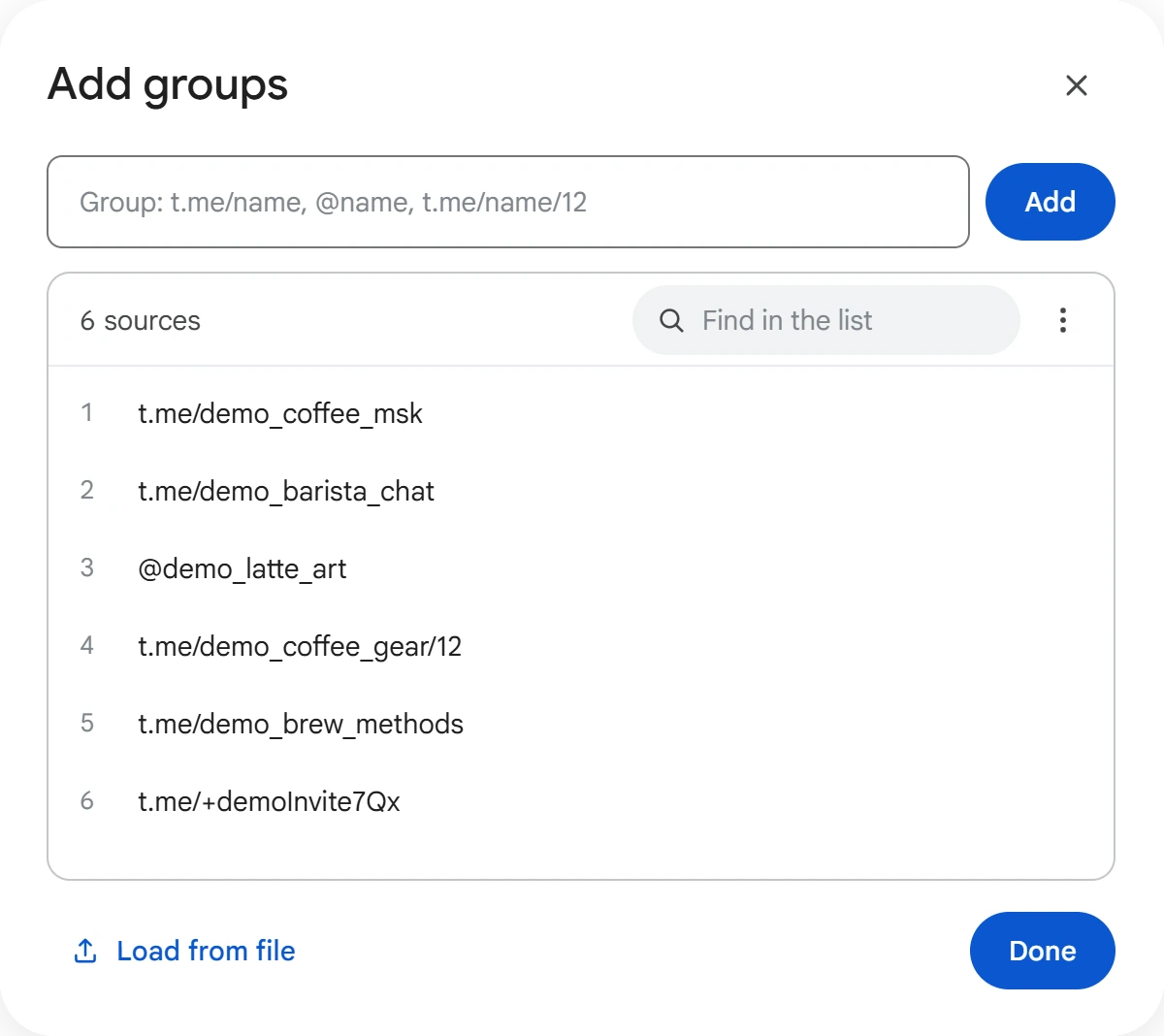
To post in a forum topic, add the topic number to the link: t.me/name/12. A forum link without a number sends the message to the “General” topic.
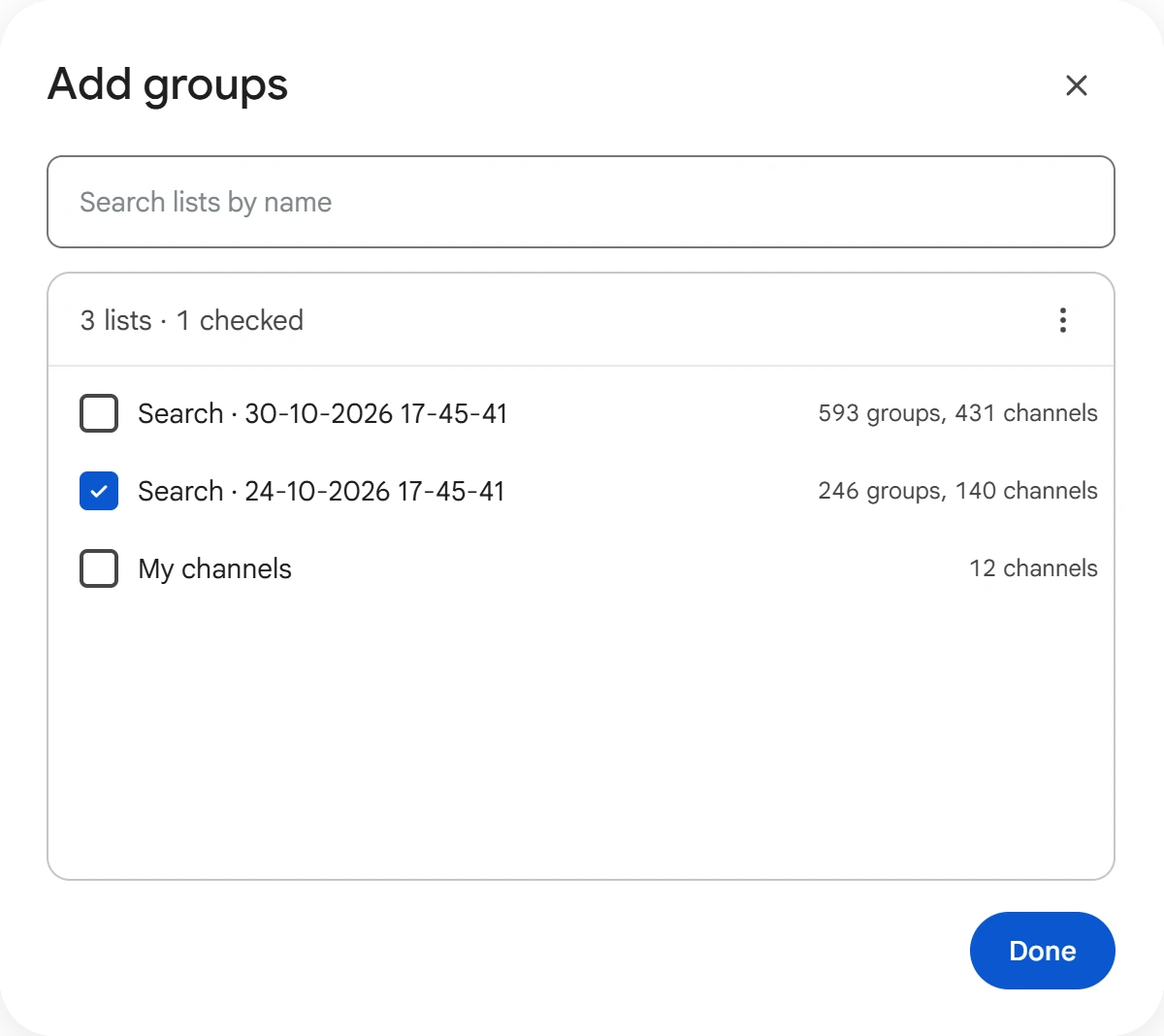
You can also take groups from lists in “Lists” → “Sources”, for example a list built by Group & Channel Search. Open the “⋮” menu in the window, choose “From a list” and select the lists you need. Channels from a list aren't included in the broadcast.
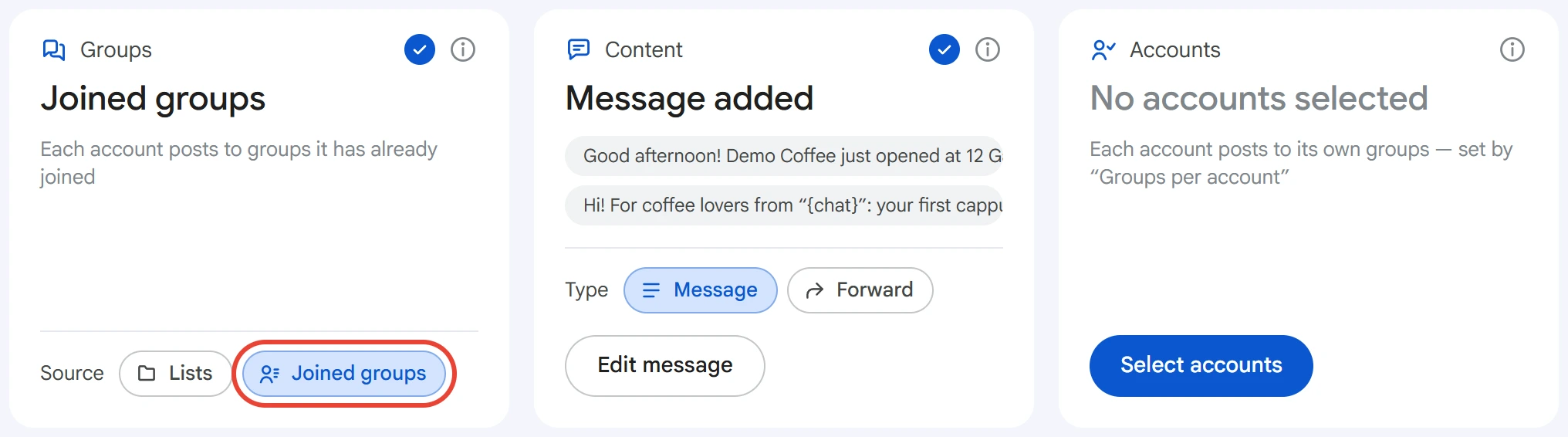
If your accounts are already in the groups you need, select the “Joined groups” source. You then don't need to add groups: each account posts to its own groups and reads their list at start.
If an account isn't in a group yet, it joins first. If a group accepts join requests only, the account sends a request and moves on: it can post in that group once the request is approved.
Content#
Click “Add message”, write the text and click “Save”. You can apply bold, italics, links and emoji right in the window.
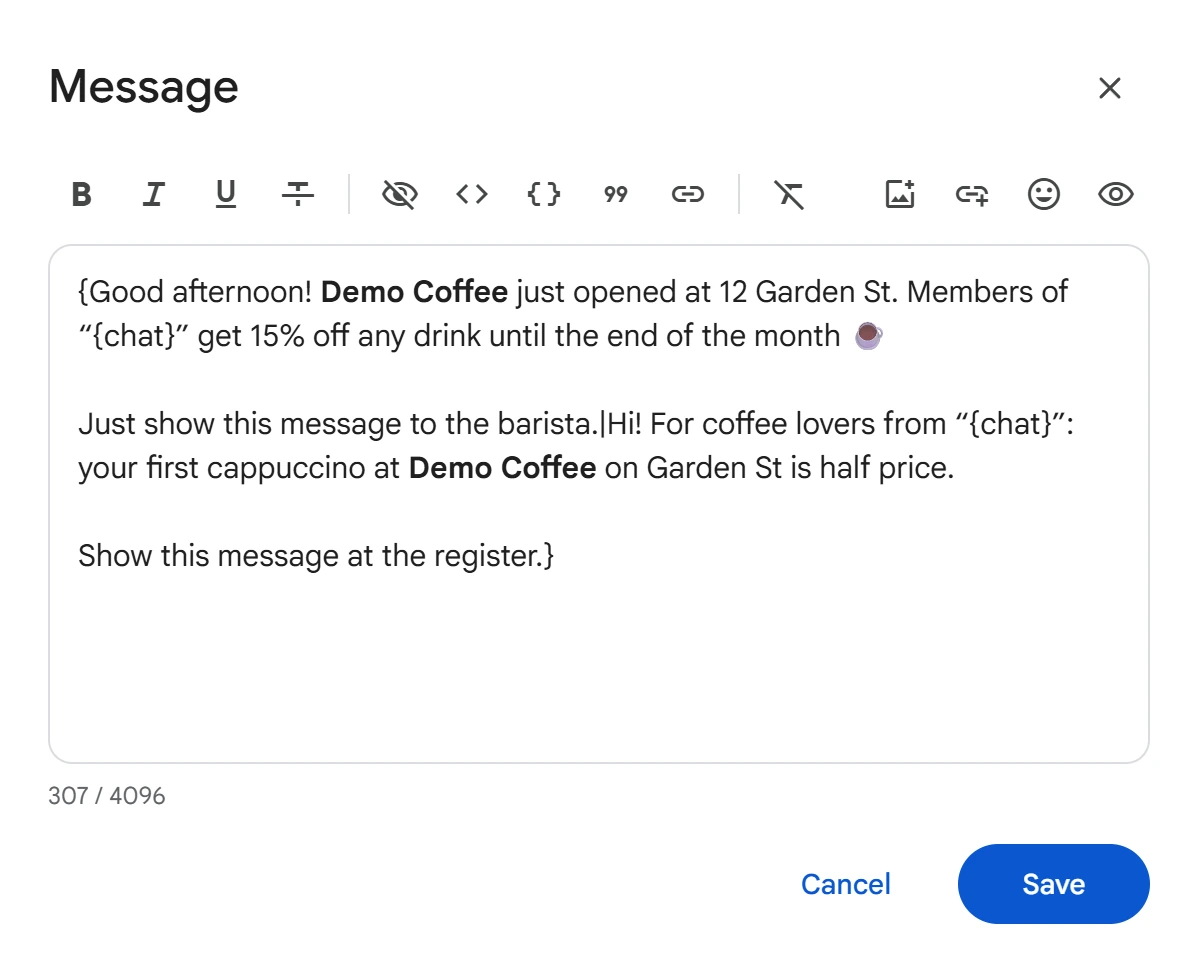
{chat}— inserts the group name.{first|second}— text variants: each group gets one of them. See Text variants for details.- Add photos with the “Photo or video” button on the window's toolbar. Each message gets one random photo, and
[1.jpg]in the text sends that exact photo.
You can also send a message with no text, just photos.
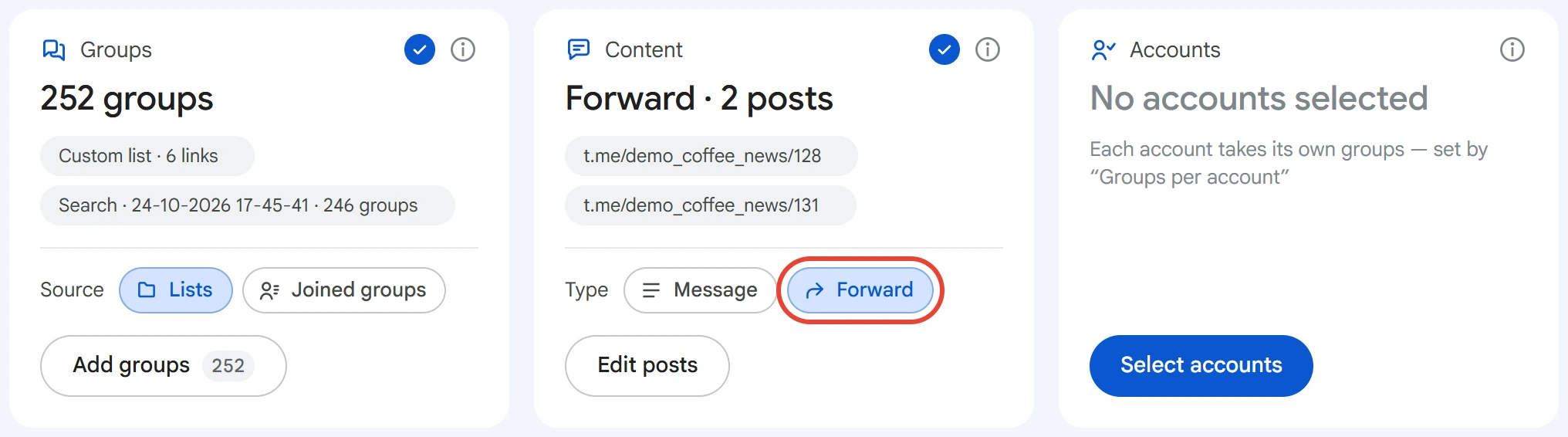
To forward a channel post, select the “Forward” type, click “Add posts” and paste post links like t.me/channel/123. The post goes out with the “Forwarded from …” label, and in a forum it goes to the selected topic.
Accounts#
Click “Select accounts”, select the ones you need and click “Save”.
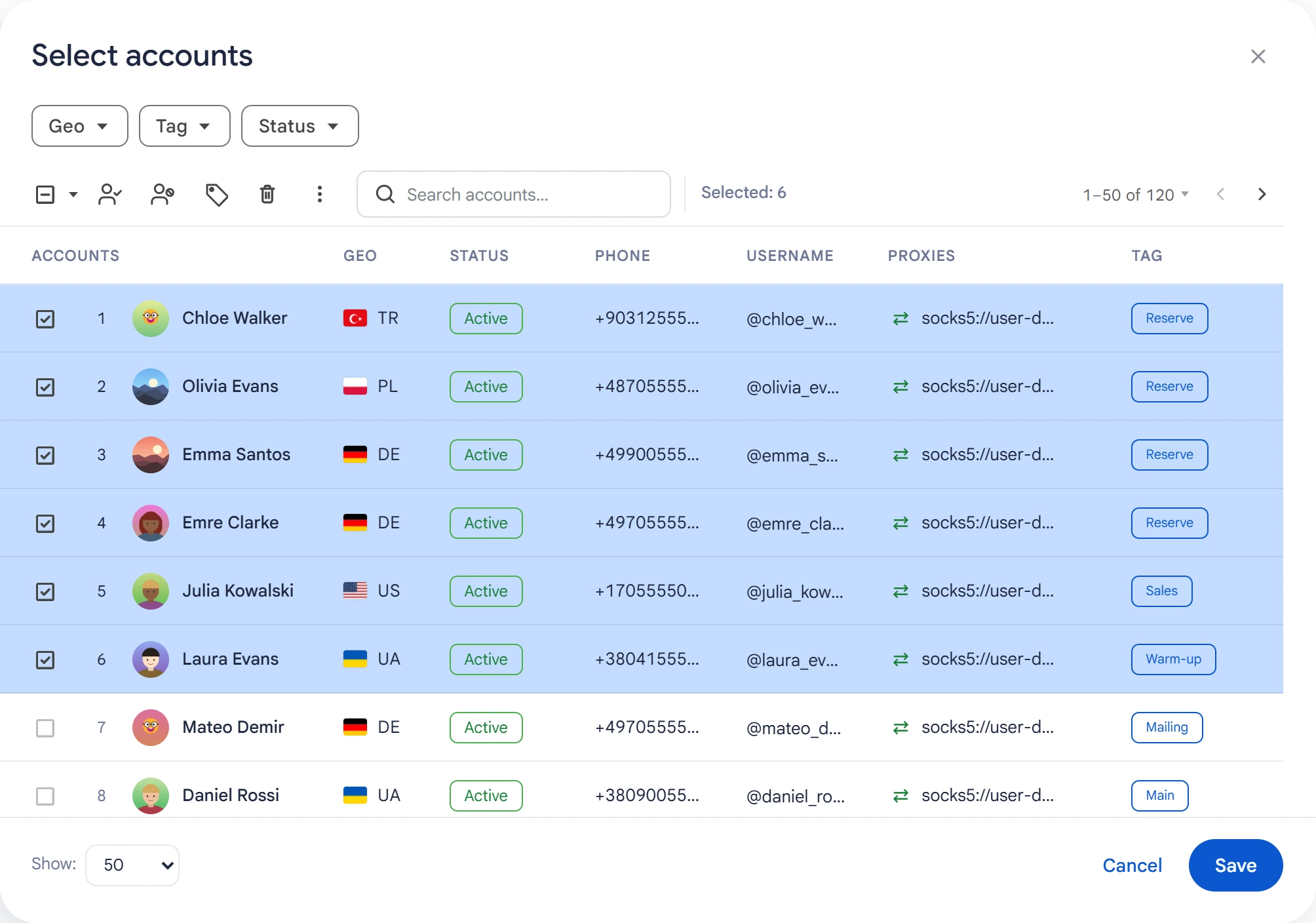
Accounts busy with another task and accounts that aren't working are not used in the broadcast.
Groups per account and delay#
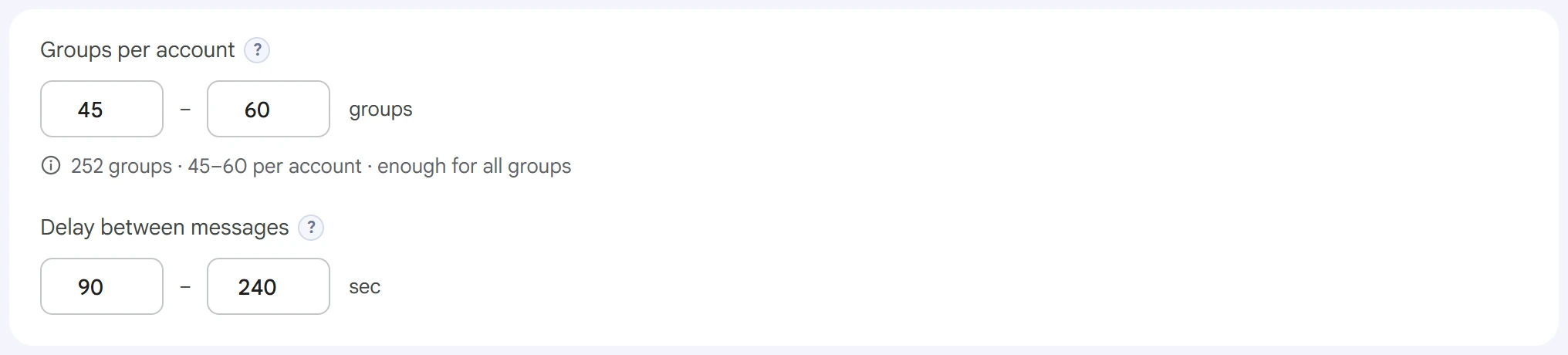
- Groups per account — how many groups one account takes: a random number from the range, different for each account. No group repeats between accounts, so each group gets one message.
0and0means no limit: groups are split evenly between accounts. The line under the field shows whether the selected accounts are enough for all groups. - Delay between messages — a random pause between one account's messages, in seconds. The shorter it is, the faster the broadcast and the higher the risk of a spam block.
Advanced settings#
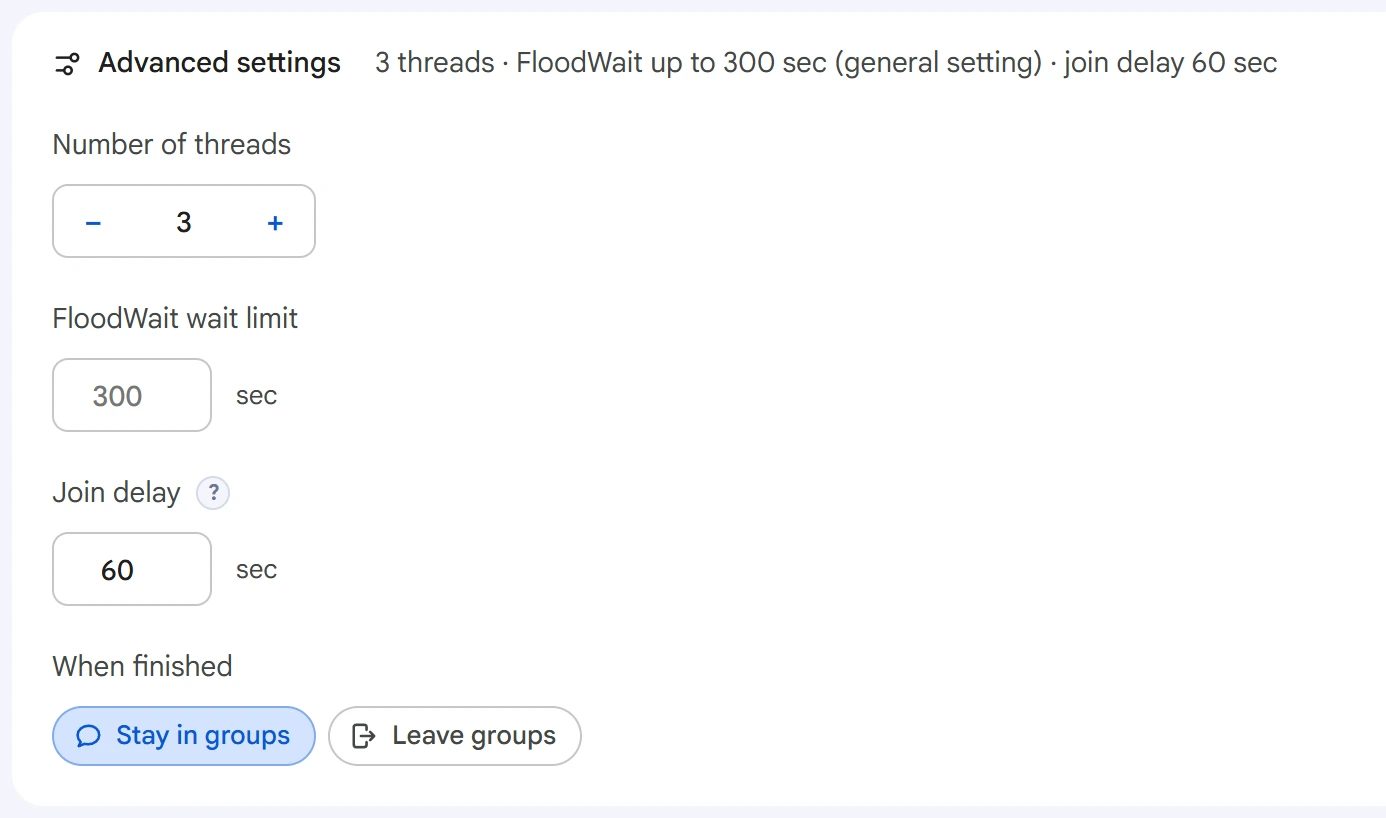
- Number of threads — how many accounts work at the same time.
0uses the value from Settings. - FloodWait wait limit — the longest time to wait out the restriction. If it's exceeded, the account stops working. An empty field uses the general setting, and
0means waiting with no limit. - Join delay — how long an account waits after joining a group before it posts.
- When finished — “Stay in groups” or “Leave groups”. An account leaves only the groups it sent a message to.
Start and results#
Click “Start task”. You can follow the broadcast in Task Manager.
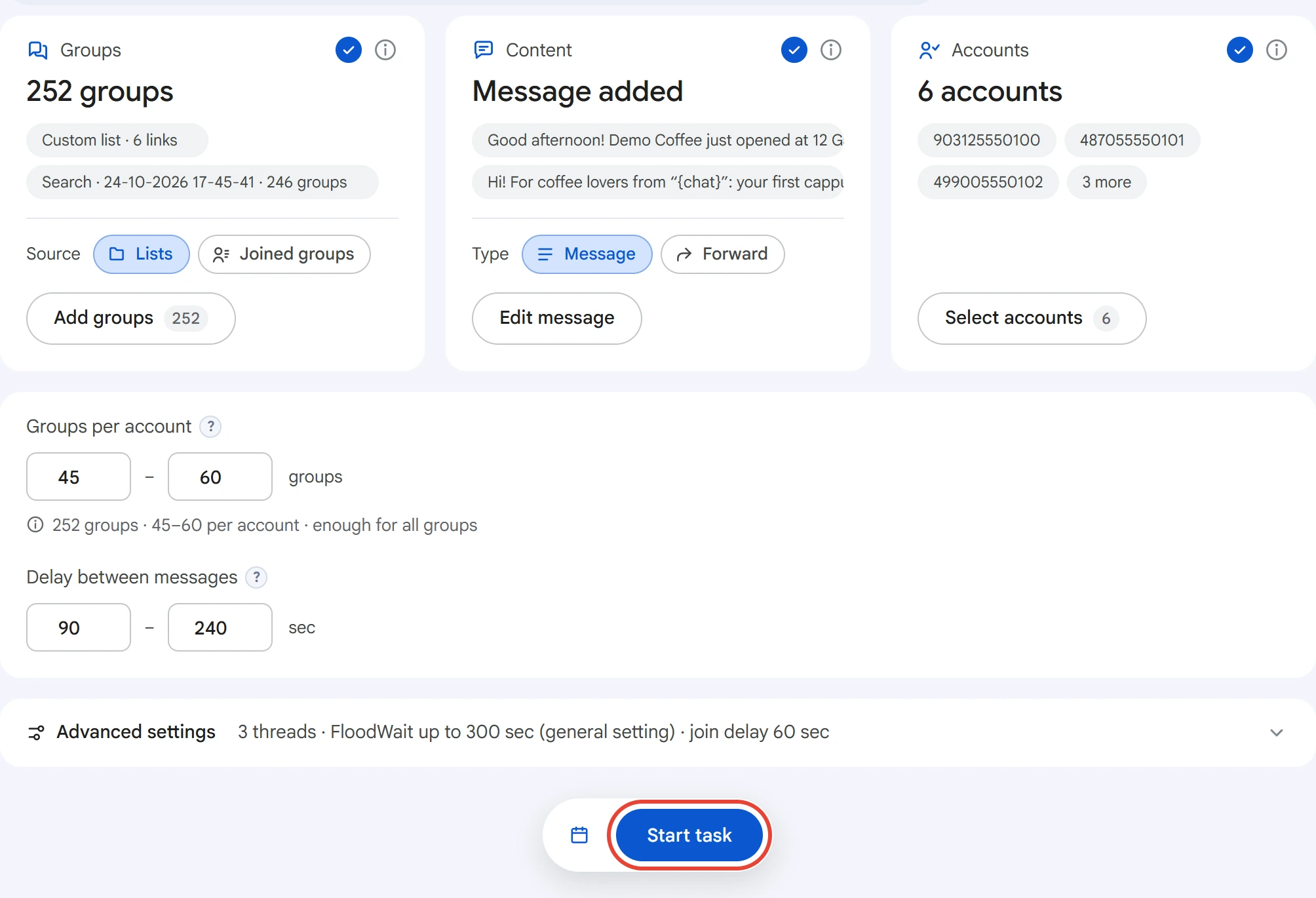
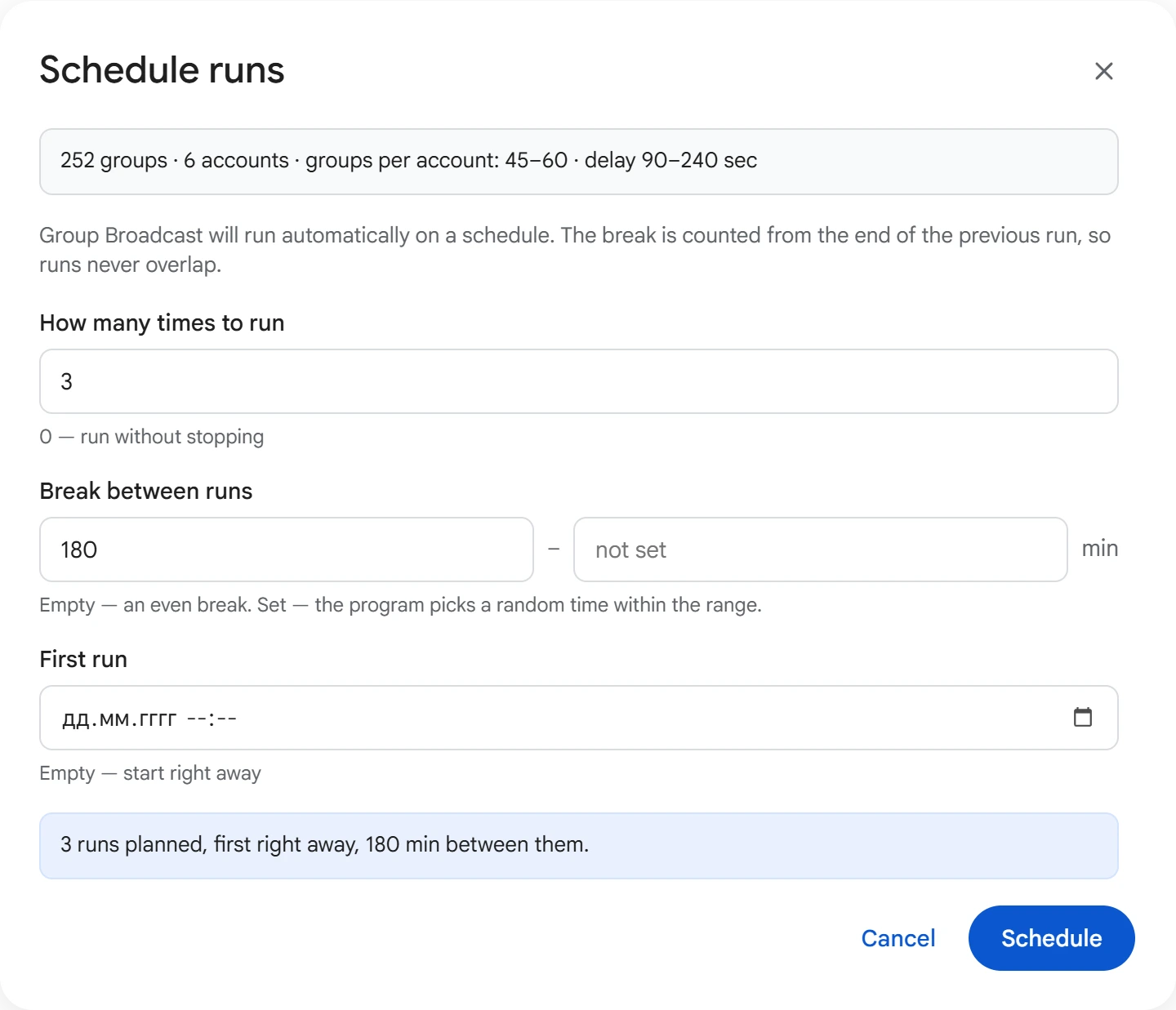
One run goes through the group list once. To repeat the broadcast, click the calendar button to the left of “Start task” and set “How many times to run” and “Break between runs”. The break is counted from the end of the previous run.
The task log shows which account joined and posted where, and which groups were skipped and why. The last line gives the totals: how many messages were sent, how many were skipped and how many errors there were.
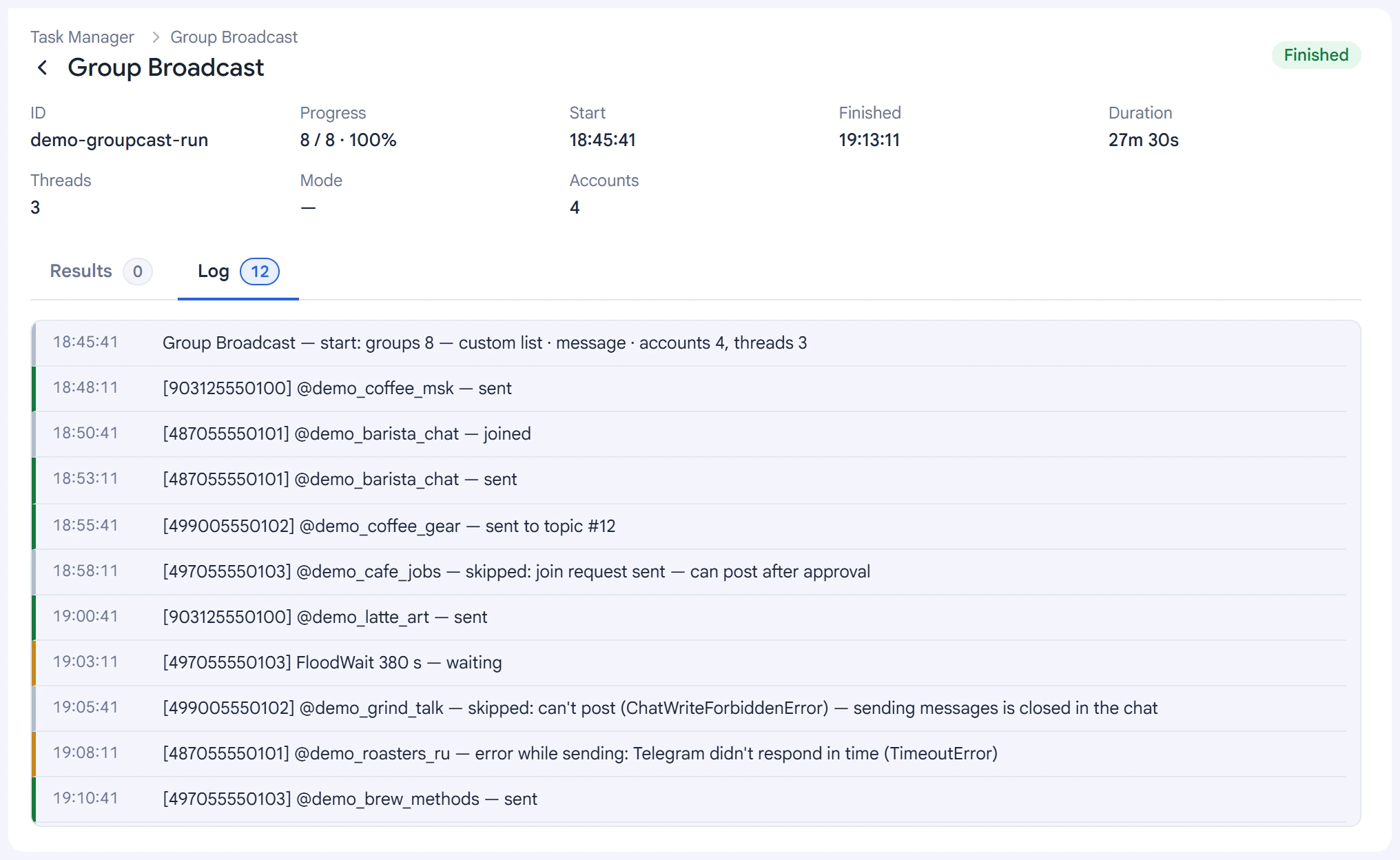
If a group has slow mode on, the account doesn't wait there: it posts to the next groups and comes back to this one later. If a group doesn't allow files, the message goes out without the file. An account whose messages keep failing finishes early, after 20 skips.
You can resume a stopped broadcast in Task Manager.
Recommendations#
- In a group, everyone sees the message, including anti-spam bots. Don't set the delay too short.
- Set the delay and the break between runs as a wide range: a steady rhythm is easy to notice.
- Before broadcasting to a list from search, remove irrelevant groups from it.