
Modules
Channel Cloner
This module copies posts from one channel to another. Your account, an admin of the target channel, publishes them.
Chats are copied by a separate module, Chat Cloner.
Source#
Paste a link to the channel you want to copy posts from into the field in the “Source” card. You can use @username, t.me/channel, t.me/c/… and an invite link t.me/+….
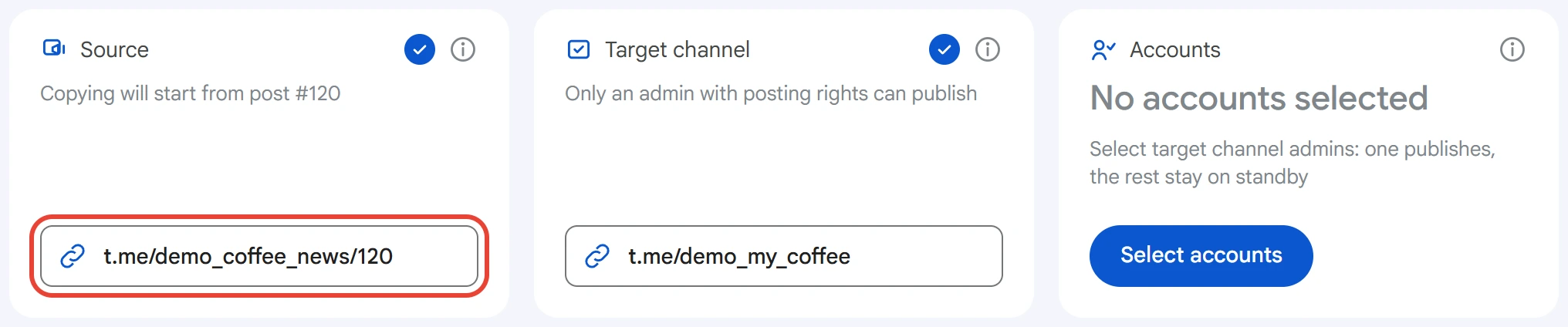
To copy the history from a post other than the first one, paste a link to that post, for example t.me/channel/120. The line under the field shows which post copying will start from.
If only subscribers can read the channel, the account subscribes to it on its own. A private channel with a t.me/c/… link can be read only by accounts already subscribed to it.
Target channel#
Paste a link to the channel where posts will be published into the field in the “Target channel” card. The same kinds of links work here.
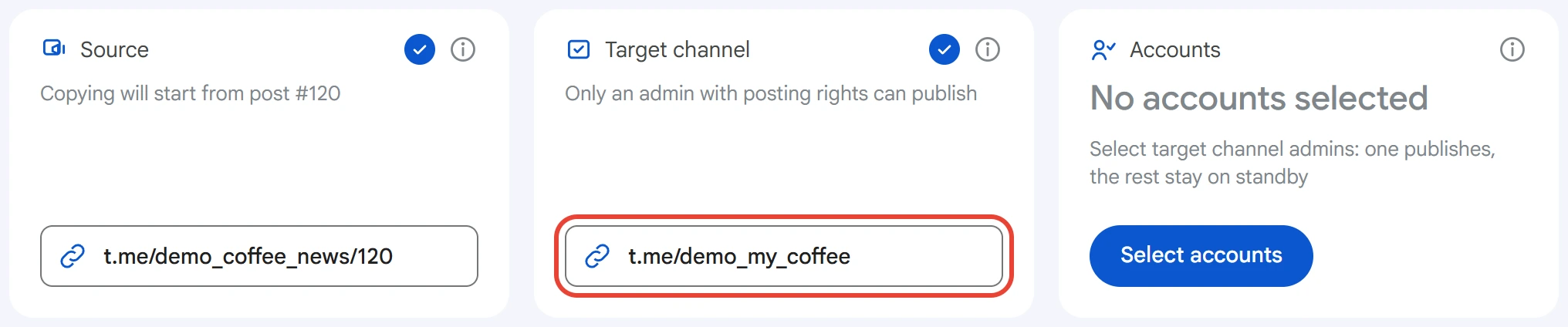
Only a channel admin with the right to publish posts can publish.
Accounts#
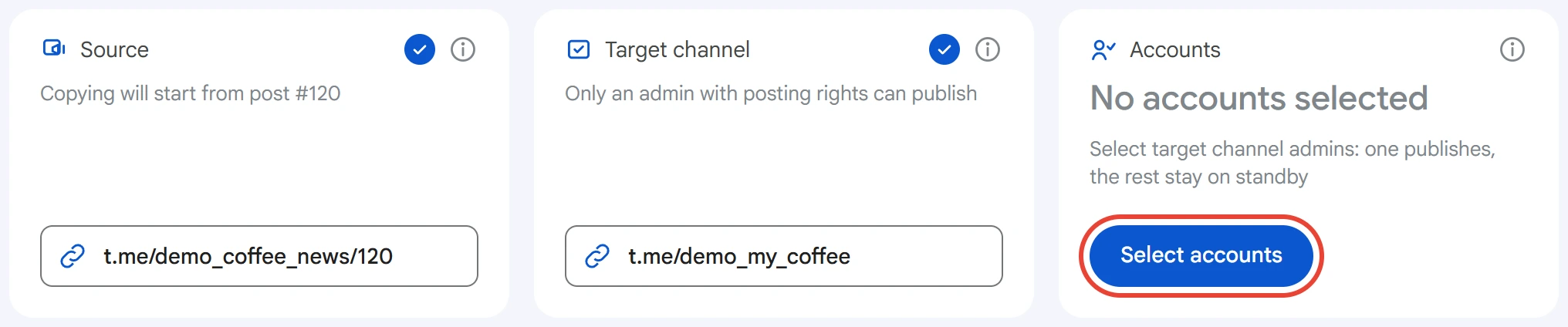
Click “Select accounts” in the “Accounts” card.
Select the admins of the target channel and click “Save”.
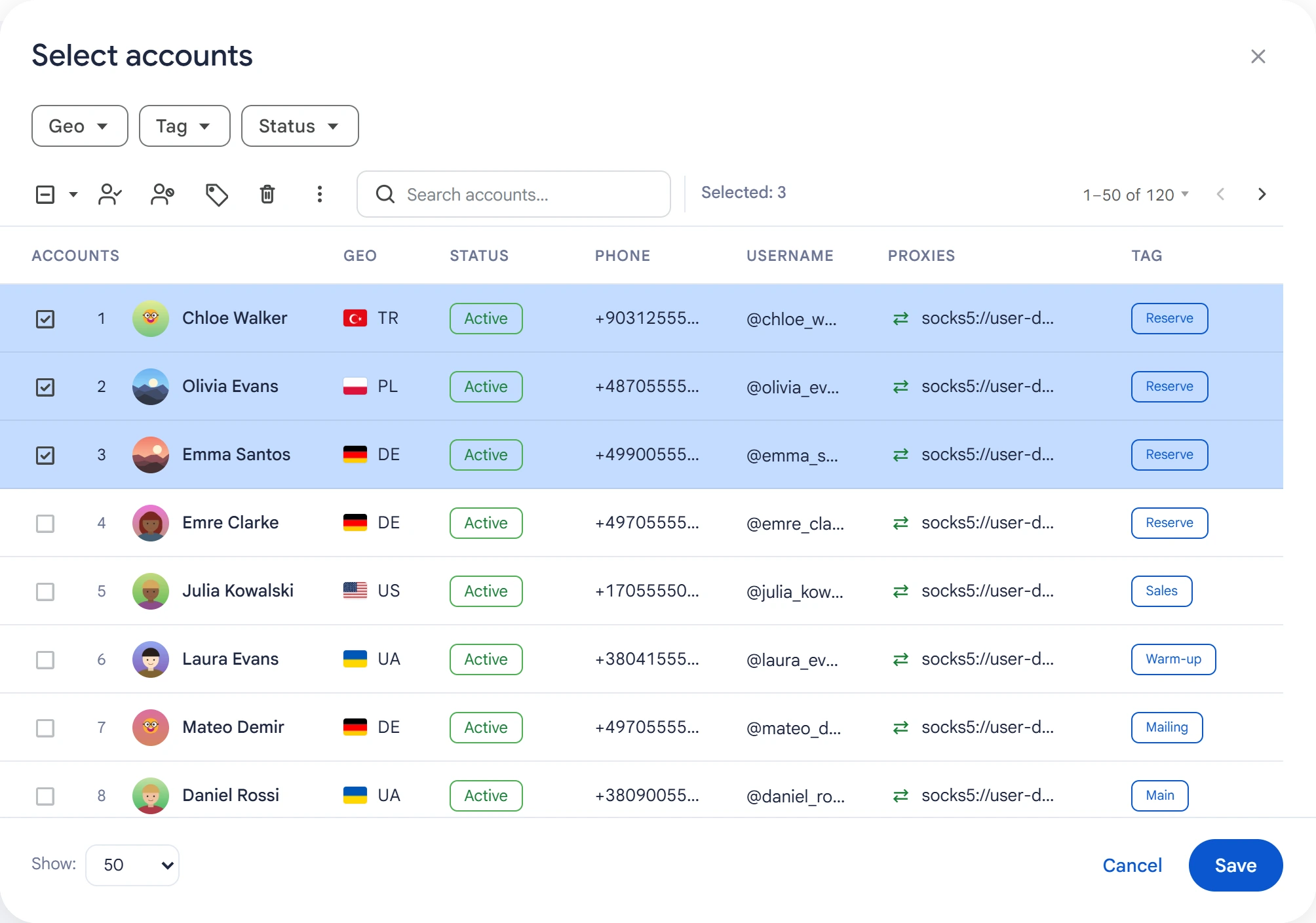
One account publishes the posts: the first selected account that connects and is able to publish. The rest are on standby: if an account has no connection, channel access or rights, the next one replaces it.
What to copy#
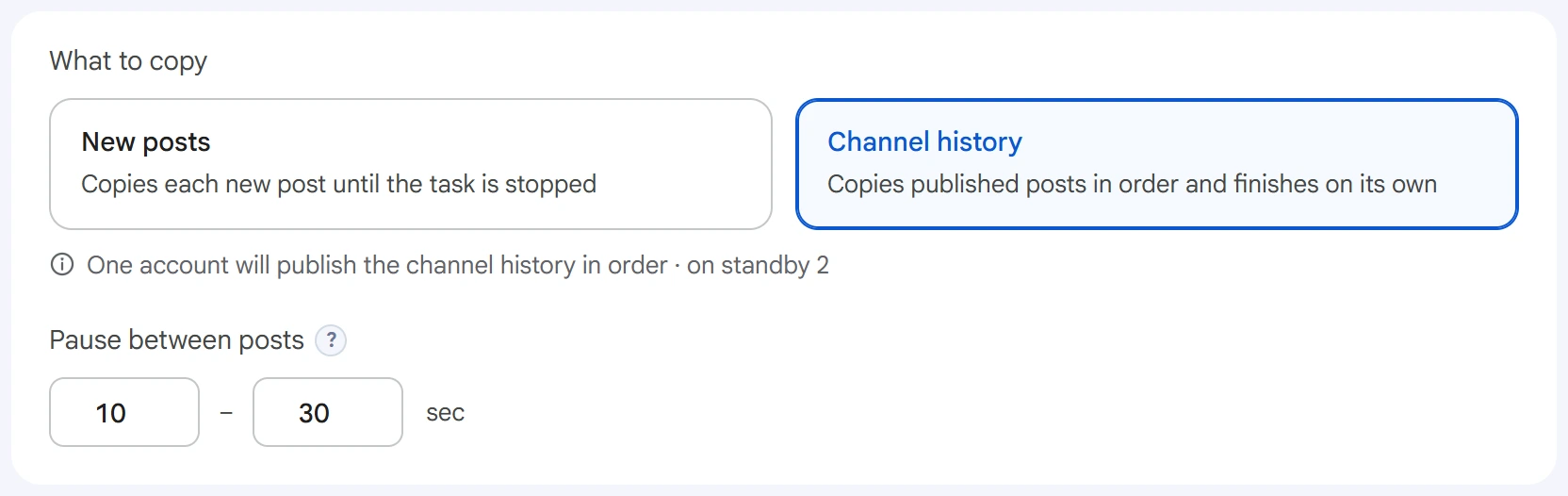
- New posts — the task watches the source and copies each new post until it's stopped. Only posts published after the start are copied; the post number in the link is ignored.
- Channel history — copies already published posts in order, from the first one or from the post in the link, and finishes on its own.
Pause between posts — a random pause in seconds after each published post. The shorter it is, the faster the copying and the higher the risk of FloodWait.
Posts are copied with their text formatting, and an album is copied as one post. Files are downloaded and uploaded again, so they're copied even from channels that restrict copying. Locations, contacts and polls without text aren't copied.
Advanced settings#
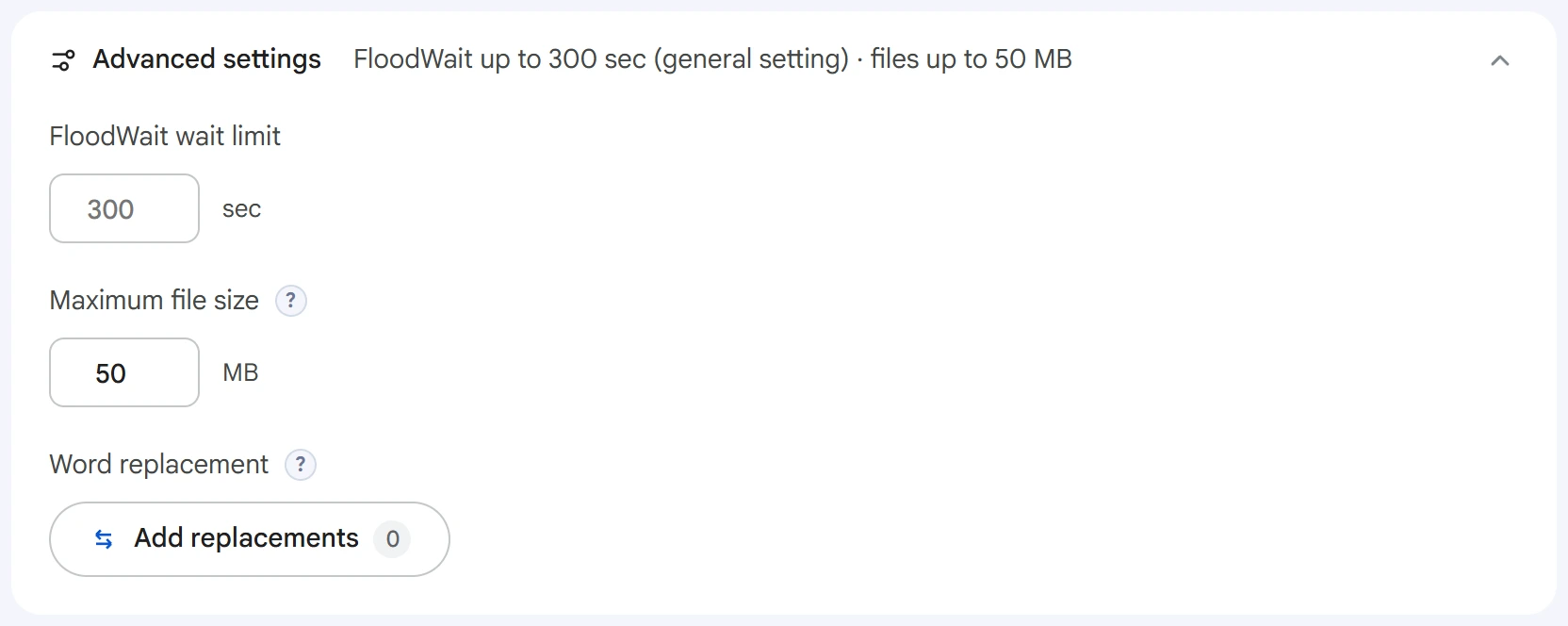
- FloodWait wait limit — how many seconds an account can wait if Telegram asks it to wait. If it has to wait longer, publishing stops. An empty field uses the general setting from Settings, and
0means waiting with no limit. - Maximum file size — in megabytes. A file over the limit isn't copied: a post with text goes out without it, and a post with no text is skipped.
0means no limit. - Word replacement — click “Add replacements” and enter rules, one per line:
word = replacement. This is how you change the source's links and mentions to your own.
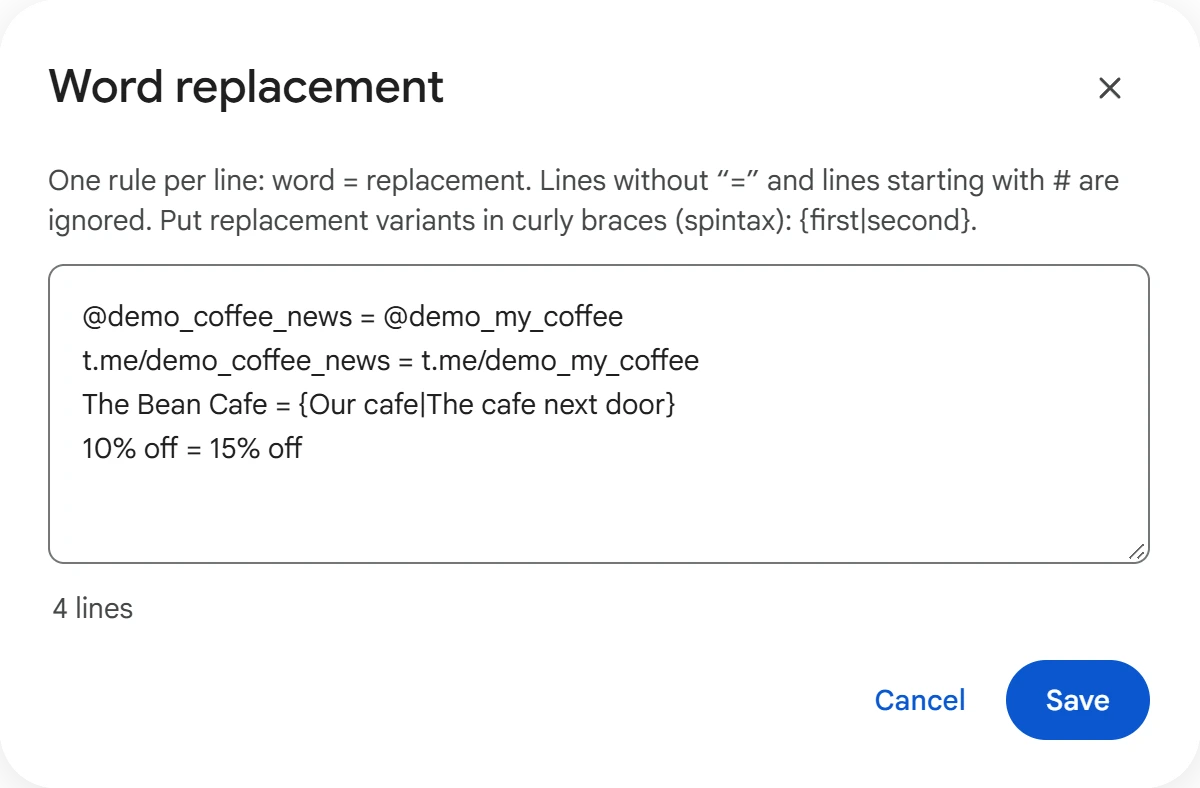
Every occurrence is replaced as is, case-sensitively, even as part of a word. Put replacement variants in curly braces: {first|second}. Lines without “=” and lines that start with # are ignored. When you've made your changes, click “Save”.
Start and results#
Click “Start task”. You can follow the copying in Task Manager. To start the task on a schedule, use the calendar button next to “Start task”.
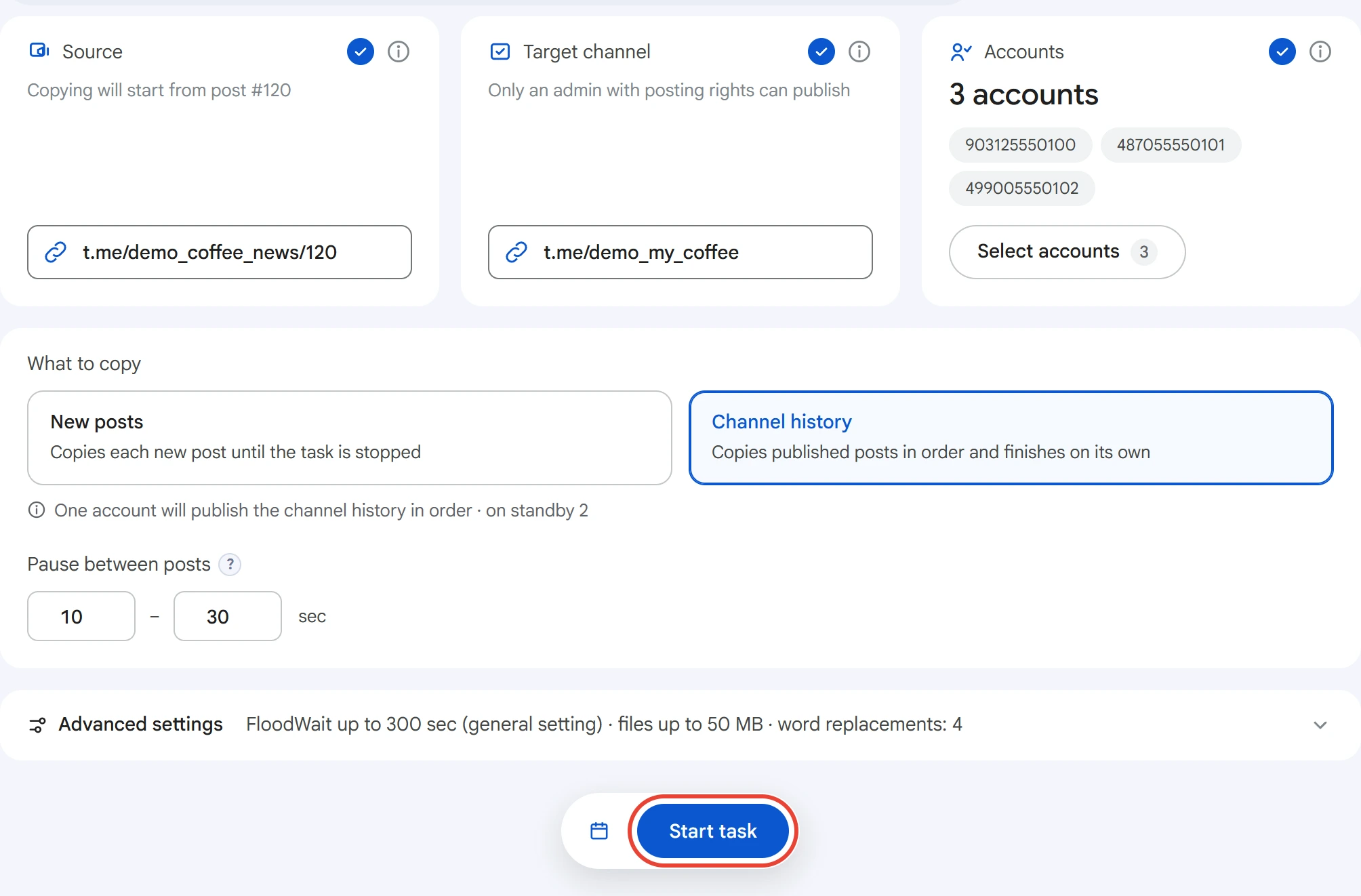
After the start, the “Source” and “Target channel” fields are cleared: set them again for the next task.
The log has a line for each copied post or album, skipped posts with the reason, and FloodWait waits.
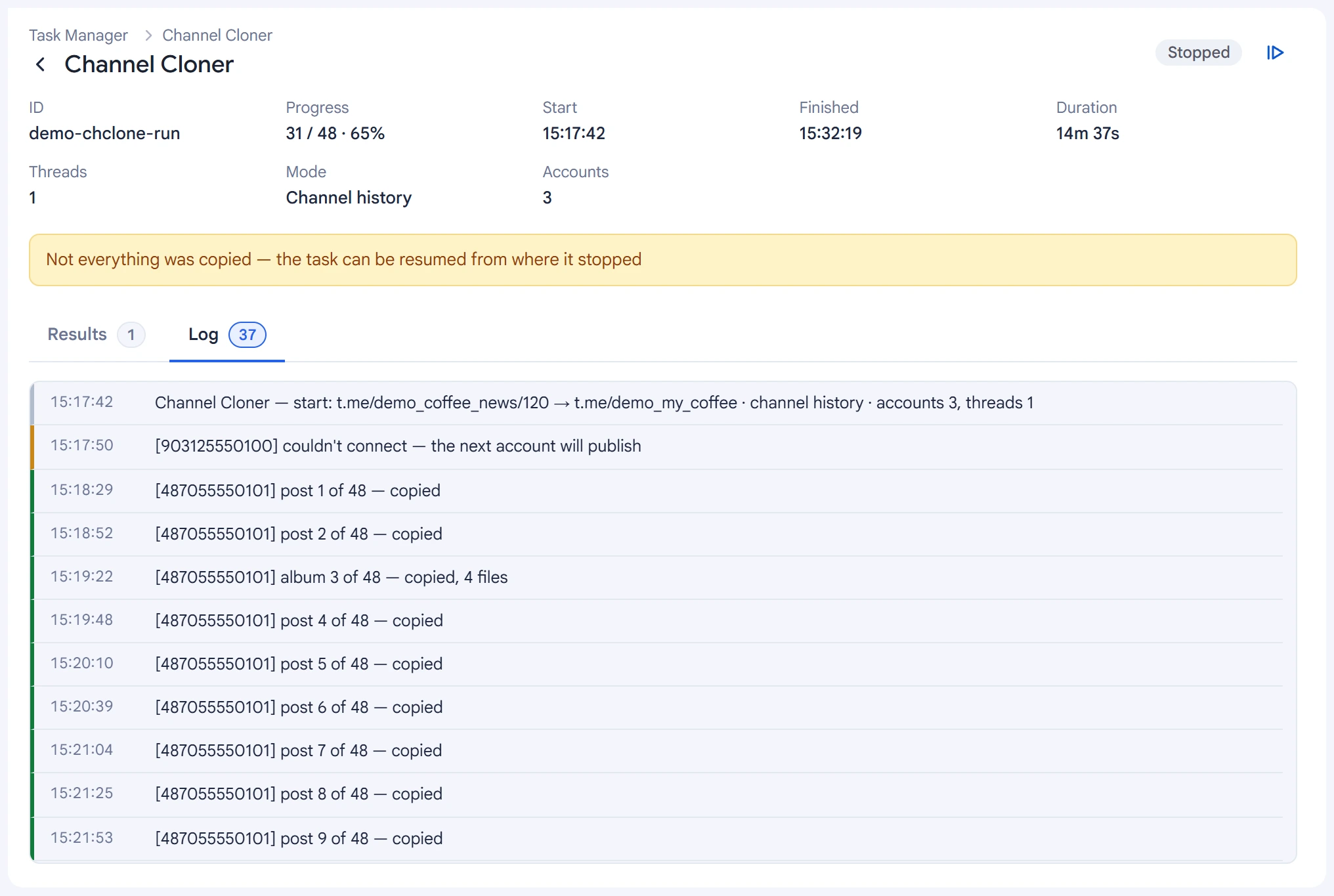
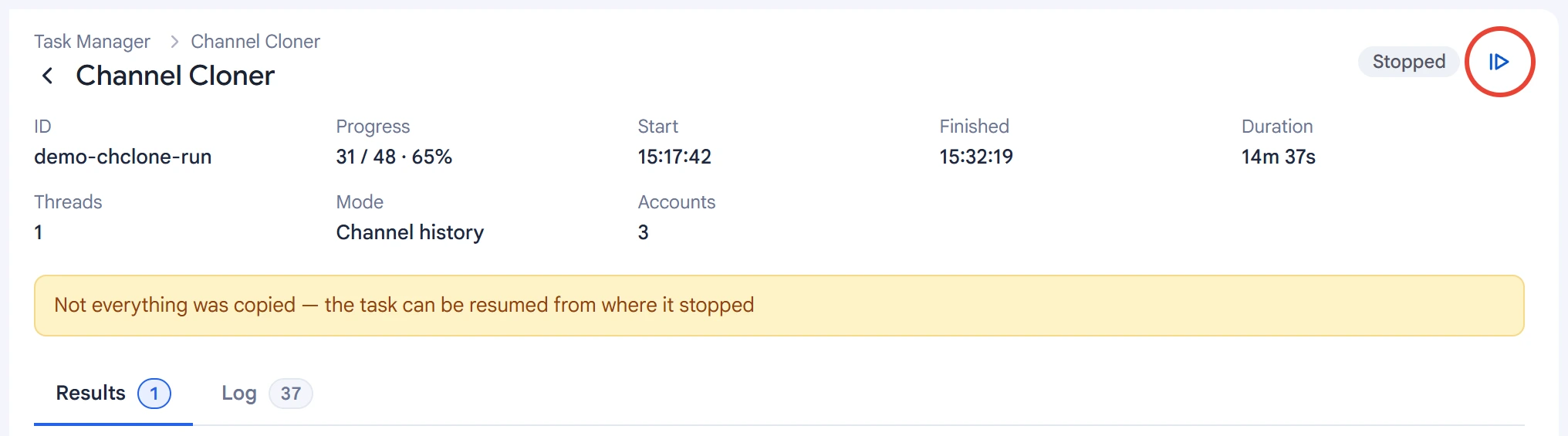
If “Channel history” stopped, because of a long FloodWait or with the stop button, click “Resume” in the task card. Copying continues from the post after the last one copied, with no repeats.
A task in “New posts” mode can't be resumed: start it again.
Tips#
- First test the copying on a small part of the history: paste a link to one of the latest posts.
- On a long history, don't set a short pause: this lowers the risk of FloodWait.
- Select two or three admins: if the first one doesn't connect, the next one will publish.
- Add the source's links and mentions to the replacements so they lead to your channel.